
CAM App Reference Sheet
We’re updating this article. Some screenshots or names may look older than what you see in the product.
This reference sheet will provide basic troubleshooting information and steps, as well as helpful links for guides and how-to’s.
What to know pre-inspection - Important notes for Managers:
Before performing your inspection, make sure that you have synced the client(s) you will be using. Syncing a client means you are grabbing the current information that exists within Caliber and syncing the information to your device.
To do this, you will locate the symbol within the app. Once you have synced a client, the symbol will turn green. You can sync multiple clients.
Note, this action should not be performed if you will not have a good strong connection to the internet while working within the Community. You should sync ahead of time when you have a good Wi-Fi connection.
After syncing your client list, and they show the sync symbol now as green, you have all of the up-to-date information existing in Caliber now on your device.
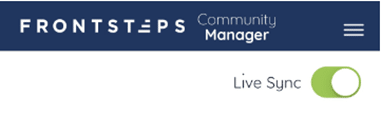
It is recommended at this time to turn off “live sync” in the top right corner. This will essentially bring you to an “offline mode” while you work and import data. This can help with syncing issues that could be caused by a spotty or unstable connection to the internet.
While Live Sync is turned off, you can proceed with your inspection, and all data you input will be saved as drafts. You will notice up in the top-right corner a green number will appear (and continue to count up) as you import data.
Once you are complete with your inspection, go back to the office (or a location with a strong stable Wi-Fi connection) and turn live sync back on. This will initiate the process of syncing the data you input back to Caliber. While this occurs, your draft number indicator will begin to go down until all data is synced.
*Note: It is recommended you keep the app open and active while this occurs. Sometimes Android and Apple can be aggressive about force closing apps when the device goes idle.
__________________________________________________________________________________________________
Question: What do I do if I experience an error or issue that needs to be reported?
Answer: If you come across an issue or error, we recommend following these steps:
- Send a diagnostic report directly through the app. To do this you will:
- Locate the user icon from the top right corner –

- Click on the button for “Support”

- Click Send Diagnostics to Support

- Locate the user icon from the top right corner –
- If possible, grab screenshots or record a video of your device's screen showing the behavior, issue, or error. This is very helpful to support to assist with troubleshooting.
- Email Support and report your issue, letting them know that you sent a diagnostic report. You may email support at: [email protected]. When you email in, you will get a case number back, and Support will assist you from there on your issue and/or questions.
__________________________________________________________________________________________
Helpful Links:
· How to download and login: How to Download and Login
· Navigating the Client List: Navigating the Client List
· View Unit Details: View Unit Details
· How to View, Update, or Add a Violation: How to View, Update or Add a Violation
· How to View Architectural Requests: How to View Architectural Requests
· How to View, Update, or Add a Work Order for Units: How to View, Update or Add a Work Order for Units
· How to Use Maps: How to use Maps
· How to View and Add a Work Order for Common Areas or Ad-hoc: How to View and Add a Work Order for Common Areas or Ad-hoc