Navigating the Client List
Navigating Client List
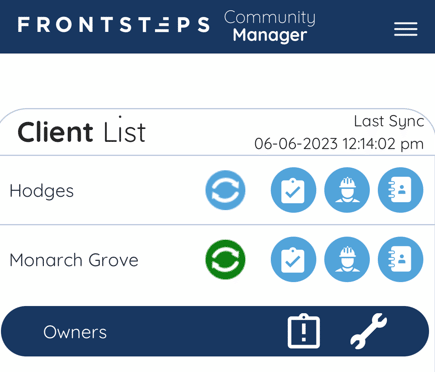
To access ‘Client Facts’ tap on the ‘Clipboard’ icon located to the right of the Client/Community name.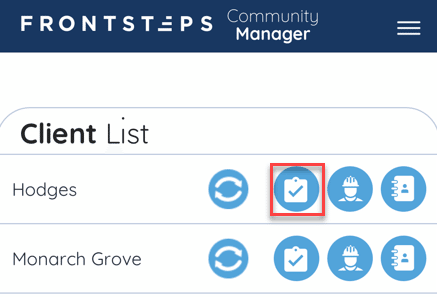
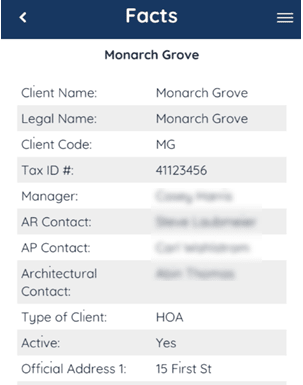
This will show all of the Fact Sheet items that would normally display in FRONTSTEPS Caliber.
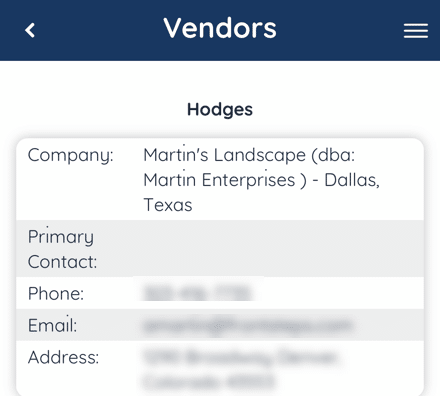
To access the ‘Vendors’ tap on the ‘Vendor’ icon located to the right of the Client/Community name.
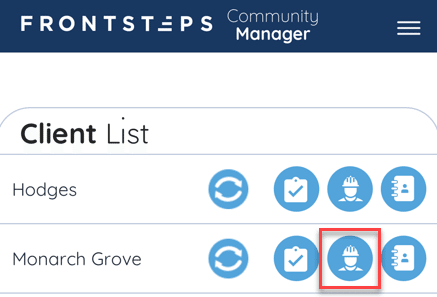
This will show all the Vendors for that Client. With their related contact information.
To access the ‘Client Contacts’ tap on the ‘Address Book’ icon located to the right of the Client/Community name.
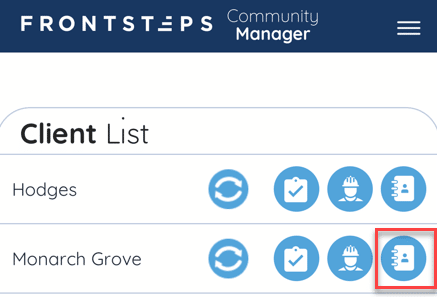
This will show all of the Client Contacts and their associated contact info.
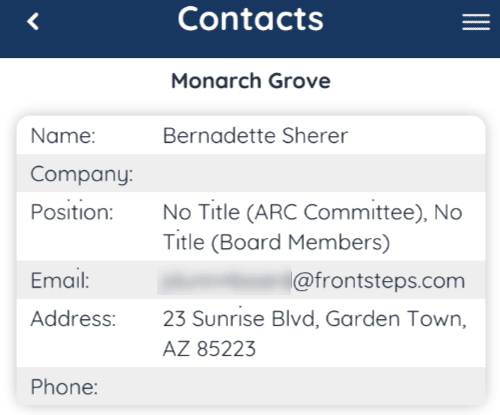
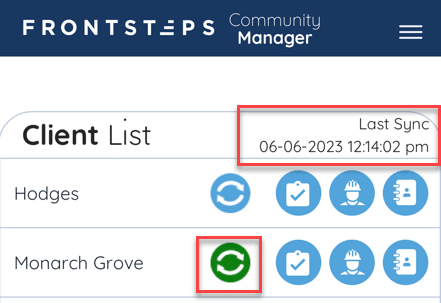
To sync Client information for Offline Use, click the ‘Sync’ icon.
Note, this action only needs to be performed if you will not have a connection to the internet while working within the Community. You should sync ahead of time when you have a good wifi connection. You can only sync one client at a time. All work performed offline will sync automatically when connected to the internet again.
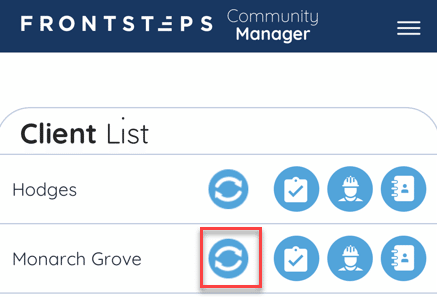
When the sync has been completed, the ‘Sync’ icon will turn green, and the ‘Last Sync’ time/date stamp will appear. This date stamp will update once you sync a community again.
To view the ‘Unit List’ start by tapping on the Client/Community name. This will display all groups for that Client.
To open the Unit List tap on the ‘Clipboard’ icon to the right of the Group name you would like to view.
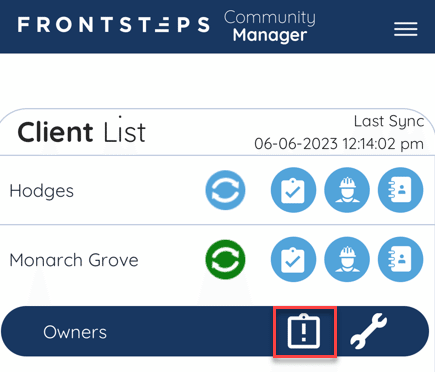
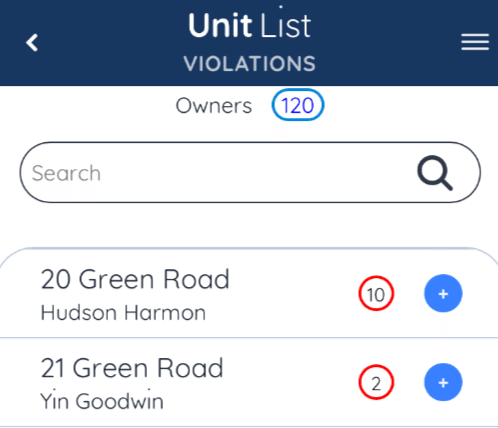
This will display the ‘Unit List’, including the Owner name and Violation counts for each unit.