
How to View, Update or Add a Violation
We’re updating this article. Some screenshots or names may look older than what you see in the product.
Viewing Or Editing Existing Violations
To View a list of Violations for the unit, tap on the Violation count indicator within the Unit Details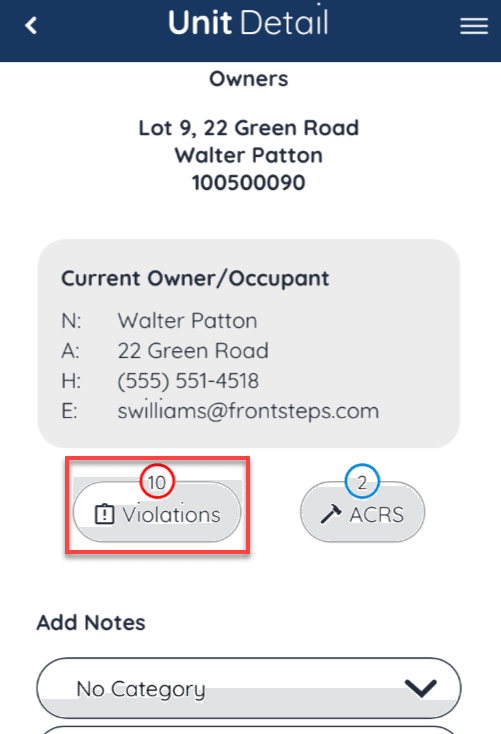
This shows a list of all open, past due and closed violations.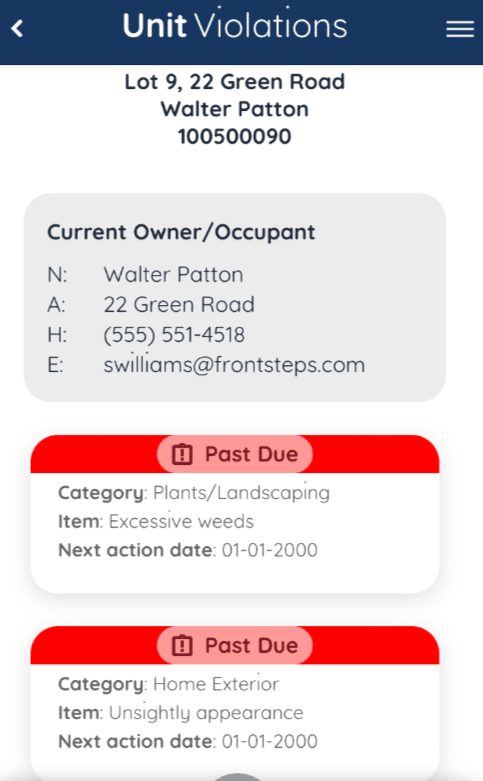
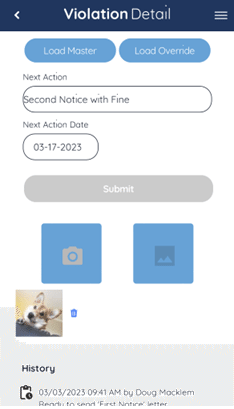
To View or Edit Violation details, tap on the Violation.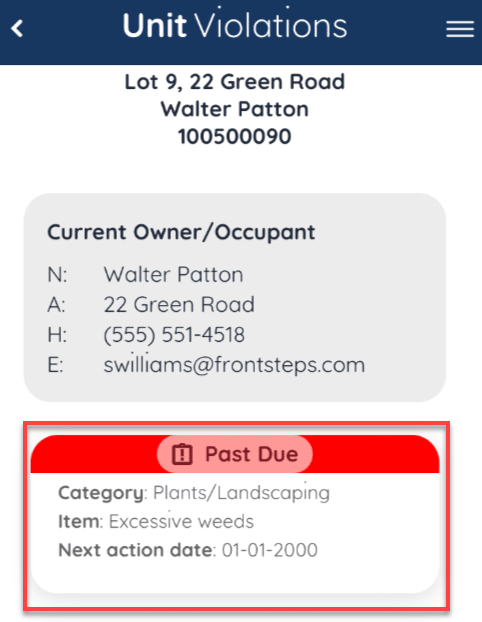
From here you can view and edit the Violation Status, Required Action and, Next Action Date. Photos and Notes can only be viewed.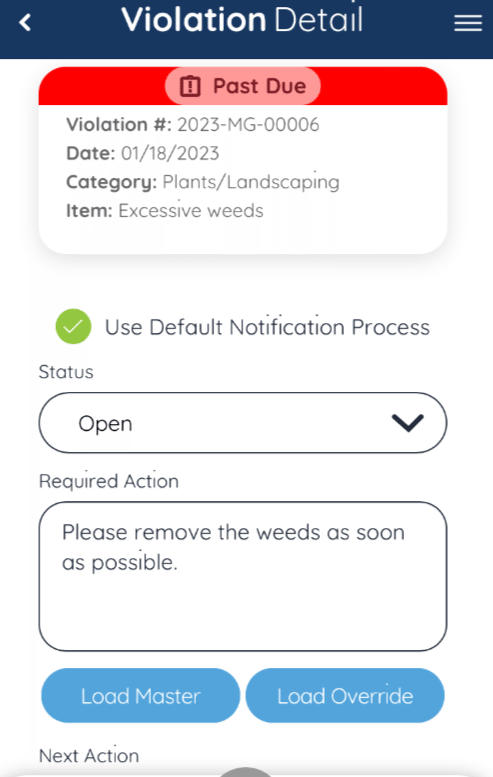
Adding A New Violation
To Add a New Violation, navigate back to the Unit List and tap on the ‘Plus Sign’ icon to the right of the Unit.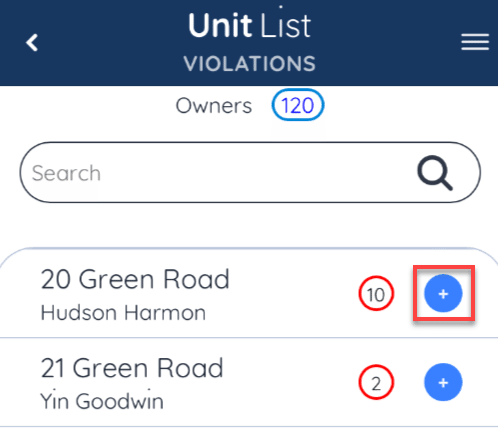
Tap on ‘Violation’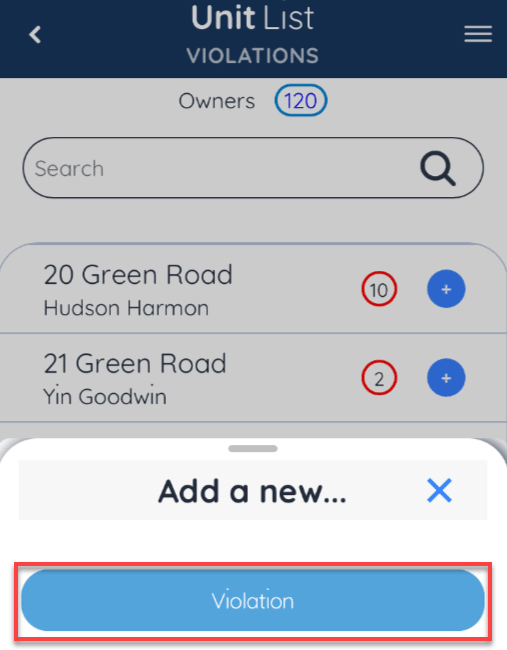
Note: If there is an open Architectural Request for the Unit, a notice will appear at the top of the screen letting the user know. This is to help prevent any violations from being created that may be associated with an architectural request.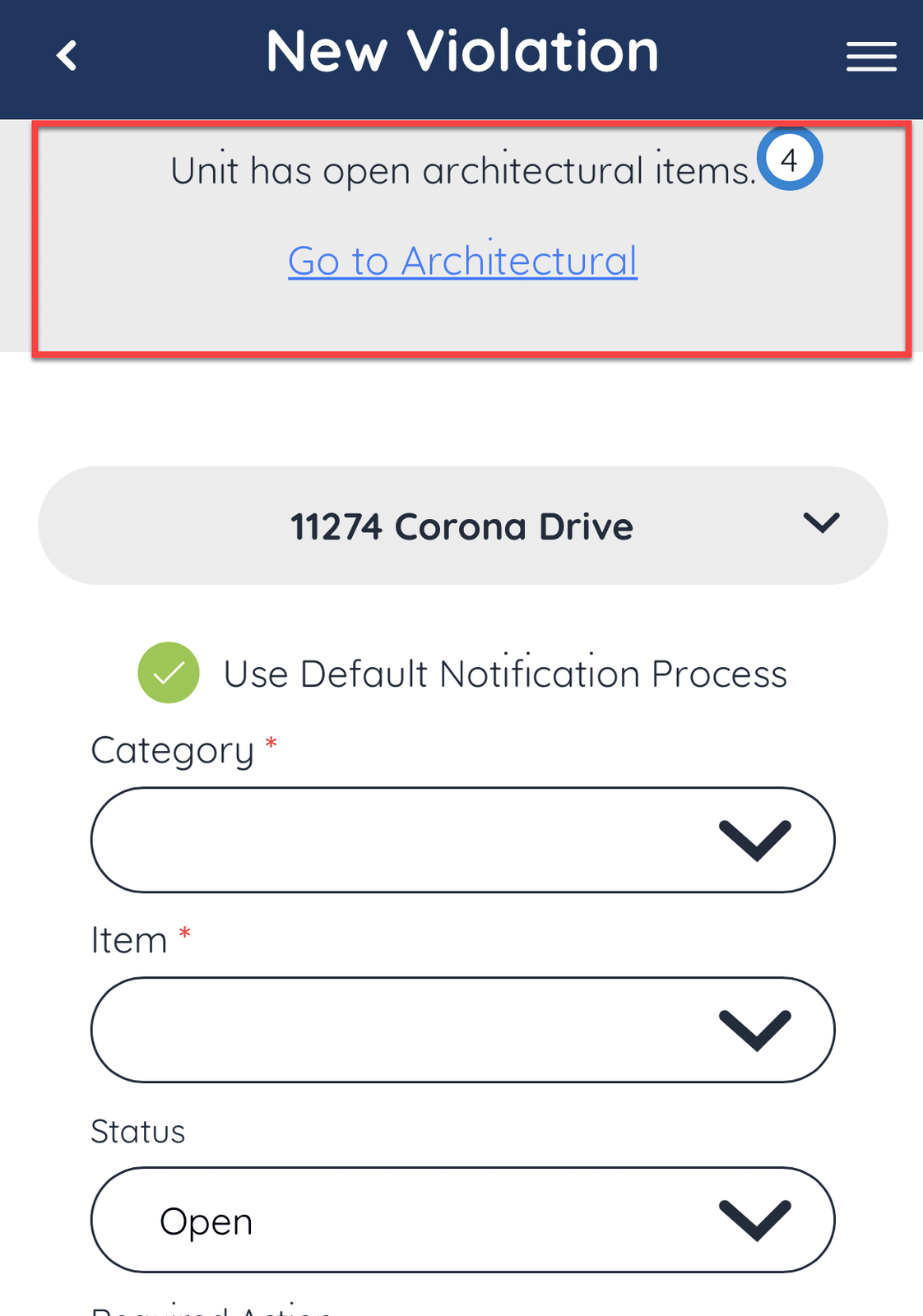
Additionally if you have enabled the setting within Caliber to re-open Closed violations, the Community Manager app will check for prior closed or monitored violations, before opening a new violation. If a prior violation is found Users will be prompted to re-open the prior violation and they can decide if they want to re-open that violation or create a new one.
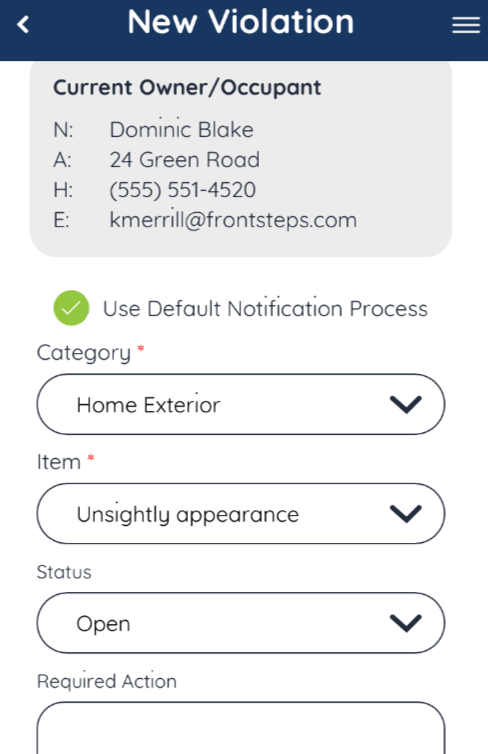
If creating a new violation, select the Category, Item, Status, Required Action.
Take a photo of the Violation by tapping the ‘Camera’ icon or select an existing photo from your device by tapping the ‘Picture’ icon. Add any relevant notes.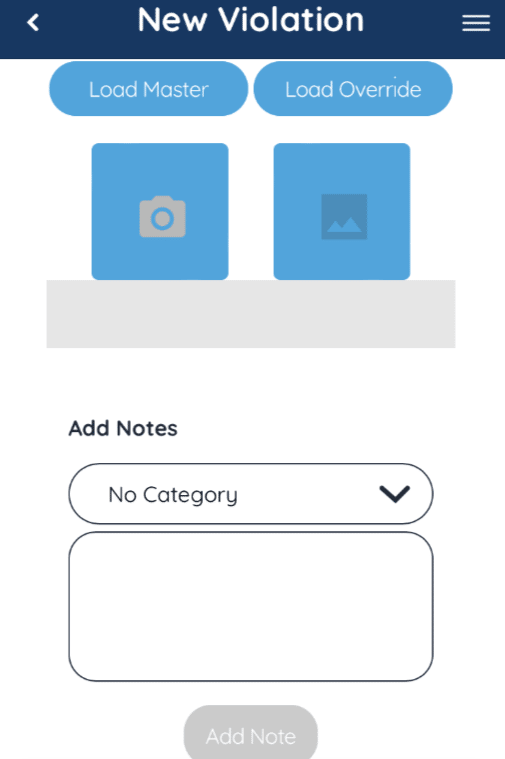
When all the information you want to add is complete, tab the ‘Submit’ button.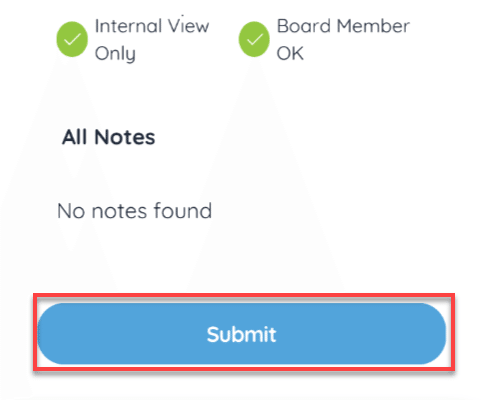
Violations can still be created while Offline and will be saved as ‘Drafts’. They will automatically be uploaded to FRONTSTEPS Caliber once your device is back Online.
If your device is offline, a red icon will appear in the upper right corner indicating there is no internet connection.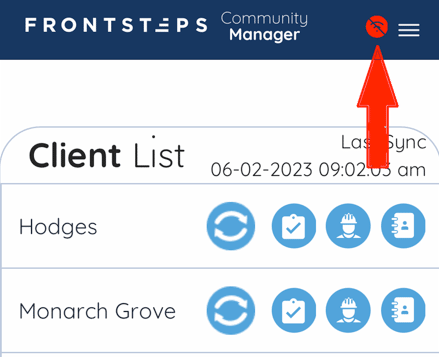
As you create new Violations while offline, they will be saved as drafts. Once a draft has been created, a green dot indicator will appear in the upper right corner.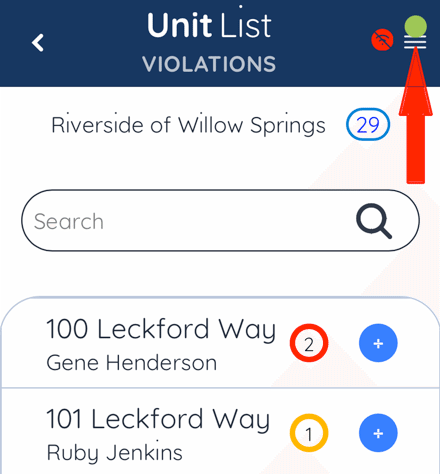
Select the ‘Draft’ button.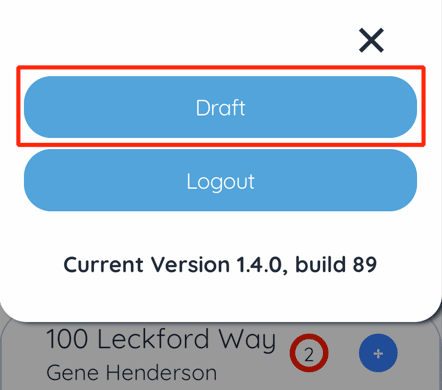
From here you can see a list of all Violations (and Work Orders) that have been created while offline. If you need to edit or delete a draft, you can do some prior to connecting to the internet again.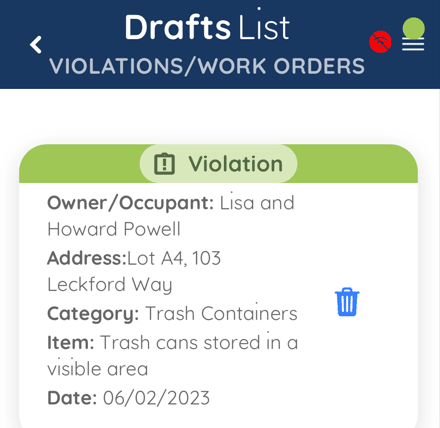
Once your device connects to the internet all drafts will automatically be added to FRONTSTEPS Caliber. If any Violations need to be edited or deleted at this point, you will need to do so within Caliber.