
How to use Maps
In addition to the Unit List, users may also utilize the new Map feature to view & add violations and work orders view architectural requests, and view unit details. Users can also use the ‘Locate Me’ function to center the map to their location while performing inspections.
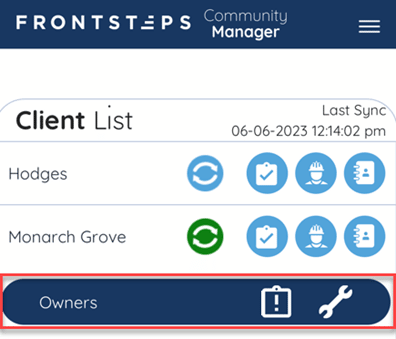
To access the Map, select the Group from the Unit List
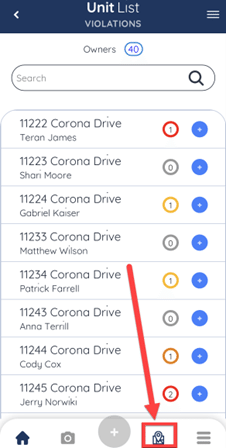
Click the ‘Map’ icon at the bottom of the screen
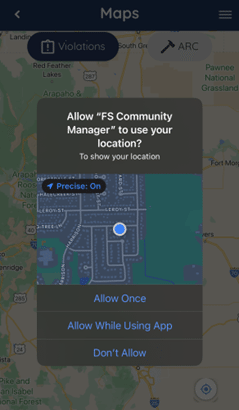
You will be prompted to choose when (or if) the app can access your location. The best practice is to allow location.
The map will default to show all units, with Violations selected.
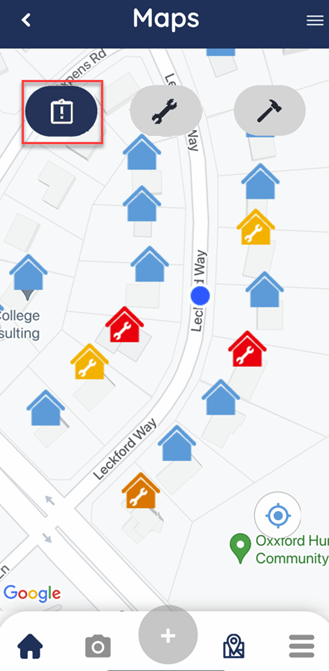
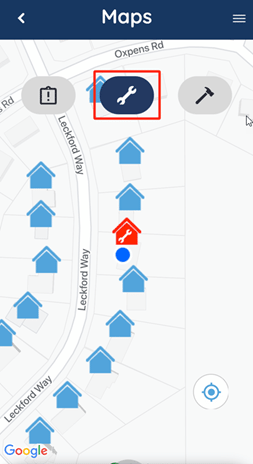
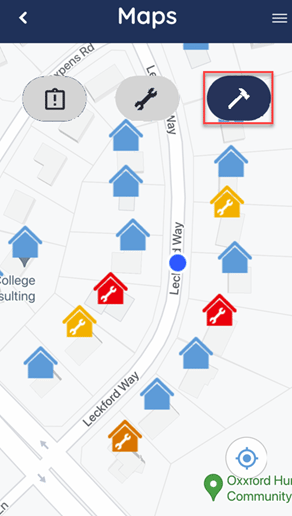
It is important to note the icon selection located at the top of the map. If the clipboard icon is highlighted blue, that indicates we are viewing the status of Violations. If the wrench icon is highlighted blue, that indicates we are viewing the status of Work Orders. If the hammer icon is highlighted blue, that indicates we are viewing the status of Architectural requests.
To view the Work Order status for each unit, click the ‘Work Order’ button. This indicates which units have open Work Orders.
To view the Architectural status for each unit, click the ‘Architectural’ button. This indicates which units have open architectural requests.
To view a Units Violations or to add a new Violation, make sure you are in ‘Violations’ view and then tap the unit.
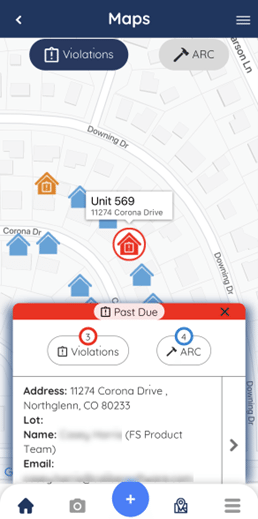
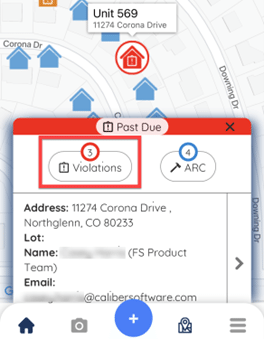
To view or edit existing violations for the unit click the ‘Violations’ indicator.
To add a new violation for the selected unit, click the blue plus sign icon.
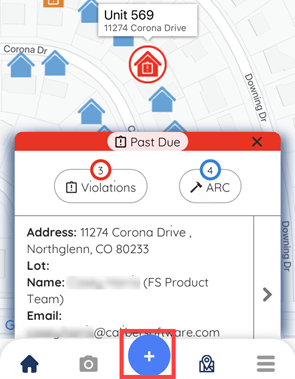
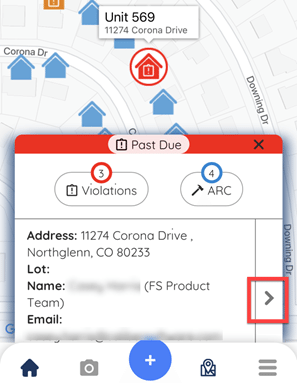
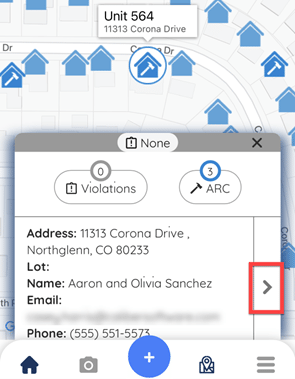
To view the unit details, click the ‘arrow’ icon.
To view the Units Work Orders or to add a new Work Order, make sure you are in ‘Work Order’ view and then tap the unit.
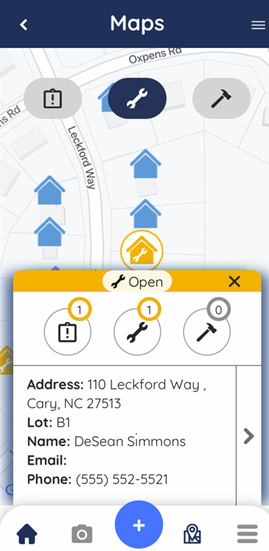
To view or edit existing Work Orders for the unit click the ‘Work Order’ indicator.
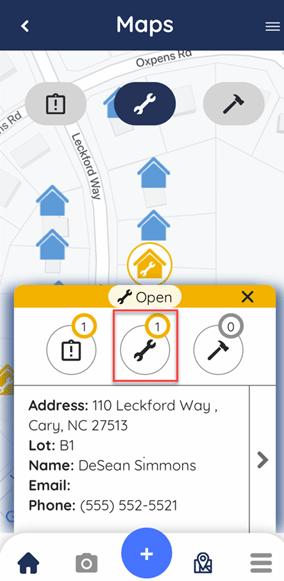
To add a new work order for the selected unit click the blue plus sign icon.
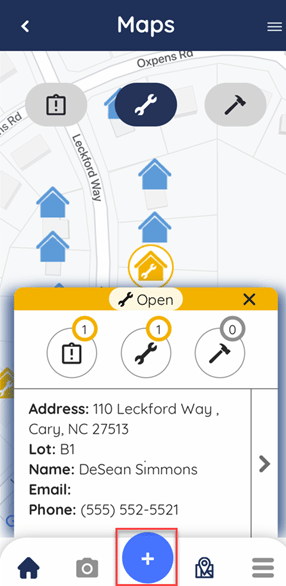
To view the unit details, click the ‘arrow’ icon.
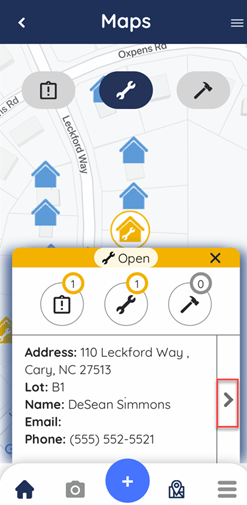
To view a Units Architectural request(s), make sure you are in ‘Architectural’ view and then tap the unit.
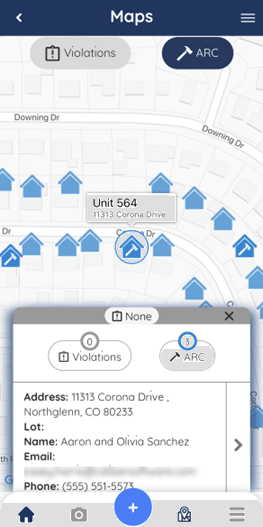
To view all open requests, click the architectural indicator.
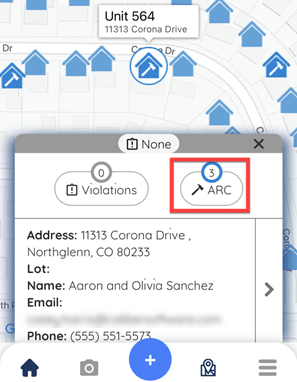
To view the unit details, click the ‘arrow’ icon.
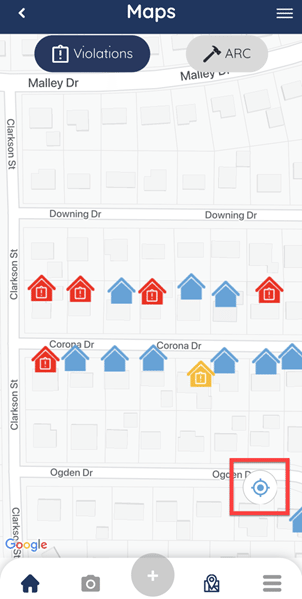
To ‘Locate Me’, click the blue circle icon in the bottom right corner of the map. This is helpful to use as you drive through the neighborhood and would like the map to update to show your current location.
To access the Map, select the Group from the Unit List
Click the ‘Map’ icon at the bottom of the screen
You will be prompted to choose when (or if) the app can access your location. The best practice is to allow location.
The map will default to show all units, with Violations selected.
It is important to note the icon selection located at the top of the map. If the clipboard icon is highlighted blue, that indicates we are viewing the status of Violations. If the wrench icon is highlighted blue, that indicates we are viewing the status of Work Orders. If the hammer icon is highlighted blue, that indicates we are viewing the status of Architectural requests.
To view the Work Order status for each unit, click the ‘Work Order’ button. This indicates which units have open Work Orders.
To view the Architectural status for each unit, click the ‘Architectural’ button. This indicates which units have open architectural requests.
To view a Units Violations or to add a new Violation, make sure you are in ‘Violations’ view and then tap the unit.
To view or edit existing violations for the unit click the ‘Violations’ indicator.
To add a new violation for the selected unit, click the blue plus sign icon.
To view the unit details, click the ‘arrow’ icon.
To view the Units Work Orders or to add a new Work Order, make sure you are in ‘Work Order’ view and then tap the unit.
To view or edit existing Work Orders for the unit click the ‘Work Order’ indicator.
To add a new work order for the selected unit click the blue plus sign icon.
To view the unit details, click the ‘arrow’ icon.
To view a Units Architectural request(s), make sure you are in ‘Architectural’ view and then tap the unit.
To view all open requests, click the architectural indicator.
To view the unit details, click the ‘arrow’ icon.
To ‘Locate Me’, click the blue circle icon in the bottom right corner of the map. This is helpful to use as you drive through the neighborhood and would like the map to update to show your current location.