
How to View, Update or Add a Work Order for Units
We’re updating this article. Some screenshots or names may look older than what you see in the product.
Viewing or Editing Existing Work Orders for Units
To view a list of Work Orders for the Community, navigate to the Client List tap the client to display the groups. Click the ‘Wrench’ icon next to the group.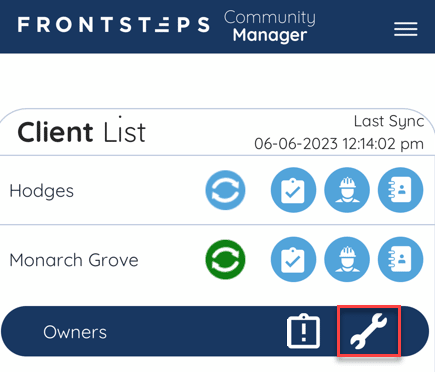
This will display a list of the Units and the current number of Work Orders that are open for each unit.
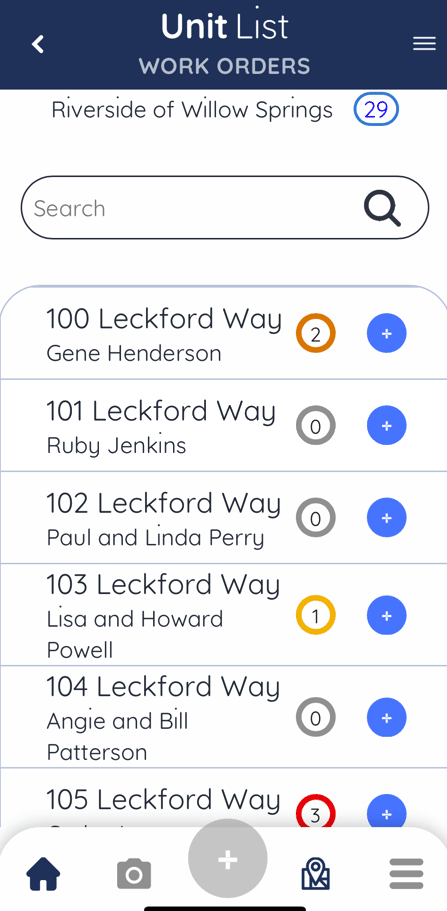
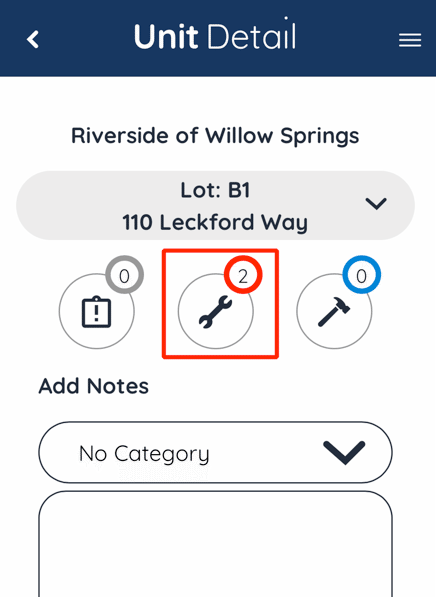
Tap on the Unit you would like to view Work Orders for. Once in the Unit Details click the ‘Work Order’ icon.
If there are multiple Work Orders for the Unit, you will get a list of the Work Orders.
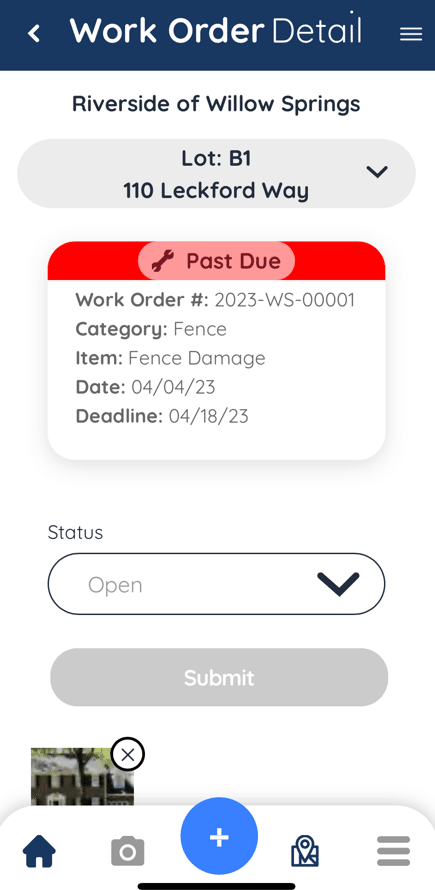
To View or Edit Work Order details, tap on the Work Order.
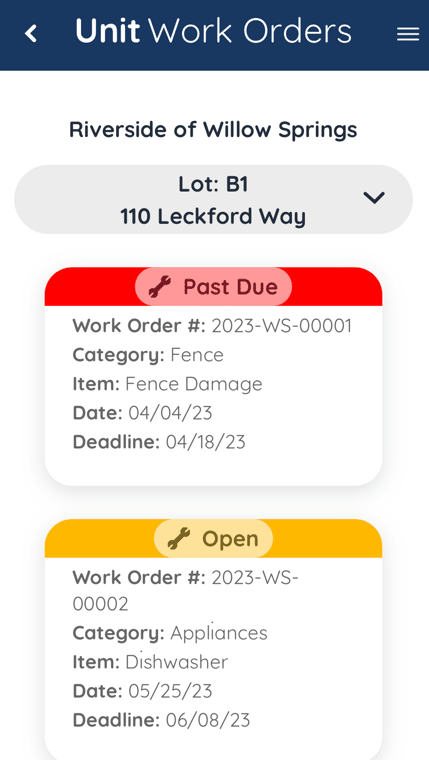
From here you can view and edit the Work Order Status , Photos and Notes.
Adding A Unit Work Order
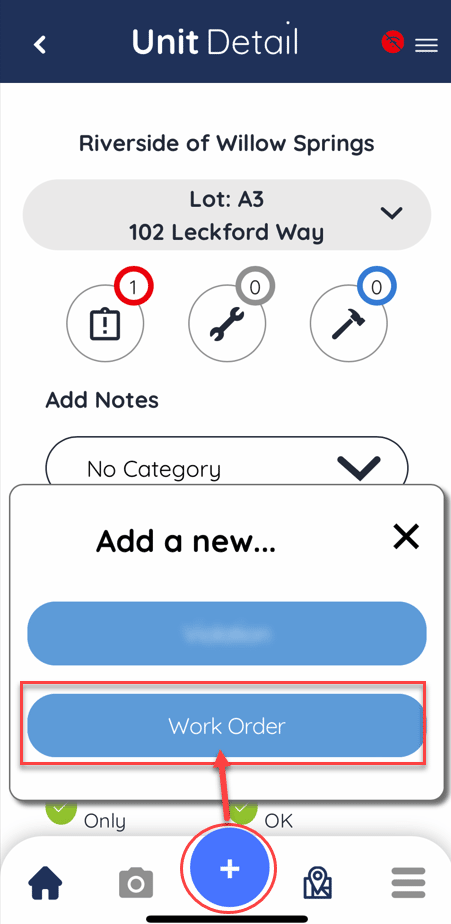
To Add a New Work Order, navigate back to the Unit List and tap on the ‘Plus Sign’ icon to the right of the Unit.OR
Within the Unit Details screen click the blue ‘Add’ icon then select ‘Violation’.
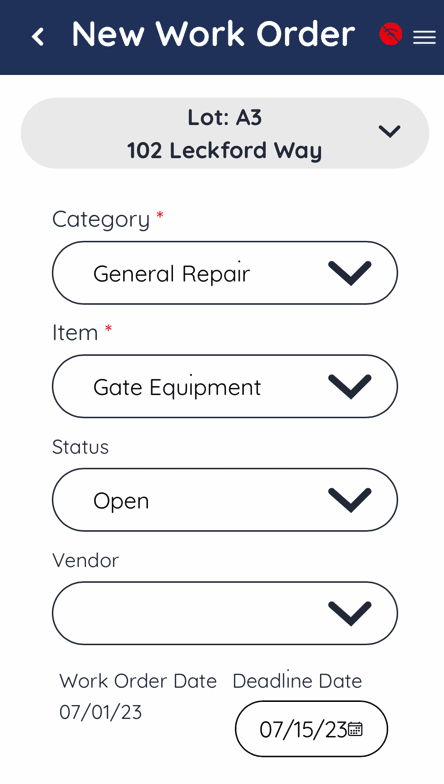
Select the Category, Item, Status and Vendor.
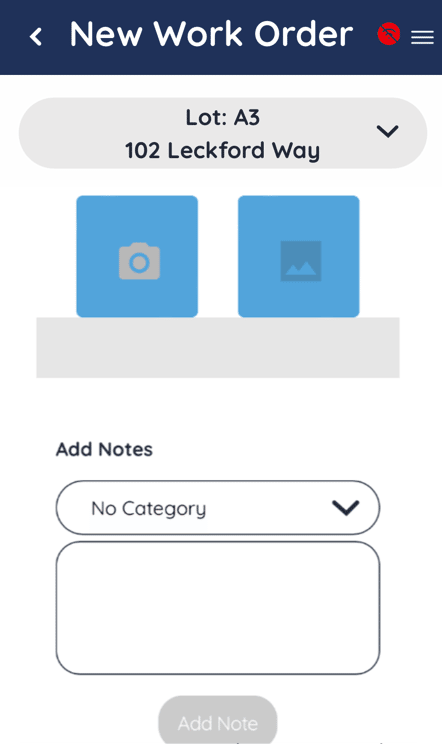
Take a photo of the Violation by tapping the ‘Camera’ icon or select an existing photo from your device by tapping the ‘Picture’ icon. Add any relevant notes.
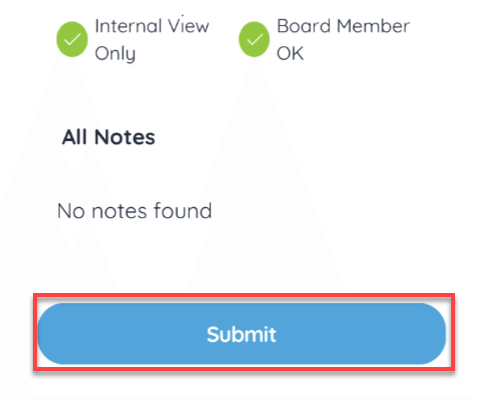
When all the information you want to add is complete, tab the ‘Submit’ button.
Work Orders can still be created while Offline and will be saved as ‘Drafts’. They will automatically be uploaded to FRONTSTEPS Caliber once your device is back Online.
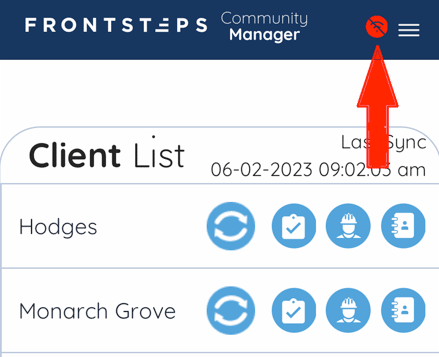
If your device is offline, a red icon will appear in the upper right corner indicating there is no internet connection.
As you create new Work Orders while offline, they will be saved as drafts. Once a draft has been created, a green dot indicator will appear in the upper right corner.
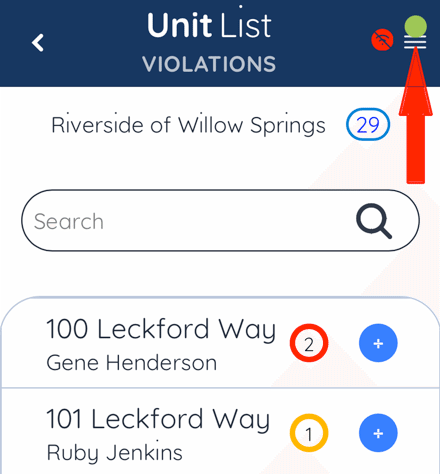
Select the ‘Draft’ button.
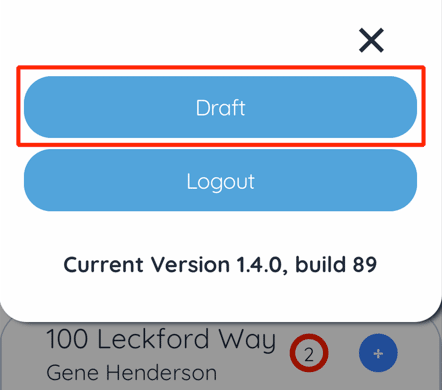
From here you can see a list of all Work Orders (and Violations) that have been created while offline. If you need to edit or delete a draft, you can do some prior to connecting to the internet again.
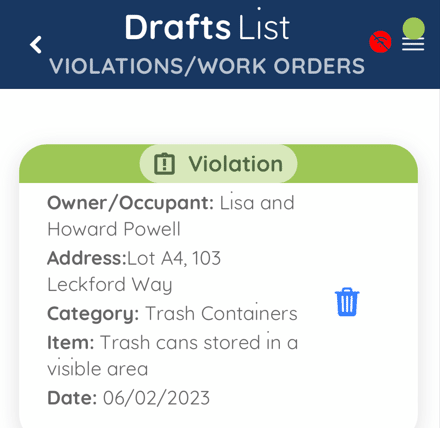
Once your device connects to the internet all drafts will automatically be added to FRONTSTEPS Caliber. If any Work Orders need to be edited or deleted at this point, you will need to do so within Caliber.