
How to View and Add a Work Order for Common Areas or Ad-hoc
We’re updating this article. Some screenshots or names may look older than what you see in the product.
Viewing Existing Work Orders for Common Areas
To view a list of Work Orders for the Common areas, navigate to the Client List tap the client to display the groups. Click the ‘Tree’ icon next to the group to open the common areas.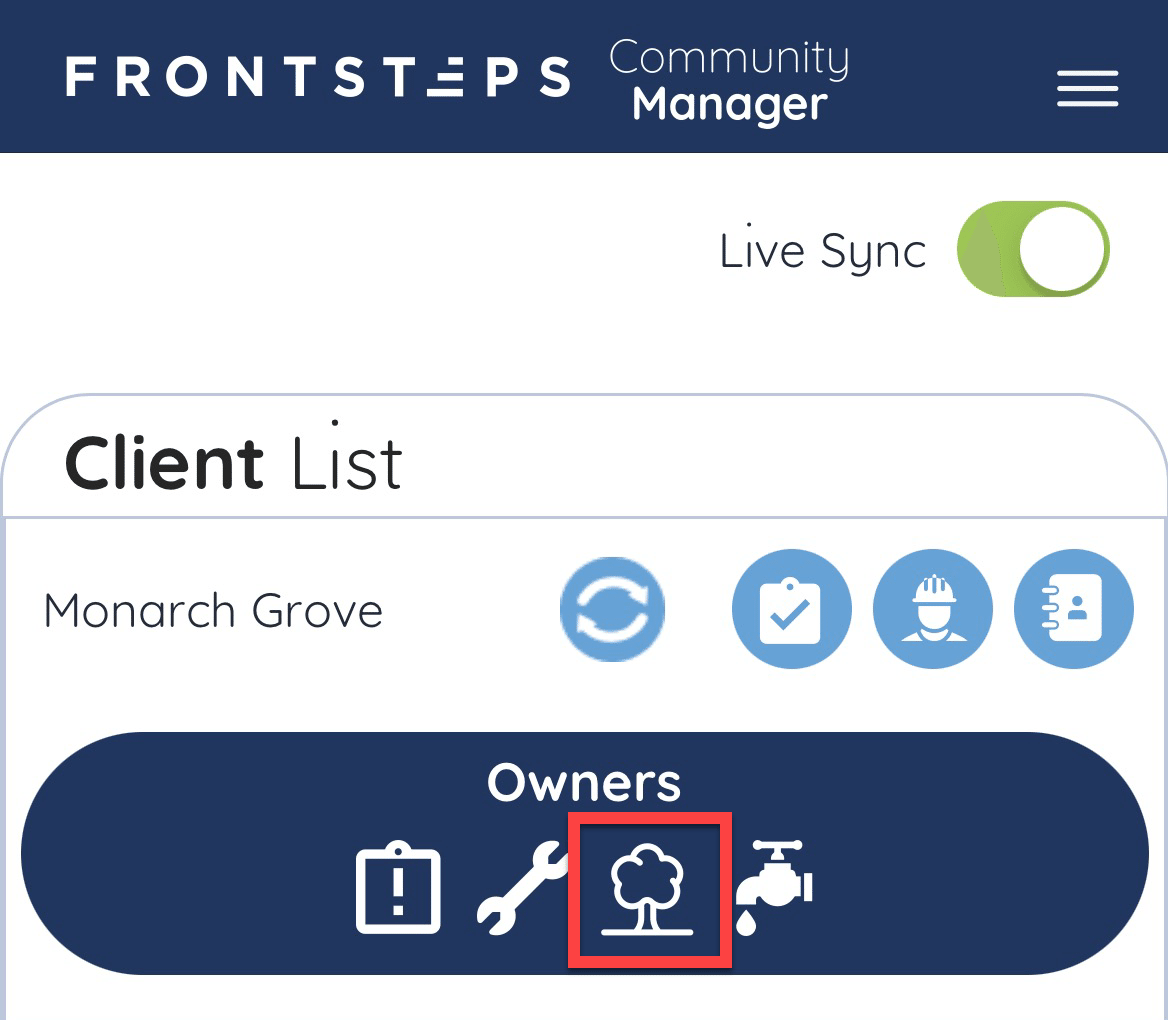
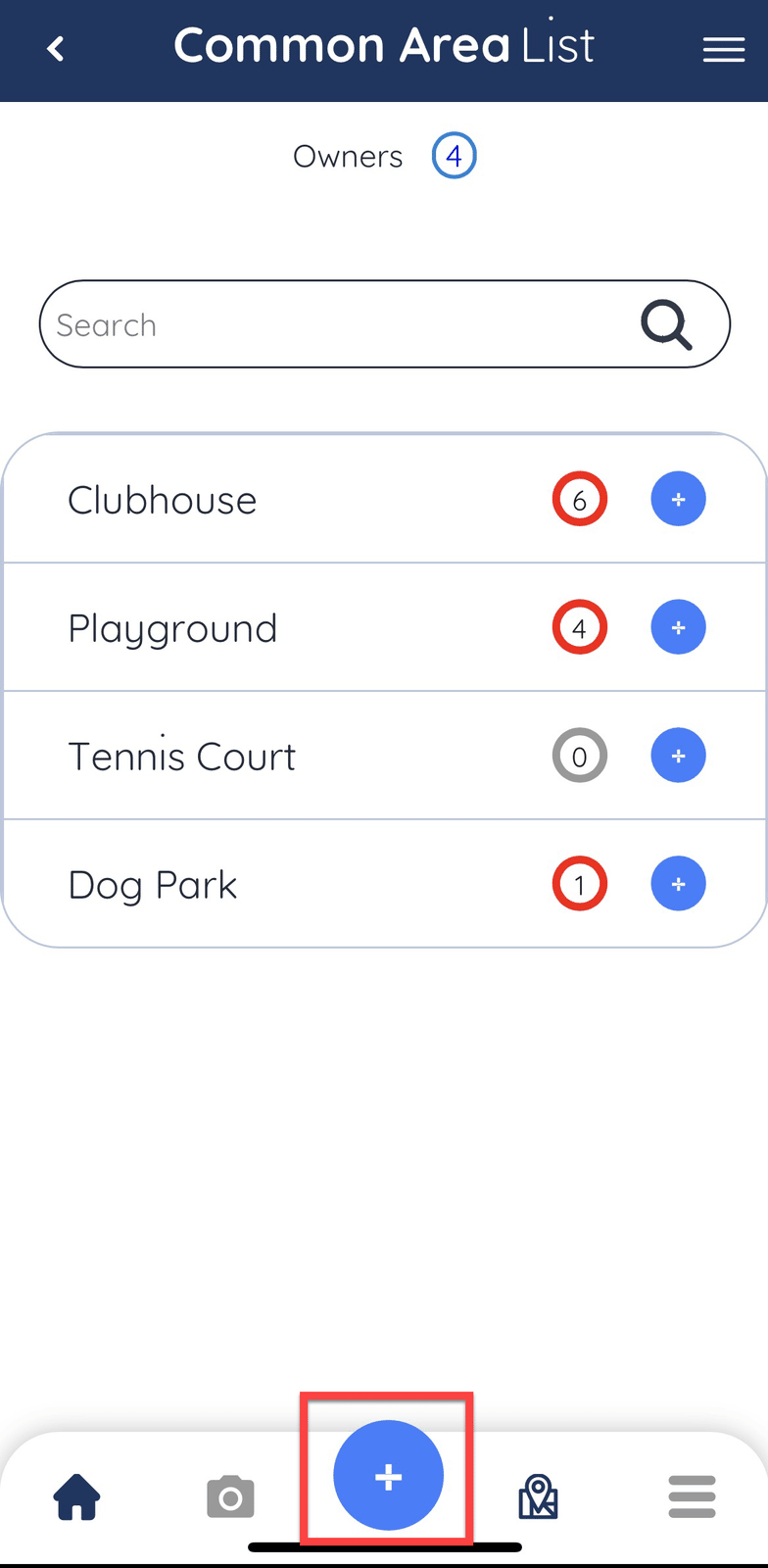
This will display a list of the common areas and the current number of Work Orders that are open for each.
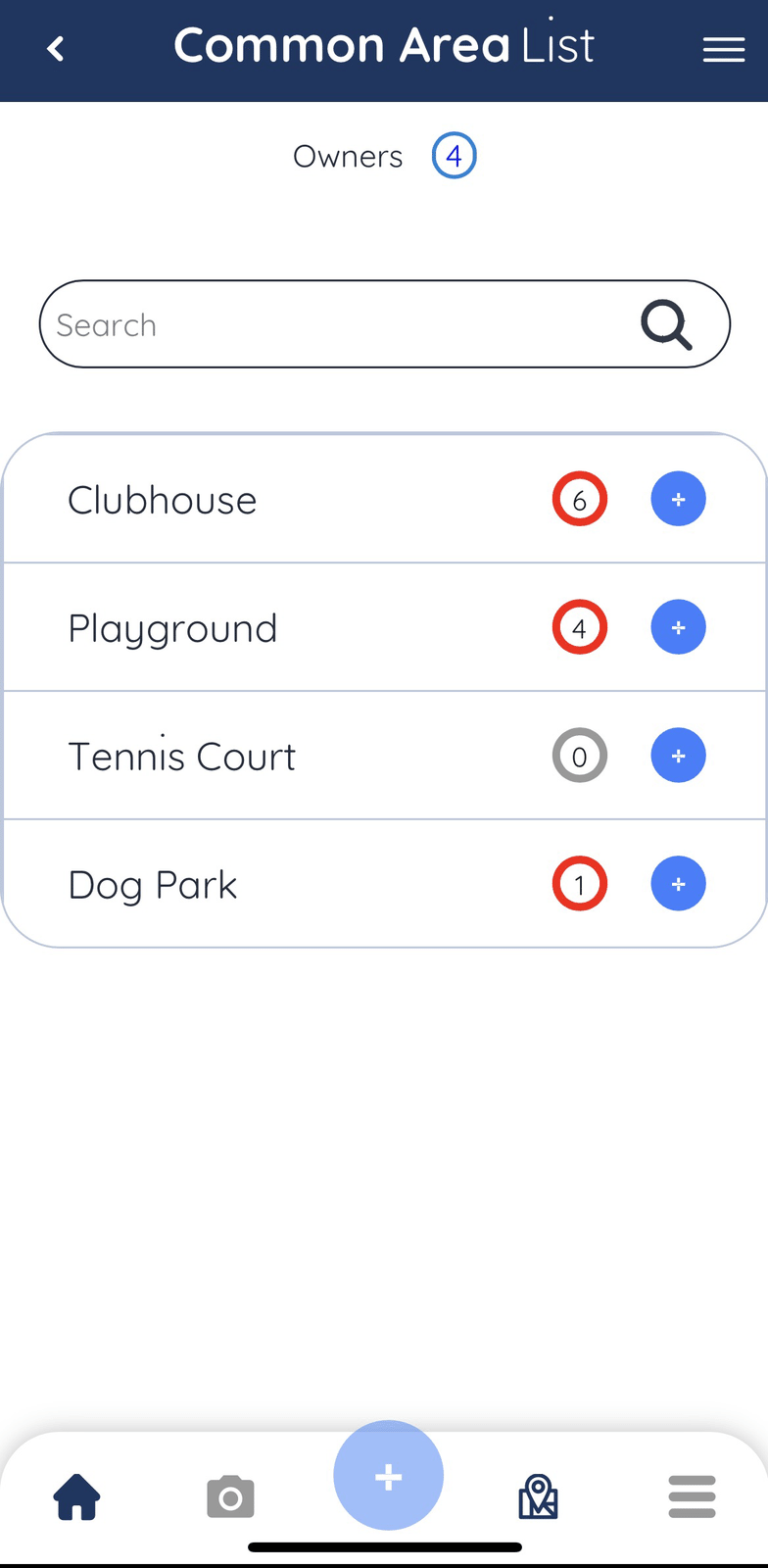
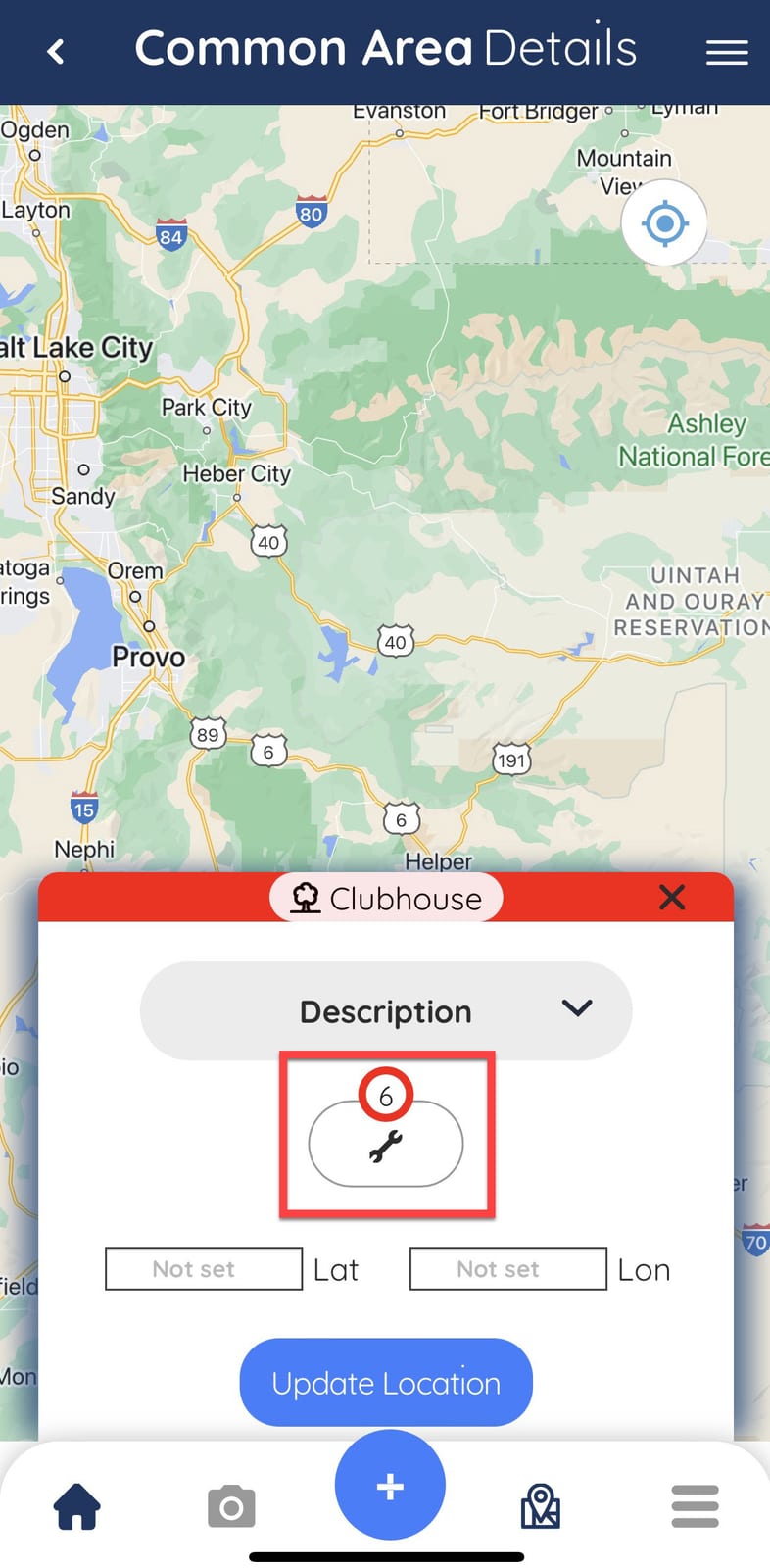
Tap on the common area you would like to view Work Orders for, this will open the maps. Click the wrench icon below the description to view the work orders.
If there are multiple Work Orders for the common area, you will get a list of the Work Orders.
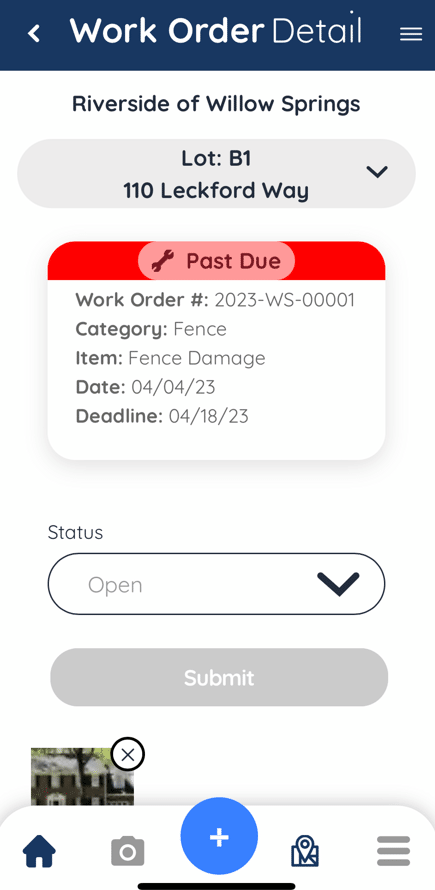
To View or Edit Work Order details, tap on the Work Order.
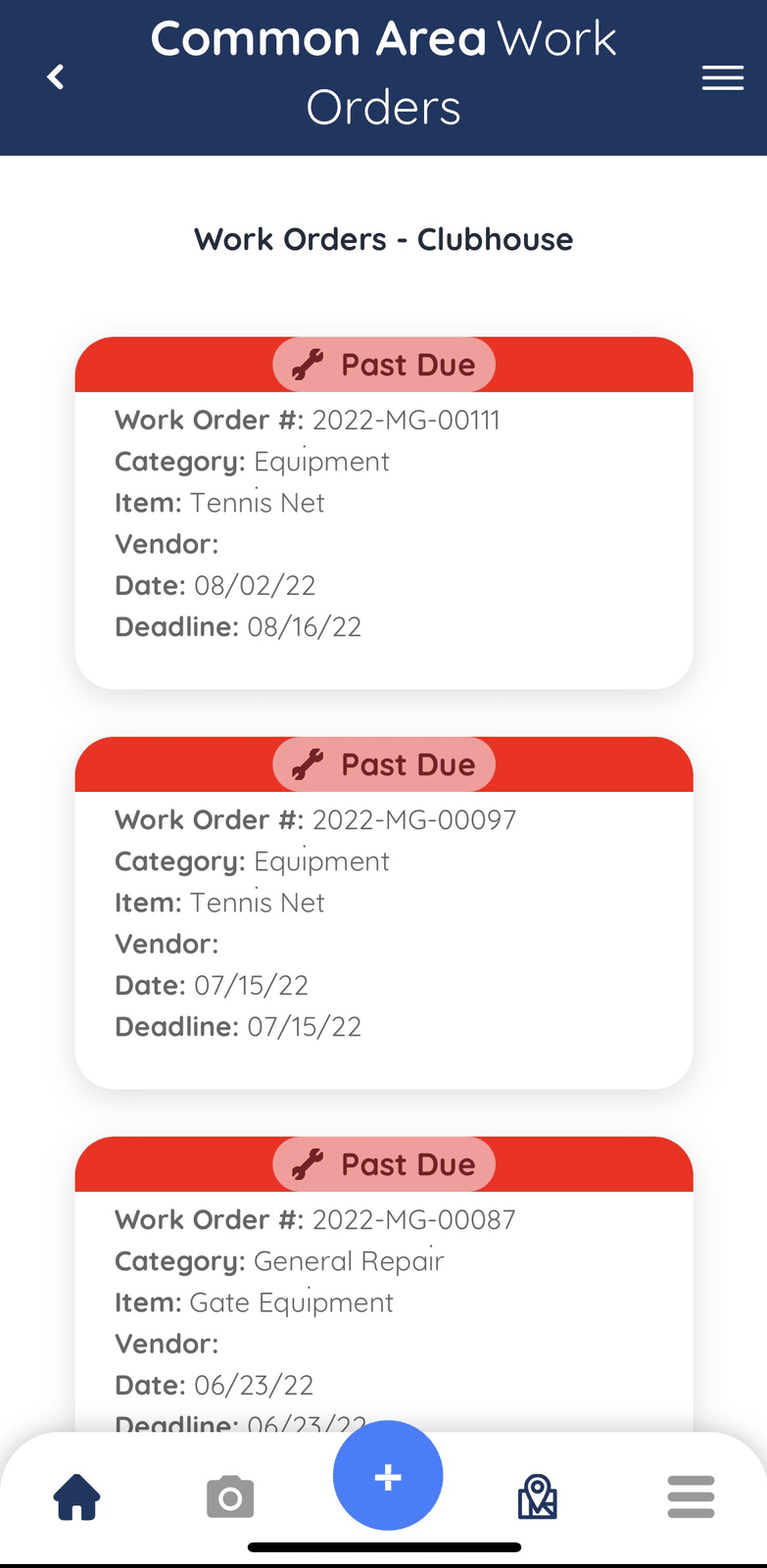
From here you can view and edit the Work Order Status , Photos and Notes.
Adding A Common Area Work Order
To Add a New Work Order, navigate back to the list of common areas and tap on the ‘Plus Sign’ icon to the right of the common area.OR
Click the blue add icon at the bottom of the list.
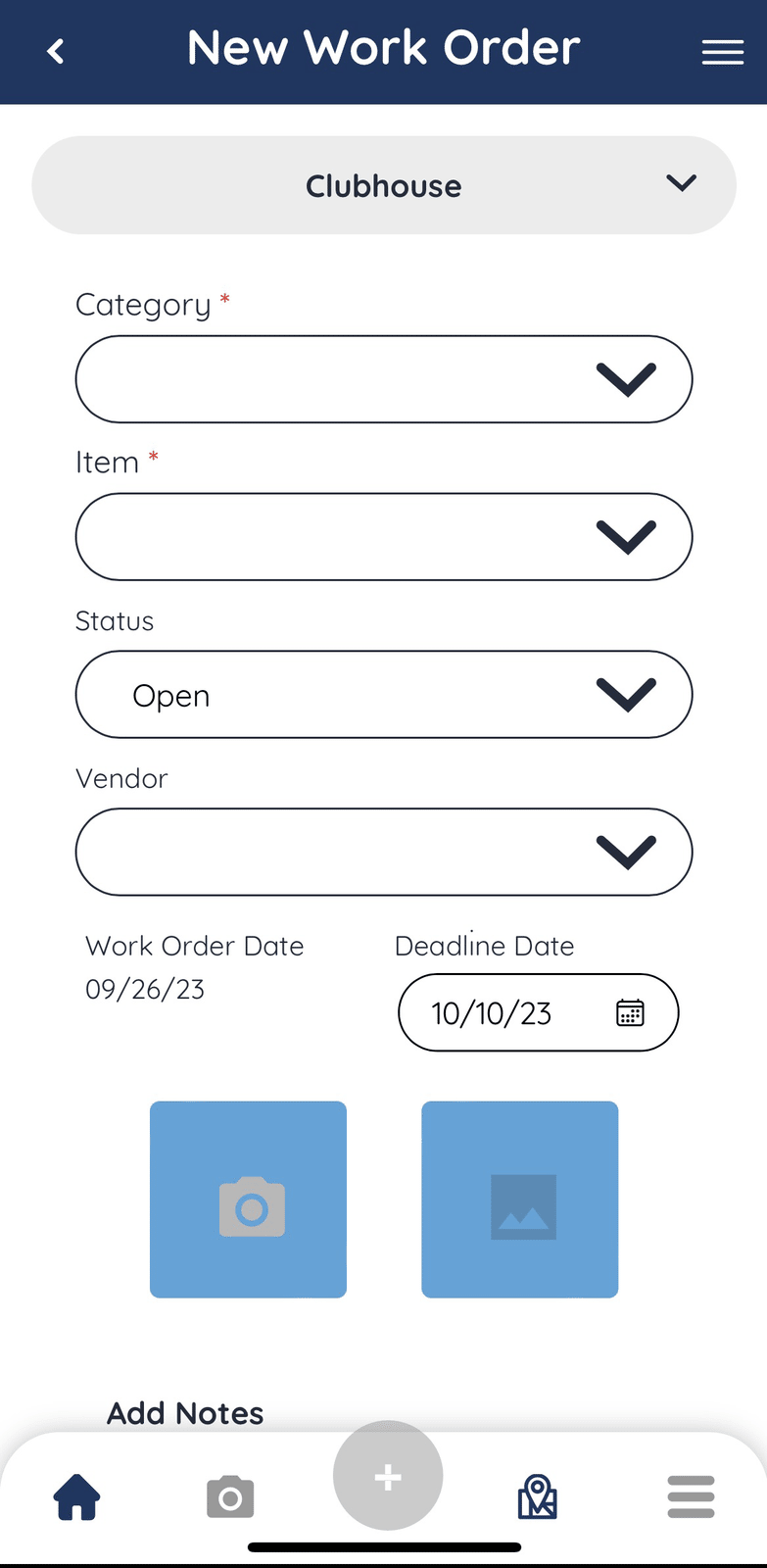
Select the Category, Item, Status and Vendor.
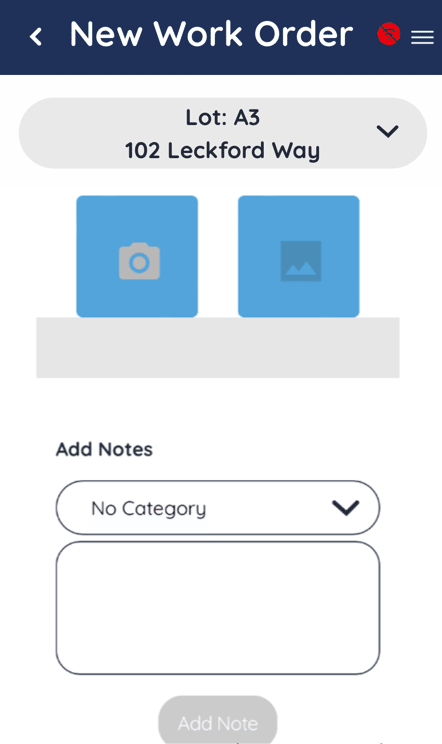
Take a photo of the Violation by tapping the ‘Camera’ icon or select an existing photo from your device by tapping the ‘Picture’ icon. Add any relevant notes.
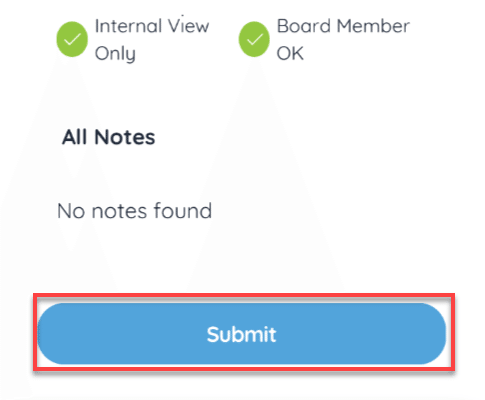
When all the information you want to add is complete, tab the ‘Submit’ button.
Viewing Existing Ad-Hoc Work Orders
To view a list of Ad-hoc Work Orders, navigate to the Client List tap the client to display the groups. Click the ‘Faucet’ icon.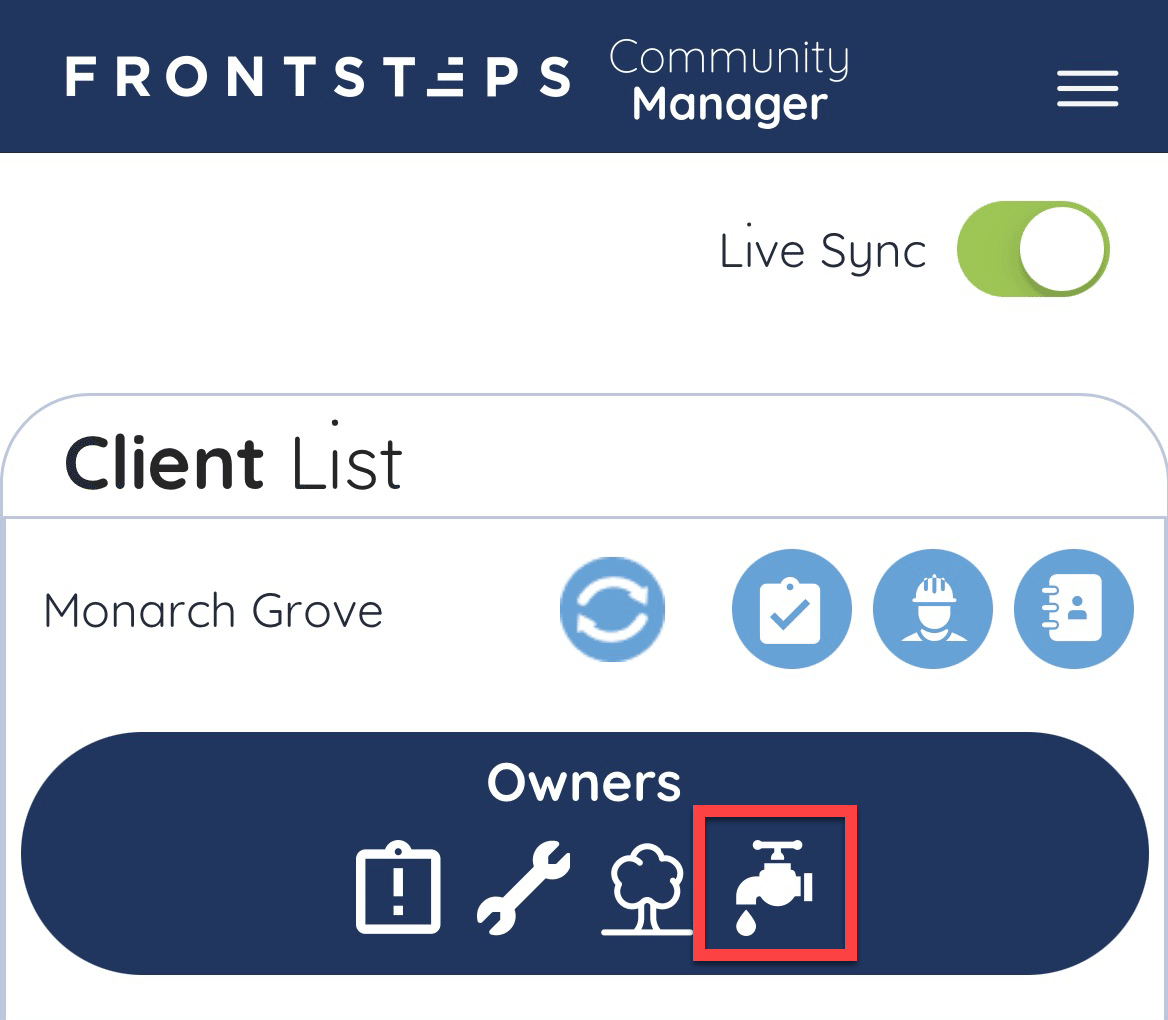
This will display a list open and past due Ad-Hoc work orders.
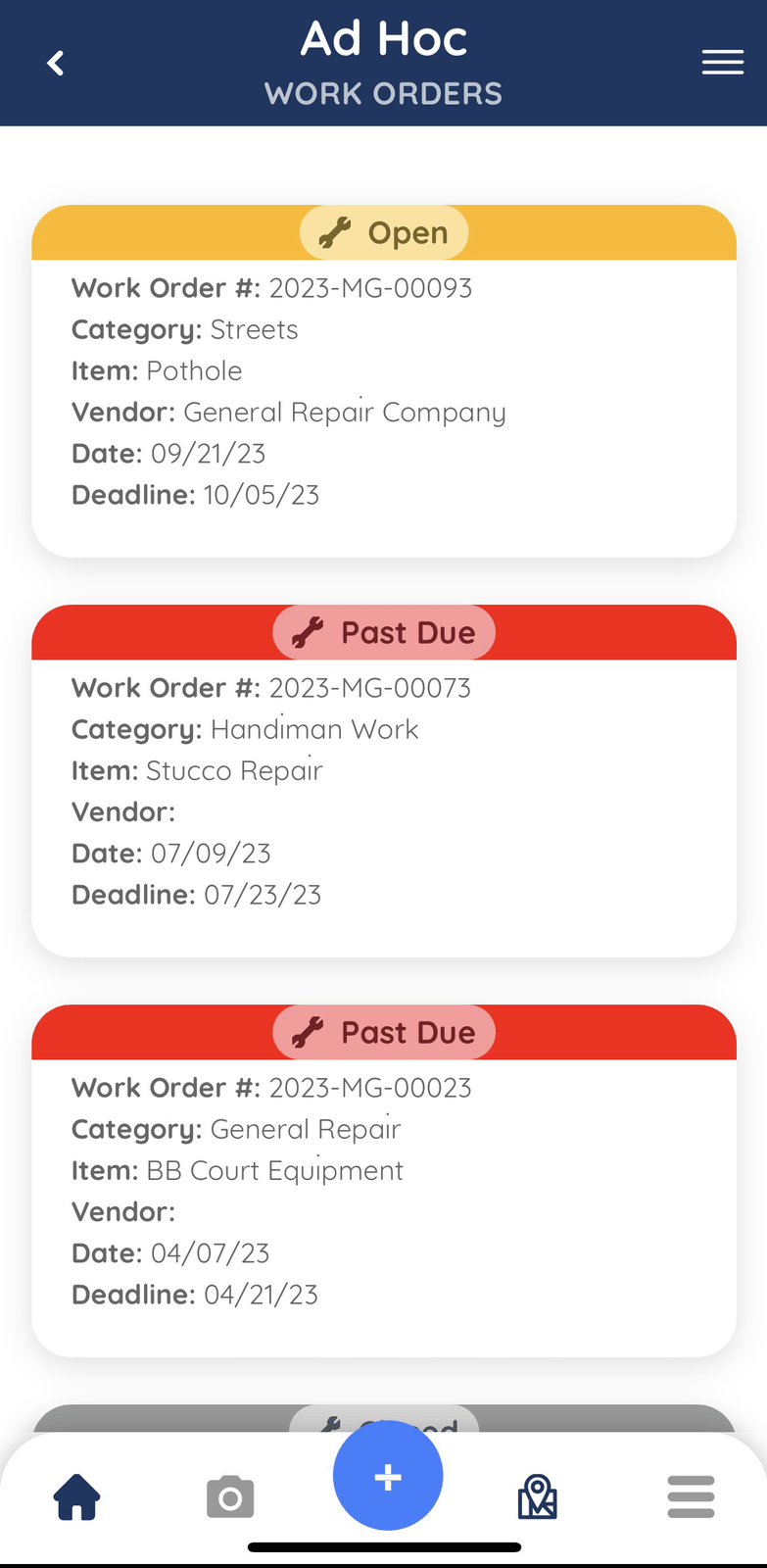
To View or Edit Work Order details, tap on the Work Order.
From here you can view the Work Order Status, Photos and Notes.
Adding An Ad-hoc Work Order
To Add a New Work Order, navigate back to the list of ad-hoc work orders and tap on the ‘Plus Sign’ icon at the bottom of the listOR
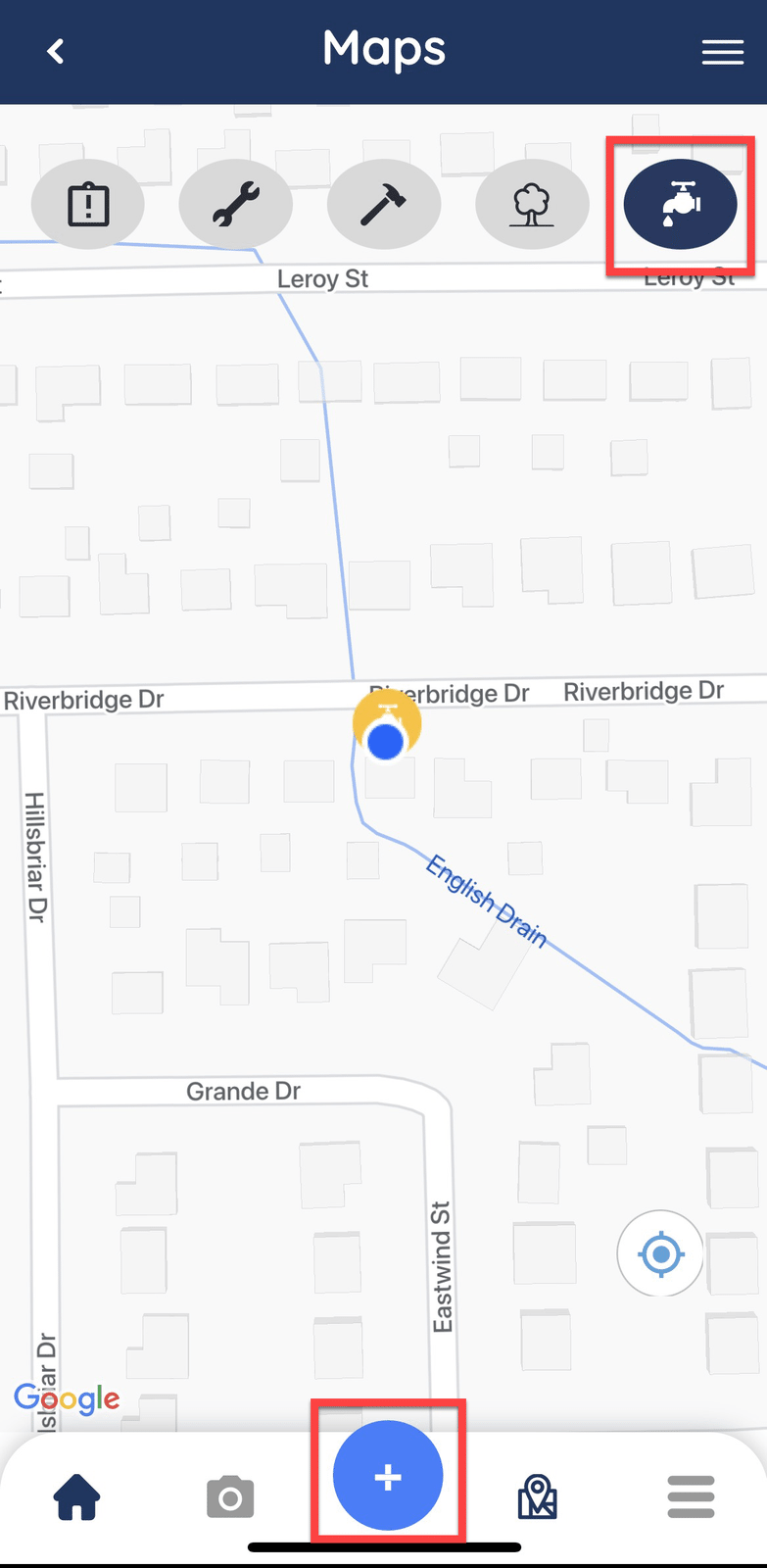
Open the maps at the bottom of the list.
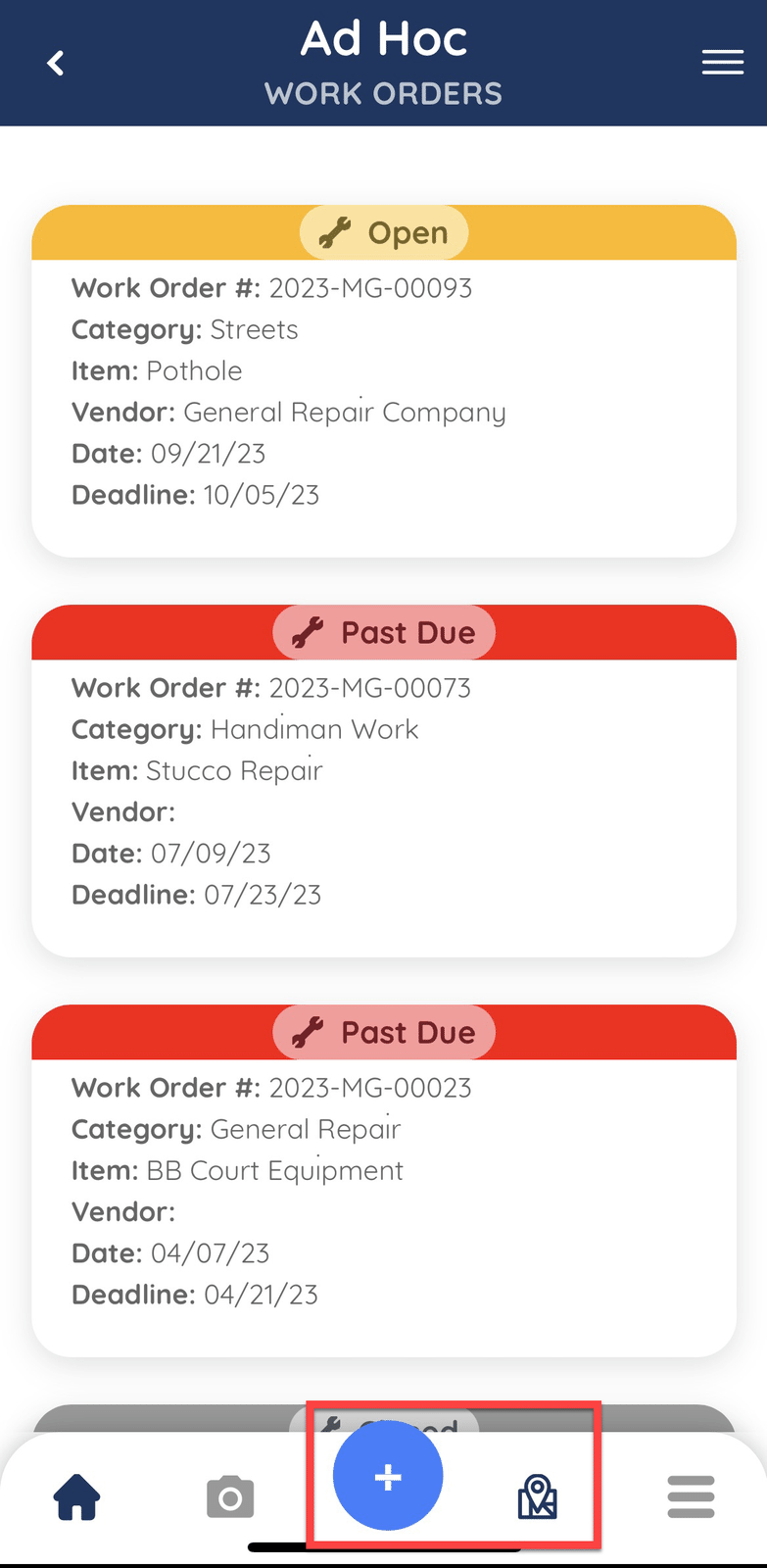
If using the Map, click the 'Faucet' icon to filter by Ad-hoc work orders then the add icon.
Select the Category, Item, Status and Vendor.
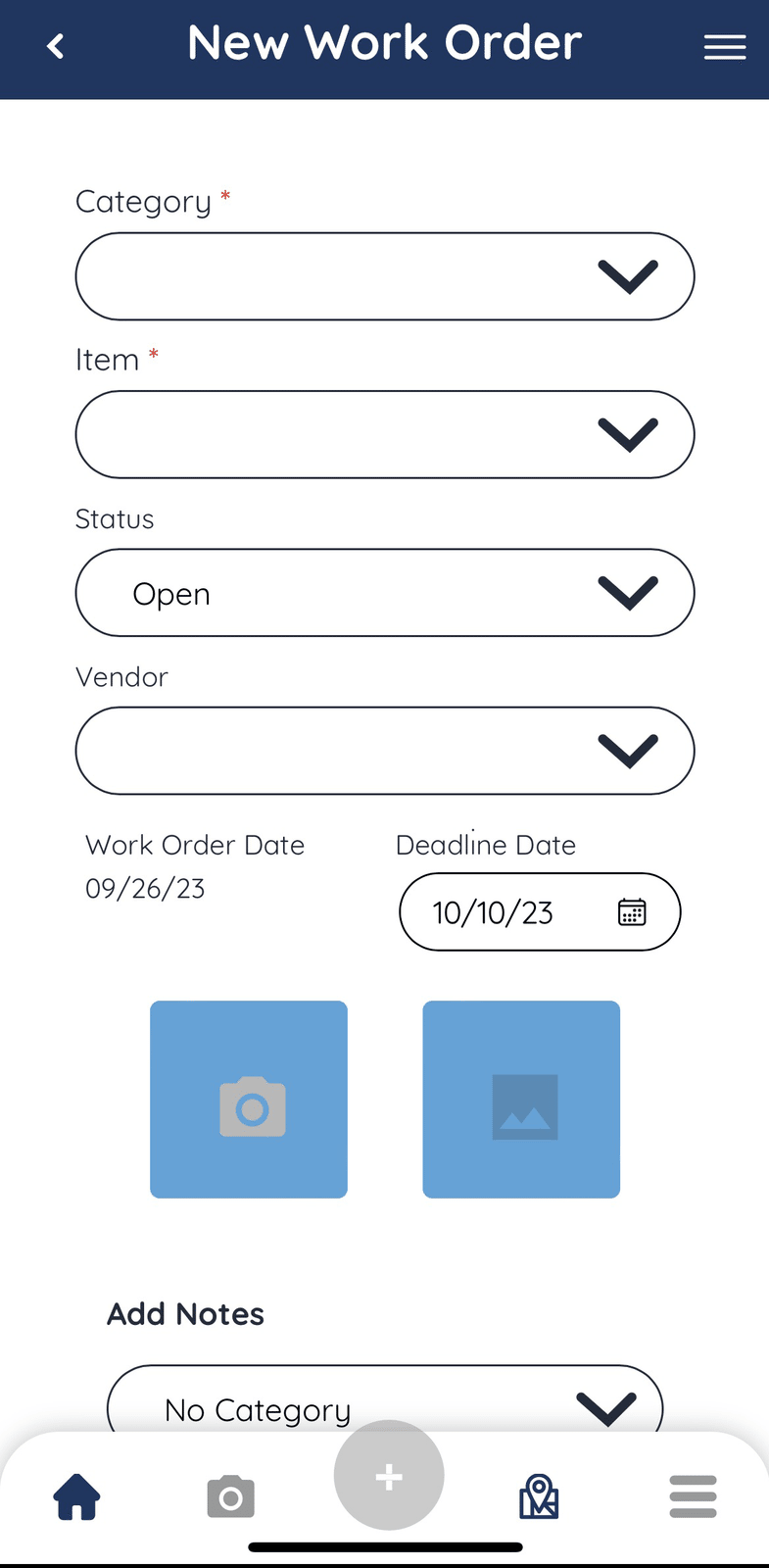
Take a photo of the Violation by tapping the ‘Camera’ icon or select an existing photo from your device by tapping the ‘Picture’ icon. Add any relevant notes.
When all the information you want to add is complete, tab the ‘Submit’ button.