
How to Download and Login
We’re updating this article. Some screenshots or names may look older than what you see in the product.
The Community Manager app has been envisioned as a modern tool that combines the capabilities of FRONTSTEPS Caliber Anywhere and FRONTSTEPS Caliber Mobile into a single mobile phone app. This is a Community Association Manager (CAM) centered app that will allow users to perform community inspections, create and manage violations and work orders. The app will work offline for areas of low or no connectivity.
The FRONTSTEPS Community Manager App can be found in the iOS (Apple) and Android (Google) app stores.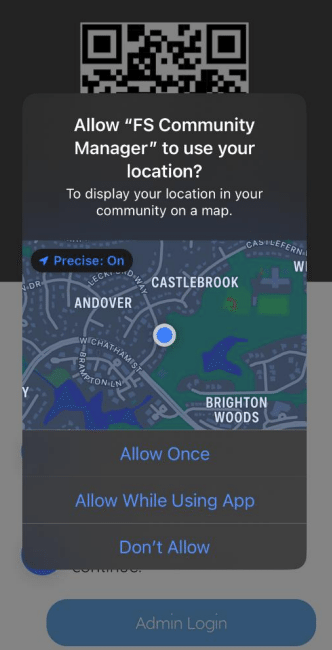
The FRONTSTEPS Community Manager App can be found in the iOS (Apple) and Android (Google) app stores.
Step 1
- Download the FRONTSTEPS Community Manager app from the Google or Apple app store. You may use the below links to install the app.
- If you do not use the links above, open the app store for your device and search for ‘FRONTSTEPS Community Manager’.
- Click to install or download the app.
- Once installed you may open the app. You will be asked if you would like to share your location with the app. Click the button to ‘Allow While Using app’. This will ensure that location details are used when utilizing the maps feature within the app.
Step 2
- Log into your Caliber Desktop account.
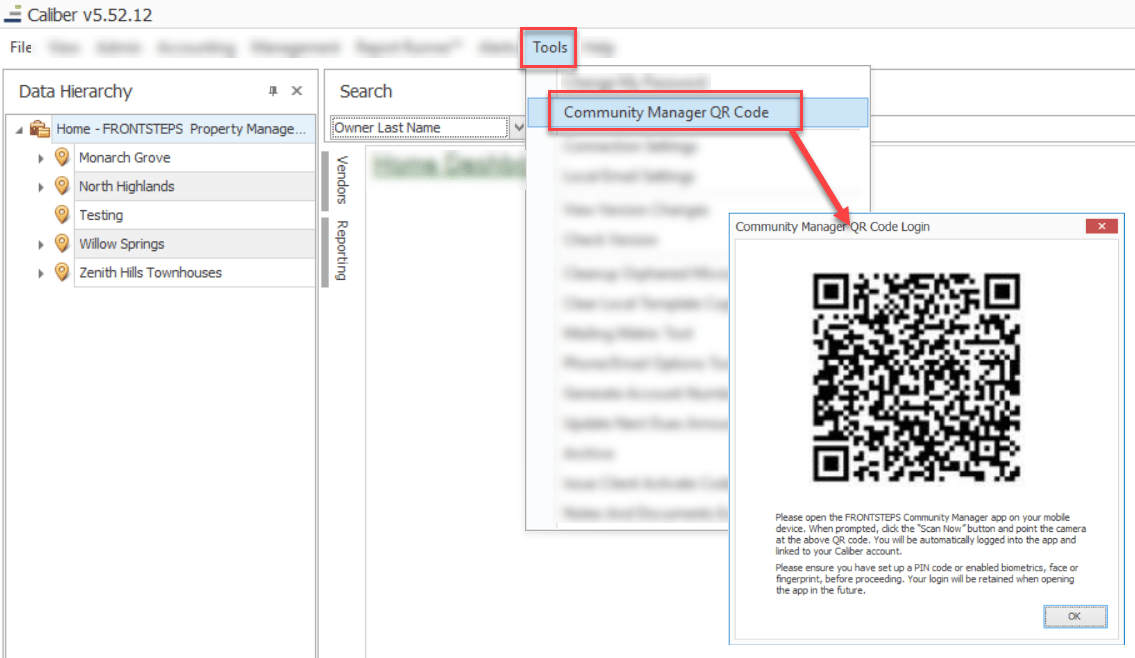
- Navigate to the top ribbon and select the menu option for ‘Tools’.
- Select the ‘Community Manager QR Code’ option. This will present a QR code as shown below.
- It is important to note that this code is unique to your login credentials, so please do not share it. Sharing this code is the equivalent to sharing your username and password.
- If you do not already have the app open on your device, open it now and select to allow the use of GPS.
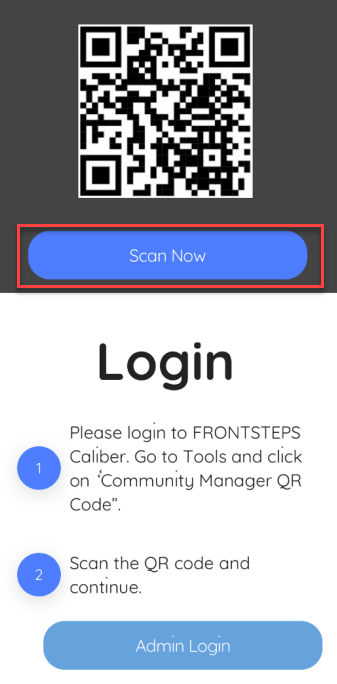
- When prompted, tap the ‘Scan Now’ button, then point the phone camera at the QR code generated within Caliber as shown above.
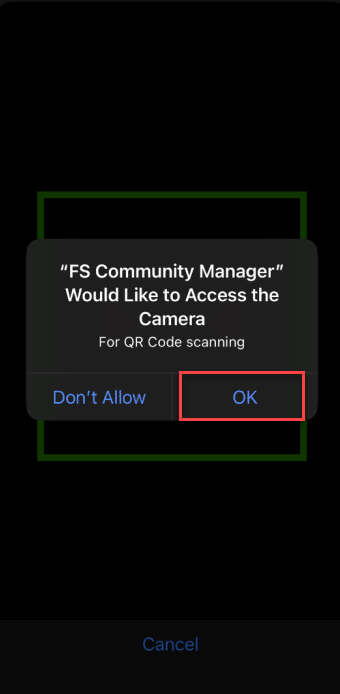
- The app will prompt you, asking for permission to use the camera. Please ensure you grant this permission. This will allow for the app access to your camera to scan the QR code.
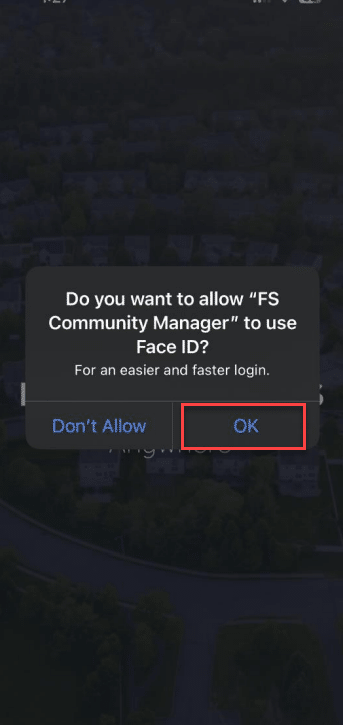
- After scanning the Caliber QR code, you will be prompted to enable either a biometric scan (face or fingerprint), or use of a PIN code. Click ‘Ok’, this is required for the app to work correctly.
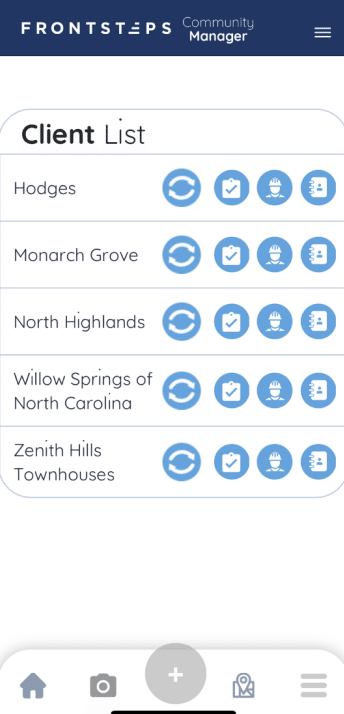
- You are now logged into the Community Manager app and ready to start using it.
- Please note that you will not have to scan the QR coder the next time you log into the FRONTSTEPS Community Manager App.