
In-app Instant Access: Setting up mobile users
In-app Instant Access: Setting up mobile users.
Introduction
In-app Instant Access allows mobile users to see enabled doors in the mobile if those users have been setup correctly. Setting up a user for access is a simple process requiring only a few steps
The following user types are the only users that can access this feature:
- Club Members
- Facility users
- Vendor users
- Resident users
How do I setup a Resident user for In-App Instant Access?
These are the steps to enable In-App Instant Access for Residents:
- Sign in as a Community Administrator or Dealer.
- Click ‘Administration’ in the site menu.
- Click ‘Community Directory’.
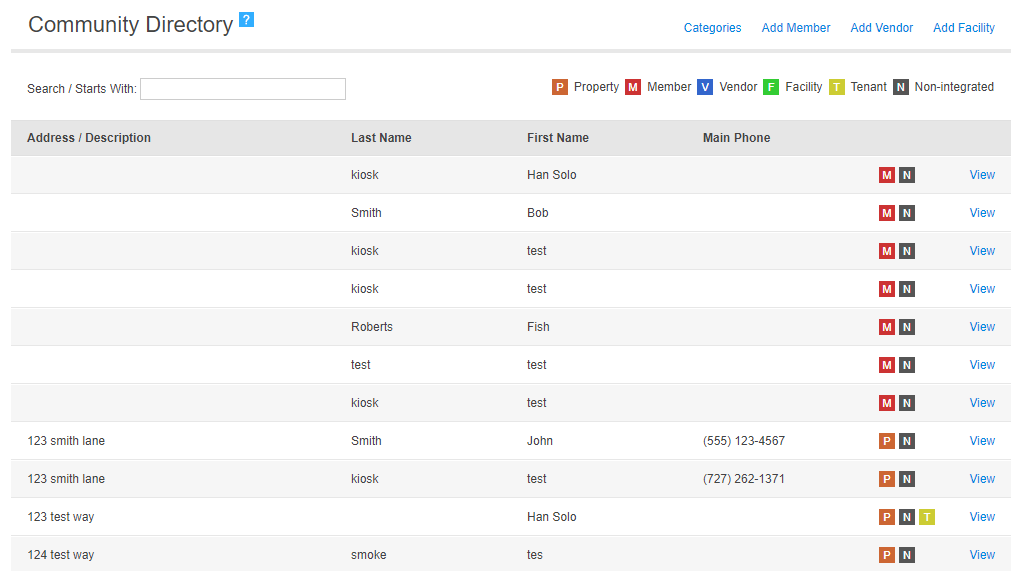
- Click ‘View’ for the resident that will be enabled.
- Click ‘Edit’ on the Users table or create a new user by clicking the ‘Add’ button

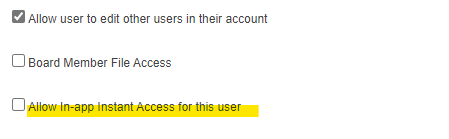
- Check the box labeled ‘Allow In-app Instant Access for this user’.
- Click ‘Save’ at the bottom of the page.
The Resident user should now be able to use doors that have been enabled for In-App Instant Access.
NOTE: The same setting is available for Vendor, Facility and Member users. The process is the same as described above for Residents. Optionally, these users can also be managed on their respective pages under the ‘Administration’ tab in the FRONTSTEPS Dwelling site menu.