
In-app Instant Access: Setting up Doors
In-app Instant Access: Setting up Doors.
Introduction
In-app Instant Access allows Community Administrators and Dealers the ability to setup any existing readers to be accessible via the FRONTSTEPS Dwelling mobile app. The process involves elements of credentialed access that existing customers should already be aware of and are described below.
How do I set up a schedule for In-App Instant Access?
These are the steps to enable In-App Instant Access doors:
- Sign in as a Community Administrator or Dealer.
- Click ‘Credentialed Access’ in the site menu.
- Click ‘Access Levels’.
- Click ‘Add Schedule’ at the top of the page.
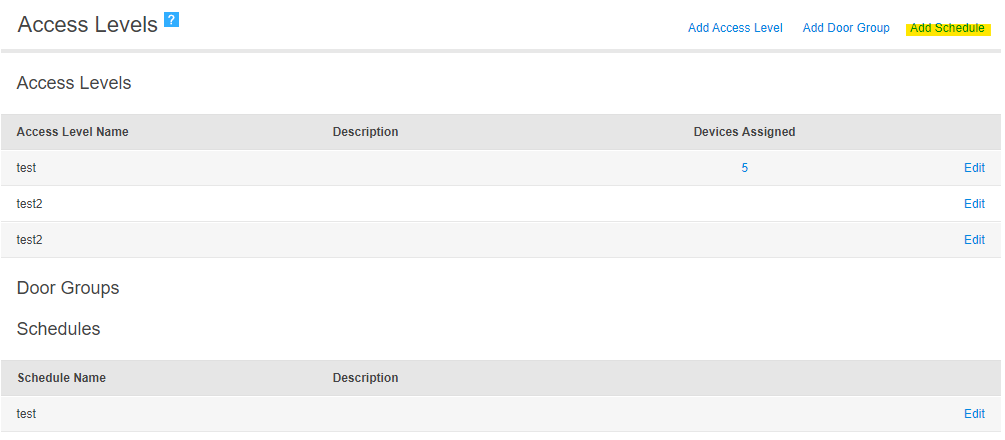
- Name the schedule. (Note: The ‘Schedule Name’ field provides information to the residents for the start and end times during the selected days so be sure to specifically state the times to be used here)
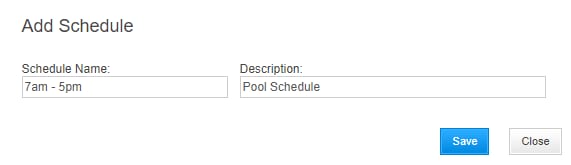
- Click Save.
- Select the first day of the schedule.
- Select the start time.
- Select the end time.
- Click ‘add’.
- See the day added to the table below the ‘Edit Schedule’ fields.
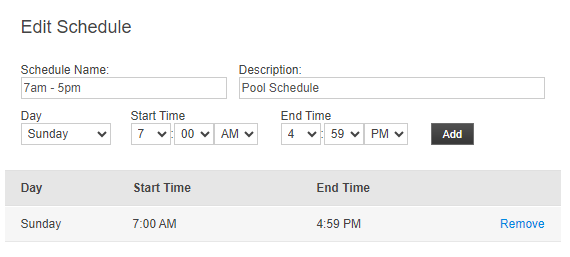
- Click ‘Save’ when all the days have been added to the table.
How do I set up a door for In-App Instant Access?
- Click ‘Credentialed Access’ in the site menu.
- Click ‘Hardware’.
- Check the box in the ‘In-app Instant Access’ column for a reader

- Click ‘Edit’ for that reader.
- Set a valid schedule of operation for that reader by selecting the schedule from the ‘In-app Instant Access’ dropdown menu (Note: this menu is only visible if the In-app Instant Access box on the Credentialed Access Hardware page has been checked)
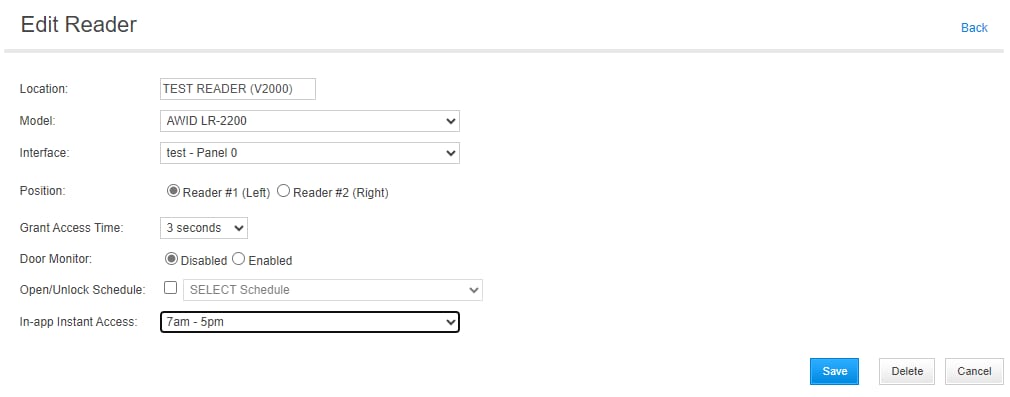
- Click ‘Save’ at the bottom of the page.
Enabled mobile users should now be able to use this door.
NOTE: If a mobile user opens the app and accesses the In-App Instant Access page outside of the scheduled time for a door, they will see the door but it will show as unavailable for access and provide a message if the mobile user taps on that door that they are attempting access outside of the schedule for that door.