
FRONTSTEPS Community & Caliber - Preparing to Enable Premium Sync
We’re updating this article. Some screenshots or names may look older than what you see in the product.
Background
The following article will address how to prepare for enabling Premium Sync to ensure a smooth experience.
For information on the benefits of Premium Sync visit FRONTSTEPS Community & Caliber- Premium Sync
Prior to enabling Premium Sync, various settings and data will need to be checked as this update could affect the users in FRONTSTEPS Community that have Director roles and permissions, as well as the permissions of architectural committee members and invoice approvers. Without these checks there is a risk of this information being overwritten or not syncing at all if there is a mismatch.
Before You Begin
Please have FRONTSTEPS Caliber and FRONTSTEPS Community open simultaneously and sign in to each. If you have multiple communities, start by signing in to the one you’d like to work on first.
This process will consist of verifying the information in Caliber, verifying settings in Community, and verifying information within matches both platforms.
Please note: These steps will need to be completed for every community that has Board of Directors Members, Architectural Committee Members, and/or Invoice Approvers.
In FRONTSTEPS Caliber
Start with making sure the client contact in Caliber is configured correctly for each Board Member, Architectural Committee Member, and Invoice Approver.
Note: If you have not yet setup client contacts (board groups) within Caliber, please view this article for instructions: How to Setup Board Groups (Client Contacts) in Caliber.
To ensure the client contacts are configured correctly, please do the following:
- Navigate to the Client Dashboard the particular community you are working on.
- Click the Contacts toolbox
- Double-click the first Board Member, Architectural Committee Member, or Invoice Approver you want to verify
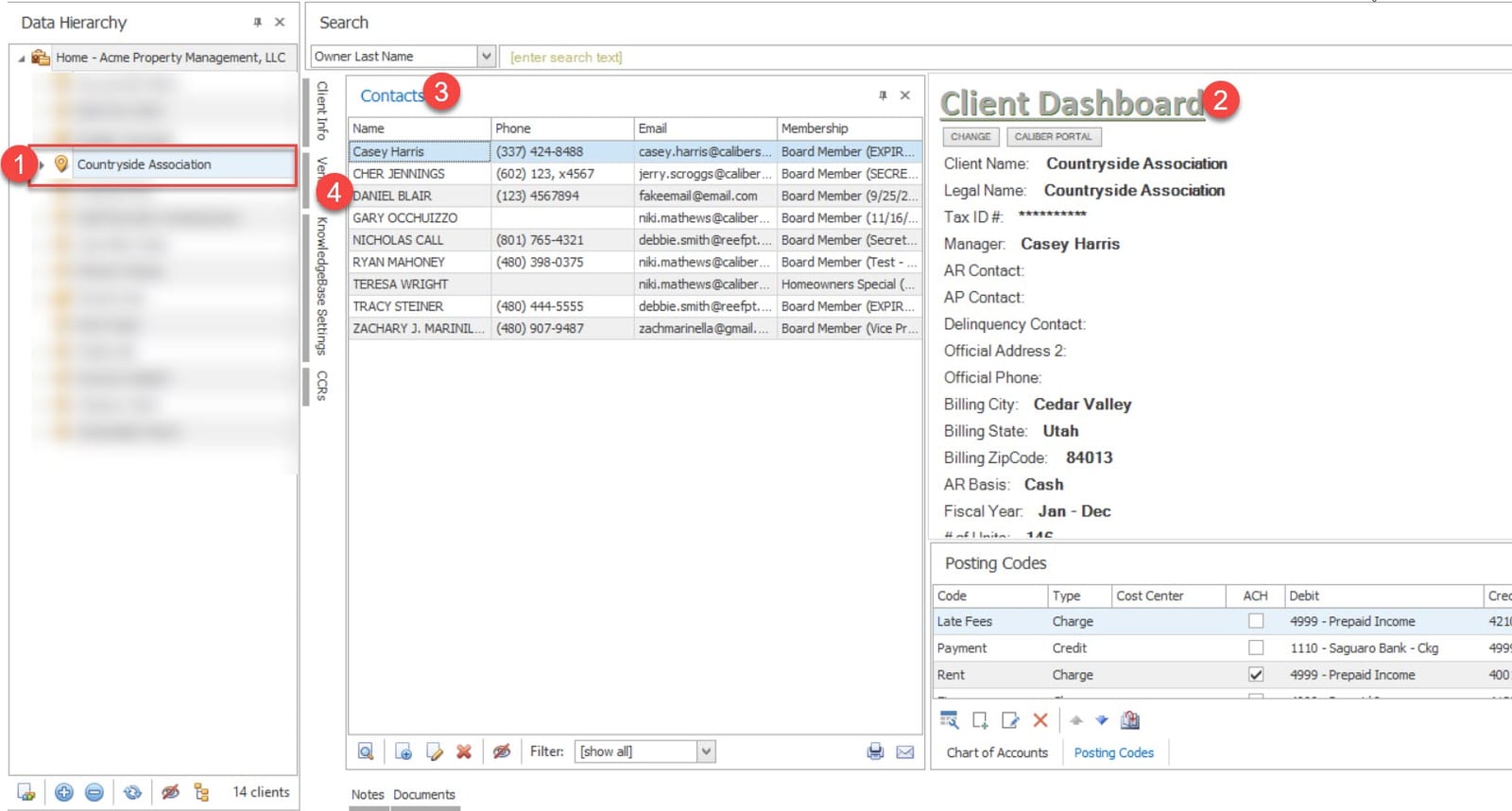
- In the case there are two owners, ensure the correct name is selected in the Specific Person box.
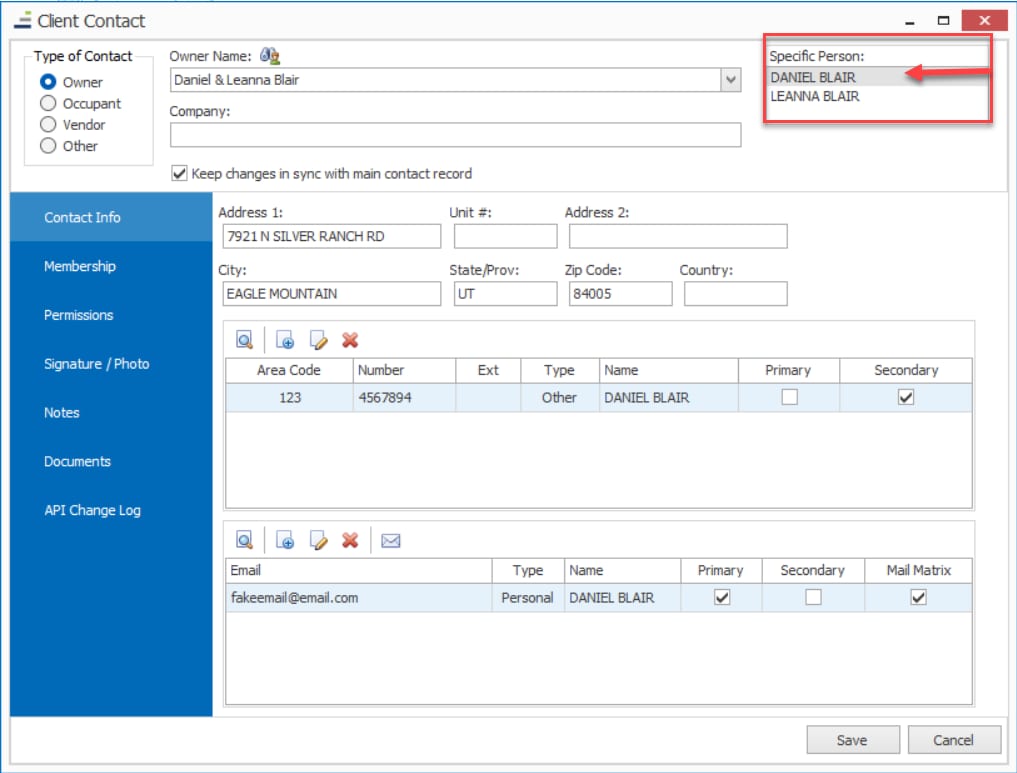
- Next, make sure the Type of Contact is set to “Owner” or “Other” on the upper left side.
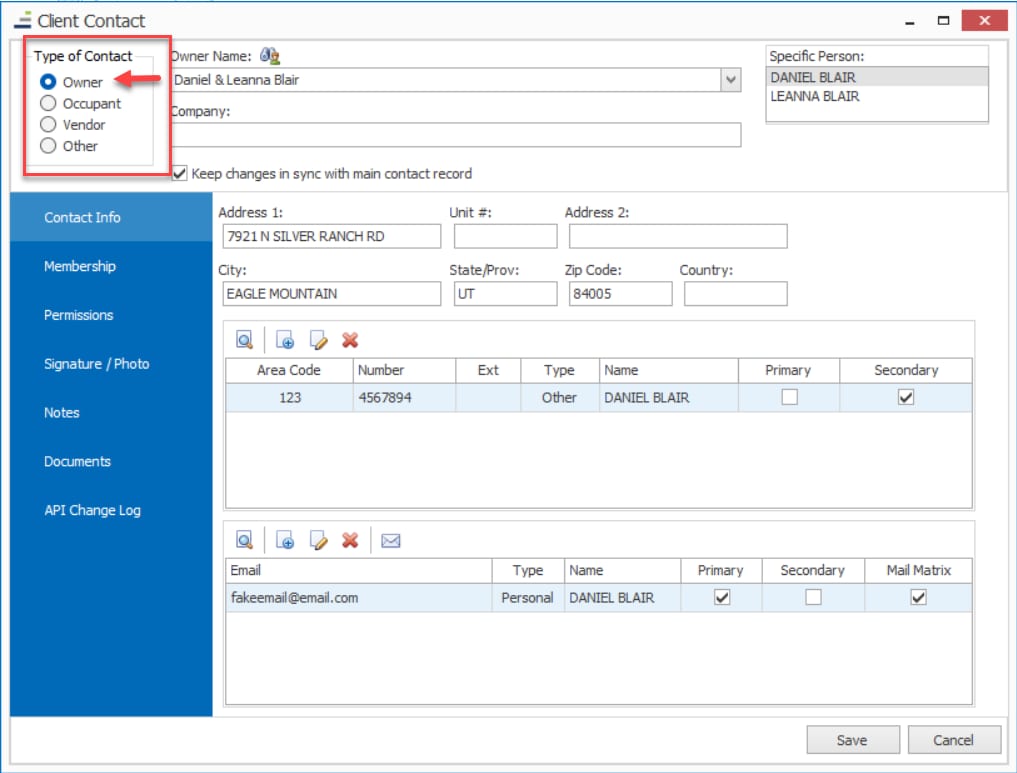
- Make sure the email address listed in Caliber matches the email for the user in Community.
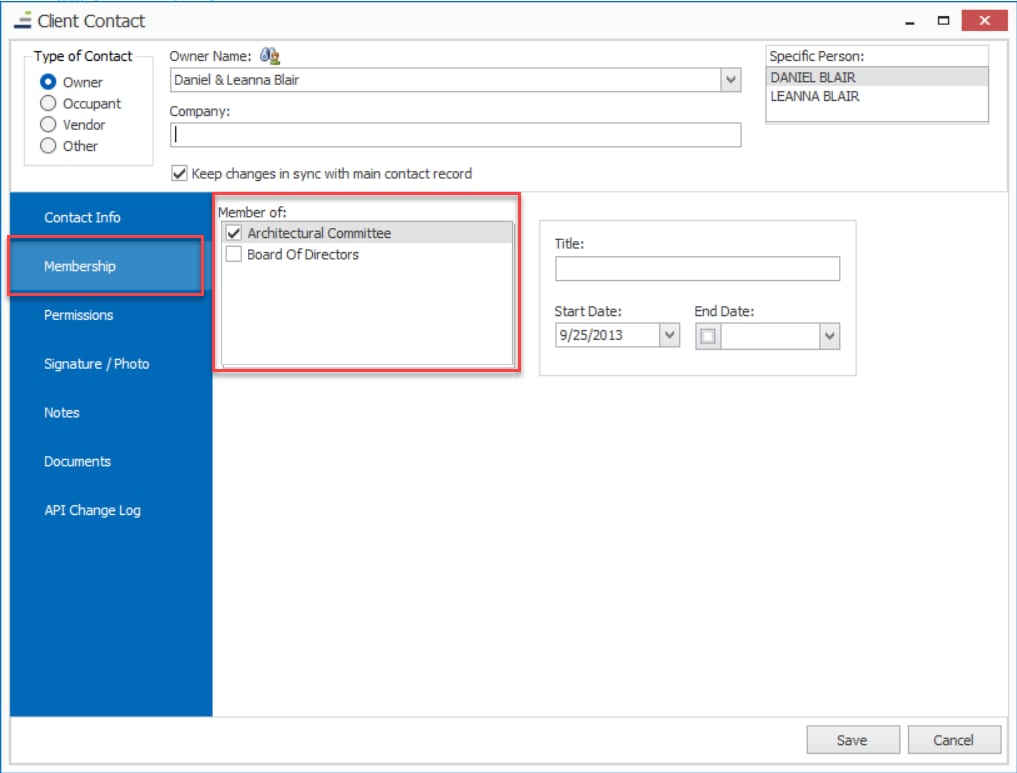
- In the Membership tab, verify the contact is assigned to the correct contact group (i.e Board of Directors, Architectural Committee, etc.)
The email address tied to the client contact is one of the keys to the Director role and architectural/invoice approval permissions syncing as expected in Community. Check the owner record in Caliber for these email configurations:
- The email address must be marked as “Primary”.
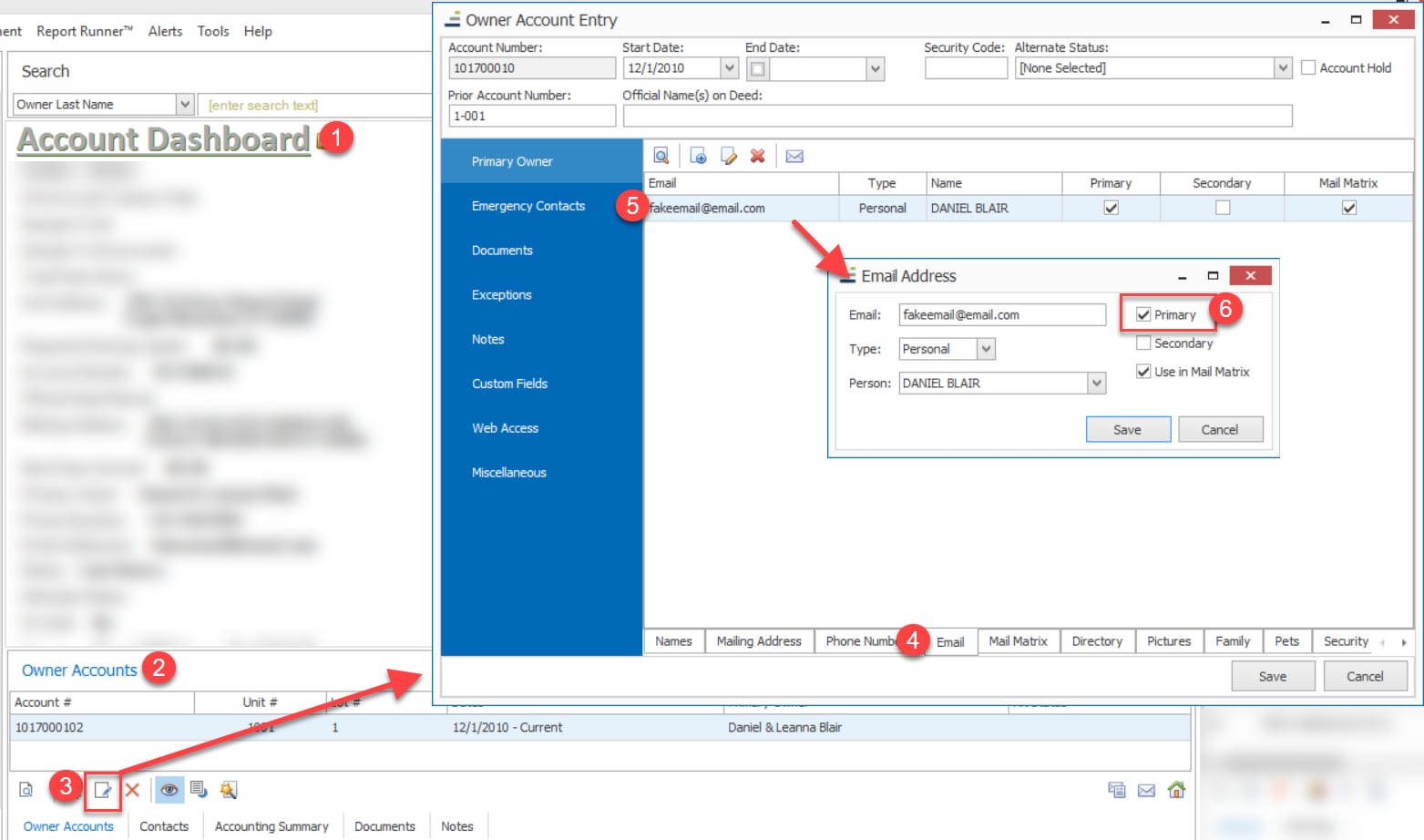
- The email being used must be assigned to the correct person. (Board Member, Architectural Committee Member, or Invoice Approver)
Use the Person drop-down to select the correct owner.
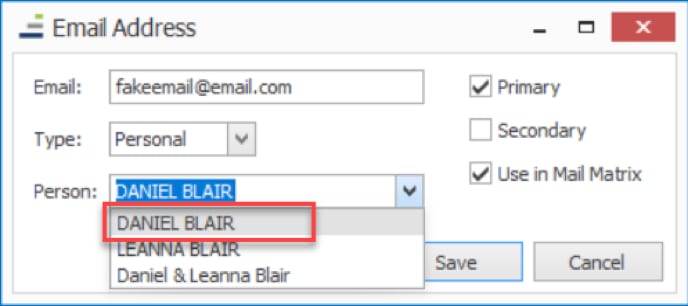
Repeat the steps for each individual Board of Directors Member, Architectural Committee Member, and Invoice Approver.
In FRONTSTEPS Community
Now that everything is set in Caliber, jump over to Community to configure the Accounting Settings that will apply the Board of Directors, Architectural Committee, and Invoice Approvers.
*The Invoices and Architectural Request settings must be enabled to see all Accounting Settings. If the Accounting Settings menu or any of the accounting settings mentioned below are missing, please contact support for assistance.
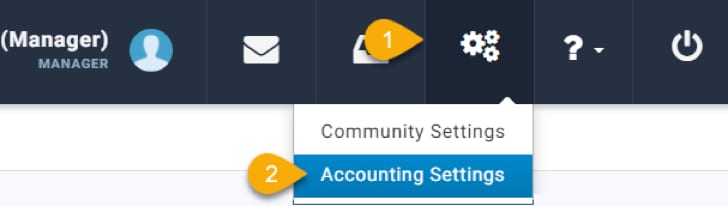
ARC Settings
Once in the Accounting Settings, select ACR Settings from the menu on the right-hand side.
Using the ‘Architectural Request Approvers’ drop down, select the group that is responsible for viewing and approving the community Architectural Requests.
Click Update Settings at the bottom to save.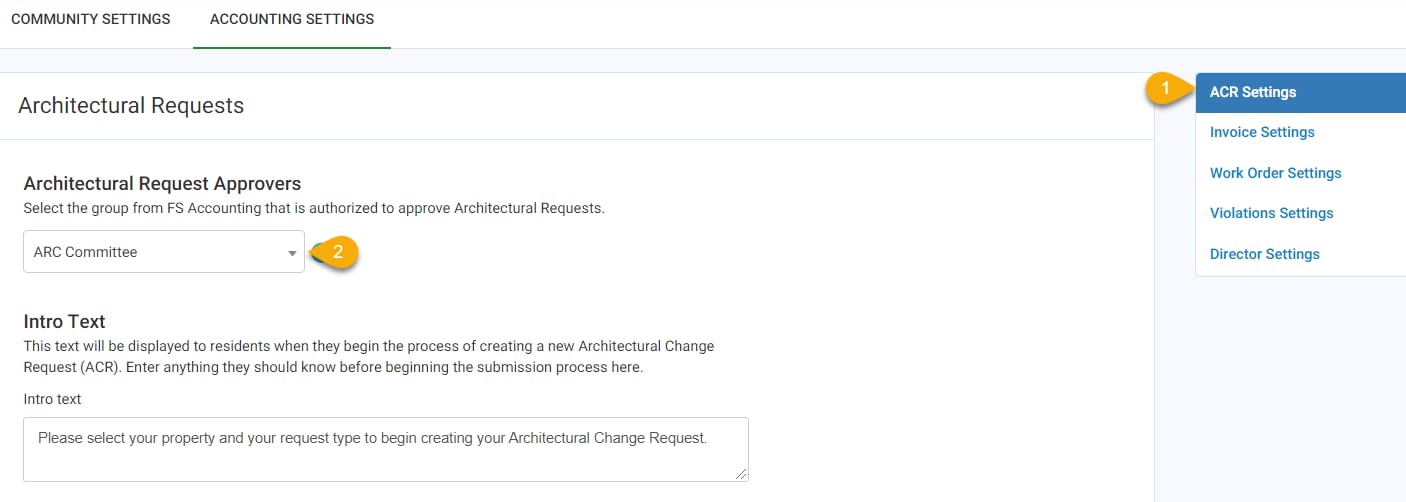
Invoice Settings
Select Invoice Settings from the menu on the right-hand side. From the 'Invoice Approvers' drop down, select the group that includes the individuals who will be approving Invoices.
Click Update Settings at the bottom to save.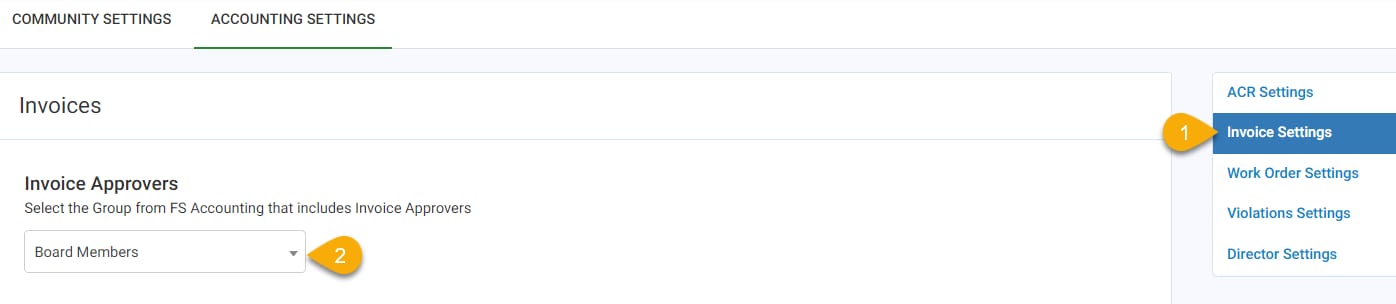
Director Settings
Lastly, select the 'Director Settings' from the menu on the right-hand side. Use the 'Director Setting Approvers' drop down to select the group that contains members of the Board of Directors.
Click Update Settings at the bottom to save.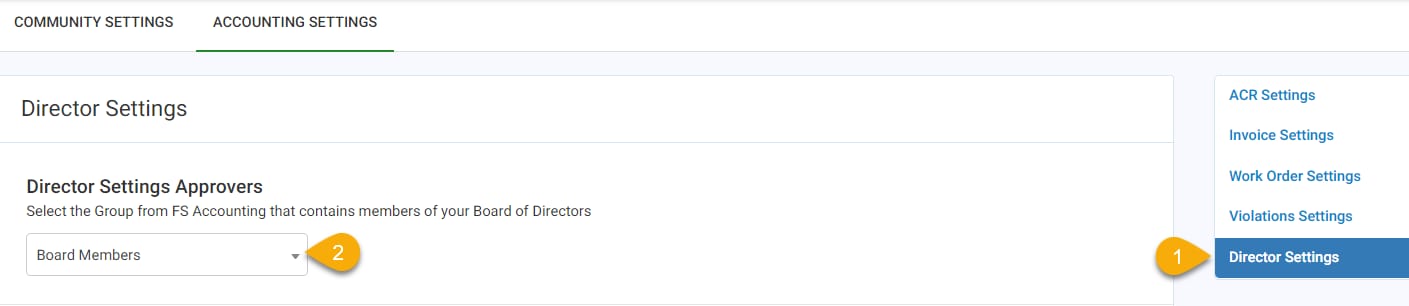
Comparing Community and Caliber
Now that the Accounting Settings are in place, make sure the following is configured correctly on the Board of Directors/committee members’ user record within Community:
- The email address on the user record in Community must match the one listed on the client contact in Caliber.
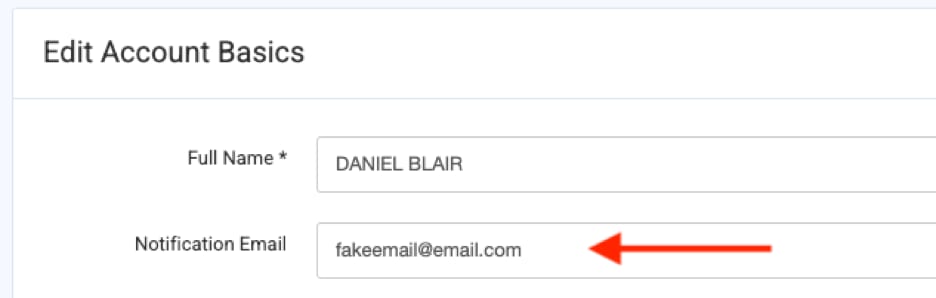
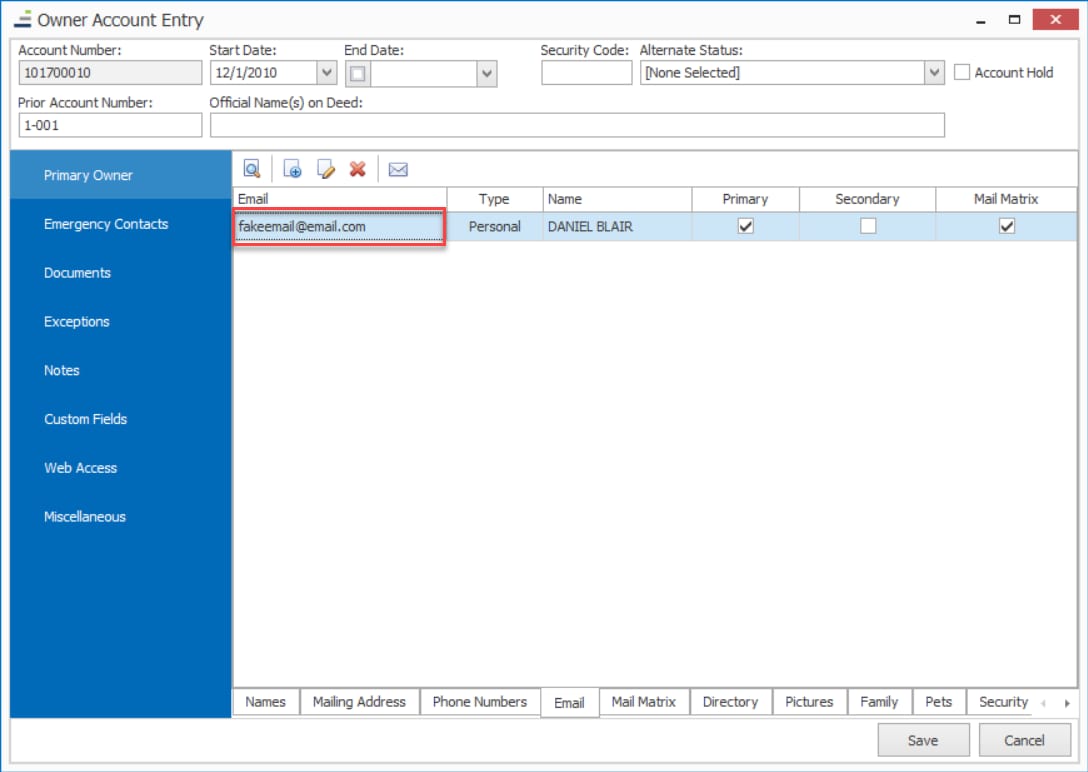
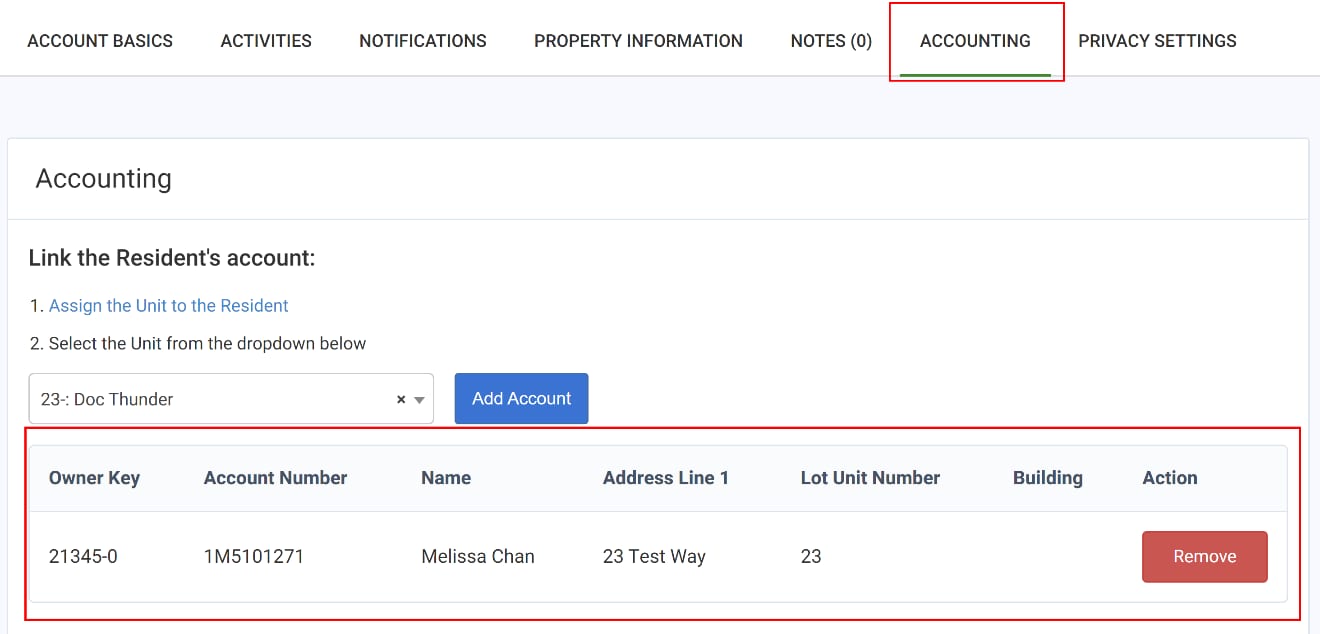
- Next, under the Accounting tab of the user in Community, verify correct account is linked.
You will need to repeat the steps from the beginning of the article for each individual Community.