
Client Contact (Board of Directors)
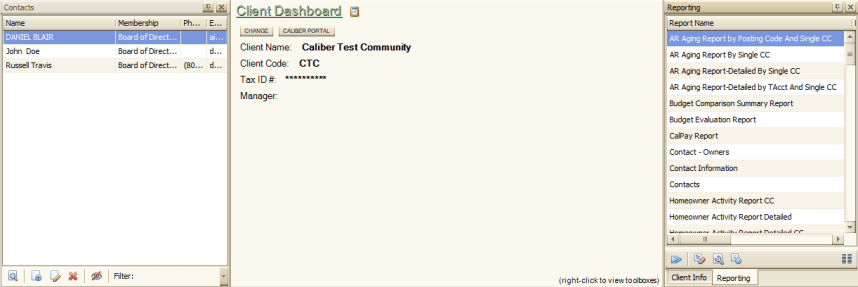
The Contacts toolbox is accessible from the Client Dashboard. It is a place to enter and maintain Board Members and other groups associated with an individual Client.
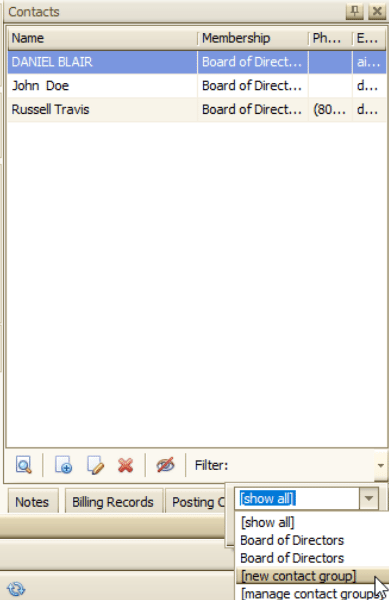
Create the Contact Groups before adding any contacts. Select the Filter option and from the drop down choose New Contact Group.
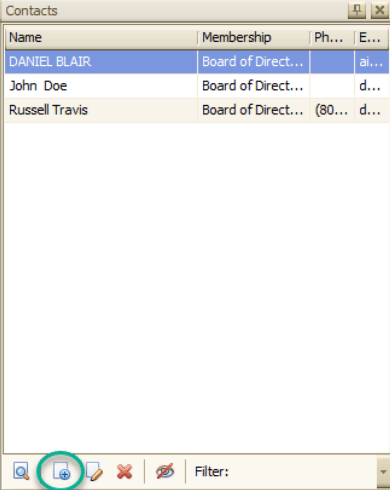
To add an individual, select Add New Contact option at the bottom left of the Contact toolbox.
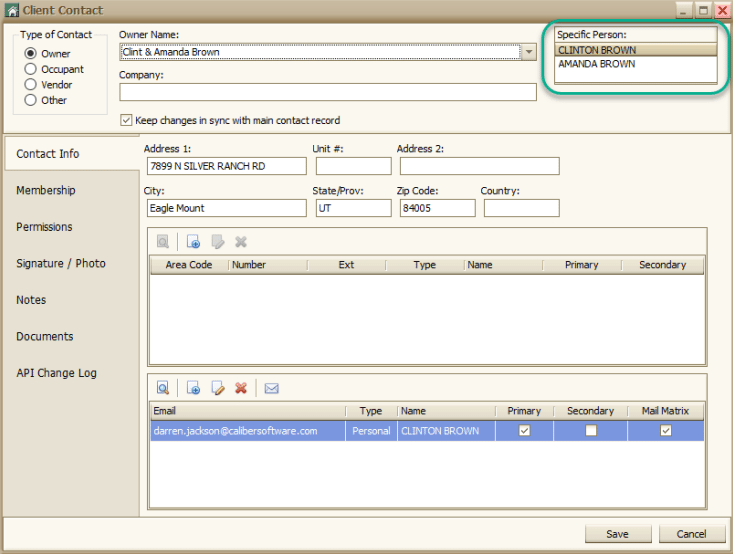
Select the type of contact you would like to add. Once you select from Owner, Occupant, or Vendor those correlating names/companies will be available for you on the drop down list on the right.
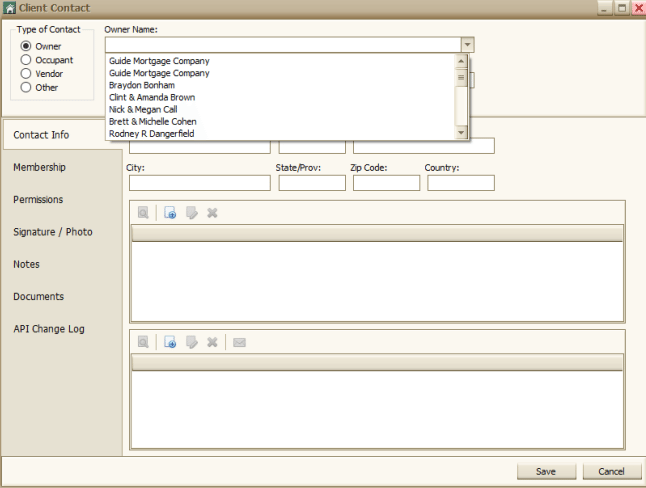
Once a name selection is made from the drop down list the corresponding information will be populated. If two owners appear you will select the appropriate name.
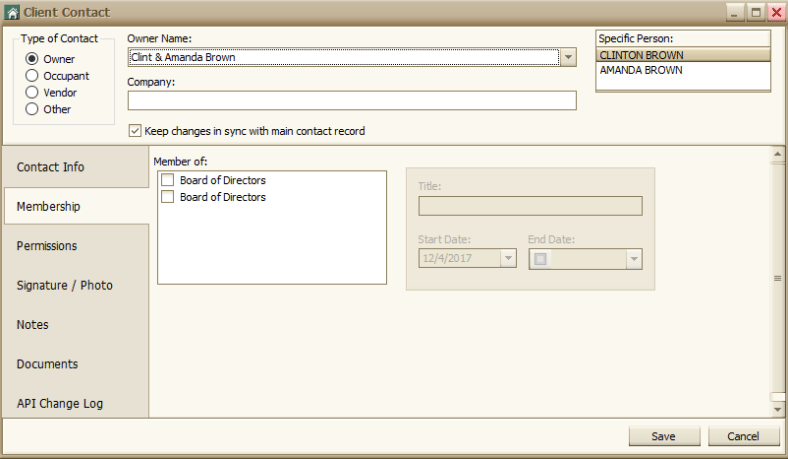
The Membership tab is where you will assign the contact’s title to the particular group. You will also enter in the term dates.
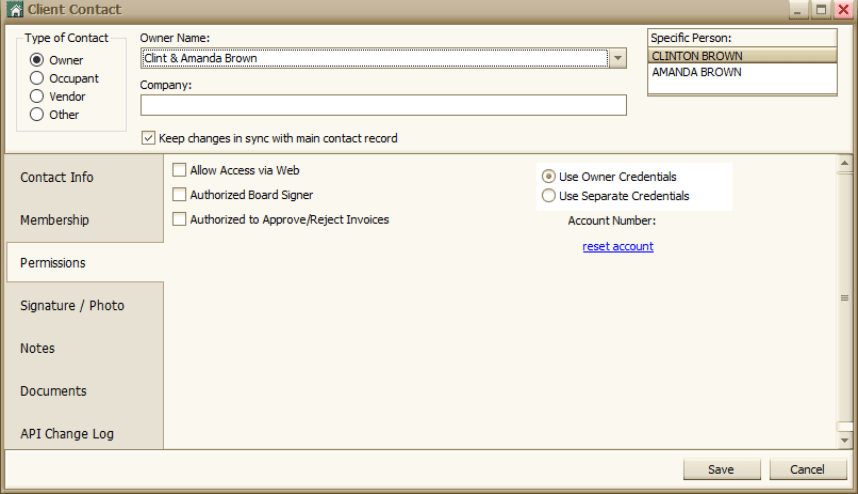
On the Permissions tab you will Allow Access to the Web. Also, you have the ability to use Separate Credentials (this is the login for Web Access, Not Commonly Used).
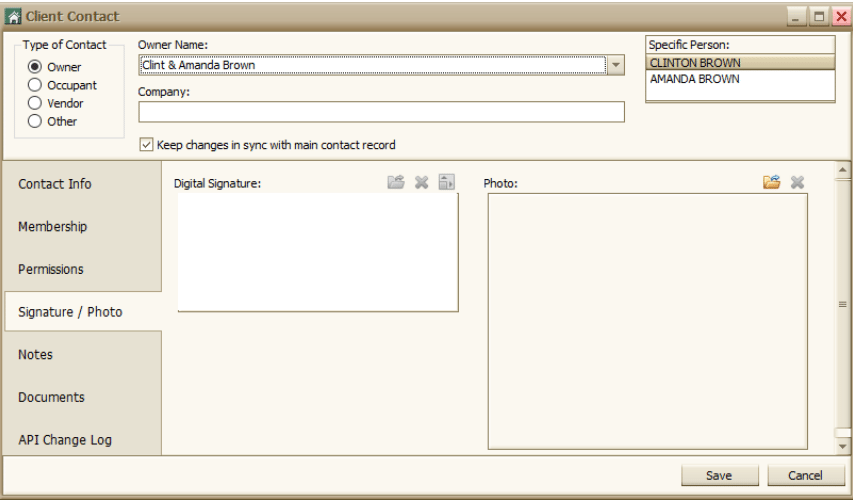
A Board Member can be signer for the Client. The Signature tab is where the digital signature is uploaded (additional Setup will be required in the AP Workflow).
There are also options in the Contacts toolbox for sending emails and printing a report.
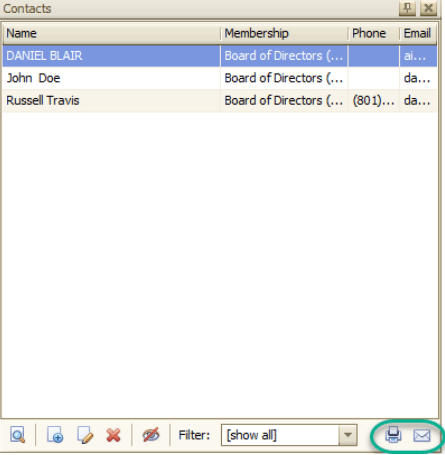
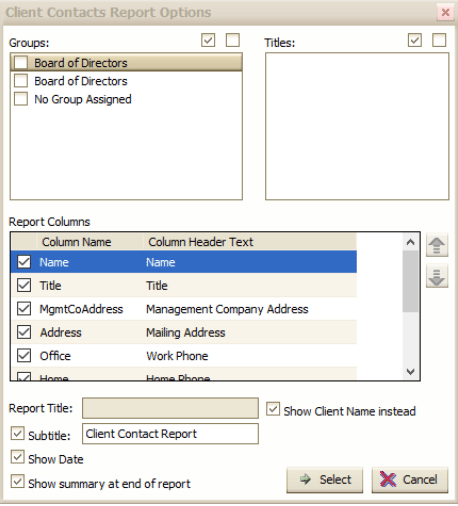
The Filter option will allow you to select a particular group or select all groups to send an email to. The Report option allows the ability to select what groups and titles will display on the report.
Create the Contact Groups before adding any contacts. Select the Filter option and from the drop down choose New Contact Group.
To add an individual, select Add New Contact option at the bottom left of the Contact toolbox.
Select the type of contact you would like to add. Once you select from Owner, Occupant, or Vendor those correlating names/companies will be available for you on the drop down list on the right.
Once a name selection is made from the drop down list the corresponding information will be populated. If two owners appear you will select the appropriate name.
The Membership tab is where you will assign the contact’s title to the particular group. You will also enter in the term dates.
On the Permissions tab you will Allow Access to the Web. Also, you have the ability to use Separate Credentials (this is the login for Web Access, Not Commonly Used).
A Board Member can be signer for the Client. The Signature tab is where the digital signature is uploaded (additional Setup will be required in the AP Workflow).
There are also options in the Contacts toolbox for sending emails and printing a report.
The Filter option will allow you to select a particular group or select all groups to send an email to. The Report option allows the ability to select what groups and titles will display on the report.