Manager - How to Send Resident Portal Invites
We’re updating this article. Some screenshots or names may look older than what you see in the product.
Launch your resident portal by sending out invitations to all members of the directory with and without an email address.
Before You Begin
- Ensure your invite template and offline letter template have been edited for each community and contain the desired information.
- See Admin - Creating a User Invite Template - Email for steps on how to edit your community's email template
- See Admin - Creating a User Invite Template - Letter for steps on how to edit your community's offline letter template
Contents
- Email Invite Instructions
- Offline Letter Instructions
- Individual Email Invite Instructions
- Individual Offline Letter Instructions
Email Invite Instructions
- Navigate to the dashboard for the community you'd like to send invites from.
- From there click the Send Invites button, in the "Not Registered" box, to send out portal invitations.
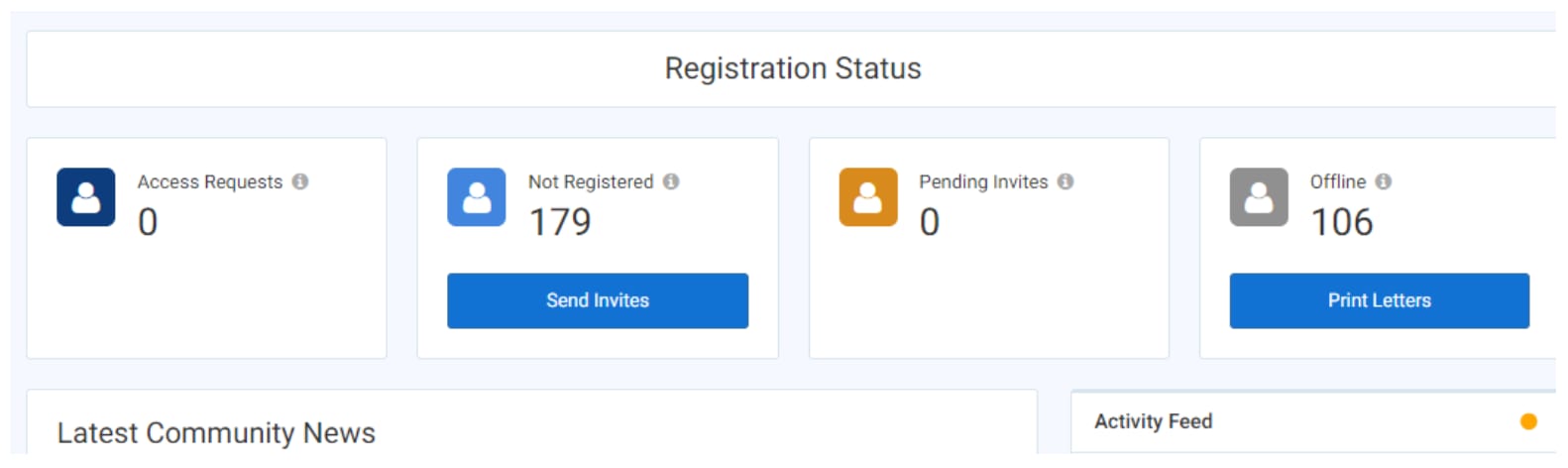
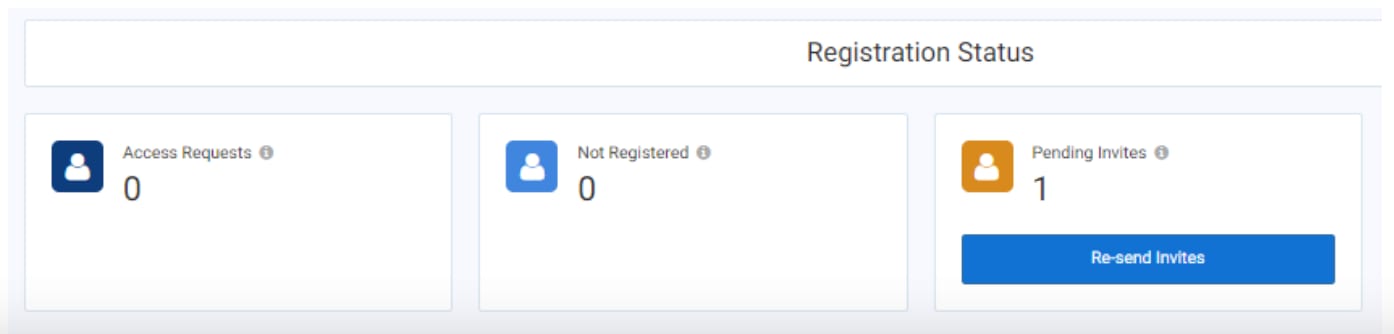
- Once invites have been sent out the not registered number will move over to “Pending Invites” box.
The number of pending invites will begin to decrease as residents accept the invites and register for the portal.
Invites will continue to send once a week for 4 weeks after initial invites have been sent.
Offline Letter Instructions
- Navigate to the dashboard for the community you'd like to send invites from.
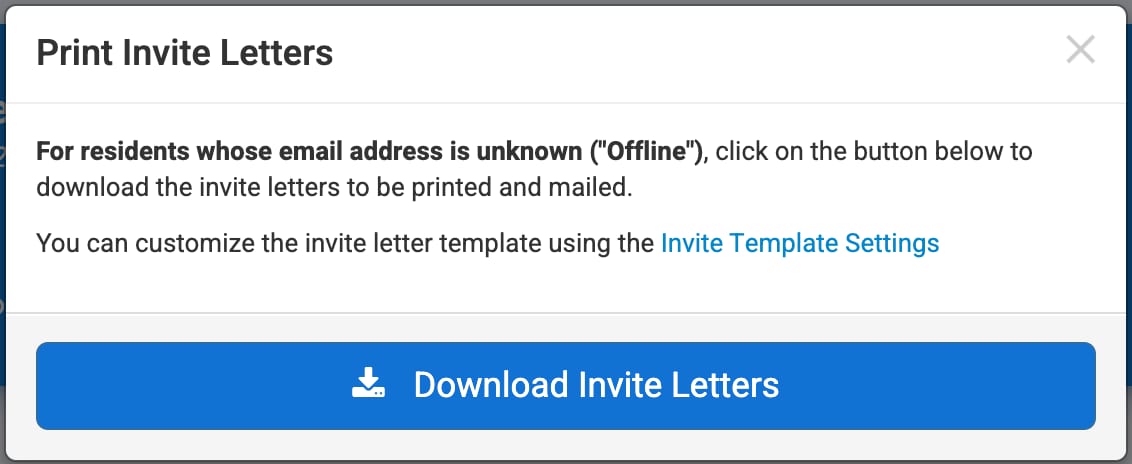
- From there click the Print Invites button found in the "Offline" box.

- Once the "Print Invite Letters "window opens, click Download Invite Letters
Note: To accommodate potentially large numbers of letters, the invite letters download as a .zip file.
- Upon unzipping file and opening the folder, you will find a personalized invite letter for each user that does not have an email address. Print and mail the invites as desired.
Individual Email Invite Instructions
- To email an invite to a single resident, navigate to the dashboard for the community the resident lives in.
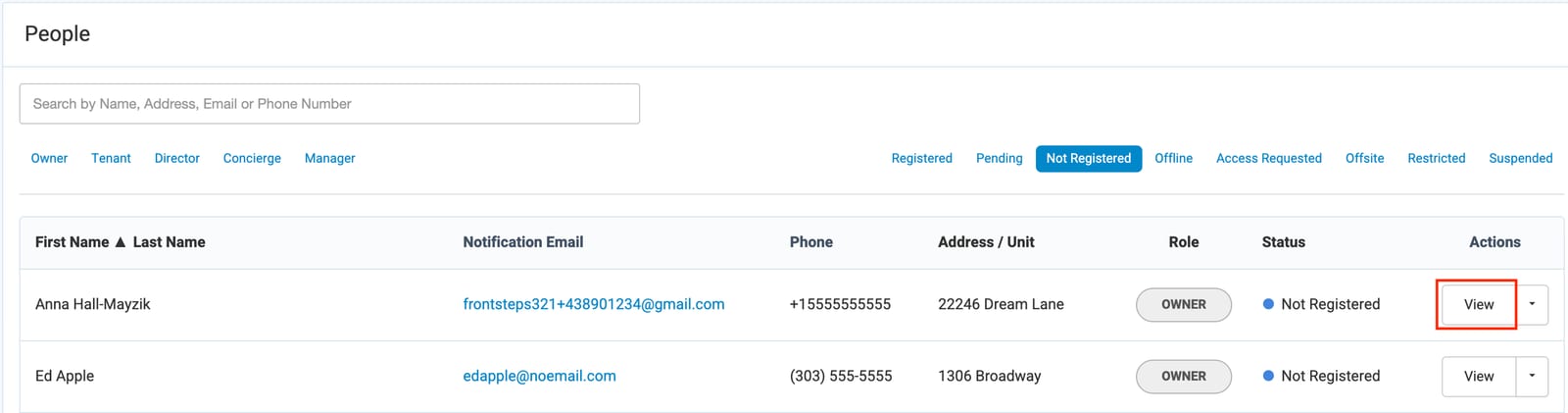
- Navigate to the directory and find the resident you would like to send an invite to. Click View next to their name.
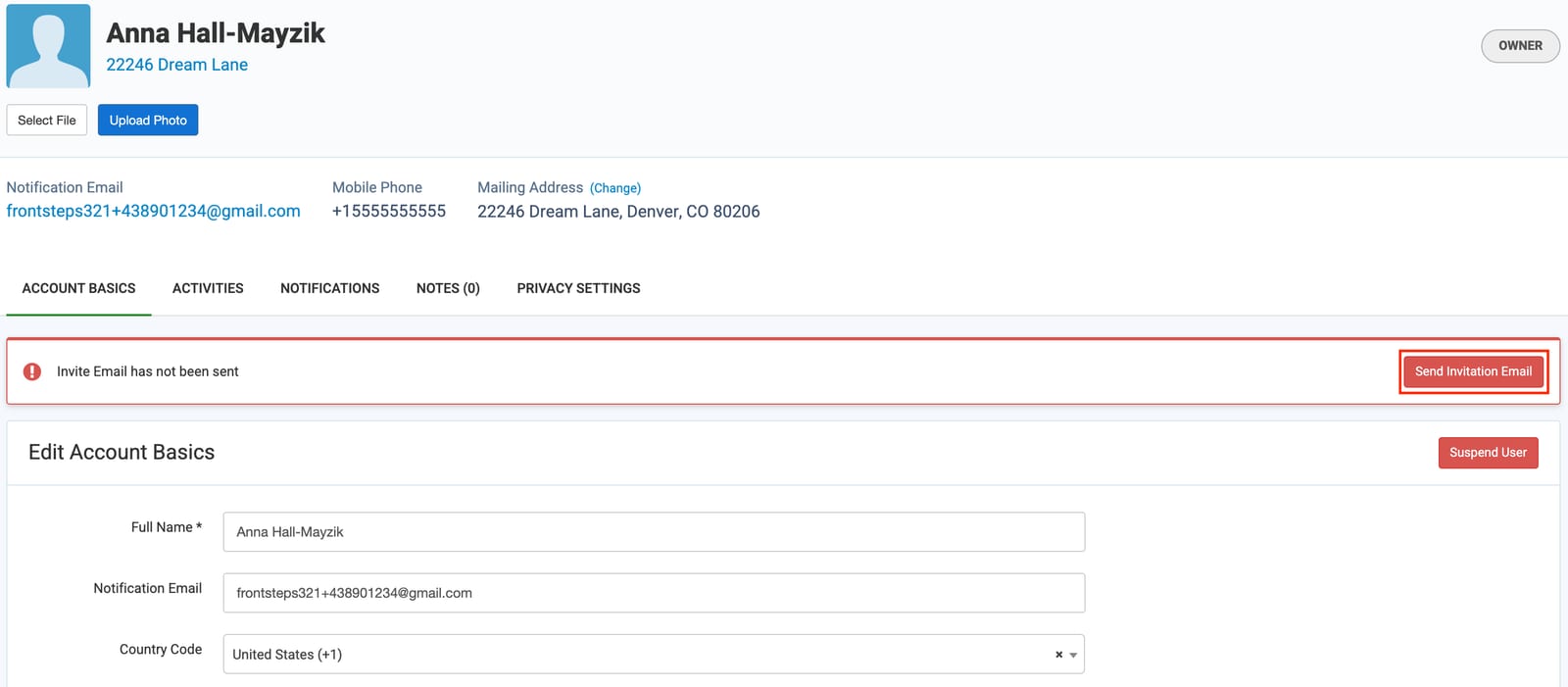
- Click the Send Invitation Email button on the right side.
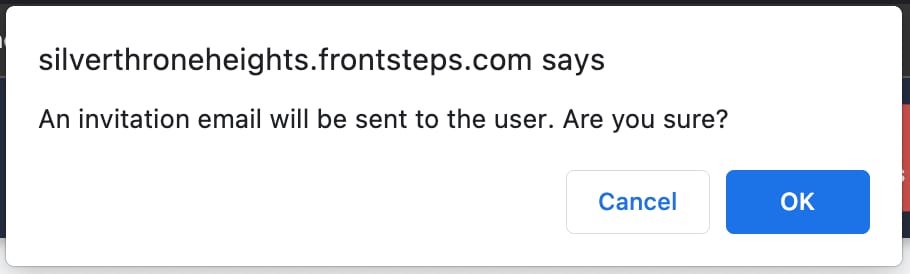
- A small window will ask if you would like to proceed, click OK to finish emailing the invite.
Individual Offline Letter Instructions
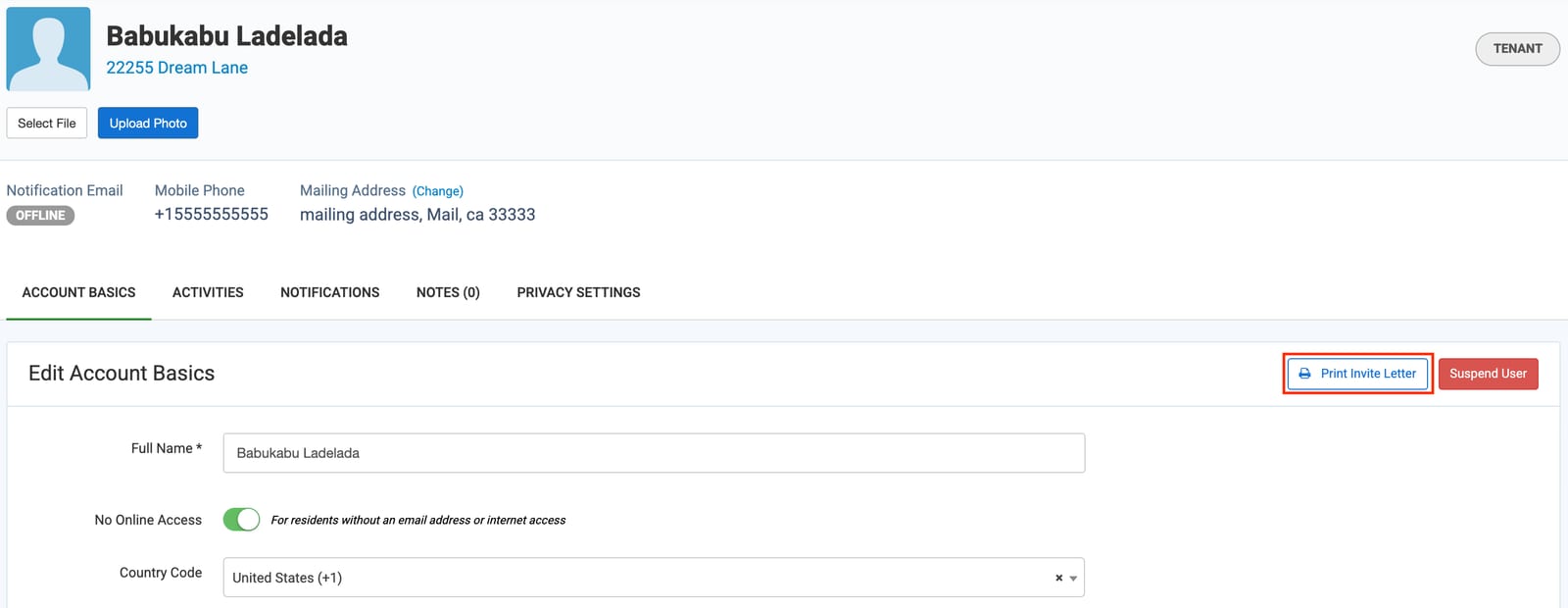
- To print an offline letter for a single resident, navigate to the dashboard for the community the resident lives in.
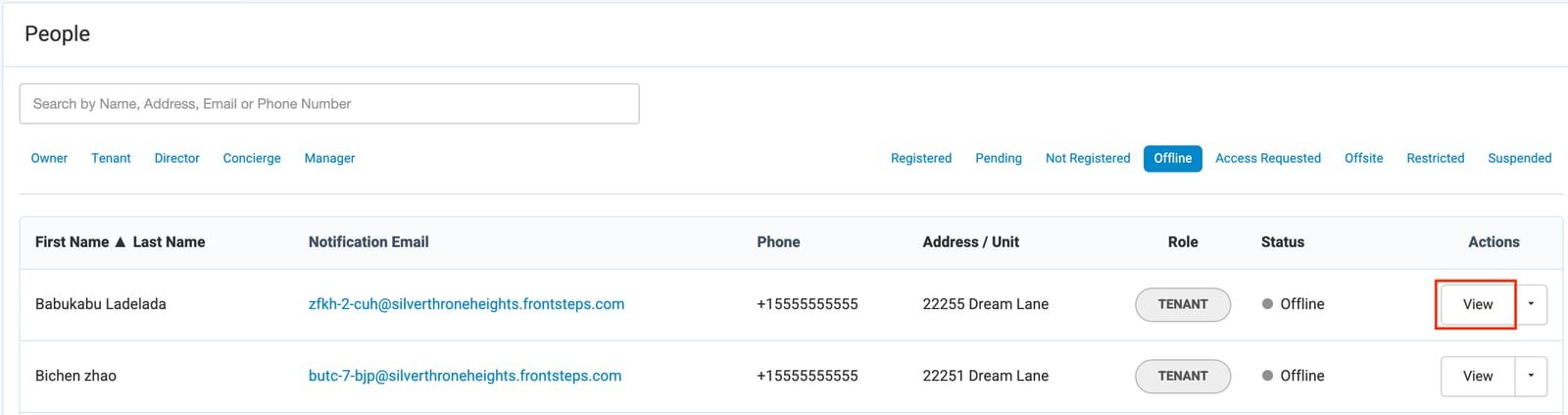
- Navigate to the directory and find the resident you would like to mail an offline letter to. Click View next to their name.
- Click the Print Invite Letter button on the right side.
A file will download that you can print and mail as desired.