
Admin - Creating a User Invite Template - Email
We’re updating this article. Some screenshots or names may look older than what you see in the product.
FRONTSTEPS provides an email template for you to edit and use before sending invites to community members.
Before You Begin
- This has to be performed on a community-by-community basis
- Remember to save your changes frequently or before you leave the page. If you leave the page without saving your changes, they will be lost.
- These steps pertain to email invites. If you want to edit physical letter invites before you print them, please see Admin - Creating a User Invite Template - Letter
Locate the Email Invite Template
Log into the community portal and in the top-right corner, click the Administrative Tools  icon:
icon:
- If you use Caliber, select Community Settings then Invite Template
- All others can click Invite Template directly
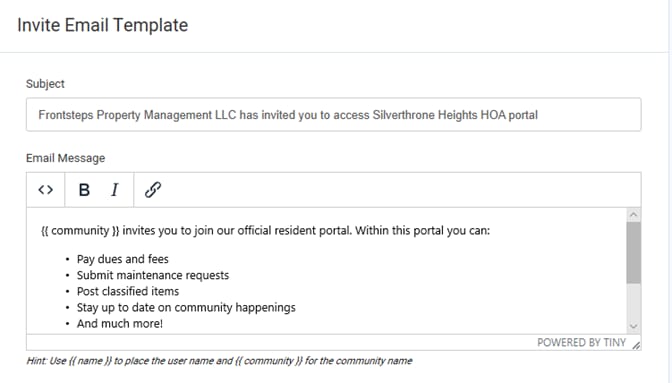
Edit Subject Line and Email Message
You can edit the Subject Line and Email Message to include community-specific information.
Note: If you add {{ name }} in the email message, the recipients name will automatically be inserted into the message when it is sent. If you add {{ community }}, the community name will be inserted.
Add Email Banner or Attachment
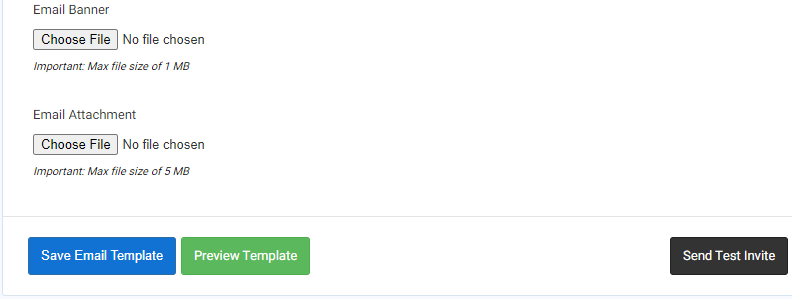
Email Banner:
- To add a banner/image to your email invite, click Choose File then select a banner/image from your computer (Max file size 1MB)
- To add an attachment to your email invite, click Choose File then select the file from your computer (Max file size 5MB)
Save, Preview, and Send Test Invite
Save Email Template:- Click the Save Email Template button to save your changes. You must save your changes before you can preview them.
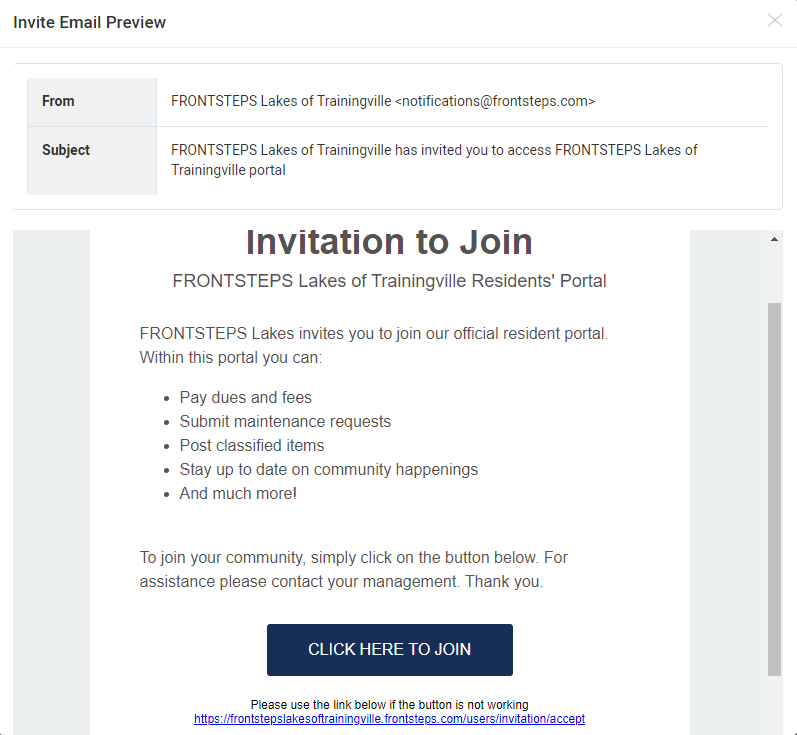
- Select Preview Template to verify the formatting and content of the email template.
Send Test Invite:
- Click Send Test Invite to send yourself an email to confirm the template is ready before sending to your community