
Admin - Creating a User Invite Template - Letter
We’re updating this article. Some screenshots or names may look older than what you see in the product.
FRONTSTEPS provides templates for you to use to create invites to send to community members, for access to your community site.
The Invite Letter Template is for use with new users who have not provided their email address to receive the email invite. In FRONTSTEPS, these users are known as Offline users.
From Administrative Tools, select Invite Template.
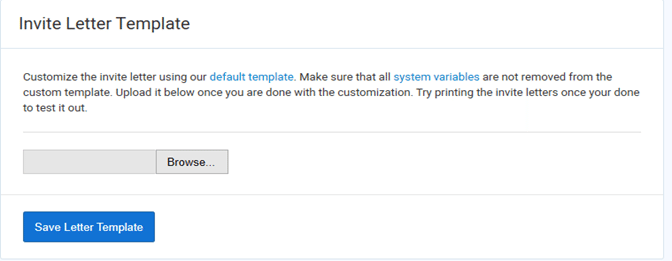
A Microsoft Word document is available for you to use as the basis for your template.
Select the default template blue link to download the Word template.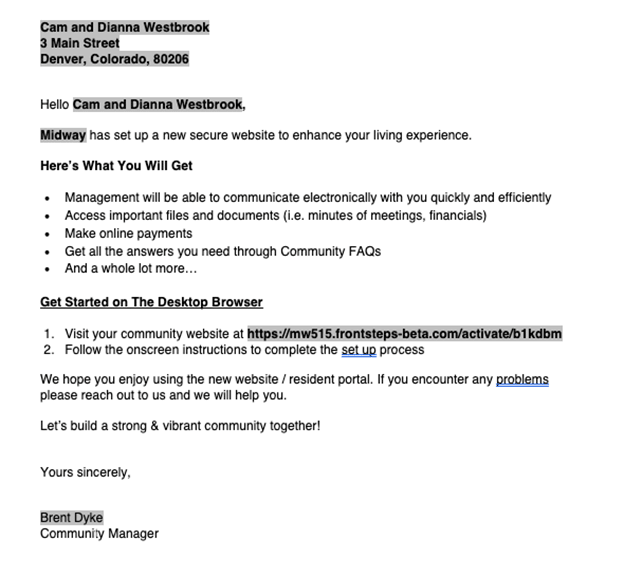
The System Variables, in bold letters, automatically complete the user information when sending the Invite.
For a complete list of available System Variables, select the System Variables blue link.
The temporary registration code is system-generated and contains the user information. The user enters the code as a URL and is navigated to the login setup screen.
Save the default template to your computer. Once your revisions to your new template are complete, save it to your computer under a new name.
Select the Browse option on the FRONTSTEPS template screen to locate your new template, and upload the template to the FRONTSTEPS system.
Select Save Letter Template. Your new template is now available for use.
The Invite Letter Template is for use with new users who have not provided their email address to receive the email invite. In FRONTSTEPS, these users are known as Offline users.
From Administrative Tools, select Invite Template.
A Microsoft Word document is available for you to use as the basis for your template.
Select the default template blue link to download the Word template.
The System Variables, in bold letters, automatically complete the user information when sending the Invite.
For a complete list of available System Variables, select the System Variables blue link.
The temporary registration code is system-generated and contains the user information. The user enters the code as a URL and is navigated to the login setup screen.
Save the default template to your computer. Once your revisions to your new template are complete, save it to your computer under a new name.
Select the Browse option on the FRONTSTEPS template screen to locate your new template, and upload the template to the FRONTSTEPS system.
Select Save Letter Template. Your new template is now available for use.
There are two ways to Create an Offline Letter:
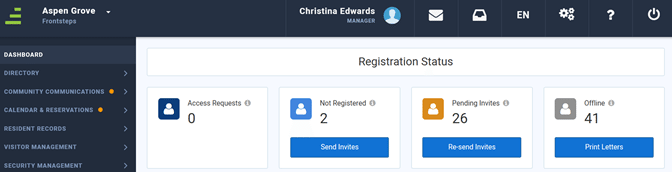
1. From the Manager Dashboard, select Registration Status> Offline>Print Letters
When Print Letters is selected, this screen displays: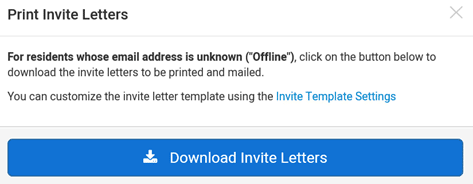
Select Download Invite Letters to create and print the letters.
Note: To accommodate potentially large numbers of letters, the invite letters download in a .zip file.
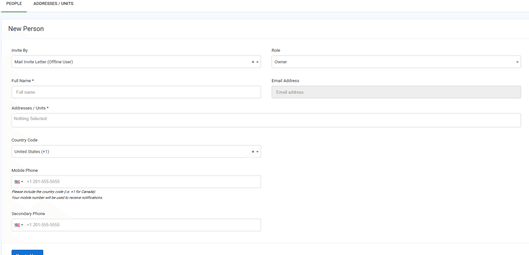
Select Mail Invite Letter (Offline Only) from the Invite By dropdown menu. 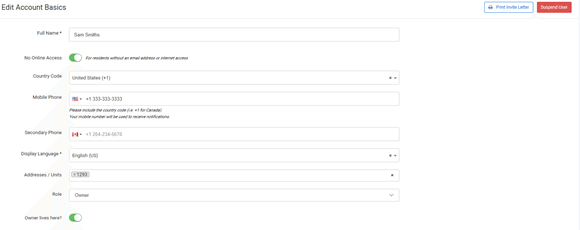
On the resulting Edit Account Basics screen, the Manager is then provided the opportunity to print the Invite Letter by selecting the Print Invite Letter button.