
Setup QR Code for In-House Statements or Coupons
We’re updating this article. Some screenshots or names may look older than what you see in the product.
FRONTSTEPS now offers a way to have QR Codes show on Statements or Coupons that are printed in-house or saved as PDFs.
This feature allows for a unique QR Code to appear on owner statements that they can scan and use to make a payment quickly and easily.
In order to use this feature, you must be using ALL of the following products:
If you do have all of the products and would like a live demo, you may request a demo here.
There are two places that this feature can be turned on.
Note: If a specific client will not be using this feature, you can override these settings and turn it off for at the client level.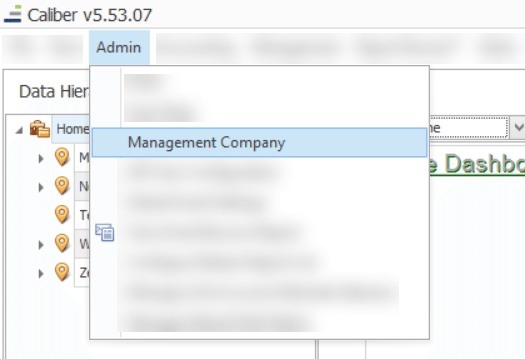
Note: The below path also describes where you would go to turn off the feature for the client if it has been enabled at the management company level.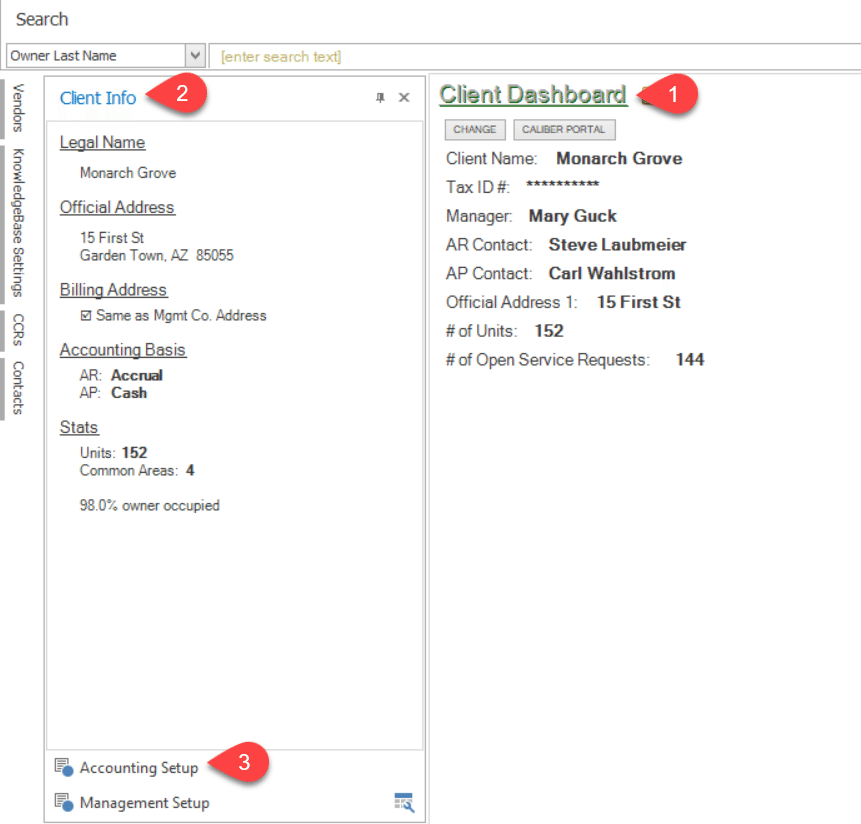
Once you have turned on the feature for the appropriate clients, you must select ‘In-House’ for EACH client. This must be done for every client that you have enabled this feature for.
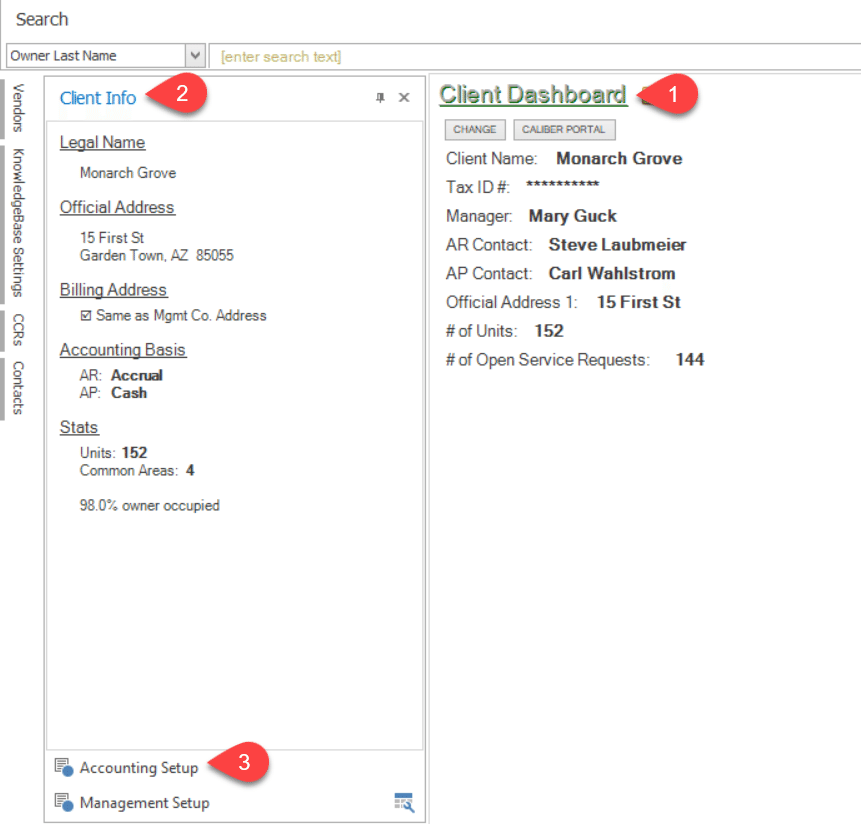
To access this setting navigate to the Client Dashboard > Client Info toolbox > Accounting Setup.
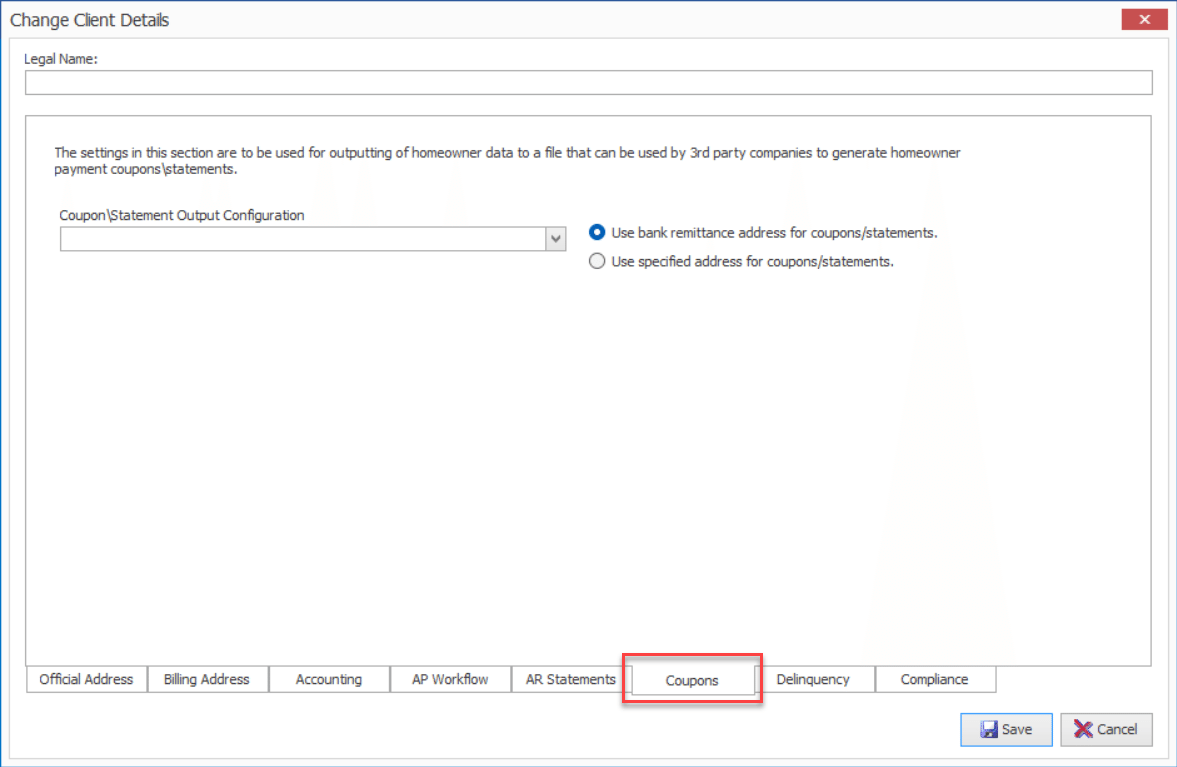
Select the Coupons tab.
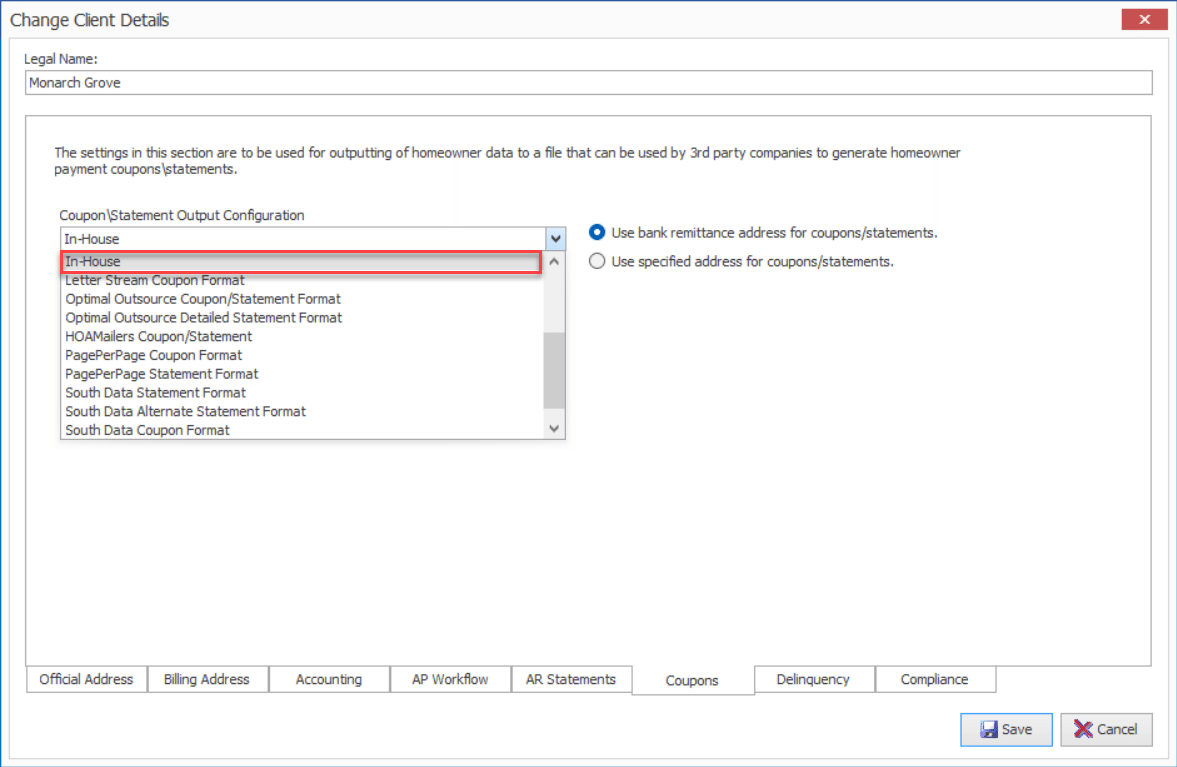
From the drop down select the option for ‘In-House’.
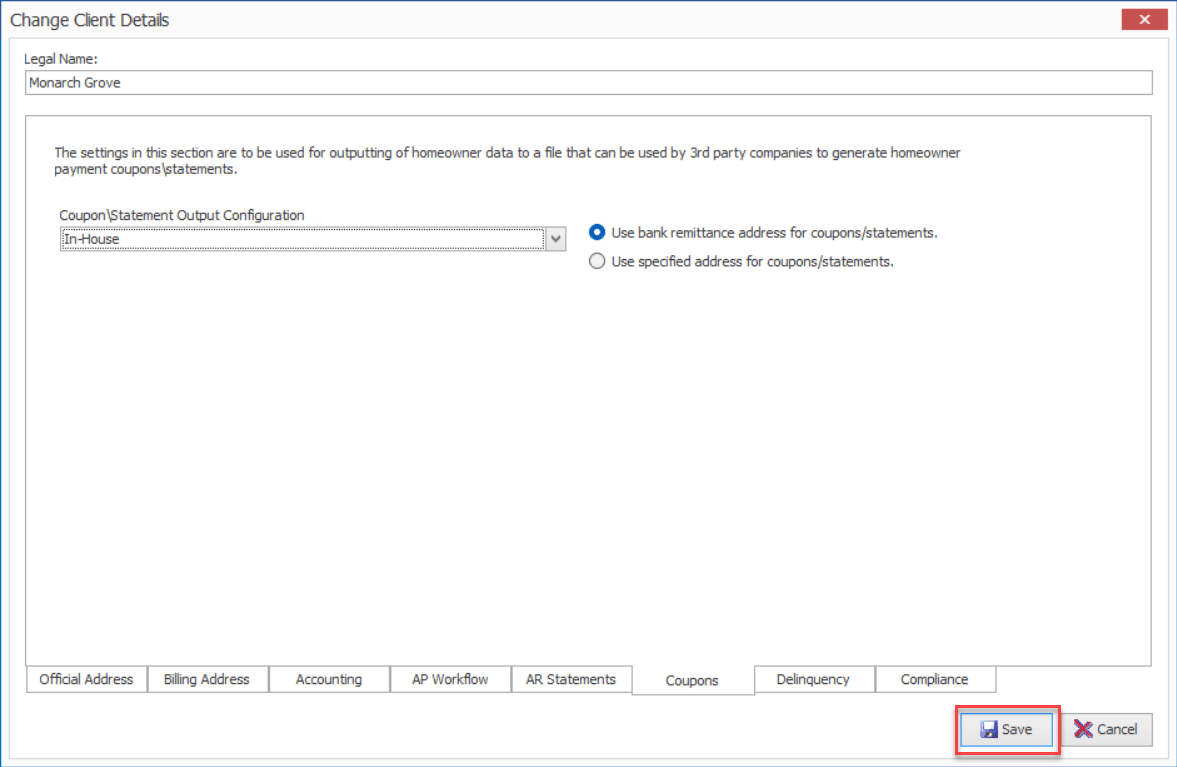
Save.
Repeat this process for every client that will be using this feature.
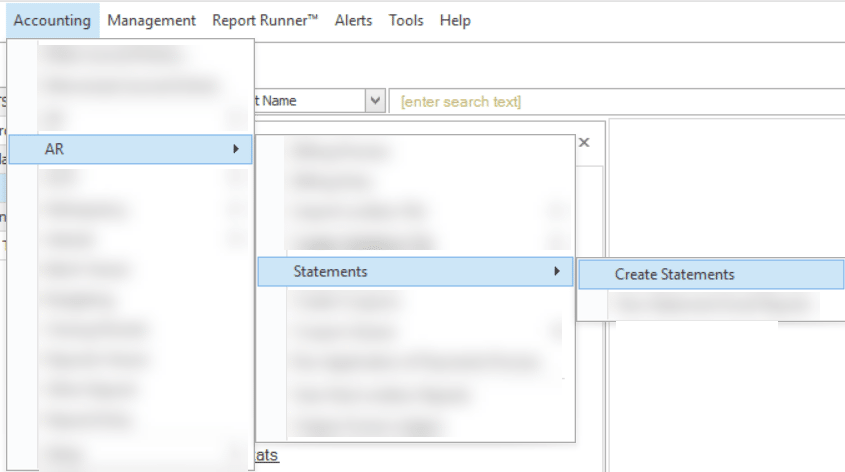
To do this navigate to the Accounting menu > AR > Statements > Create statements.
Choose the option for ‘Print statements as .pdf document’.
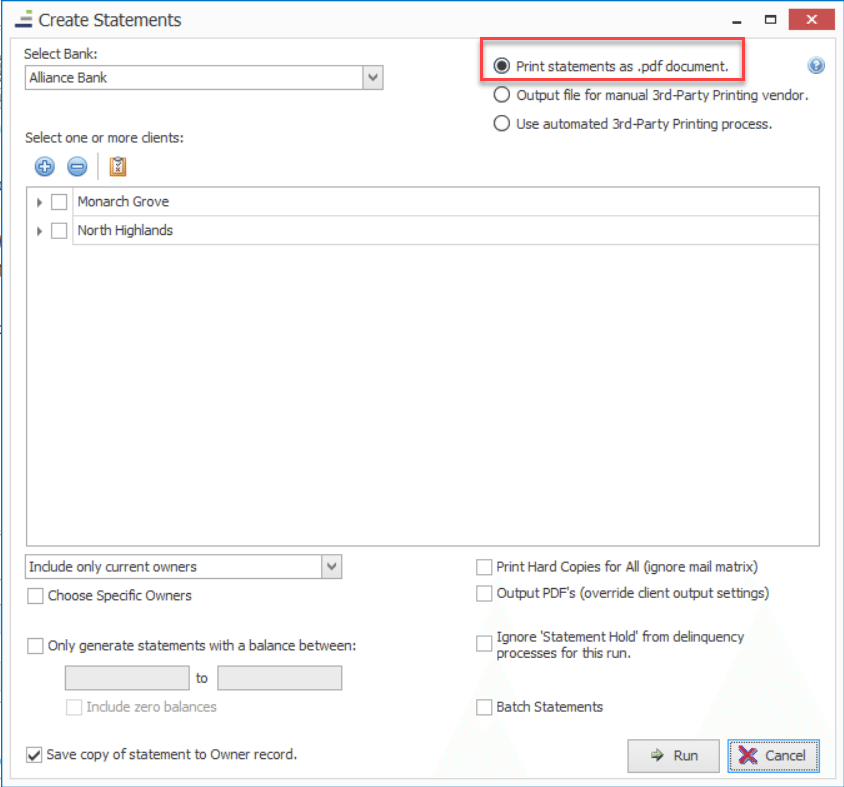
Select the bank, client(s) and other settings and click run.
Once you have completed the statement run owners who have opted to get statements via email will have been sent an email with their statement, and the remaining statements that need to be mailed will be printed or saved as pdfs.
Note: Emailed Statements do not include QR Codes currently.
If you would like learn more about the statement run process, view this article: Running Statements
Coupon Run
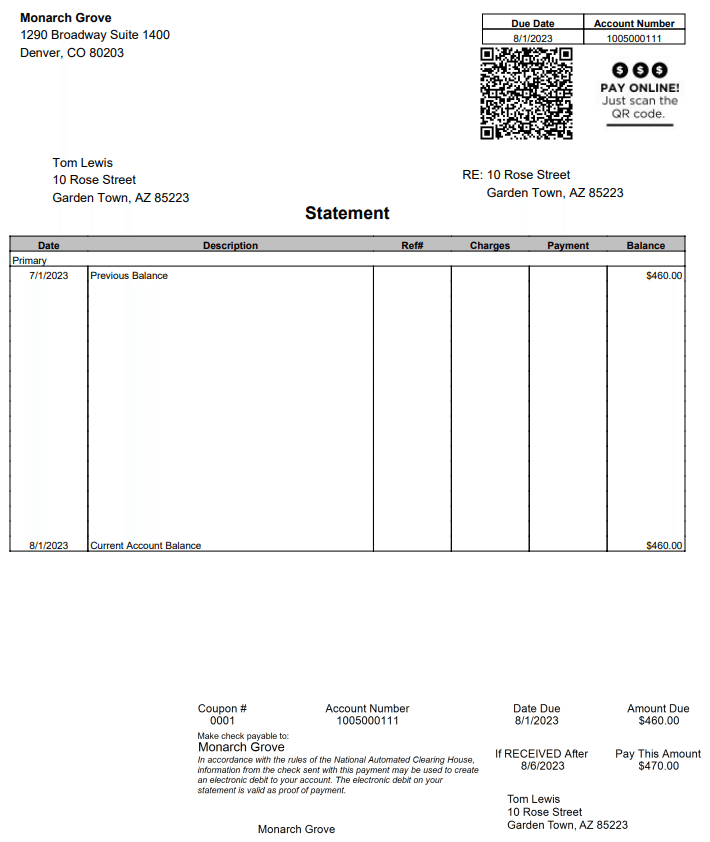
Once the resident receives their statement or coupon, they can scan the QR Code.
Please note that the QR Code is unique to each resident, so they should not share the code with anyone. For the first 60 days after the QR code is generated the resident will be brought directly to their account in QuickPay to make a payment (as shown in the following steps). After the 60 days is up; they will be directed to the Payment site where they will have to enter their account information in order to access their account & make a payment.
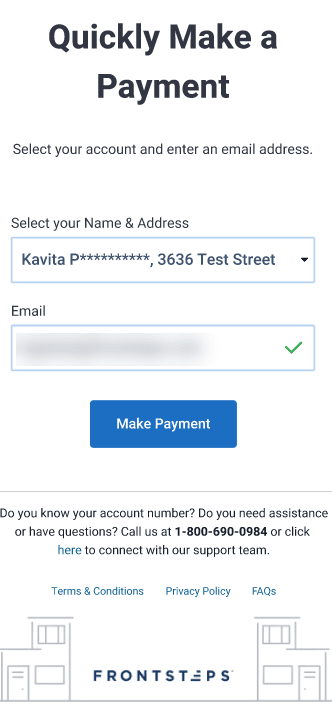
This will bring them to the QuickPay payment page. It will auto populate their name and address. They can then enter in the email address for their payment receipt to be sent.
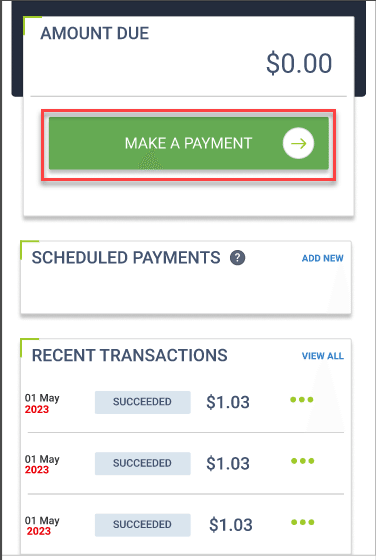
After clicking the ‘Make Payment’ button they will see their balance and recent transactions. To process a payment click the ‘Make a Payment’ button.
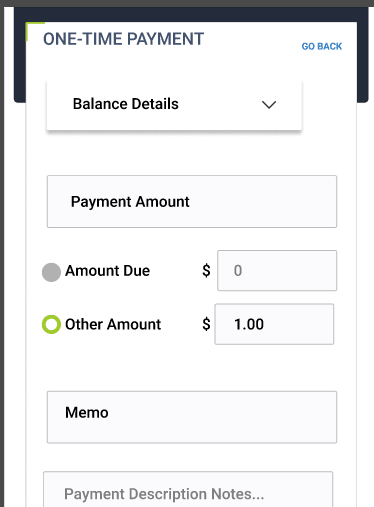
Select to pay the Amount Due or Other Amount.
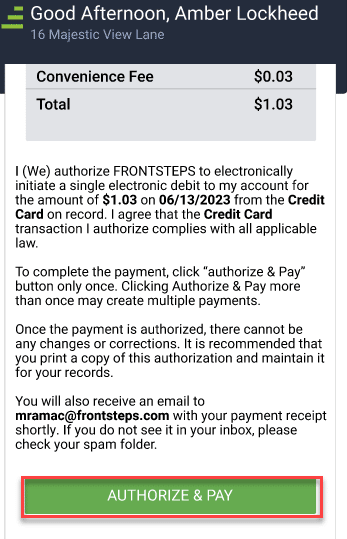
Review the payment summary and click the ‘Authorize & Pay’ button.
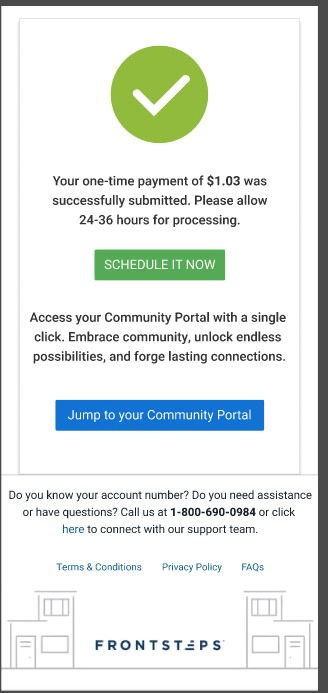
When complete they will receive a message saying they successfully made the payment. They will have the option to Set Ip a Recurring Payment, and if their community uses the FRONTSTEPS Community portal, they will have the option to access (or download) the Mobile app.
This feature allows for a unique QR Code to appear on owner statements that they can scan and use to make a payment quickly and easily.
In order to use this feature, you must be using ALL of the following products:
- FRONTSTEPS Caliber
- FRONTSTEPS Payments 3.0
- QuickPay
If you do have all of the products and would like a live demo, you may request a demo here.
Setup:
In order to have statements or coupons include QR codes, there is required setup within FORNTSTEPS Caliber.There are two places that this feature can be turned on.
- The first option is to enable it at a Management Company (master) level.
Note: If a specific client will not be using this feature, you can override these settings and turn it off for at the client level.
-
- To access this setting navigate to the Admin menu > Management Company.
-
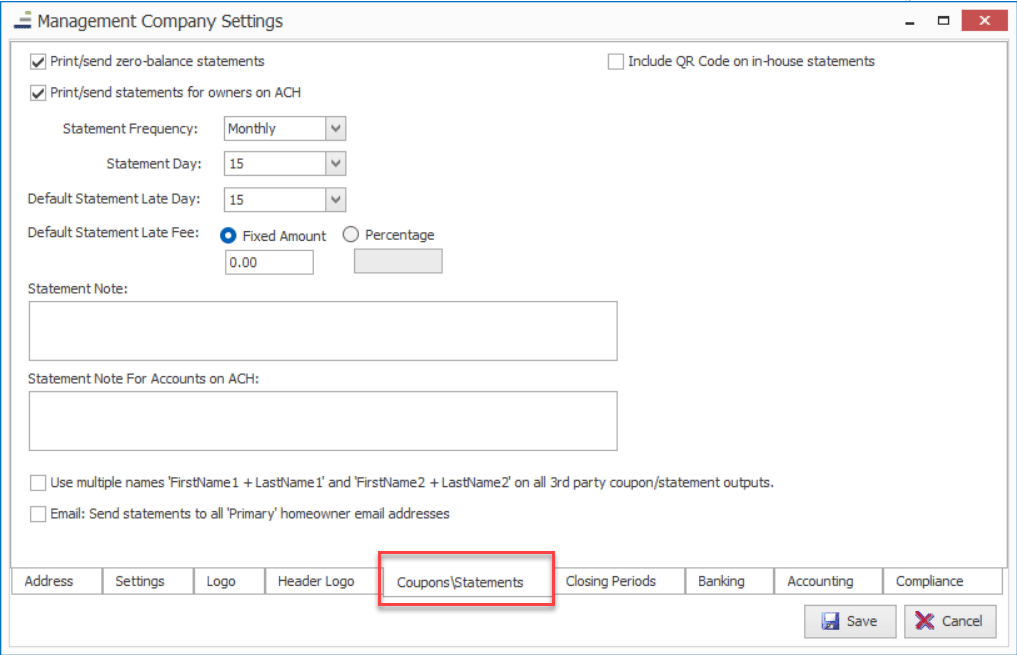
- Select the ‘Coupons/Statements’ tab
-
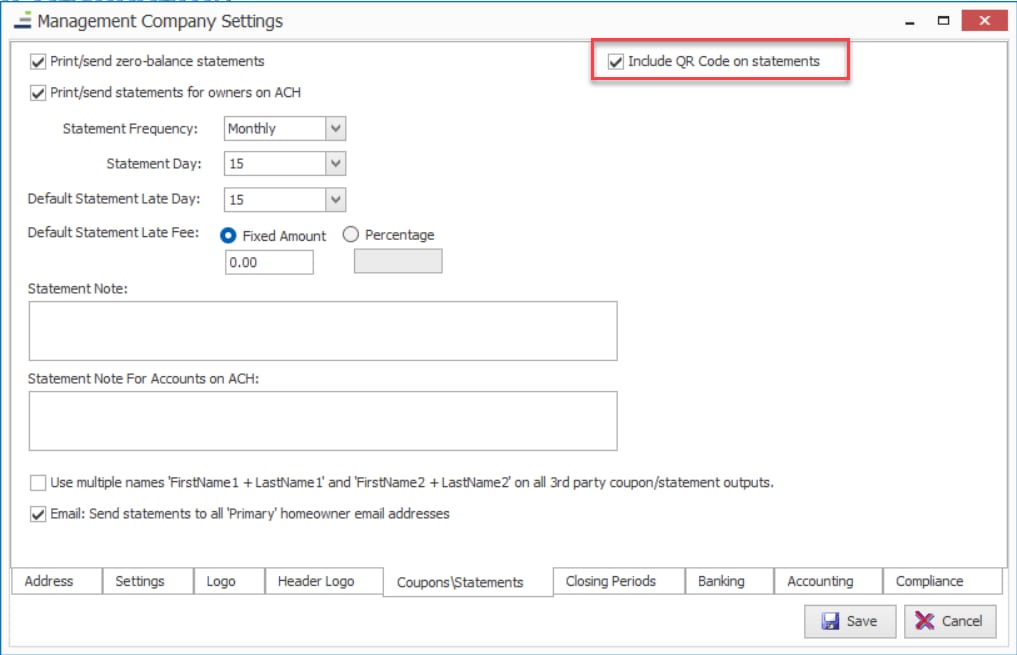
- Check the box for ‘Include QR Code on statements’.
-
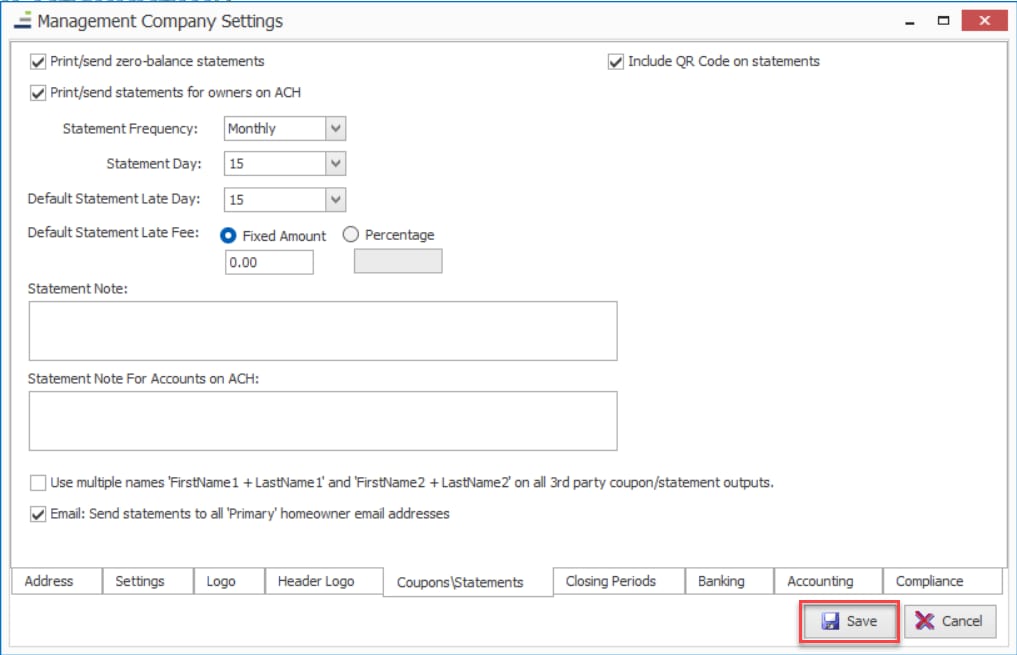
- Save
- The other option is to enable it at a Client level.
Note: The below path also describes where you would go to turn off the feature for the client if it has been enabled at the management company level.
-
- To access this setting navigate to the Client Dashboard for the specific client > Client Info toolbox > Accounting Setup.
-
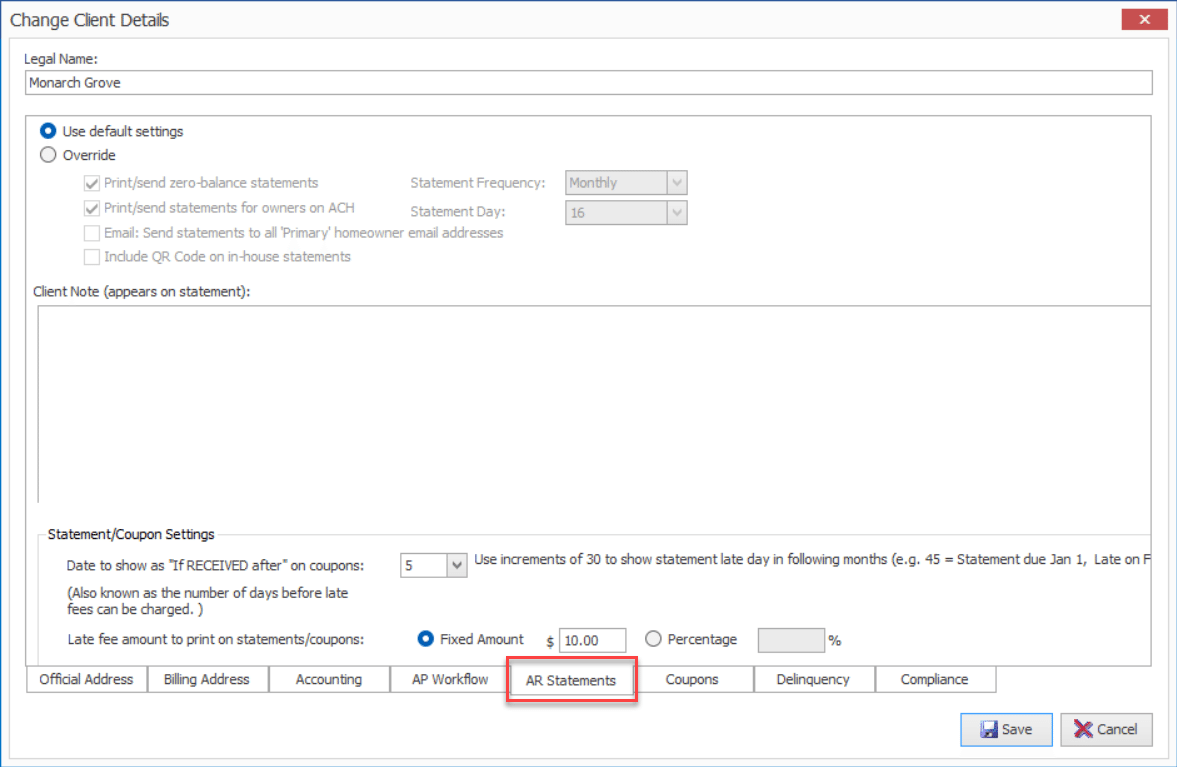
- Select the ‘AR Statements’ tab
-
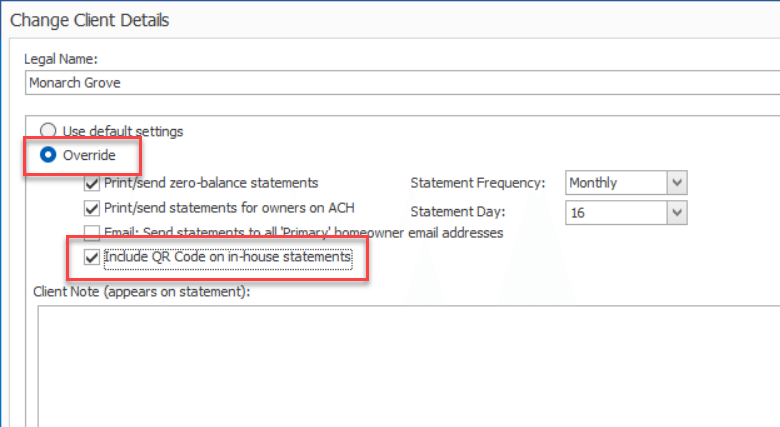
- Select the radio button for ‘Override’ to edit the statement settings. Select the checkbox for ‘Include QR Code on statements’
- If you are turning this off for a client, you would uncheck this box.
- Select the radio button for ‘Override’ to edit the statement settings. Select the checkbox for ‘Include QR Code on statements’
-
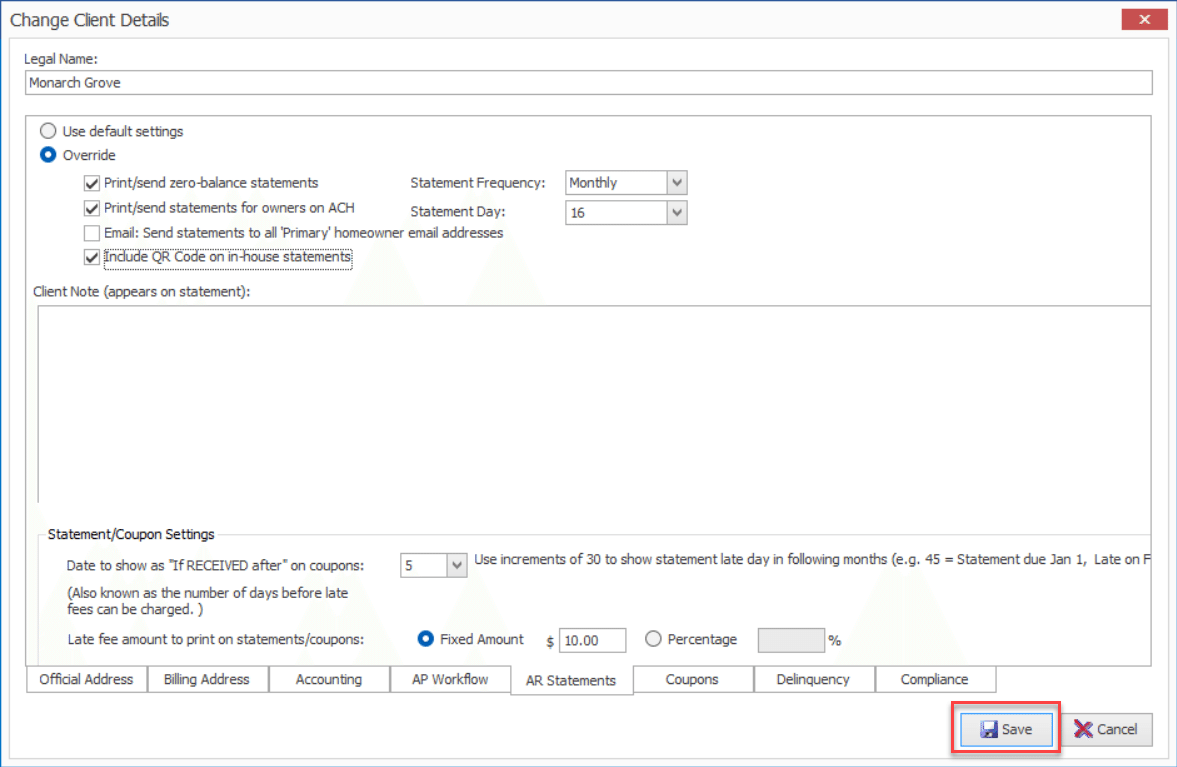
- Save.
Once you have turned on the feature for the appropriate clients, you must select ‘In-House’ for EACH client. This must be done for every client that you have enabled this feature for.
To access this setting navigate to the Client Dashboard > Client Info toolbox > Accounting Setup.
Select the Coupons tab.
From the drop down select the option for ‘In-House’.
Save.
Repeat this process for every client that will be using this feature.
Statement Run
To generate the statements with QR codes you will generate the statements from Caliber.To do this navigate to the Accounting menu > AR > Statements > Create statements.
Choose the option for ‘Print statements as .pdf document’.
Select the bank, client(s) and other settings and click run.
Once you have completed the statement run owners who have opted to get statements via email will have been sent an email with their statement, and the remaining statements that need to be mailed will be printed or saved as pdfs.
Note: Emailed Statements do not include QR Codes currently.
If you would like learn more about the statement run process, view this article: Running Statements
Coupon Run
To generate the coupons with QR codes you will generate them from Caliber.
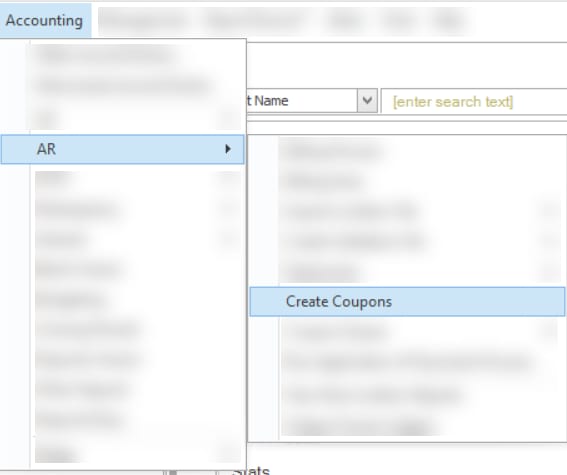
To do this navigate to the Accounting menu > AR > Create Coupons.
Ensure the option for 'Use Client settings for Coupons’ is selected.
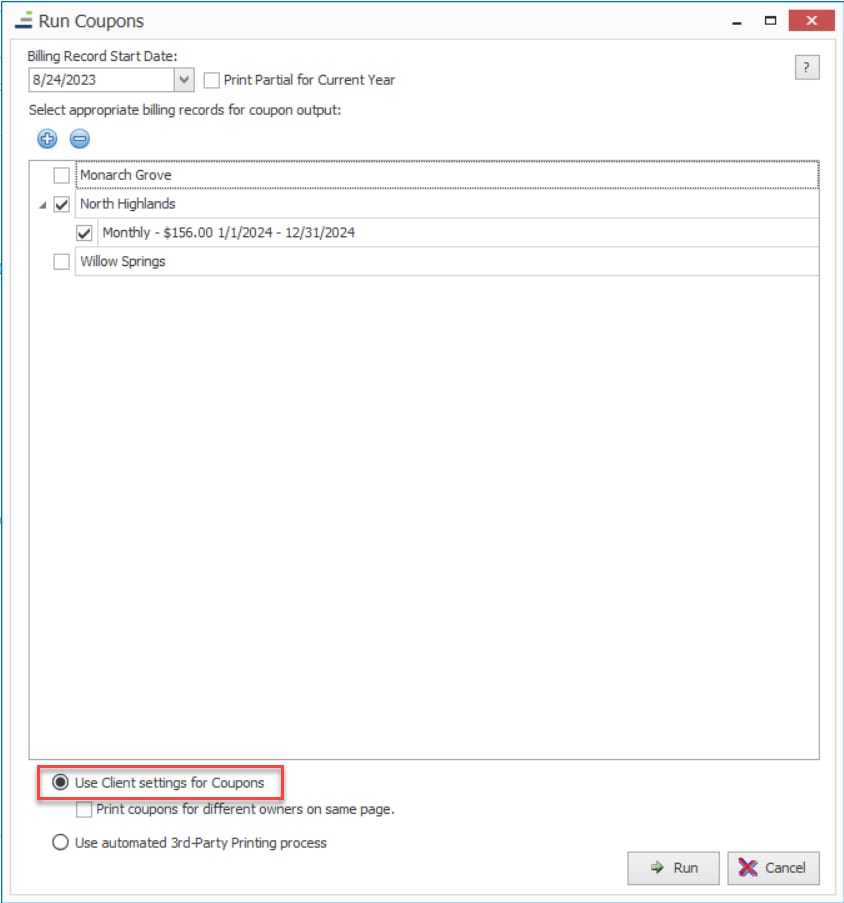
Select the client(s) and other settings and click run.
You will be asked a series of prompts and when complete you will asked to select a printer.
If you would like learn more about the coupon run process, view this article: Creating Coupons
Resident Scan
Once the resident receives their statement or coupon, they can scan the QR Code.Please note that the QR Code is unique to each resident, so they should not share the code with anyone. For the first 60 days after the QR code is generated the resident will be brought directly to their account in QuickPay to make a payment (as shown in the following steps). After the 60 days is up; they will be directed to the Payment site where they will have to enter their account information in order to access their account & make a payment.
This will bring them to the QuickPay payment page. It will auto populate their name and address. They can then enter in the email address for their payment receipt to be sent.
After clicking the ‘Make Payment’ button they will see their balance and recent transactions. To process a payment click the ‘Make a Payment’ button.
Select to pay the Amount Due or Other Amount.
Review the payment summary and click the ‘Authorize & Pay’ button.
When complete they will receive a message saying they successfully made the payment. They will have the option to Set Ip a Recurring Payment, and if their community uses the FRONTSTEPS Community portal, they will have the option to access (or download) the Mobile app.