
Running Statements
We’re updating this article. Some screenshots or names may look older than what you see in the product.
To run statements, go to Accounting > AR > Statements > Create Statements.
From this window, you have several options to review such as Bank, Client, and Printing/Output selections.
You also have options available to filter owners and Choose Specific Owners to generate statements for, and options to copy to Owner record and override Mail Matrix settings.
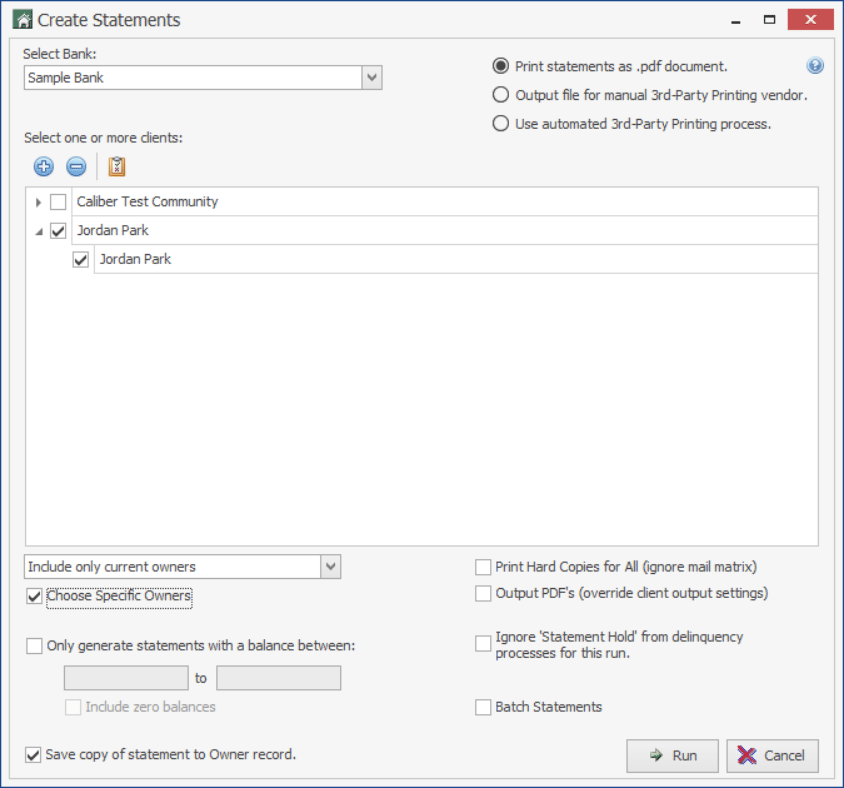
NOTE: You must configure your Coupon output before generating statements with either of the 3rd party printing options selected (Client Info > Accounting Setup > Coupons – shown on prior page). If you configure for 3rd party printing output, you still have the option to print the statements in house.
“Choose Specific Owners” – The New Select Recipients Feature for AR Statements:
You can now select individual Homeowners from your Client selections if you do not wish to generate statements for everyone in the community. Refer to the updated Owners Dropdown Menu and Choose Specific Owners checkbox under the Client List on the Create Statements window.
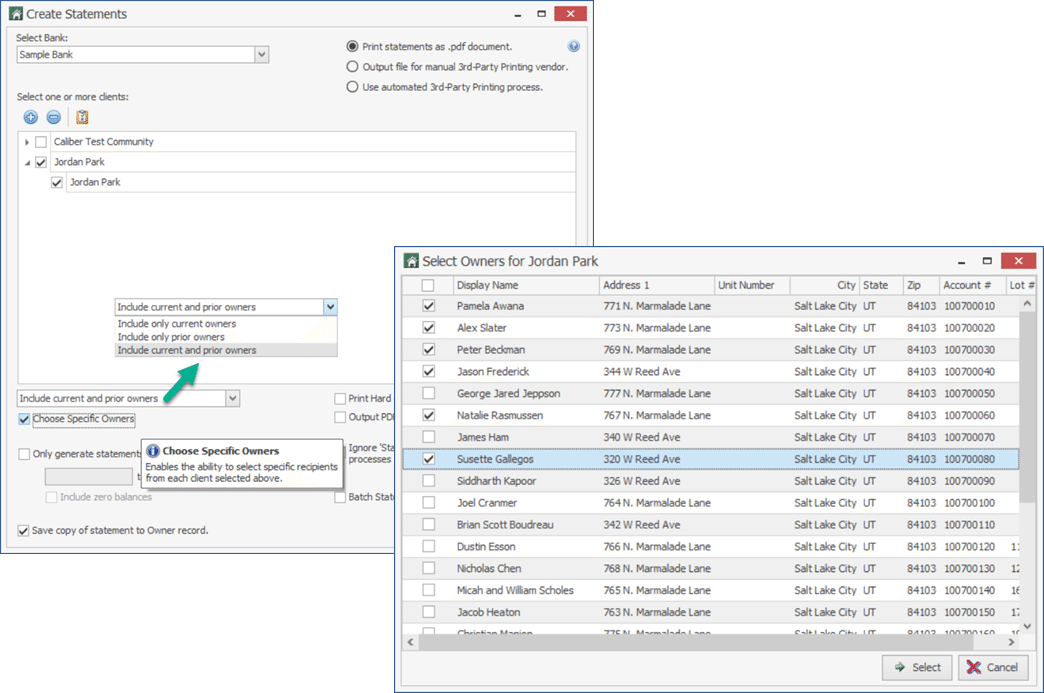
Using the Owners Dropdown Menu, you can apply a filter of “Include Only Current Owners”, “Include Only Prior Owners”, or “Include Current and Prior Owners”.
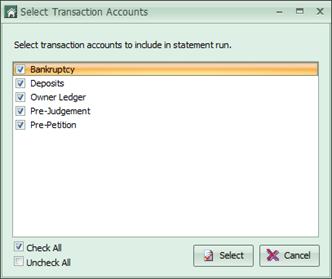
Checking the Choose Specific Owners box will allow you to select individual Homeowners from your Client Selection immediately after you specify Transaction Accounts and Statement Dates (refer to these items on the next page). A Select Owners window will open with a list of Homeowners for each Client you selected on the Create Statements window. Simply click Select to review Homeowners for each additional Client.
See the example below:
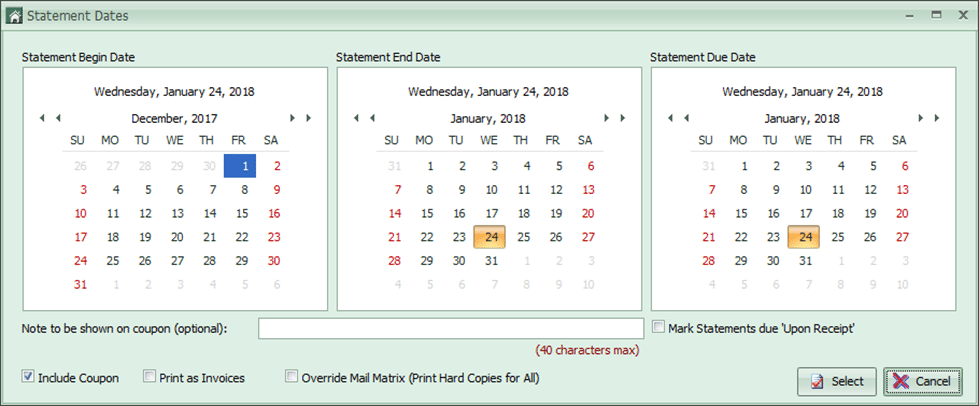
You will be prompted to set the statement beginning and end dates. Other options available:
After making all selections, click Select. If you have chosen to output to a 3rd party, you will receive the option to include those owners set to receive statements via email in the output file before seeing the following screen.
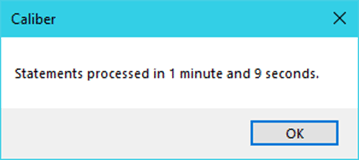
When the statements are complete you will receive a message:
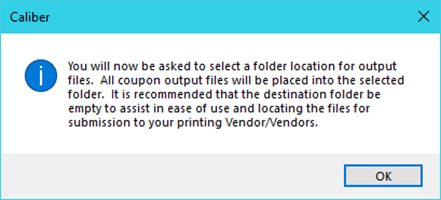
If any statements were emailed, you will be given the option to view the Statement Email Report. If you selected “Print statements as .pdf document,” the file will open. If you selected “Output statements to 3rd Party Vendor,” you will receive the following message:
From this window, you have several options to review such as Bank, Client, and Printing/Output selections.
You also have options available to filter owners and Choose Specific Owners to generate statements for, and options to copy to Owner record and override Mail Matrix settings.
NOTE: You must configure your Coupon output before generating statements with either of the 3rd party printing options selected (Client Info > Accounting Setup > Coupons – shown on prior page). If you configure for 3rd party printing output, you still have the option to print the statements in house.
“Choose Specific Owners” – The New Select Recipients Feature for AR Statements:
You can now select individual Homeowners from your Client selections if you do not wish to generate statements for everyone in the community. Refer to the updated Owners Dropdown Menu and Choose Specific Owners checkbox under the Client List on the Create Statements window.
Using the Owners Dropdown Menu, you can apply a filter of “Include Only Current Owners”, “Include Only Prior Owners”, or “Include Current and Prior Owners”.
Checking the Choose Specific Owners box will allow you to select individual Homeowners from your Client Selection immediately after you specify Transaction Accounts and Statement Dates (refer to these items on the next page). A Select Owners window will open with a list of Homeowners for each Client you selected on the Create Statements window. Simply click Select to review Homeowners for each additional Client.
See the example below:
You will be prompted to set the statement beginning and end dates. Other options available:
- Due Date or Mark Statements due “Upon Receipt”
- Include Coupon
- Print as Invoices – a statement will show a detail of all transactions during the statement period; an invoice will only show outstanding charges as of the statement end-date.
- Override the mail matrix and print statements for all accounts.
- Add a note to the coupon
After making all selections, click Select. If you have chosen to output to a 3rd party, you will receive the option to include those owners set to receive statements via email in the output file before seeing the following screen.
When the statements are complete you will receive a message:
If any statements were emailed, you will be given the option to view the Statement Email Report. If you selected “Print statements as .pdf document,” the file will open. If you selected “Output statements to 3rd Party Vendor,” you will receive the following message: