
Resident- Modify a Scheduled Payment
We’re updating this article. Some screenshots or names may look older than what you see in the product.
In order to edit a scheduled payment, residents must sign-in to APTEXX and update their payment information.
To login: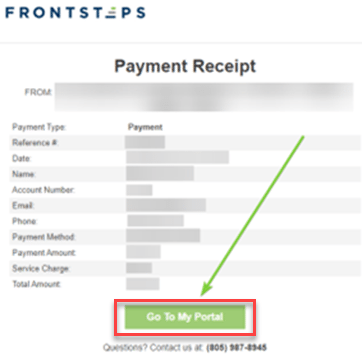
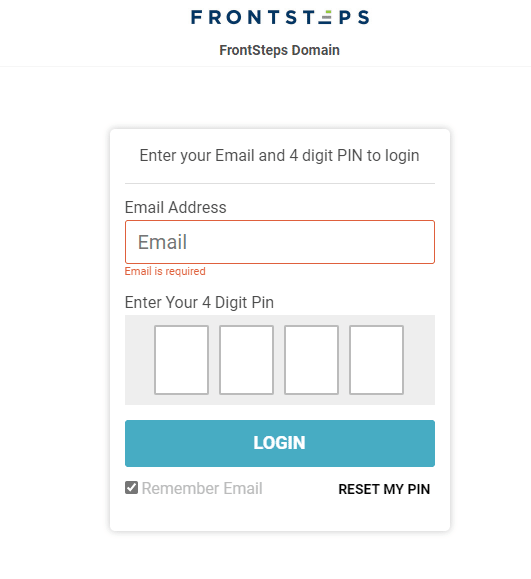
Once logged in, click on the ‘Scheduled Payments’ button.
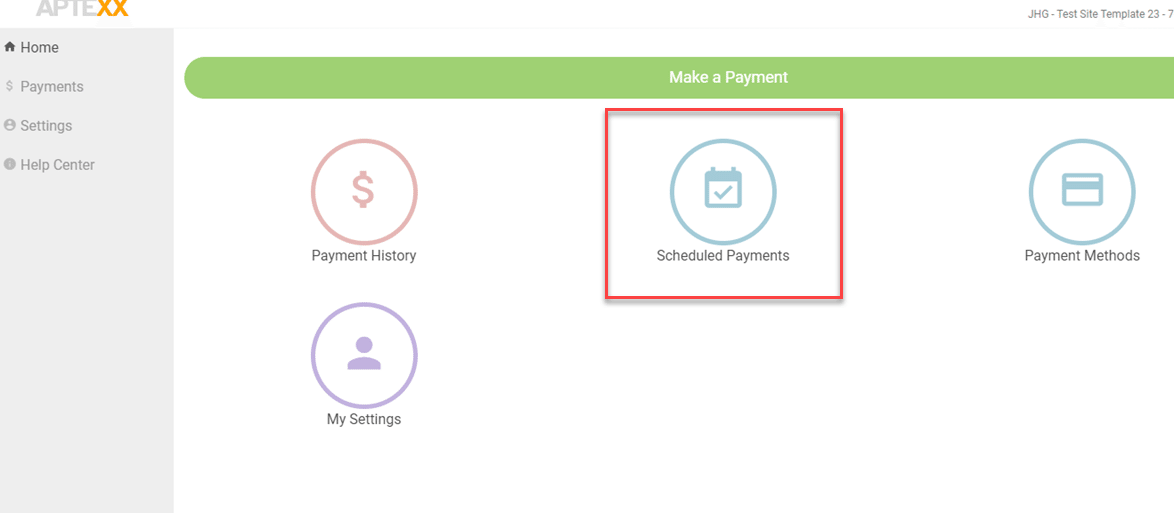
Find the scheduled payment you want to edit and click the ‘EDIT’ button.
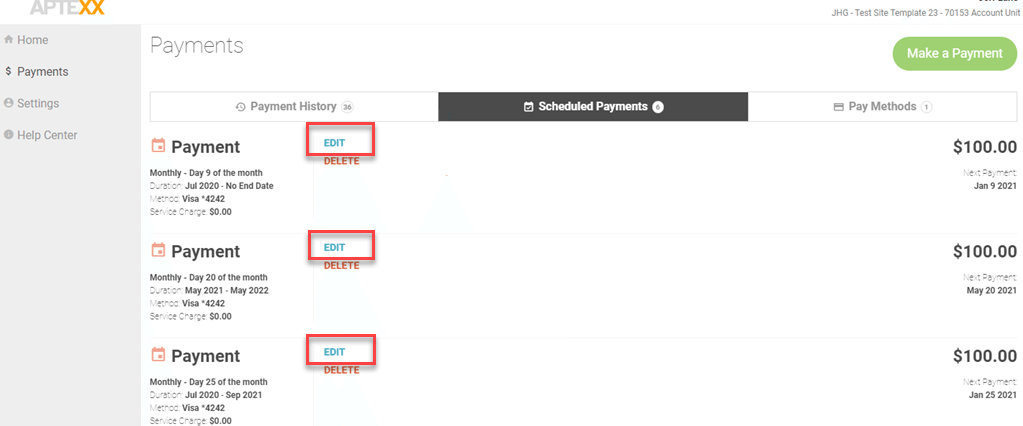
Adjust the scheduled payment as you see fit.
Once complete click the ‘EDIT SCHEDULED PAYMENT’ button to save the changes.
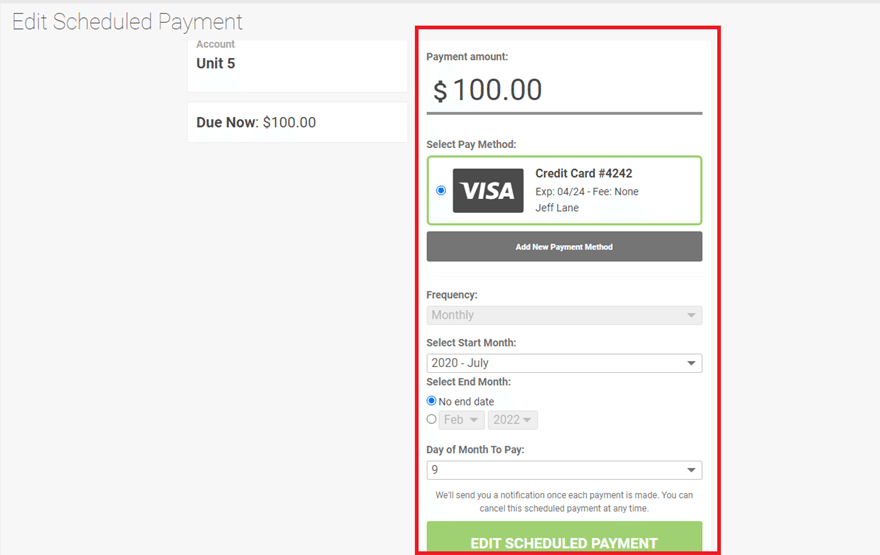
Please note that if you are unable to adjust a certain field, you will need to delete that scheduled payment and create a new one.
To delete a scheduled payment, find the payment and click the ‘DELETE’ button.
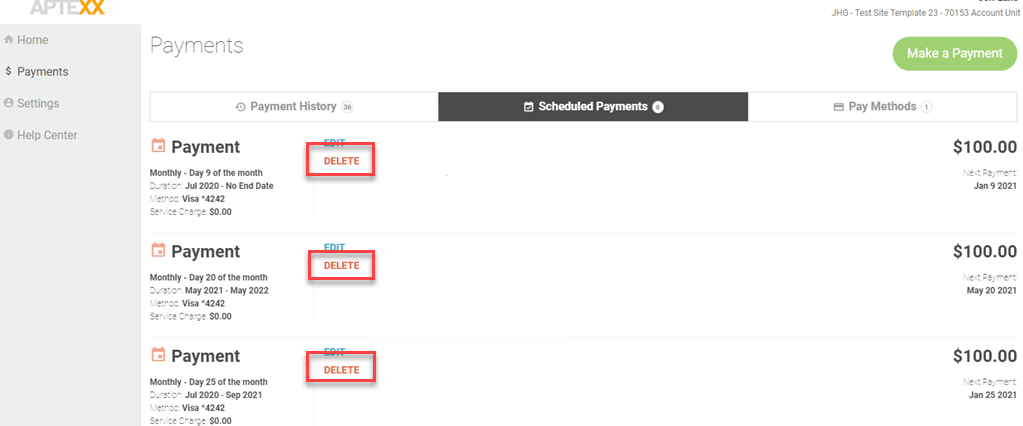
Once the payment is deleted you may create a new scheduled payment.
Please see our ‘How to Make a Payment’ article to setup a recurring payment.
To login:
Resident goes to: https://frontsteps.aptx.cm/#/person/login/
OR
Resident clicks the ‘Go To My Portal’ button from their receipt
- Residents will login with their email and PIN they setup the APTEXX account with. If they forgot their PIN, they can reset their PIN on that screen.
Once logged in, click on the ‘Scheduled Payments’ button.
Find the scheduled payment you want to edit and click the ‘EDIT’ button.
Adjust the scheduled payment as you see fit.
Once complete click the ‘EDIT SCHEDULED PAYMENT’ button to save the changes.
Please note that if you are unable to adjust a certain field, you will need to delete that scheduled payment and create a new one.
To delete a scheduled payment, find the payment and click the ‘DELETE’ button.
Once the payment is deleted you may create a new scheduled payment.
Please see our ‘How to Make a Payment’ article to setup a recurring payment.