
Resident- How to Make a Payment
We’re updating this article. Some screenshots or names may look older than what you see in the product.
Payments
This feature is available for communities that have the FRONTSTEPS payment module. Residents can make payments from either the Resident Dashboard directly or from the Quick Actions> My Payments tab on the left side of the Resident Dashboard.
To Make a Payment:
1. Select the 'Make Payment' button from either the Resident Dashboard or the Quick Actions>My Payments tab. The process will be the same.
From the Resident Dashboard> Make Payment: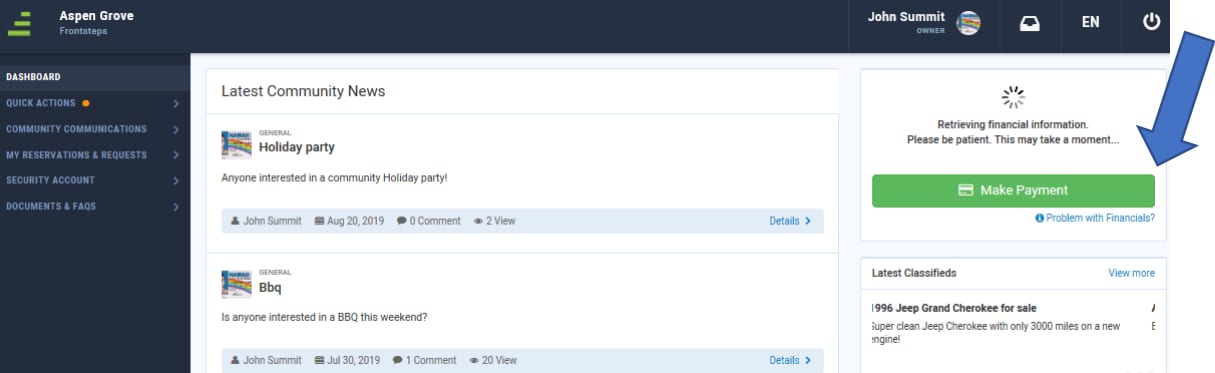
o When you choose the Make Payment button directly from the Resident Dashboard, you are brought directly to the Make a Payment screen.
Or,
Quick Actions> My Payments>Make Payment: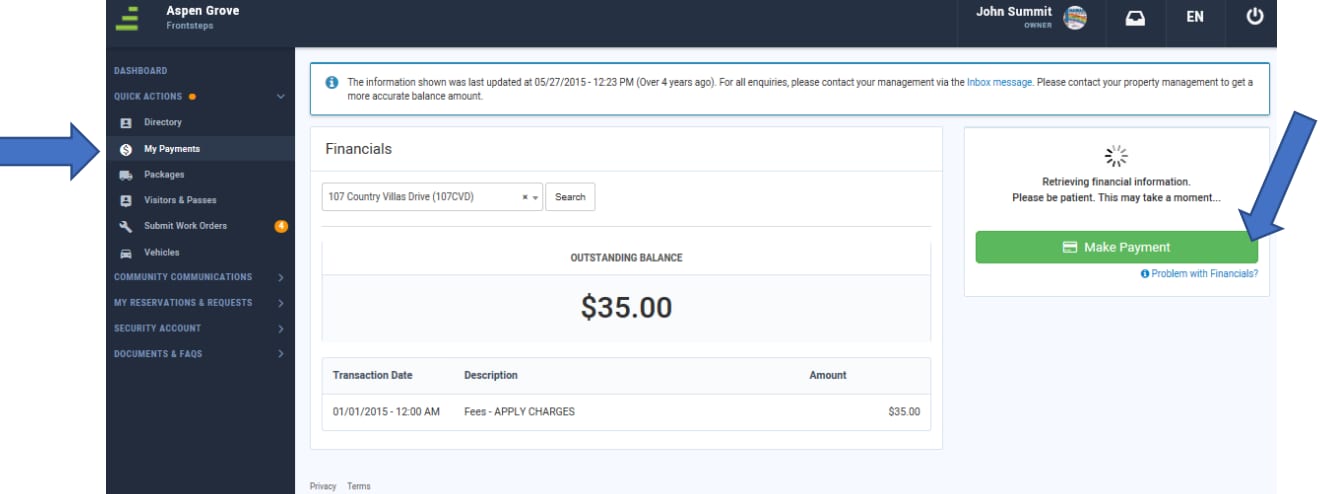
o When you select the My Payments tab from Quick Actions, a list of Payments transactions can be viewed. The resident can see their outstanding balance and payment history. You then select the Make Payment button.
Once the Make Payment button is selected the resident is brought to the Make a Payment screen.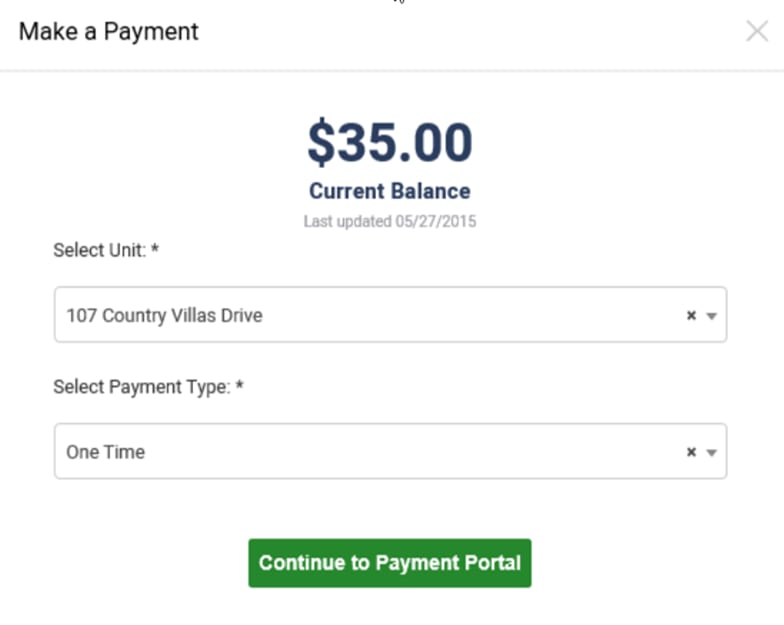
3. On the Make a Payment screen, select the Unit from the dropdown menu.
4. Select the Payment Type (One Time or Recurring). See Setting Up Recurring Payments.
5. Choose the 'Continue to Payment Portal' button.
6. When the resident selects the 'Continue to Payment Portal' button, they are automatically redirected to the APTEXX payment portal to complete their payment.
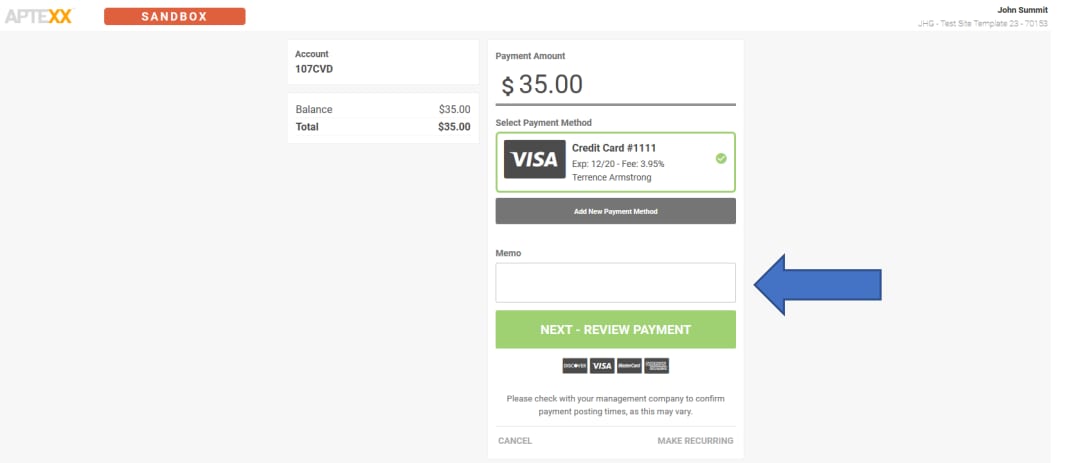
7. Select the Payment Method, if more than one display.
o If the resident would like to do so, a memo can be added here.
8. Select the 'Next – Review Payment' to continue to the confirmation screen.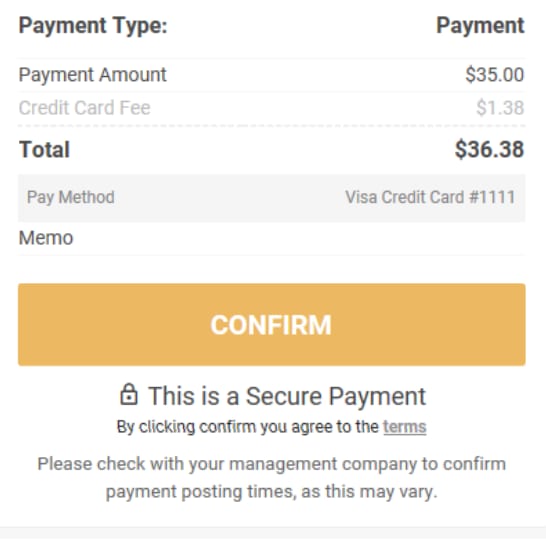
9. The resident selects the 'Confirm' button.
10. The resident will then receive confirmation on their Dashboard that a payment was successfully made.
Setting Up a Recurring Payment:
1. Select the 'Make Payment' button from the Resident Dashboard or from Quick Actions>My Payments.
2. From the Make a Payment screen, Select the Unit.
3. Choose Recurring from the Select Payment Type dropdown menu.
4. Select 'Continue to Payment Portal'.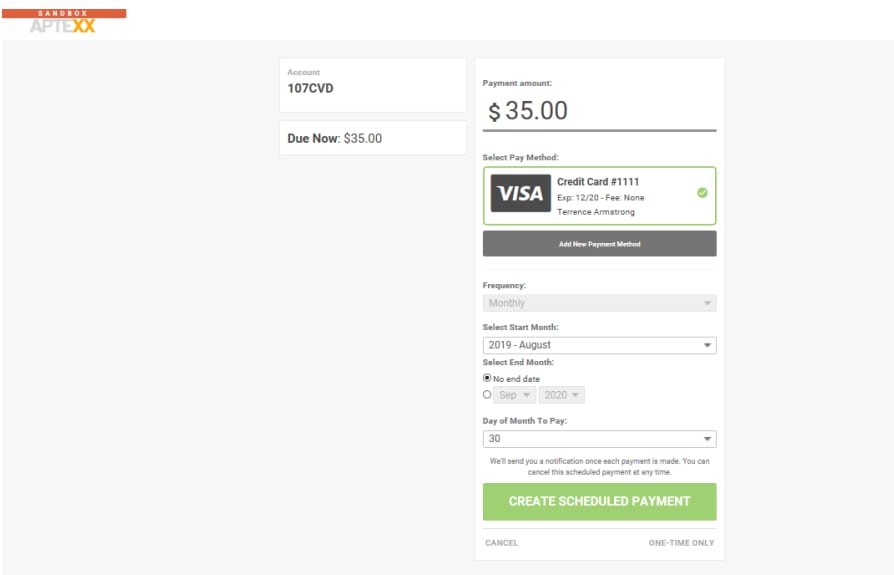
5. Select the Payment Frequency from the dropdown menu.
6. Select the Start Month from the dropdown menu.
7. Select the End Month Date or No End Date
8. Select the Day of Month to Pay from the dropdown menu.
9. Select the 'Create Schedule Payment' button.
o The resident will receive a notice that the set up was successful
To Add New Payment Method: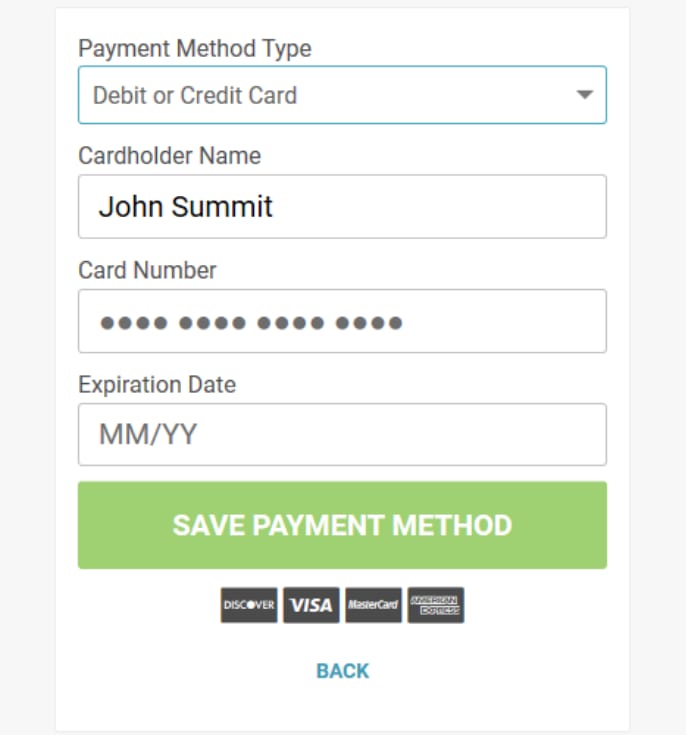
The resident can add a new payment method.
1. Select the 'Make Payment' button from the Resident Dashboard or from the Quick Actions> My Payments tab.
2. Select the Unit and Payment Type.
3. Select 'Continue to Payment Portal'.
4. Select the 'Add New Payment Method' button.
5. Select a Payment Method Type from the dropdown menu.
6. Enter the Cardholder Name.
7. Enter the Card Number.
8. Enter the Expiration Date.
9. Save Payment Method.