
Multiple Ledgers
Multiple Ledgers
Multiple Ledgers provides homeowners with a seamless and personalized payment experience. Now, when making an online payment, homeowners will see all of their ledgers (aka transaction accounts) and their balances.
This also means that homeowners will have the flexibility to choose where their payment goes, whether it's for an assessment, fine, deposit, or any other purpose.
This feature is available on both the Community Web Portal and the Mobile app.
Please note that this is a FRONTSTEPS Suite feature and is only for Caliber, Community and Payments 3.0 customers.
If you are interested in enabling this feature, please reach out to our Support or Delivery team for assistance.
How it works:
Once this feature has been enabled by the FRONTSTEPS team, homeowners will be able to view and make payments to all transaction accounts (ledgers) that have been setup at the ‘Client’ dashboard within Caliber desktop. This means that any charges added to their various ledgers within Caliber, can now be paid individually within the Community portal and mobile app.
To learn more about transaction account (ledgers) and how to set those up in Caliber, view this article.

Homeowner View:
To view a video demonstration of the homeowner view click here.
Once a homeowner logs into the Community Portal or Mobile app, they will navigate to the ‘Payments’ dashboard.
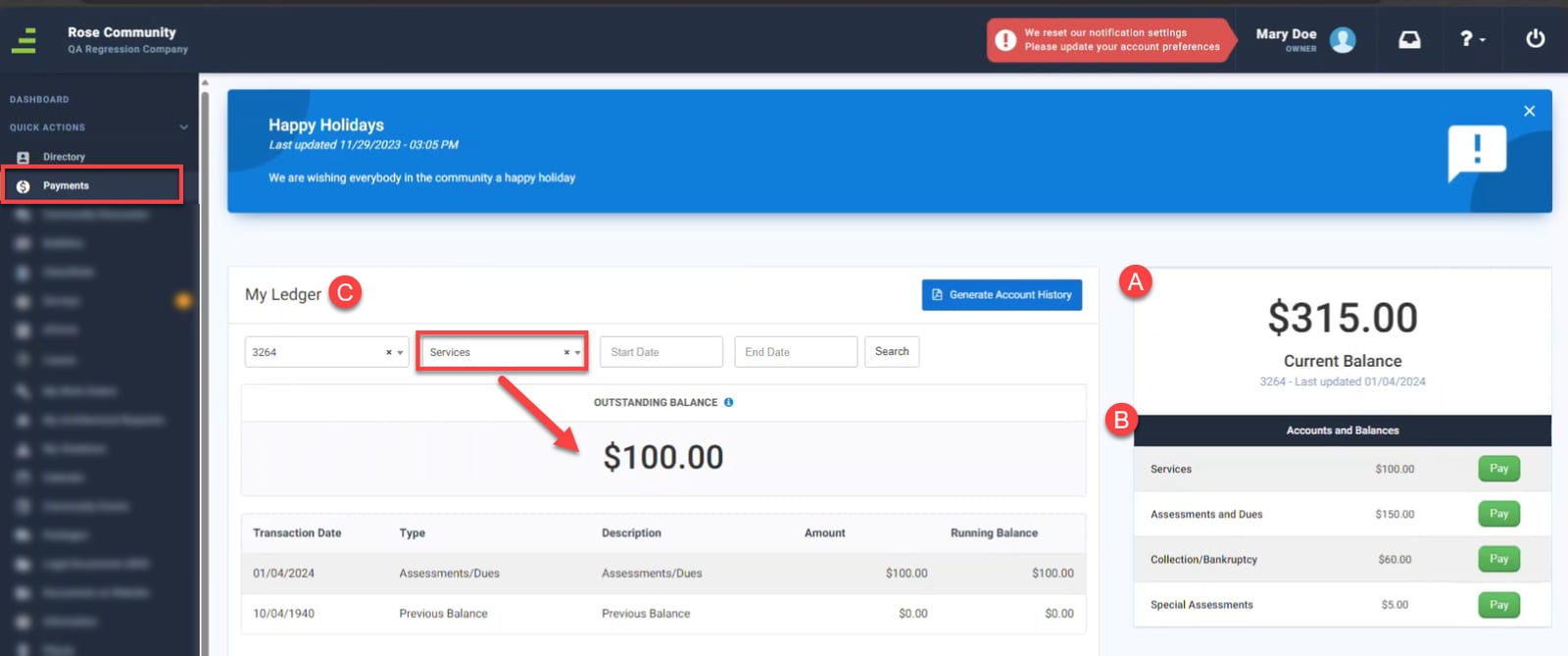
From here homeowners will see:
- The total amount due across all of their transaction accounts (ledgers)
- The list view of each transaction account (ledger), how much is due on each and a payment button.
- A detailed view of the transaction account (ledger) that is selected in the filter option. To change the ledger you are viewing, use the drop down menu to select a different one.
To make a payment on a ledger, click the ‘Pay’ button to the right of the desired ledger.
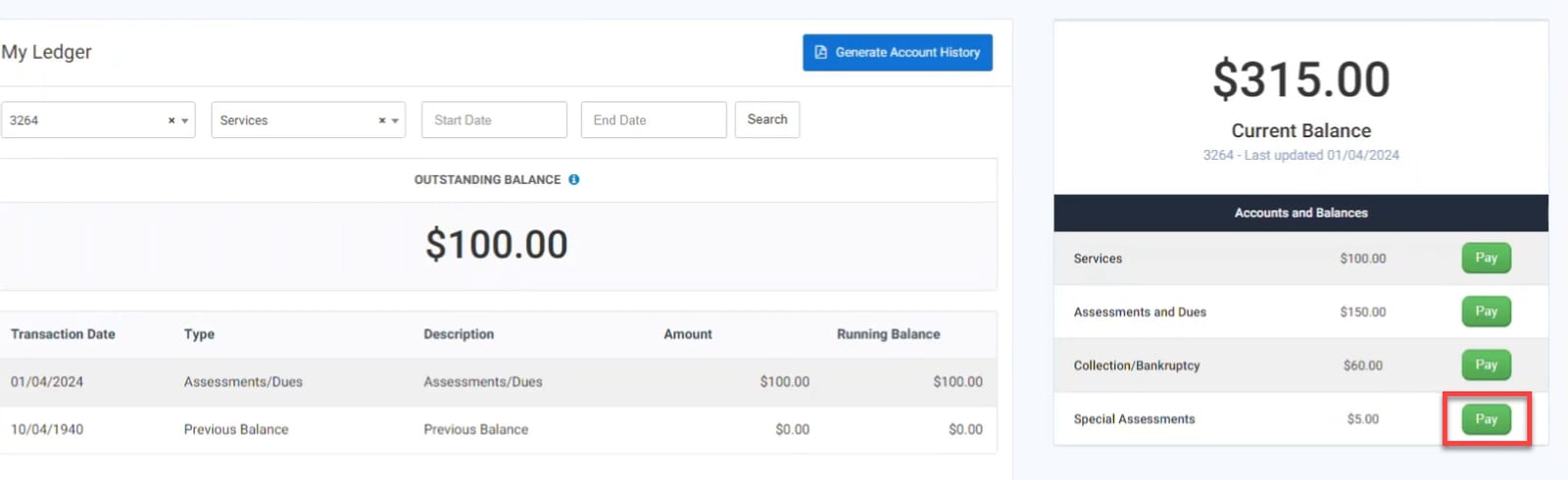
This will bring up the payment window. If a payment method has not yet been added, they will need to do so prior to making a payment.

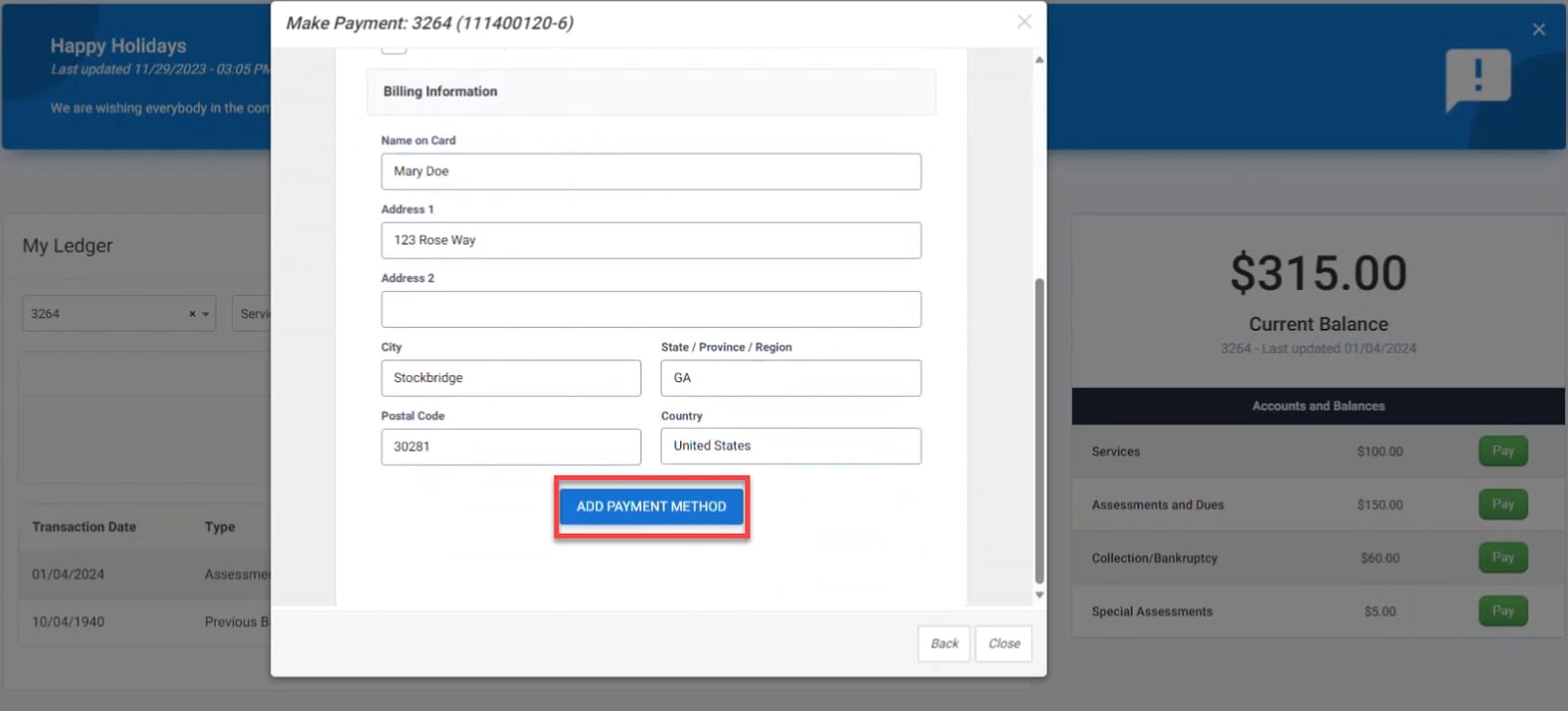
If prompted to add a payment method choose an option for Credit/Debit or ACH and then enter in the billing information.
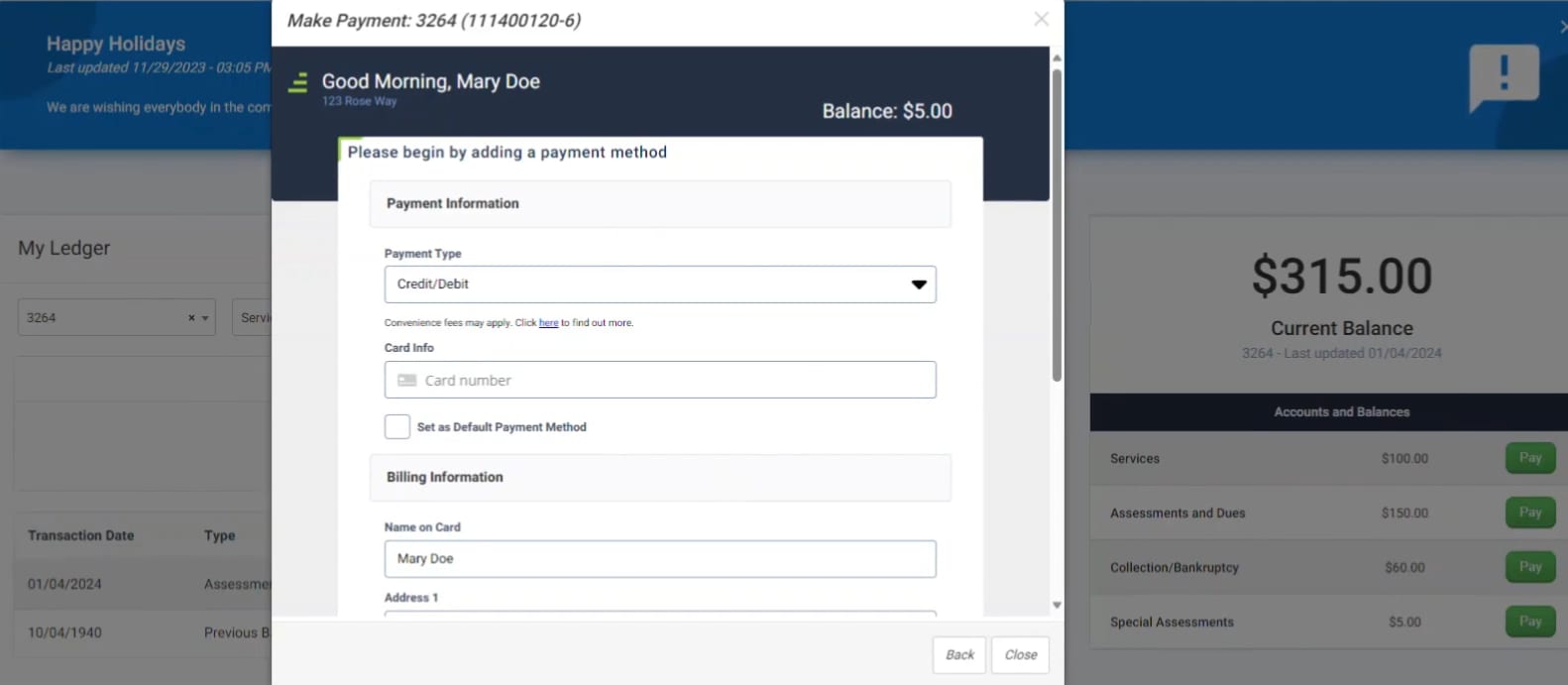
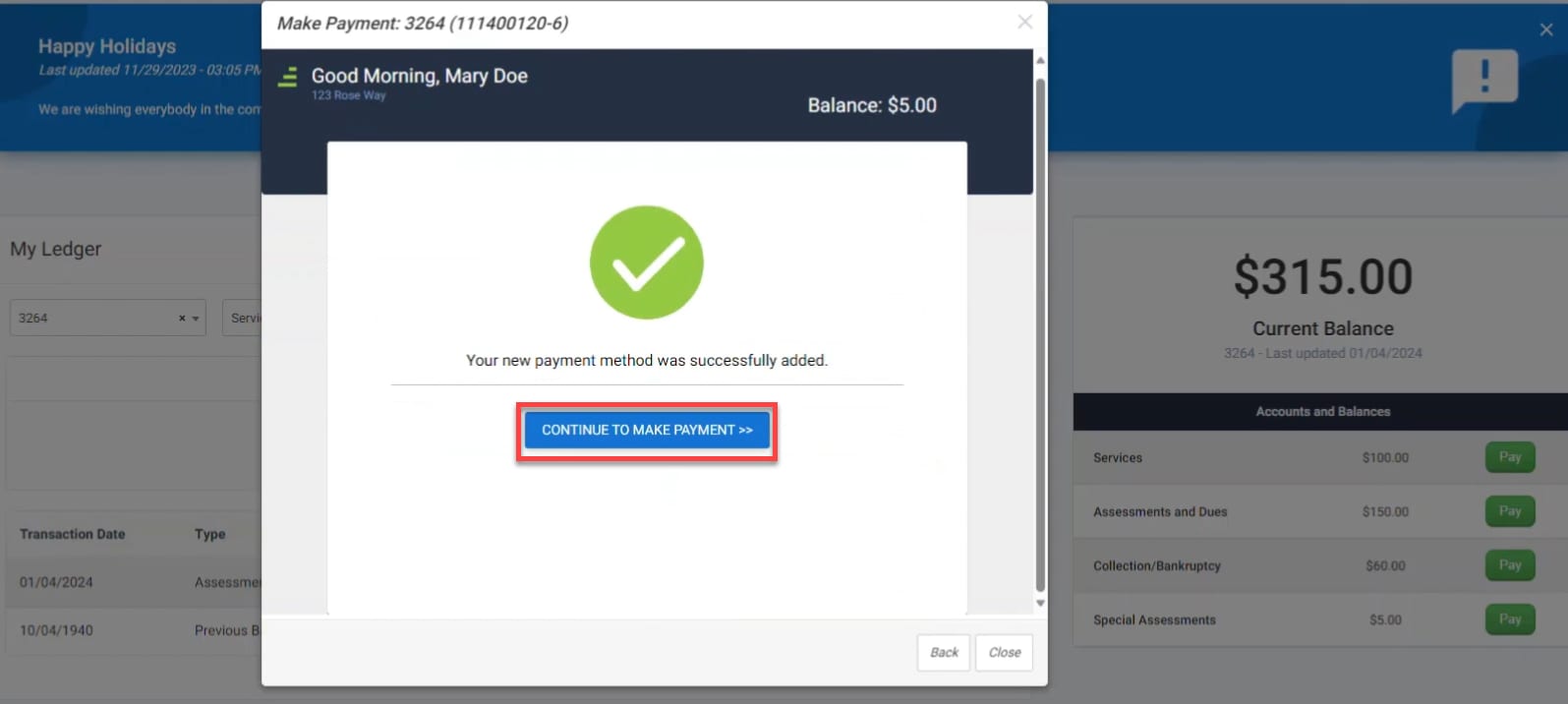
When complete click the ‘Add Payment Method’ button.
Next click the ‘Continue to Payment’ button.
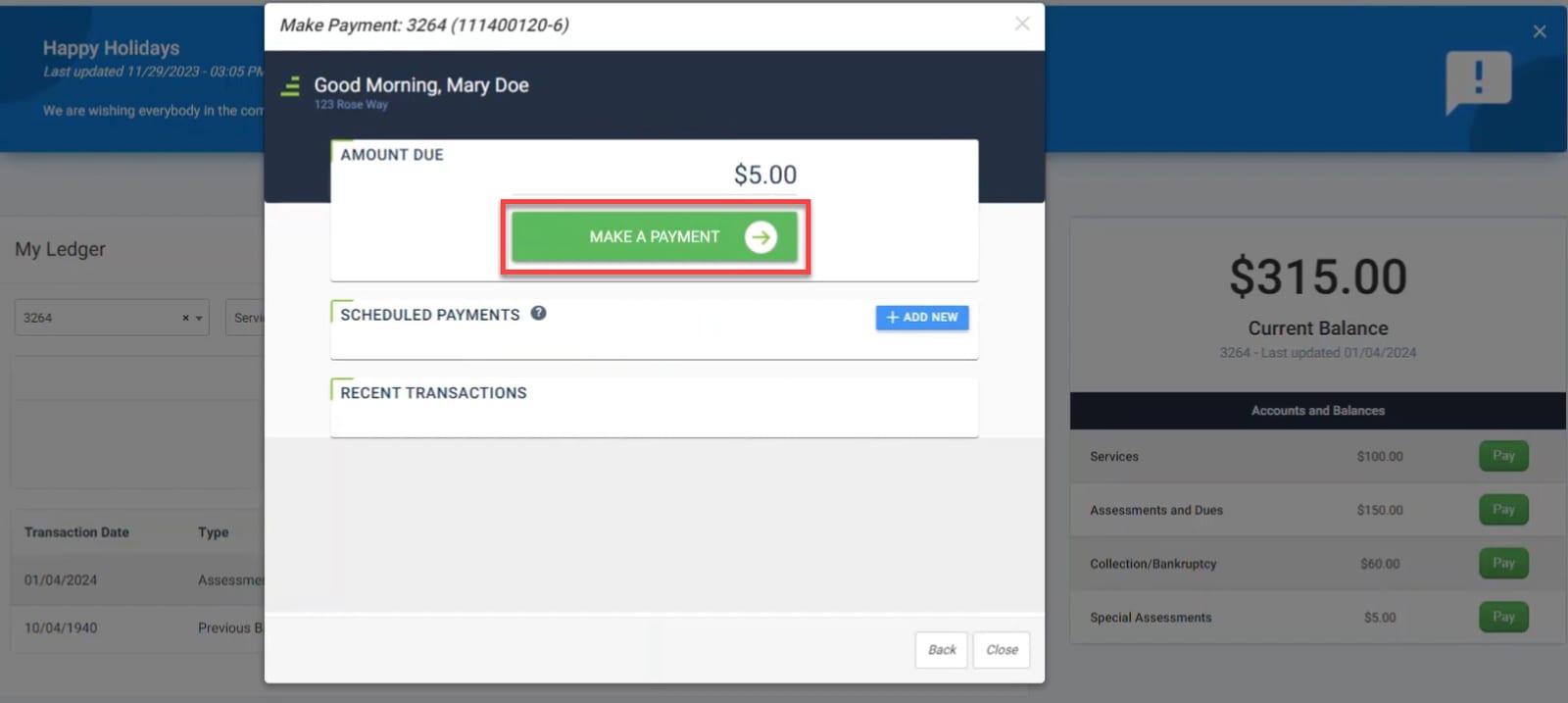
Once a payment method has been added, homeowners will see the total amount due, the option to schedule a payment and recent transactions.
To proceed with a payment click the ‘Make a Payment’ button.
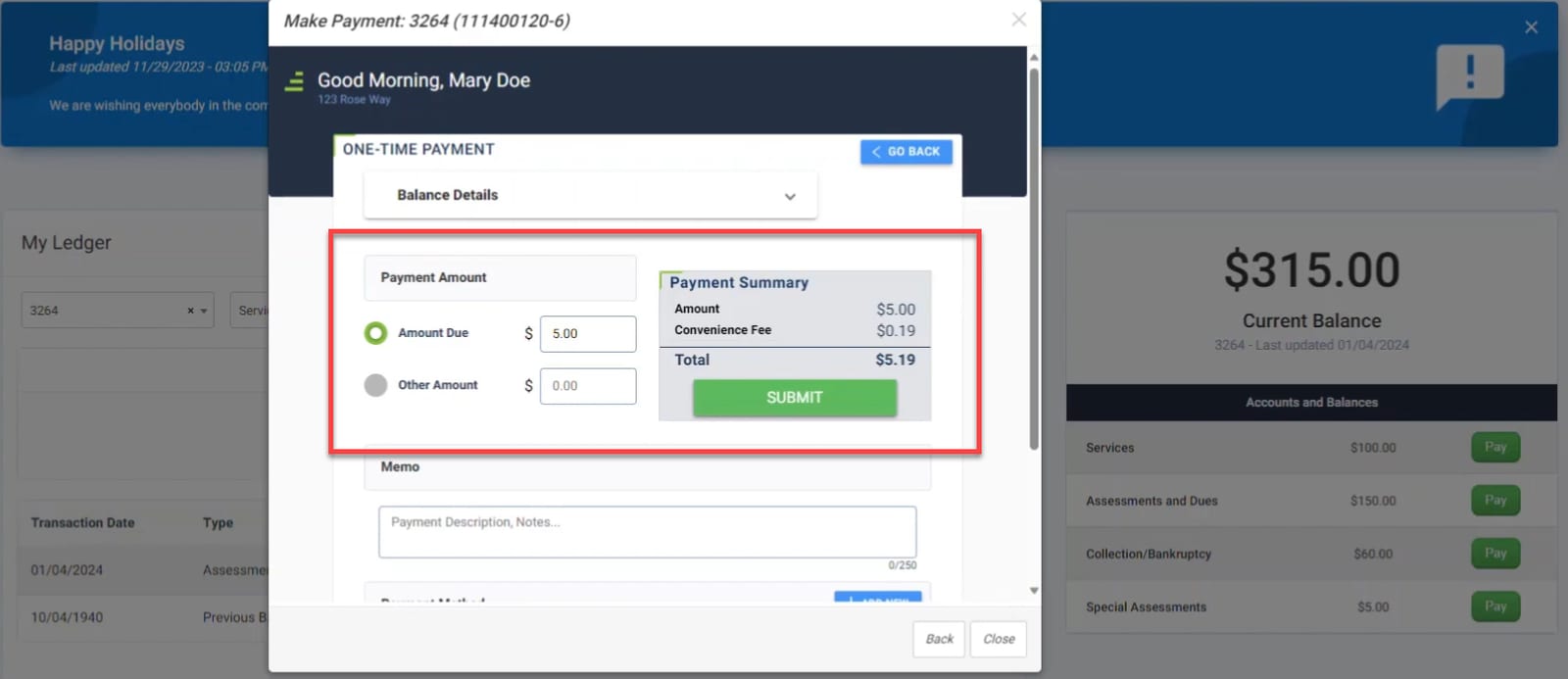
From here they can choose to pay the amount due or an other amount, review the payment details and submit the payment.
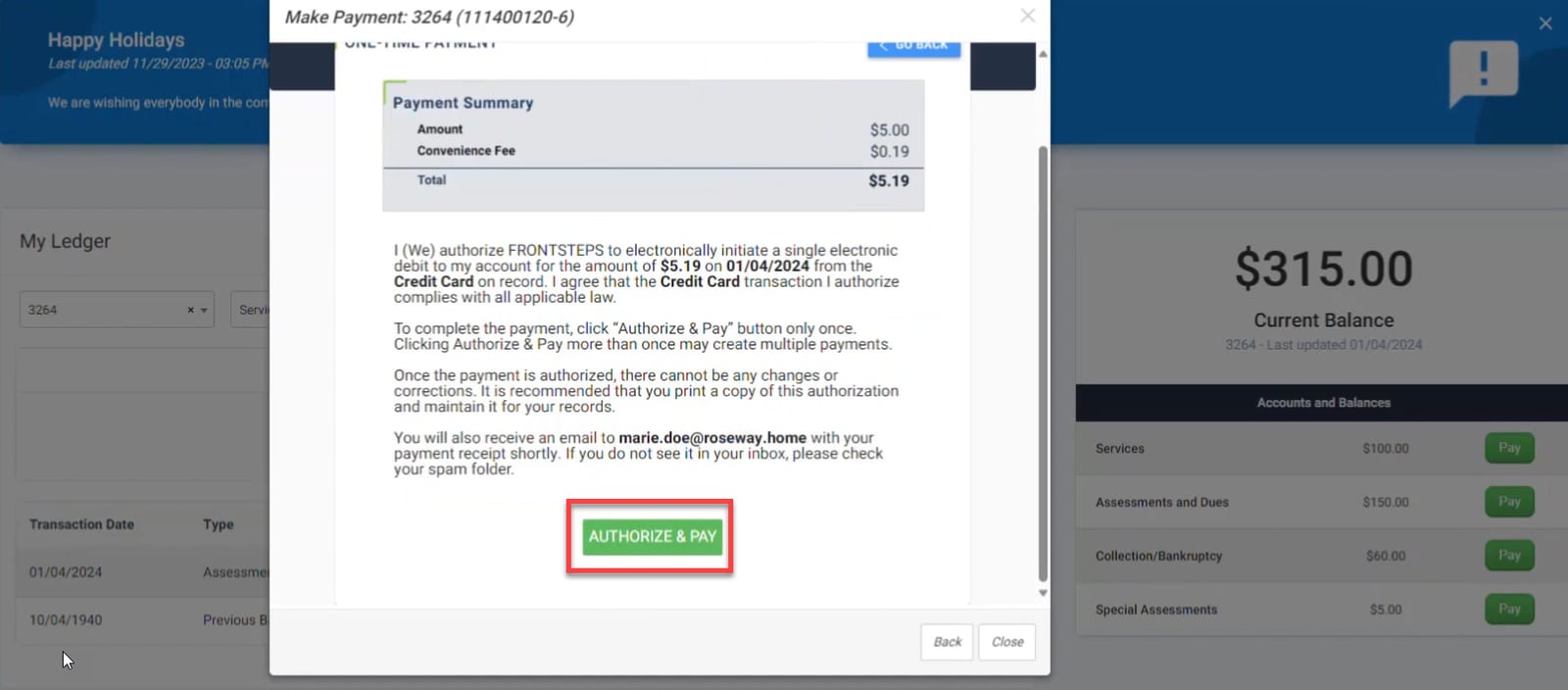
Once the payment has been submitted, they will see a final payment summary and need to click the ‘Authorize and Pay’ button to complete the payment.
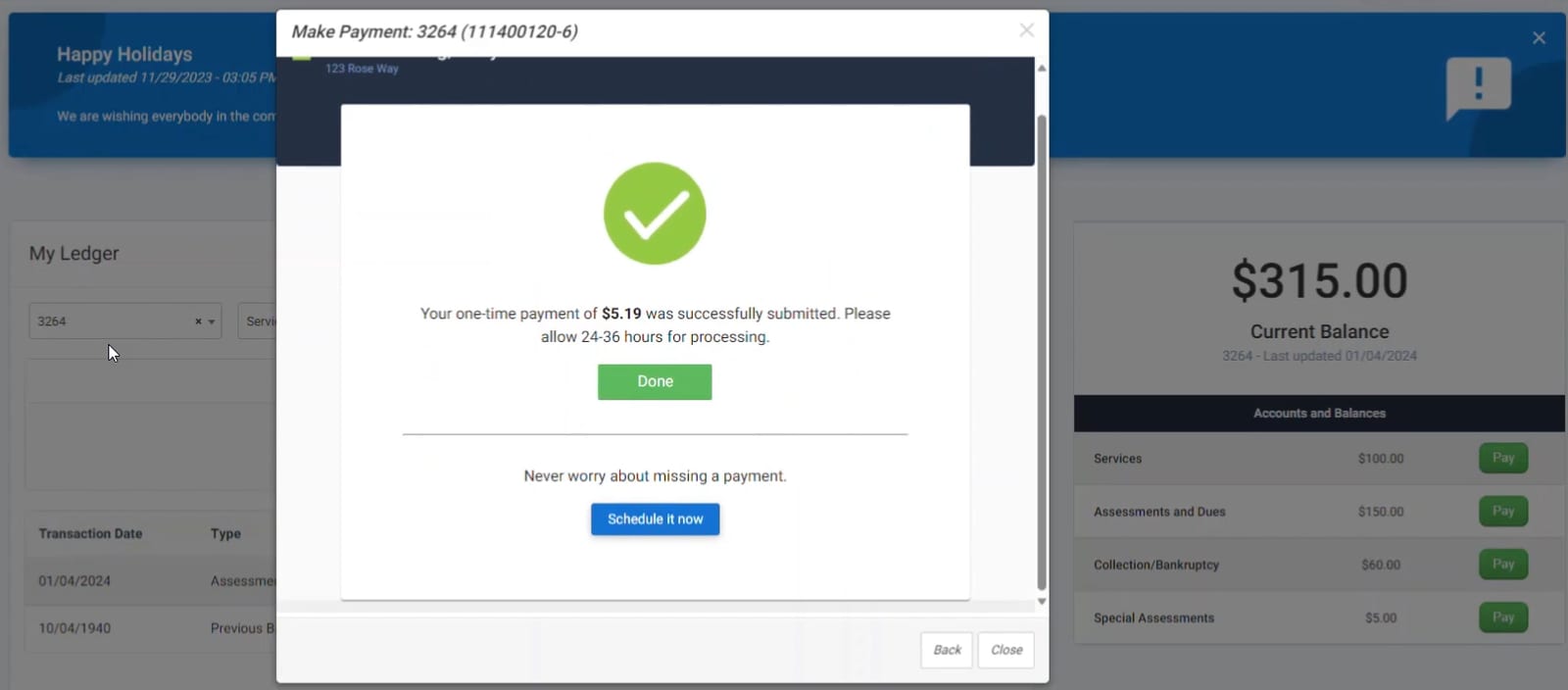
Once completed, they will be informed their payment was successful.
If you would like to learn more about making payments, scheduling payments, editing/deleting payment methods, view this article.
Additional Resources:
Manager Demonstration Video: This is a video demonstration of the Caliber ledgers and the homeowner view.
FRONTSTEPS Caliber transaction account article: This is an article covering transaction accounts and their setup within Caliber.
Homeowner Demonstration Video: This is a video demonstration of the homeowner view.
FSPay 3.0 Guide to Making Payments: This is a guide to payments that covers how to schedule payments, edit payment methods and more.
Homeowner Email Blast Template: This is a template that your management company can use if they are notifying homeowners of the new feature. See below for the template.
Template:
Email Subject Line: Introducing multiple ledgers! Now available on your homeowner web portal and mobile app.
Dear [HOMEOWNER'S NAME],
Welcome to 2024! We’re always looking for new ways to improve your online experience through our homeowner web portal and mobile app, and to that end, we’re ecstatic to share a new feature that will enhance your payment experience - Multiple Ledgers!
What's New?
Multiple Ledgers provides you with a seamless and personalized payment experience. Now, when making an online payment, you will see all the ledgers with balances due. This means you have the flexibility to choose where your payment goes, whether it's for an HOA assessment, a special assessment, or any other specific purpose.
Sneak Peek:
To get a firsthand look at how Multiple Ledgers works, we've prepared a video for you. Watch it now!
Coming Soon!
This exciting feature will be available at the end of January. We can't wait for you to experience the convenience that Multiple Ledgers brings to managing your payments.
Best regards,
The [MANAGEMENT COMPANY NAME] Team