
Transaction Accounts (Ledgers)
Transaction Accounts
Each homeowner has a single account, but their various charges can be separated into different Transaction Accounts – also referred to as Ledgers. Some examples of transaction accounts are: Bankruptcy, Deposits, Fines/Collections, etc.
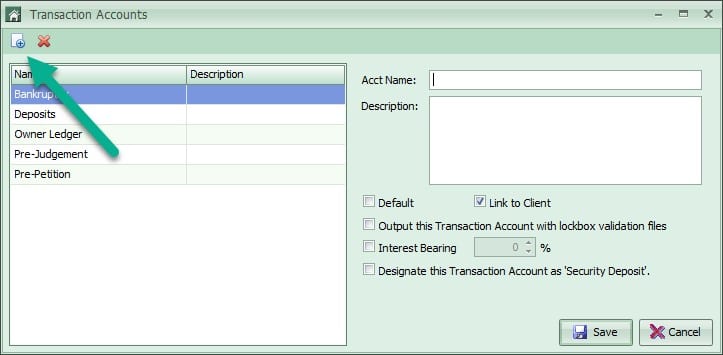
To create the transaction accounts, go to Accounting > Setup > Master Transaction Accounts. Select the Create New option. Fill in the Account Name on the right hand side of the screen. There is a field to enter a description for internal use. The 'Default' and 'Link to Client' makes this specific account linked to all homeowners within all Clients. You can determine if this Default Link needs to be checked as you create each account. It may be appropriate to link some accounts only at the Client level. Repeat this for each transaction account. Once all have been entered, click Save.
Client Level Setup
Once the Master list has been created, you can elect to use or not to use the accounts setup in this list. This is done by opening the 'Transaction Accounts' toolbox at the Client Dashboard and selecting the link checkbox next to each account you would like to use at this client.
If the check box for 'Default' and 'Link to Client' were selected when creating the transaction account at the master level, they will already be linked at this level.
Make sure to click the Save icon in the bottom left corner once you have completed making any changes.
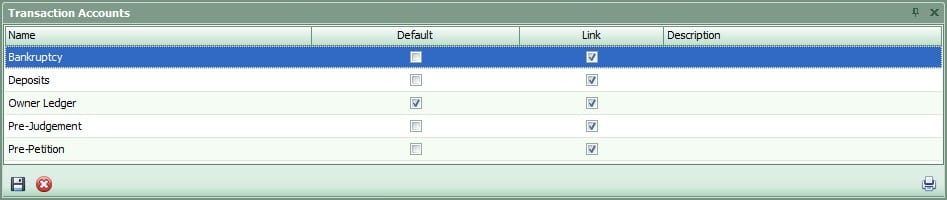
The linked accounts will now show for every homeowner in that Client. You also have the option to change your default account by client. The default selection is used as a guide in the applying of payments to accounts.
Once transactions have occurred, and been applied to a transaction account you cannot remove the link at the Client level, nor can you delete them at the Master level.