
Manager User - Importing Enhanced ARC Forms to Community Level
Importing an Enhanced ARC Form in FRONTSTEPS Community at the Community Level
Enhanced ARC Forms let you build or import an architectural request form for a specific community. This article walks through importing a globally created form, customizing it at the community level, and publishing it so homeowners and directors can use it.
Log in to FRONTSTEPS Community at the specific association level needed.
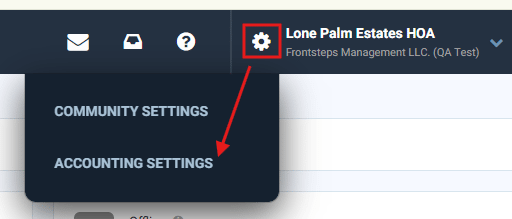
Click the Settings gear icon, then click Accounting Settings.
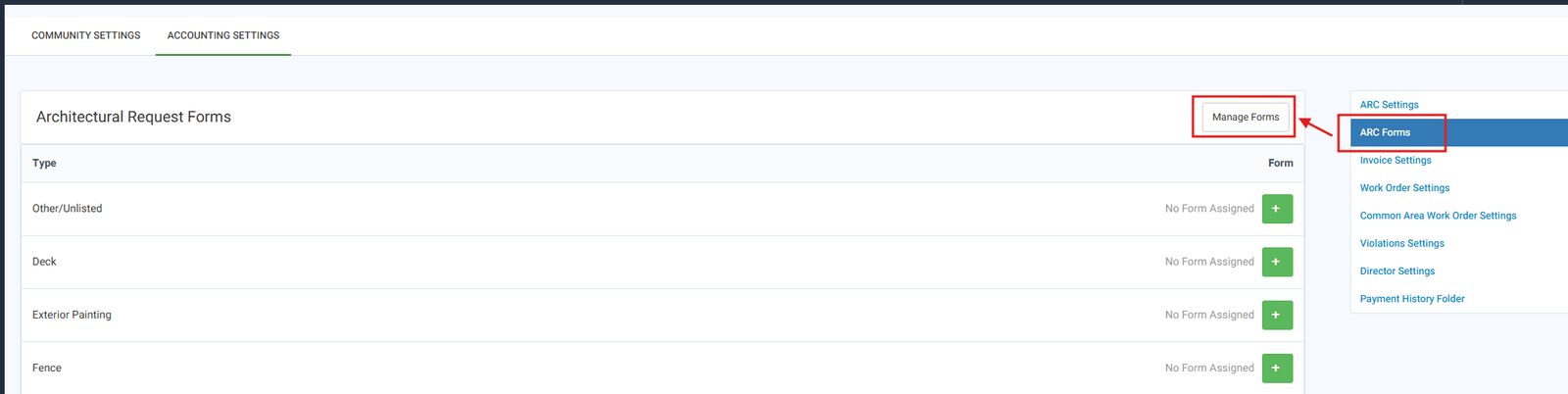
From the menu on the right-hand side, navigate to ARC Forms and click Manage Forms.
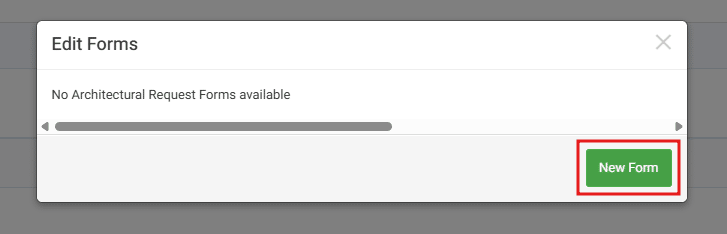
Click the green New Form button.
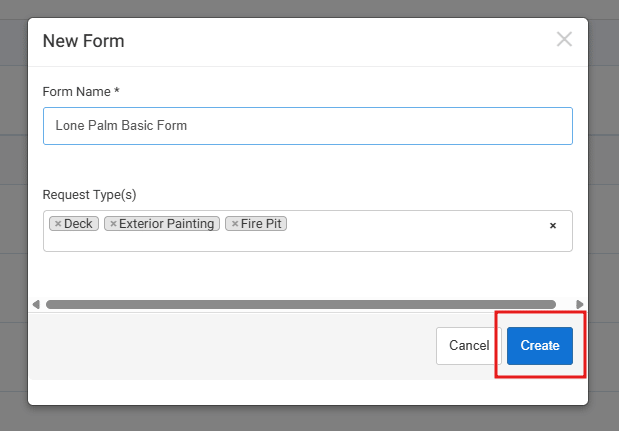
Name the form and assign request types. You can select all request types or only the ones this form should apply to. Most communities use one form for all types, but you can also create separate forms for specific request types if needed.
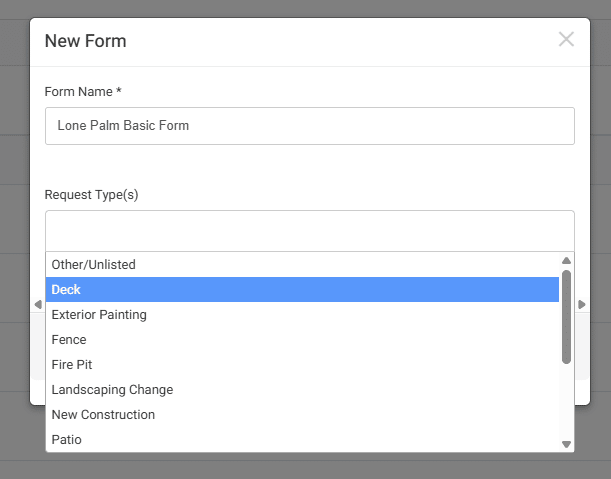
Once you have assigned all needed request types, click Create.
You will be taken to a page where you can either import a form or build one from scratch. Your company admin or team may have already created a global form for you to use. If you have questions about which form to use, check with your company admin.
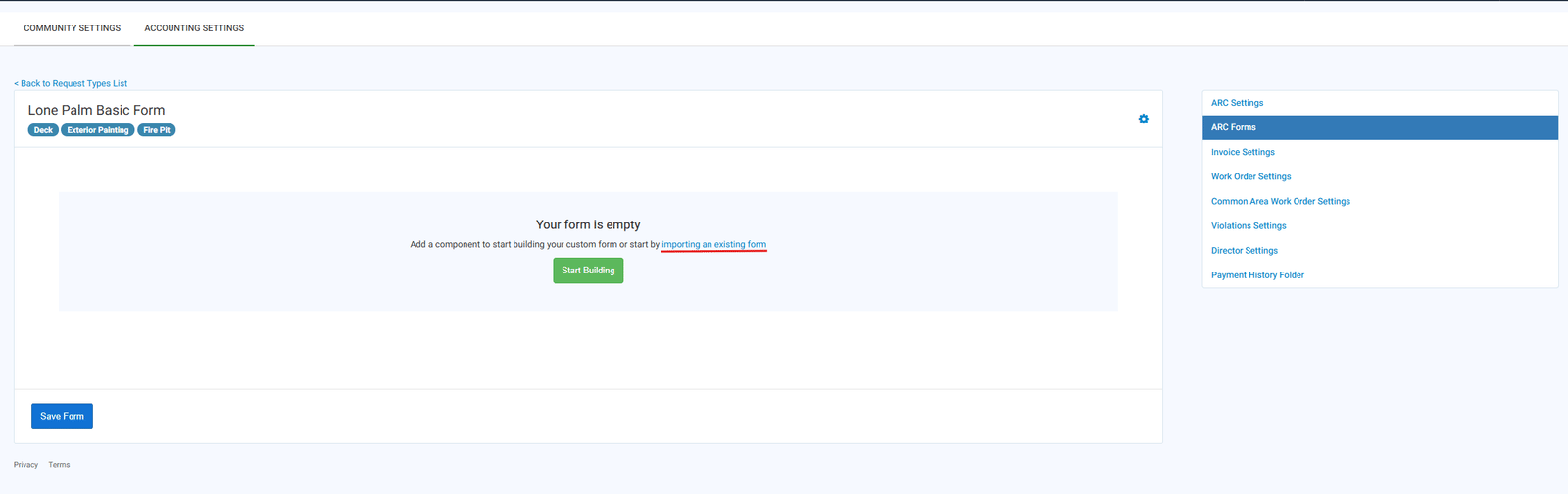
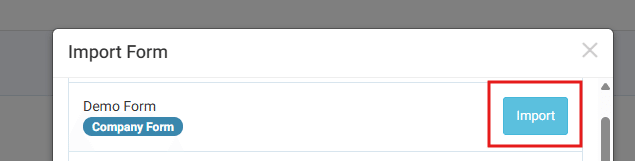
This article focuses on the Import Form option. After selecting it, you will see a list of globally created forms. Find the form you need (there may only be one, depending on what your admin has set up at the global level) and click Import.
The form will now load with all of its questions, text boxes, and information. From here, you can tailor and edit the form at the community level. Any changes you make at this point apply to this community only.
Each form option has five functions available:
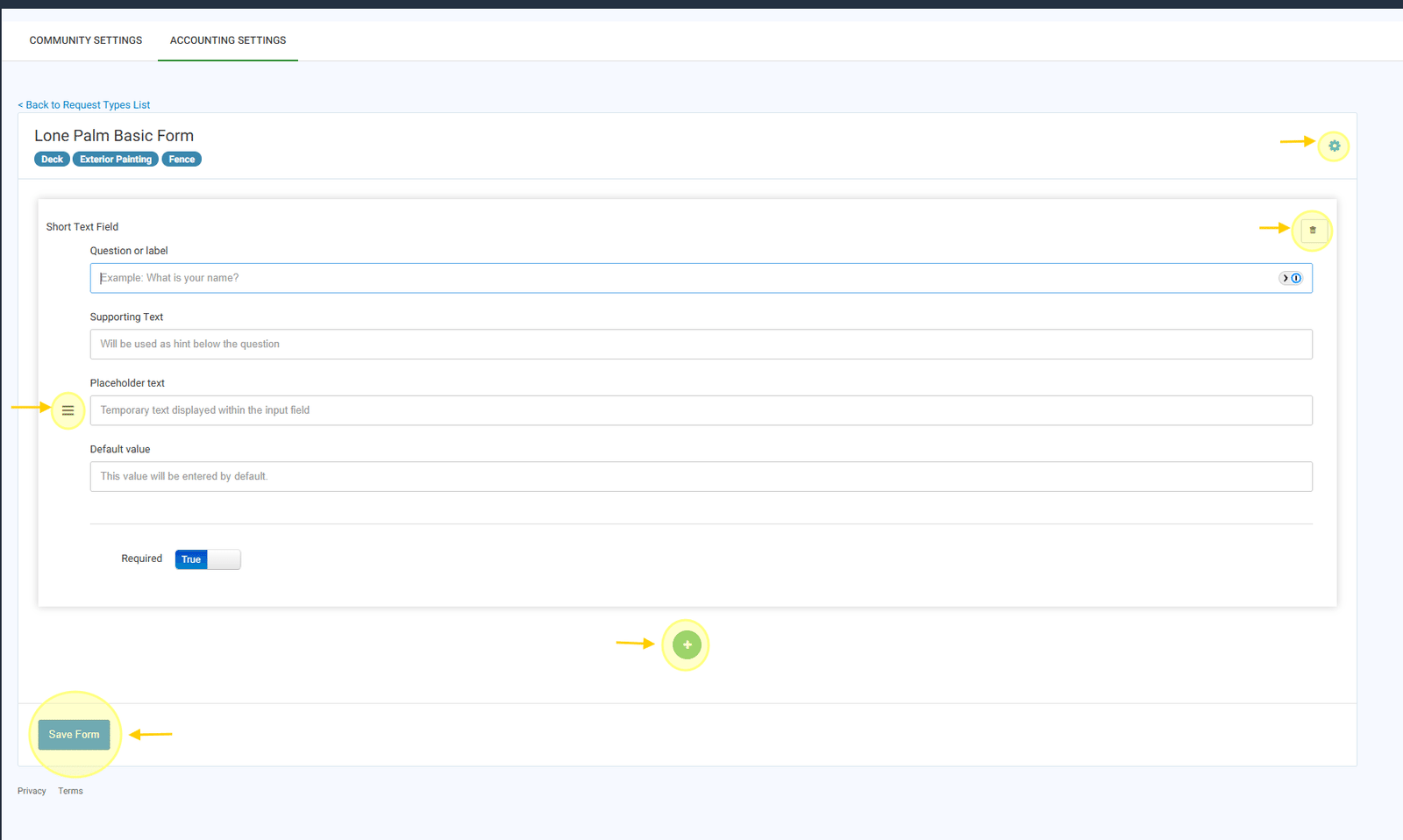
a. Settings Gear: Rename the form or change the request types it applies to.
b. Trashcan Icon: Delete the form option from the form.
c. Three Line Icon: Drag to reorder the form option, moving it higher or lower in the form.
d. Plus Icon: Add a new form option.
e. Save Form: Save your changes and apply them to the form.After saving, you will be returned to the ARC Forms tab, where you can continue customizing the form for your community. When you are finished here, there is one final step to make your changes visible to homeowners and directors.
Click Manage Forms to open the Edit Forms pop-up, where you will see your named form(s) and three icons:
a. Eye Icon: Shows the publish status. Blue means unpublished (not yet available to community users). Orange means published (active and available).
b. Trashcan Icon: Delete the form and start over.
c. Edit Icon: Open the form to make further edits.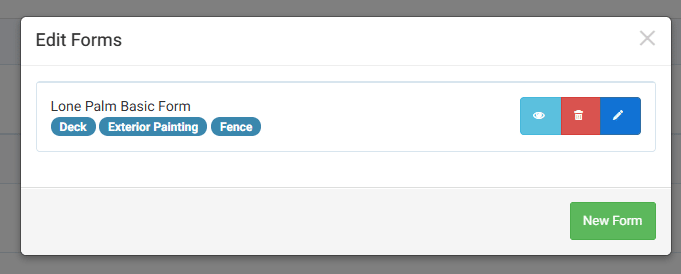
Click the blue eye icon to publish your form. The icon will turn orange once the form is live.
You’re done! Your Enhanced ARC Form is now available for homeowners and directors to use.
Related Article: For more on setting up ARC in FRONTSTEPS Community, see Architectural Request Settings in FRONTSTEPS Community. ARC Settings and ARC Forms work hand in hand for the full experience.