
Manager: Architectural Request Settings
We’re updating this article. Some screenshots or names may look older than what you see in the product.
Background
Architectural Requests often have deadlines associated with them. Traditionally, it has been difficult for management companies and Board Members to receive the necessary Homeowner information on time to process architectural requests. With this feature release, homeowners can create Architectural Requests easily and reduce the back, and forth process that typically occurs. Likewise, this provides a means to track the Architectural Requests and assists the Management Company in keeping the associated documents organized. This feature allows the Managers to customize architectural request instructions and select settings to meet the needs of their communities.Notes
- The feature is available to all users as follows:
- Managers
- Availability - This enhancement will be activated and available to all FRONTSTEPS Community customers.
- This feature is only available to customers integrating with the FRONTSTEPS Caliber Desktop product.
Features
This enhancement provides the following features:- Architectural Request Approvers- the Group from FRONTSTEPS Caliber that is authorized to approve requests.
- Intro Text-customized introduction text may be set by Managers for Architectural Requests.
- Request Details-Managers may enter customized requests for details and information.
- Forms/Files-Managers may write instructions for forms and file uploads.
- Additional Settings-provide the Manger to ability to require a minimum number of uploaded documents; control the process view; allow Homeowners to make notes or not; and control notifications.
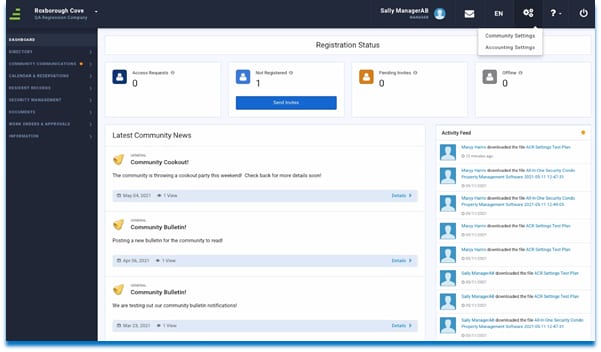
On the Manager Dashboard>select the cog gears  .
.
.
- Select the Accounting Settings from the drop down.
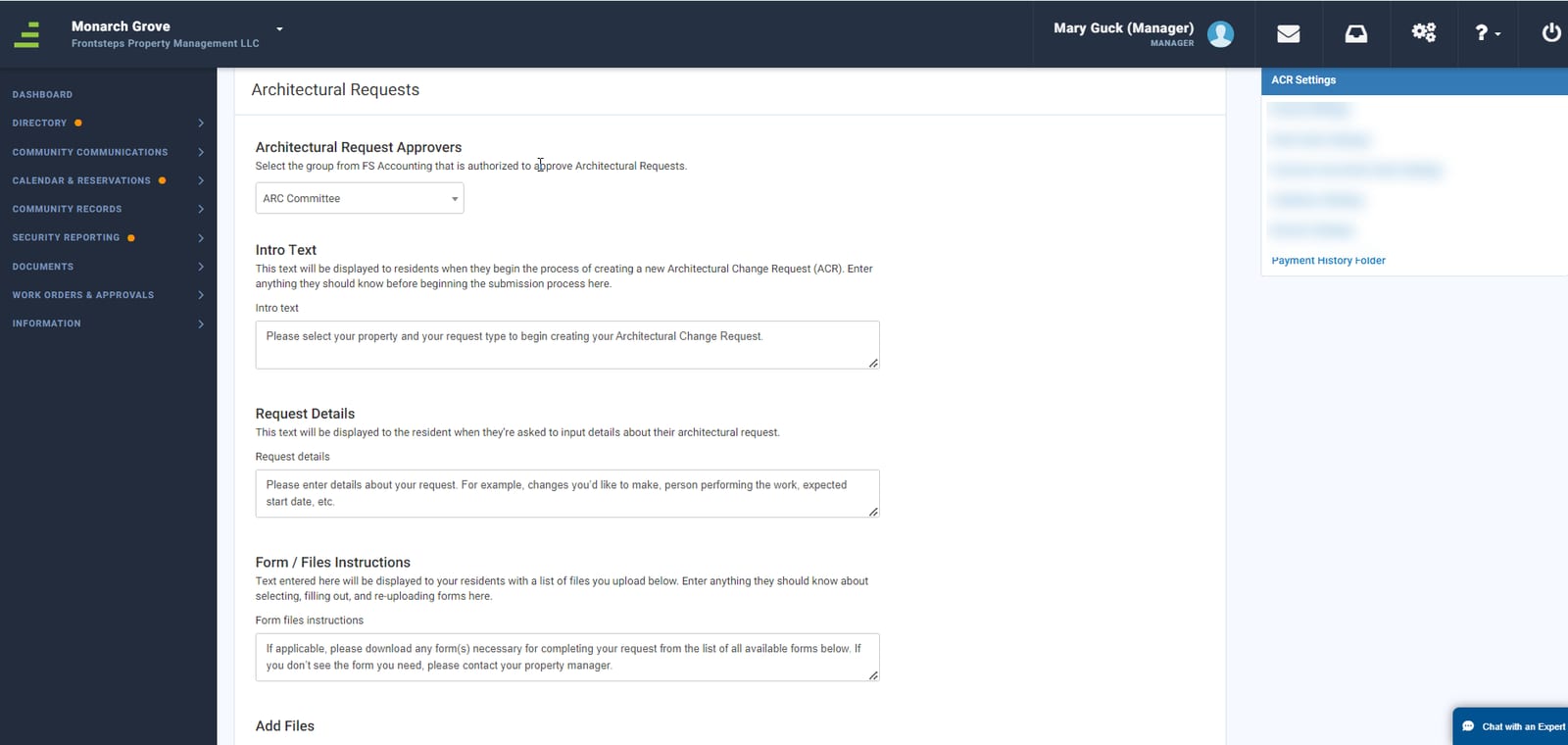
- Architectural Request Approvers: Managers can use the dropdown to select the Group of approvers that is authorized to approve architectural requests. These Groups are populated by the Groups that have been created in FRONTSTEPS Caliber and may consist of Board of Directors, Architectural Committee or any other Group needed for the Community.
- Intro Text: This text serves as an introduction to the Architectural Request process and provides the Manager the ability to write out instructions to the Homeowner. This is a free text field and is completely customizable by the Manager. Enter the text in the textbox and then select Update Settings to save the changes.
- Request Details: The Request Details box is a free-text field for the Manager. This provides a space to request information from the Homeowner. This text (typically questions or requests for information) will display on the form. Enter your request for information in the Request Details box and then select Update Settings to save the changes.
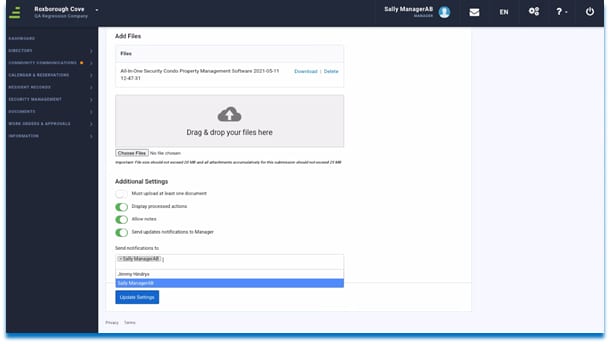
- Form/File Instructions: This is a free-text field that allows the Manager to write instructions for Forms and Files. Like the other fields, it is completely customizable. To add those instructions, type them in the Form/File Instructions box and select Update Settings to save the changes. Files may be Downloaded using Download. Here files may be deleted using Delete. Note: Files will be deleted immediately without choosing the Update Settings button.
5. Additional Settings:
Managers may select from the following Additional Settings:
- Require at least one document to be uploaded for submission.
- Allow Homeowners to view the actions processed. This allows Managers to hide or show the details of the process to the Homeowner.
- Allow the Homeowner to make notes.
- Allow notifications to be sent to Managers. Further, Managers may select who will be notified.
- Use the Toggle to turn on/off the desired features and select the Update Settings button to save your changes. This button is utilized to save all settings on this page. As noted, files will be deleted immediately without choosing the Update Settings button.