Manager - User Directory
We’re updating this article. Some screenshots or names may look older than what you see in the product.
User Directory
From the Manager Dashboard, select Directory.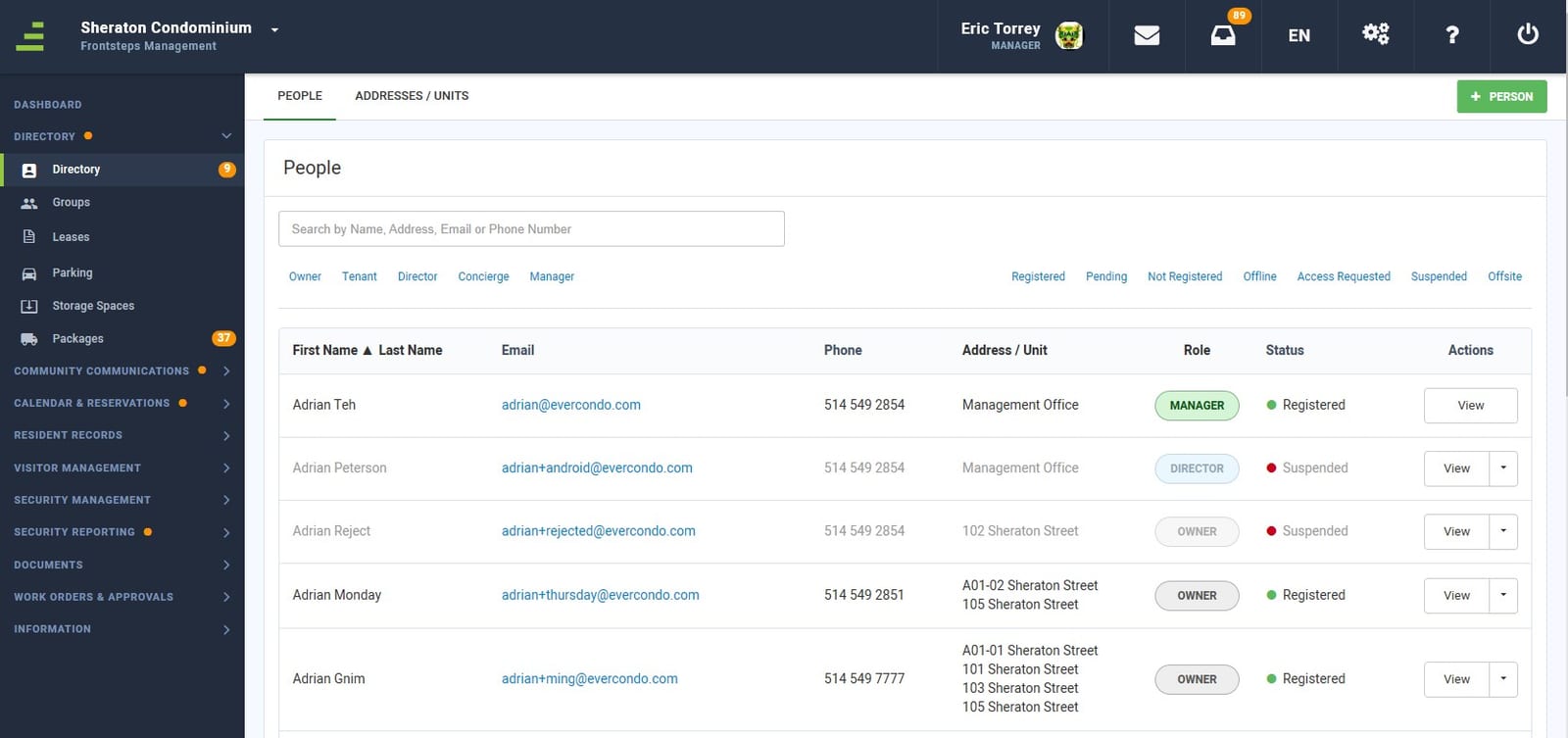 You will see the People page of the Directory.
Enhanced Search and Filter Options
- Use the Search field to search by Name, Address, Email or Phone Number.
- Select any filter, or any combination of filters, to narrow your search.
-
- User Type Filters
- Owner
- Tenant
- Director
- Concierge
- Manager
- Registration Status Filters
- Registered
- Pending
- Not Registered
- Offline
- Access Requested
- Suspended
- User Type Filters
Everything to know about users is now available in the Detailed User Status view.
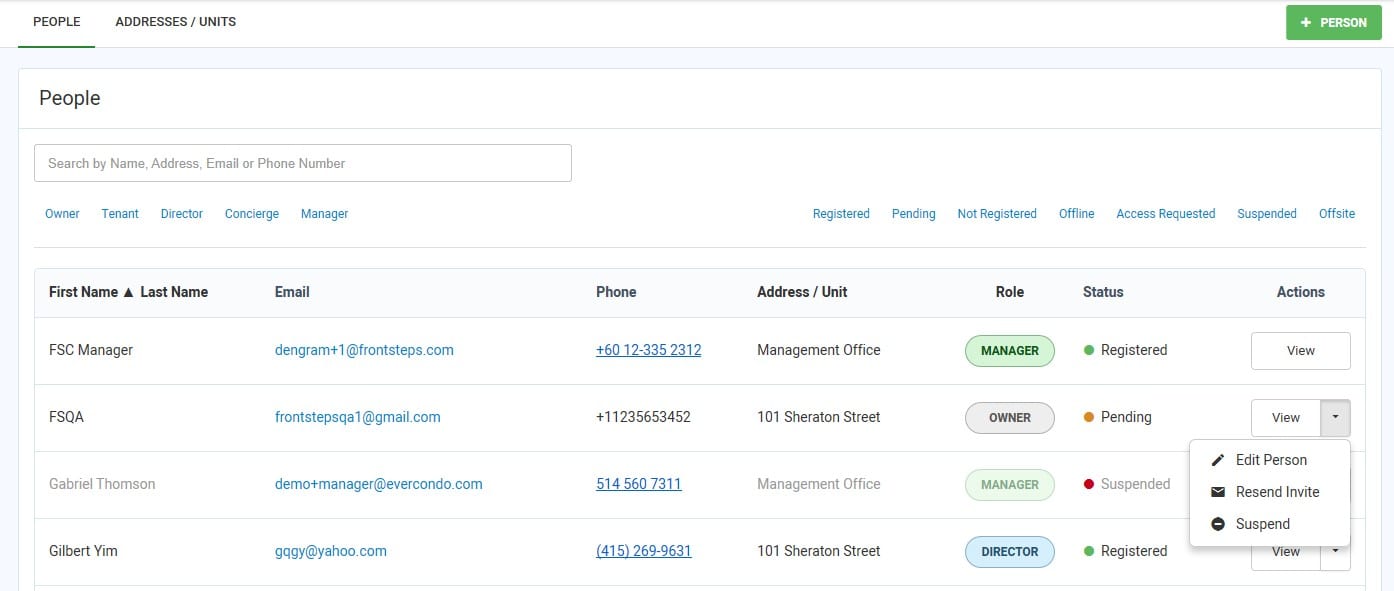
- First Name/Last Name – Sort by this column
- Email Address - Select the email address, to send an email to the user.
- Phone Number
- Address/Unit – Sort by this column
- Role – User role is color coded by role type. You can also sort by this column.
- Green = Manager
- Blue = Director
- Grey = Owner or Tenant
- Status – Registration Status is also color coded
- Green = Registered
- Teal Blue = Not Registered
- Dark Blue – Access Requested
- Red = Suspended
- Orange = Pending
- Grey = Offline
- View Actions – Actions are available depending on the status of the user, e.g., if the User Status is Pending, the available Actions are Edit Person, Resend Invite and Suspend. If the User Status is Registered, the available Actions are Edit Person and Suspend, etc.
- Edit Person
- Resend Invite
- Suspend
- Accept/Reject - When a user requests access to the site, Managers will have Accept or Reject options. Note: For accounting purposes, the Accept and Reject options only pertain to access to the FRONTSTEPS site, it will not link a FRONTSTEPS account to an accounting account. Managers must still manually perform this task.
- Sign In As- This feature allows Managers to Sign In As a resident and view the portal as they would. To learn more about this feature view this article.
Within the Manager View of FRONTSTEPS Community click the gear icon, choose Community Settings and then choose Community Directory Settings from the menu.
From here, enable the Directory for Owners and/or Tenants.
Concierge Directory View
If an organization has the Concierge package, on the Concierge Directory View, users will be able to add packages, add a new authorized entry or add a new visitor/parking pass.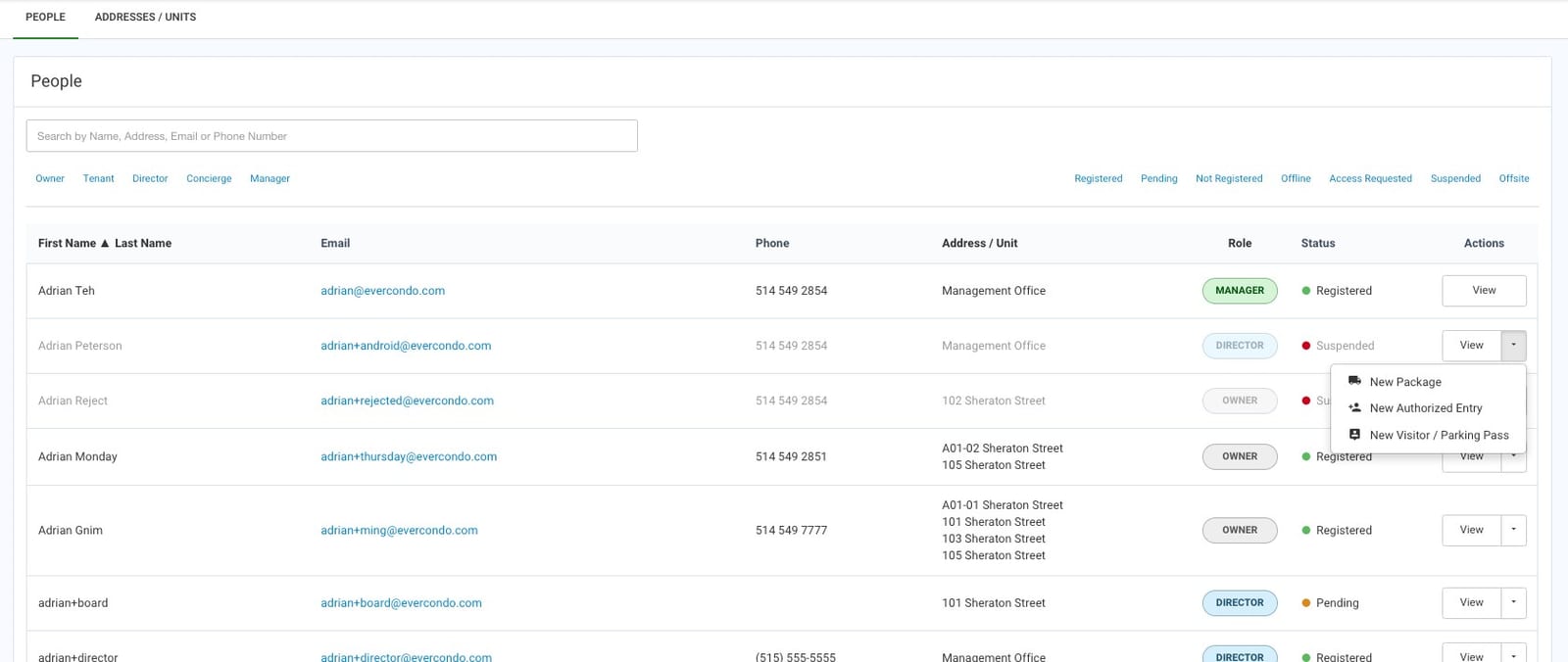
- View Actions – Actions are available for the Concierge to manage various features:
- New Package
- New Authorized Entry
- New Visitor/Parking Pass
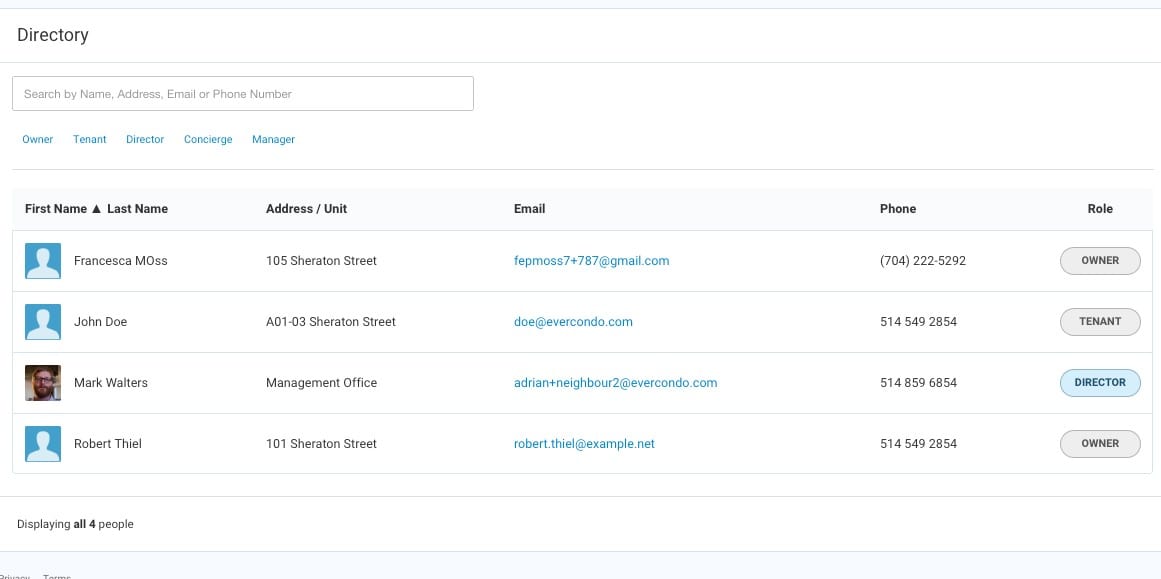
Resident/Owner View
Managers must enable the directory to be viewed by Residents/Owners.
From the Resident/Owner Dashboard, select Directory.