
Manager- Sign In As
This feature allows Community Managers to ‘Sign In As’ an Owner, Tenant or Director and view their Community Portal account.
This is helpful if Managers need to walk a user through how to do something or need to view a user’s account from their view point to help troubleshoot any issues.
Community Managers have the ability to ‘Sign In As’ any registered User (with the exception of other Managers).
Once logged in, navigate to the ‘Directory’ menu and select the ‘Directory’ option.
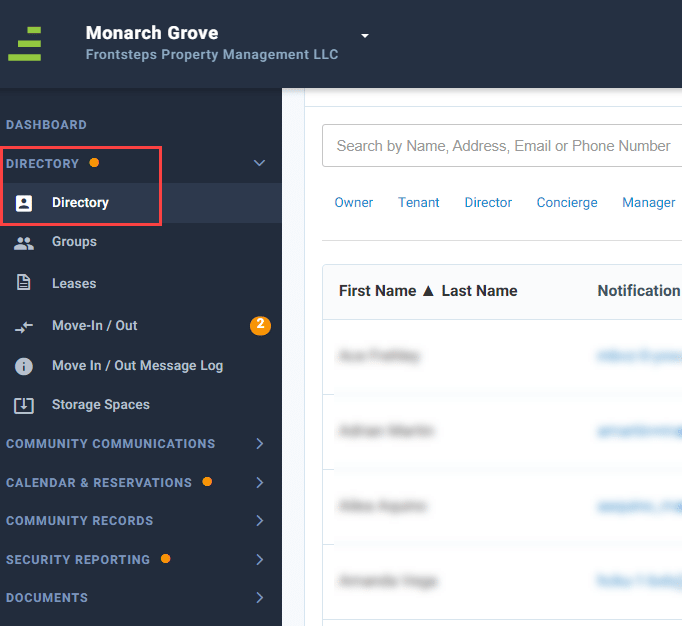
Please note that only Owners, Tenants and Directors with the status of ‘Registered’ will have the option for ‘Sign In As’ in the Actions pull down menu. A User with any other status, such as Offline, Not Registered, Suspended, or Restricted will not have the Sign In As option within the Actions menu.
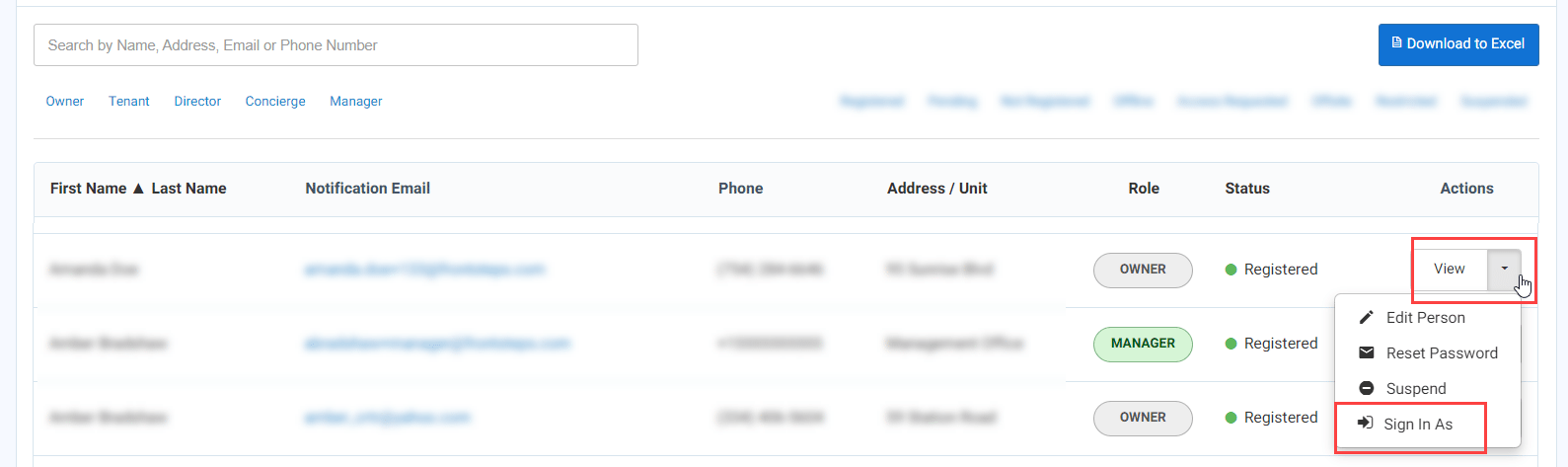
Once you have found the User you want to Sign In As, click the Actions menu dropdown and select ‘Sign In As’.
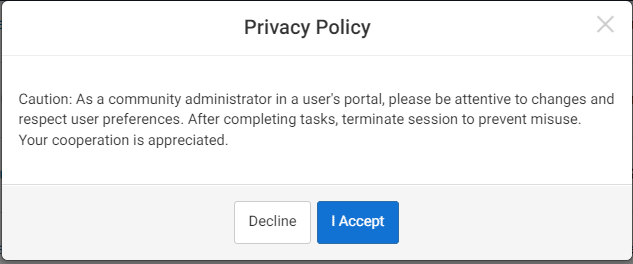
Once you click ‘Sign In As’, a Privacy Policy will pop up. To proceed click ‘I Accept’.
You will now be signed in as that User and have the same access to the Community Portal as that User.
For example, if you Sign In As a User who is a Director, you will be able to View features that may be specific to that Director.
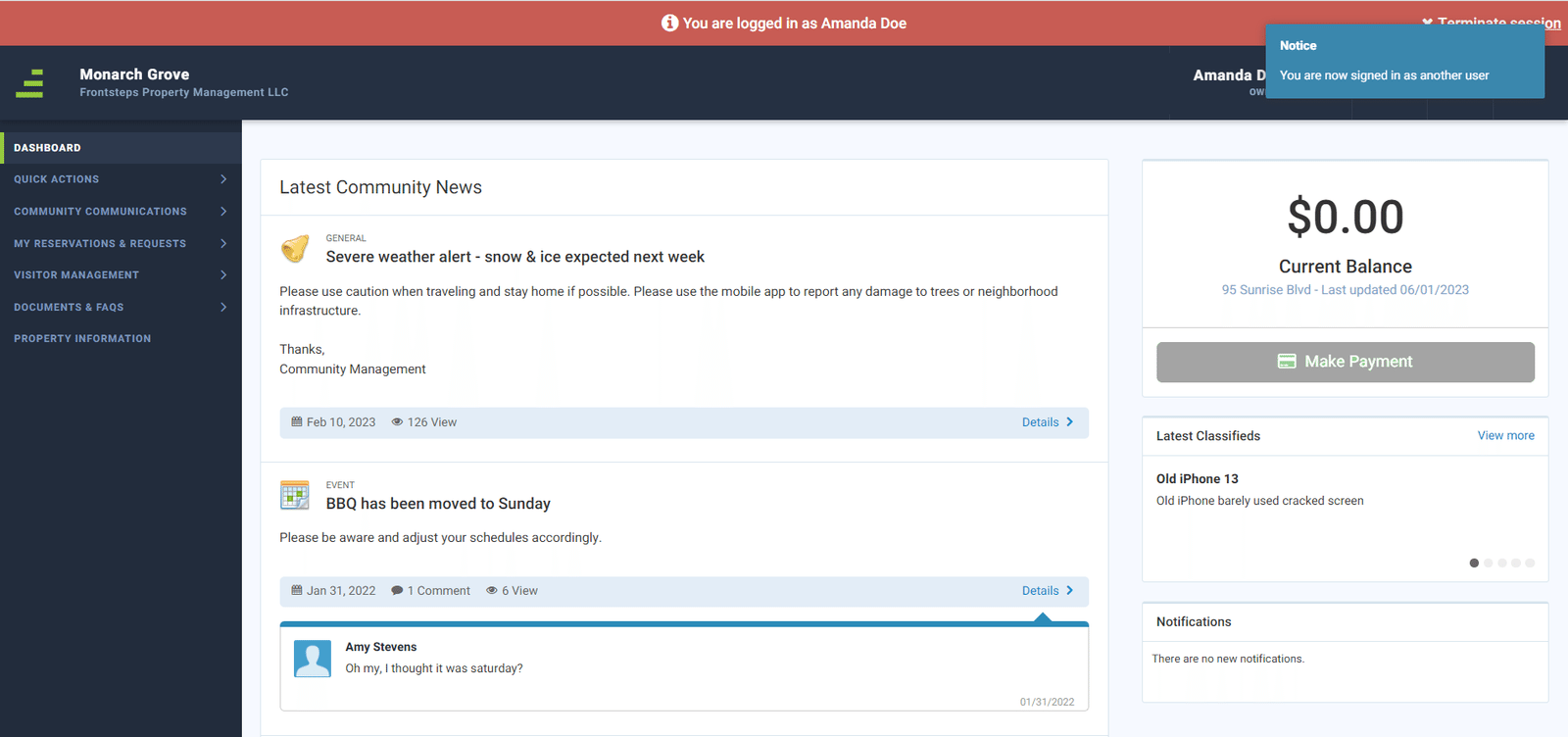
Along the top of the window there is a red indicator letting you know you are signed in as another user. This will appear for the entire duration you are signed in as another user.
Please note, that any changes made or actions taken while you are signed in as another User are real and will be reflected on that user’s live Community Portal.
The only action a Manager cannot take on behalf of a User is Make a Payment. Those actions still need to be performed by the User.
To end your session and return to your Manager account, click the ‘Terminate Session’ button in the upper right corner.

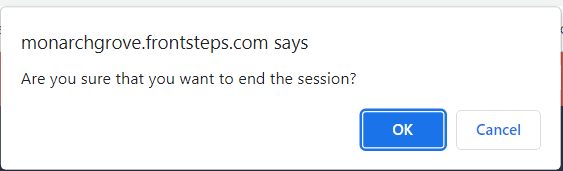
You will be asked if you are sure you want to end your session. Click ‘Ok’ to confirm that you want to end the session.
You will receive a pop up in the upper right corner letting you know you are no longer signed in as another user.
In the Activity Feed section you will see a record of your session listed. The activity feed will track sign ins only for that manager.
If you would like to view a video walkthrough on this feature click here.
This is helpful if Managers need to walk a user through how to do something or need to view a user’s account from their view point to help troubleshoot any issues.
Community Managers have the ability to ‘Sign In As’ any registered User (with the exception of other Managers).
Once logged in, navigate to the ‘Directory’ menu and select the ‘Directory’ option.
Please note that only Owners, Tenants and Directors with the status of ‘Registered’ will have the option for ‘Sign In As’ in the Actions pull down menu. A User with any other status, such as Offline, Not Registered, Suspended, or Restricted will not have the Sign In As option within the Actions menu.
Once you have found the User you want to Sign In As, click the Actions menu dropdown and select ‘Sign In As’.
Once you click ‘Sign In As’, a Privacy Policy will pop up. To proceed click ‘I Accept’.
You will now be signed in as that User and have the same access to the Community Portal as that User.
For example, if you Sign In As a User who is a Director, you will be able to View features that may be specific to that Director.
Along the top of the window there is a red indicator letting you know you are signed in as another user. This will appear for the entire duration you are signed in as another user.
Please note, that any changes made or actions taken while you are signed in as another User are real and will be reflected on that user’s live Community Portal.
The only action a Manager cannot take on behalf of a User is Make a Payment. Those actions still need to be performed by the User.
To end your session and return to your Manager account, click the ‘Terminate Session’ button in the upper right corner.
You will be asked if you are sure you want to end your session. Click ‘Ok’ to confirm that you want to end the session.
You will receive a pop up in the upper right corner letting you know you are no longer signed in as another user.
In the Activity Feed section you will see a record of your session listed. The activity feed will track sign ins only for that manager.
If you would like to view a video walkthrough on this feature click here.