
Manager- Community & Caliber: How to Add an Account
This article is intended for Community Managers that are using both FRONTSTEPS Caliber and FRONTSTEPS Community.
In this article we will cover how to add a new owner account in FRONTSTEPS Caliber and how to move the owner into the FRONTSTEPS Community portal.
It is important to note that new Units, Owners and Tenants must be added with FRONTSTEPS Caliber and that the products will sync each night during the sync process. This ensures that user information is entered into both Caliber and Community.
We will be demonstrating how to add a new unit and the associated owner(s) within Caliber. If you are looking to remove an existing owner from a property/unit and add a new owner, please see our document covering the Change of Owner Wizard.
To add a new unit, start by logging into FRONTSTEPS Caliber and navigate to the ‘Group Dashboard’. Once at the ‘Group Dashboard’ you will need to perform the following actions to add a unit and the associated owner(s).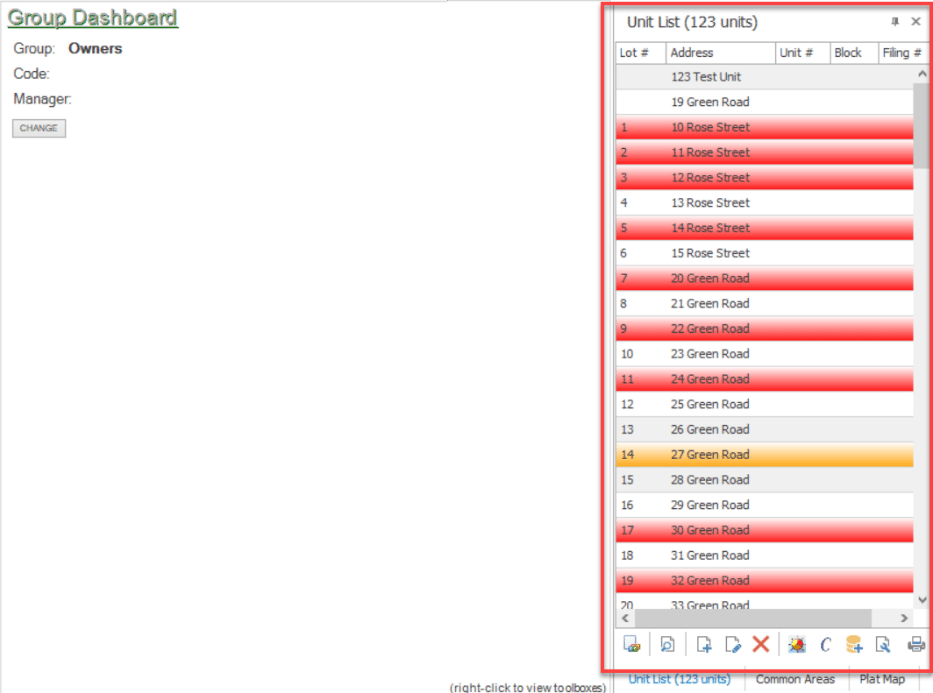
The data will automatically be transferred from FRONTSTEPS Caliber to FRONTSTEPS Community during the nightly sync process.
The following morning Community Managers will be able to move the owner/unit into FRONTSTEPS Community so that the Owners/Occupants may register for their Community Portal.
To move in a Homeowner log in to the Community portal, click the ‘Directory’ menu and select the ‘Move-In/Out’ menu option.
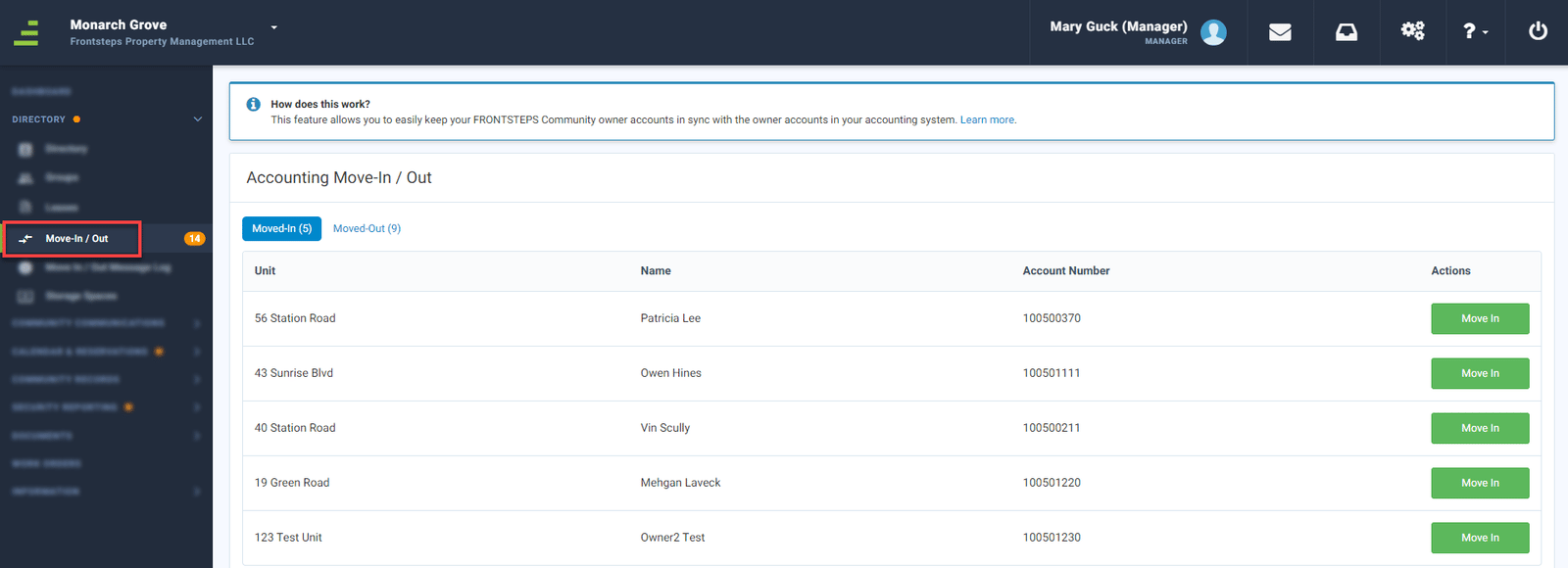
This screen will show you all Units/Properties that are ready to be ‘Moved In’ to the Community portal.
To move in a property find it within the list and click the ‘Move-In’ button. Please note that if the Unit/Property that was added in Caliber has two owners, for example a married couple (see step 4 above for an example), there will be two records in the Move In/Out list, one for each owner.
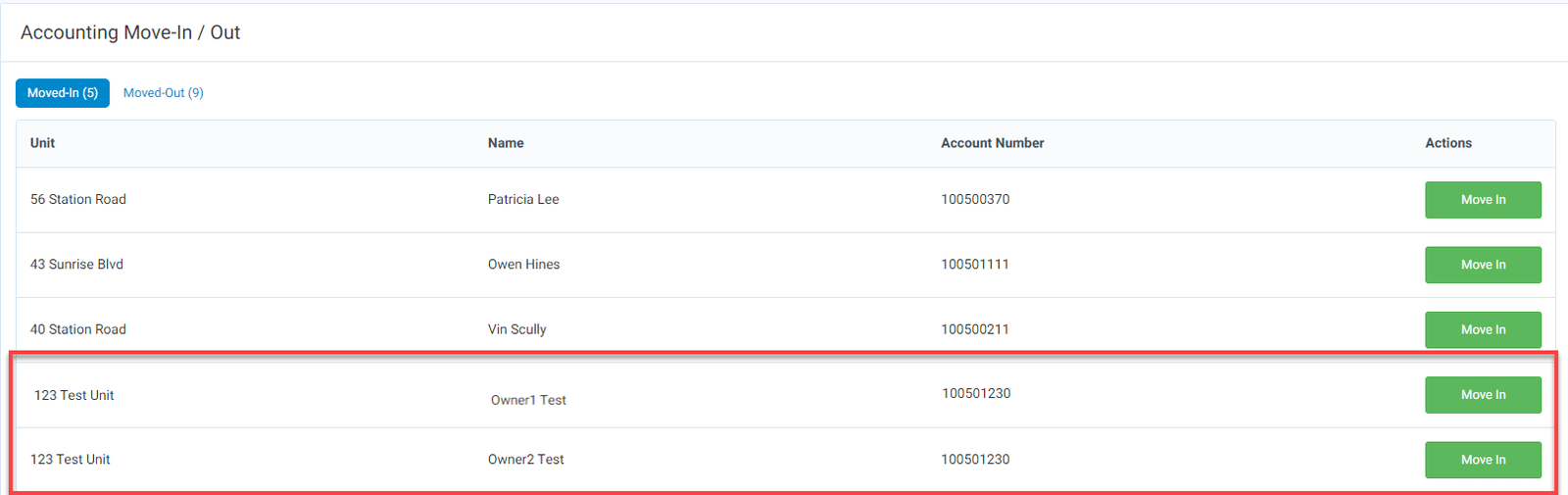
This allows for each owner of the property to have their own unique Community Portal log in. Once the move in has been completed each owner will need to register for the Community portal.
If the "Auto Send Invite Email" feature is enabled for the Community:
If the Community does NOT have the “Auto Send Invite Email” feature:
In this article we will cover how to add a new owner account in FRONTSTEPS Caliber and how to move the owner into the FRONTSTEPS Community portal.
It is important to note that new Units, Owners and Tenants must be added with FRONTSTEPS Caliber and that the products will sync each night during the sync process. This ensures that user information is entered into both Caliber and Community.
We will be demonstrating how to add a new unit and the associated owner(s) within Caliber. If you are looking to remove an existing owner from a property/unit and add a new owner, please see our document covering the Change of Owner Wizard.
To add a new unit, start by logging into FRONTSTEPS Caliber and navigate to the ‘Group Dashboard’. Once at the ‘Group Dashboard’ you will need to perform the following actions to add a unit and the associated owner(s).
- If it is not already open, open the ‘Unit List’ toolbox.
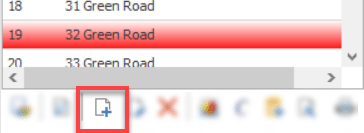
- Click the Add icon (white paper with blue plus sign)
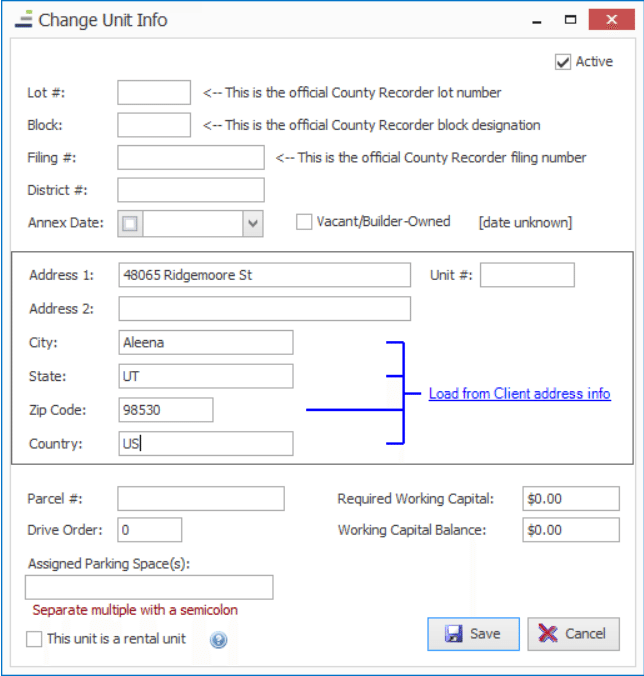
- Enter in the Unit/property information. Click the ‘Save’ button when complete.
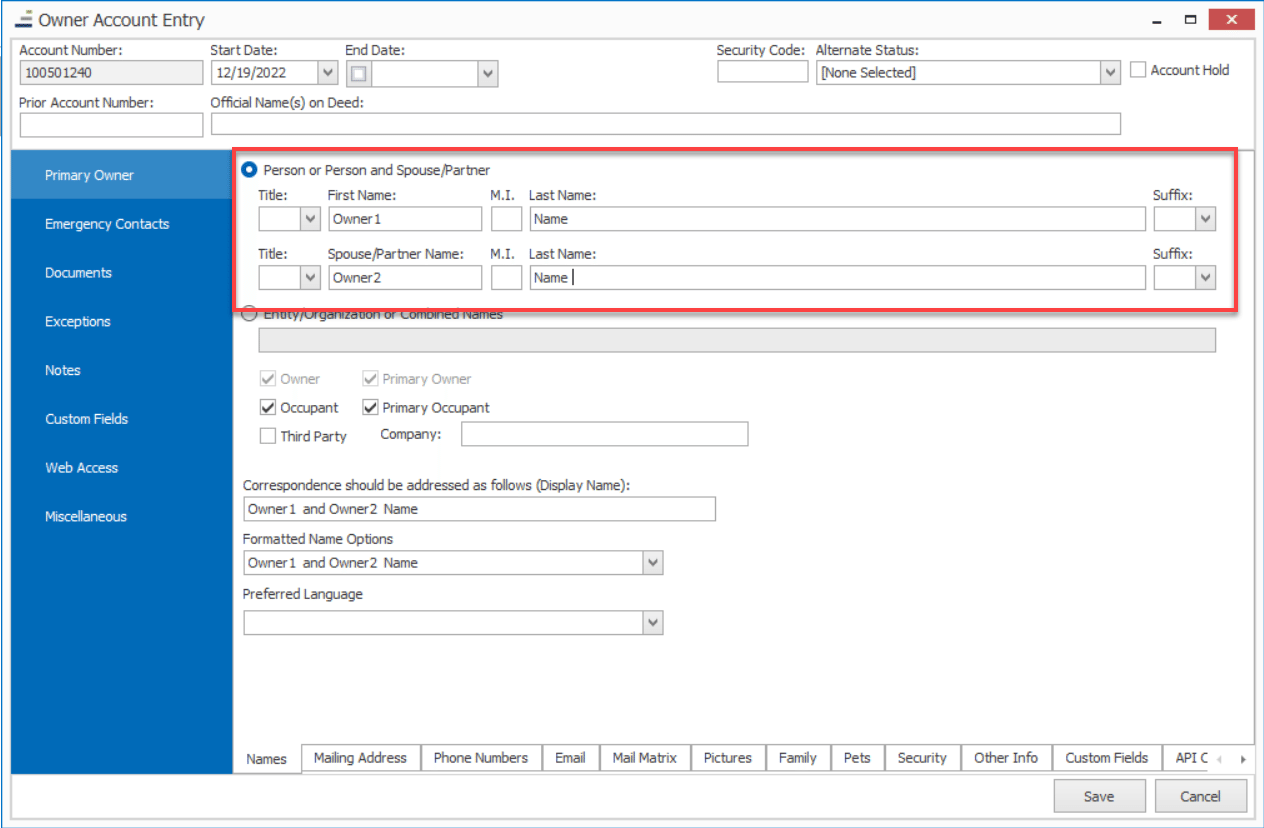
- The ‘Owner Account Entry’ window will automatically open. From this window you can enter in Owner Names and other owner information such as Mailing Address, Phone Numbers, Email and more. Please note that the Owners First and Last name must be entered (the data will not sync with the Community portal if both are not entered). We also highly recommended that you enter in the email address(es) now. Any other details can be added later.
- Once all the information is entered click the ‘Save’ button. This will save the new Property and Owner information, as well as generate a unique account number for the Owner(s).
The data will automatically be transferred from FRONTSTEPS Caliber to FRONTSTEPS Community during the nightly sync process.
The following morning Community Managers will be able to move the owner/unit into FRONTSTEPS Community so that the Owners/Occupants may register for their Community Portal.
To move in a Homeowner log in to the Community portal, click the ‘Directory’ menu and select the ‘Move-In/Out’ menu option.
This screen will show you all Units/Properties that are ready to be ‘Moved In’ to the Community portal.
To move in a property find it within the list and click the ‘Move-In’ button. Please note that if the Unit/Property that was added in Caliber has two owners, for example a married couple (see step 4 above for an example), there will be two records in the Move In/Out list, one for each owner.
This allows for each owner of the property to have their own unique Community Portal log in. Once the move in has been completed each owner will need to register for the Community portal.
If the "Auto Send Invite Email" feature is enabled for the Community:
- An email invitation will automatically be sent to the Owner if an email address wanted entered for the owners in Caliber.
- If you have not added an email for an owner, you will need to add that information to their owner record within Caliber.
- When the systems sync at night the information in the Community portal will be updated and an email invitation will be sent.
- The Community Manager will need to manually send the invites.
- If an email was entered:
- The Community Manager can manually send the email invitation.
- If the owner does not have an email address entered:
- The Community Manager may print the invite from the Community portal
- If an email was entered:
-
-
- The Community Manager can manually enter an email address in Caliber for the Owner, wait for the nightly data sync and then manually initiate the email invitation.
-