
Change of Owner Wizard
The best way to change ownership on a managed unit is to use the 'Change of Owner Wizard'. It is located within the 'Account Dashboard', at the bottom of the 'Owner Accounts' toolbox. This feature will allow you to add the new owner(s), as well as move charges and payments from the old to new homeowner, if needed. It will also provide a forum to close or move maintenance and violation items from one homeowner to another.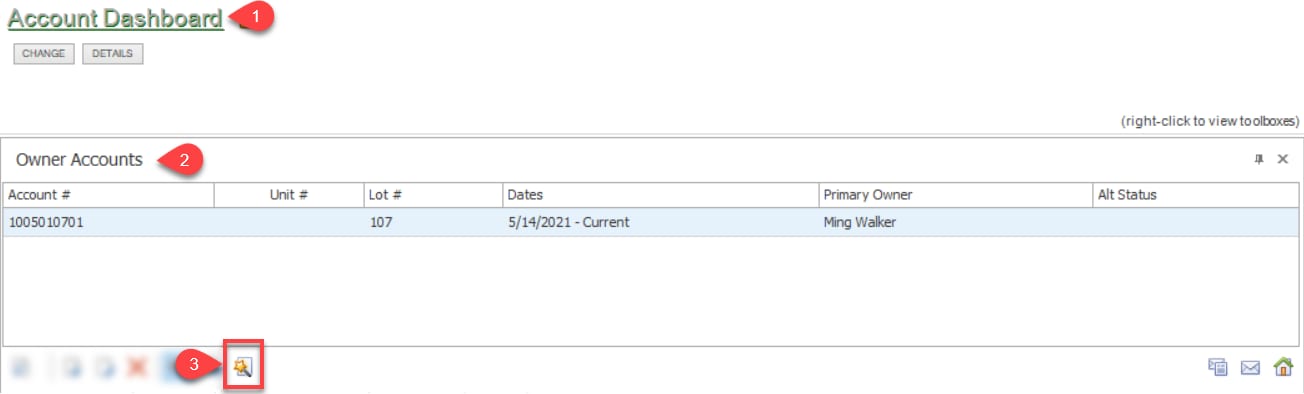
Once the 'Change of Owner Wizard' is selected you will begin entering information about the new owner.
At the top of the screen you will see the Account number Caliber has created for this owner.
[A] You will have the opportunity to enter the correct Escrow (settlement) date for sale of the property.
[B] Then, right-click in the empty box titled New Owners/Occupants Options and choose 'Add New' to enter your new owner information.
[C] If there are contacts within the previous owner box that will remain at the property you can drag them over to the New Owner box.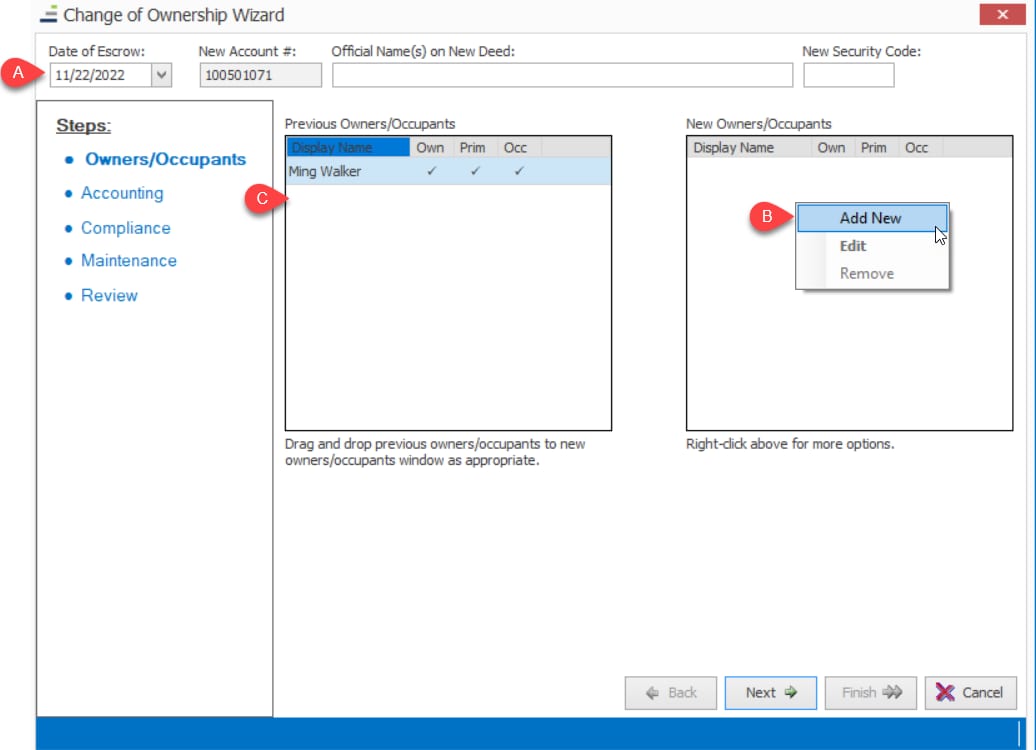
Once you select “Add New” the Contact Record box will appear.
At this time you will have the opportunity to enter information for the Owner of the property such as phone numbers, mailing addresses, emails, and other information.
This record can always be edited at a later time.
The 'Owner', 'Primary Owner', 'Occupant' and 'Primary Occupant' checkboxes will default to checked for the new entry. If this owner does not occupy the unit/property, you may uncheck the 'Occupant' and/or 'Primary Occupant' checkbox.
Please note that every unit must maintain a Primary Owner.
If you need to add an Occupant (tenant/renter) you must enter information for an occupant only (tenant/renter) record after saving the Primary owner information. Occupants (tenants/renters) can also be added later using the 'Contact' toolbox at any time directly from the 'Account Dashboard'.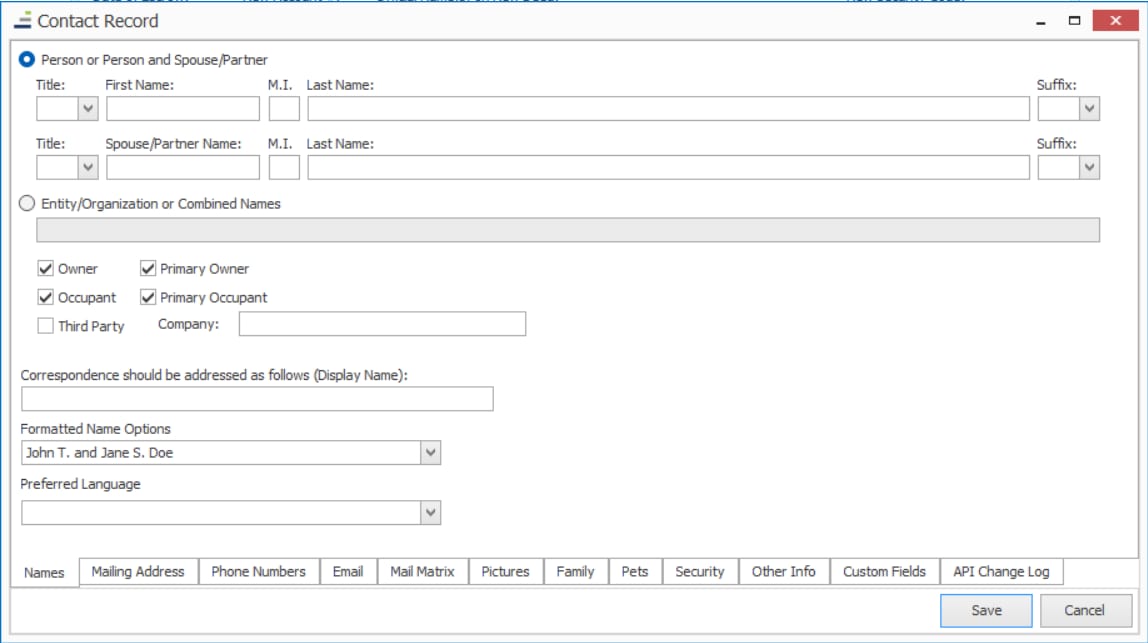
Once all of the Owner information has been added click the 'Save' button.
Upon saving the Contact Record screen you will be brought back to the initial Change of Ownership Wizard screen, with the newly added name displayed.
If you need to add another contact, such as a Occupant (Tenant/Renter), right click again in the 'New Owners/Occupants' section and click 'Add New'. This time you want to be sure to uncheck the 'Owner' checkbox so this person is added as just an Occupant. 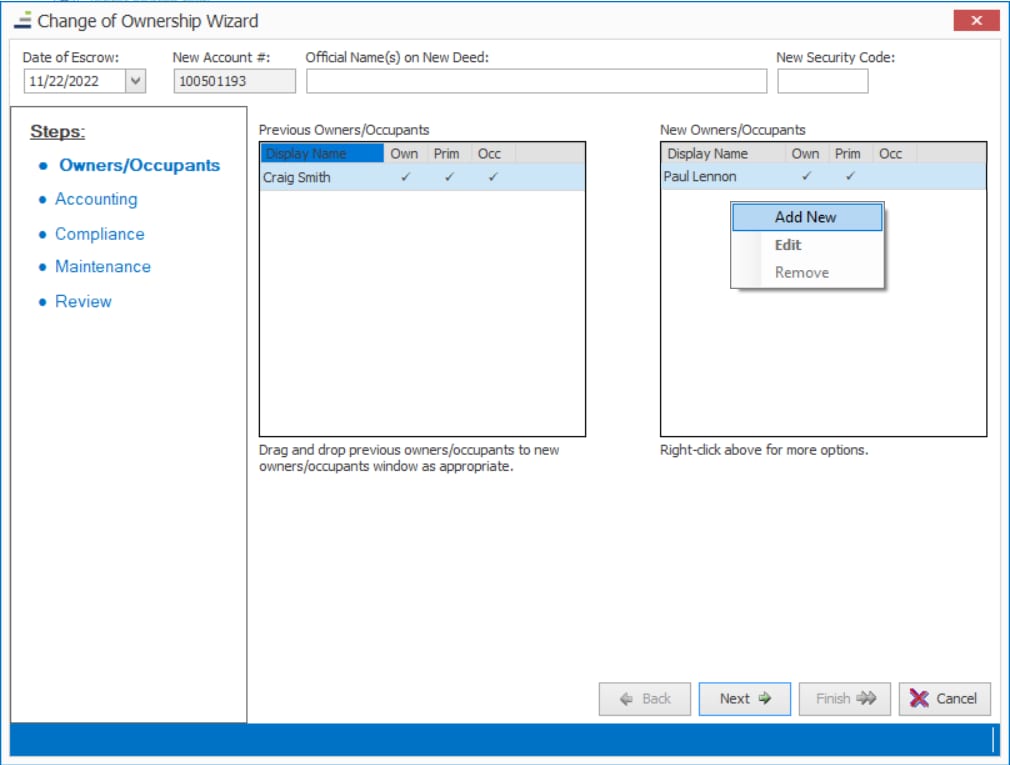
If you do not need to add another contact, select the  button to continue.
You will next be taken to the Accounting page. Notice, on the left side of the screen, the process will track which screen you are on. If there are charges or payments that need to be moved, select the line in the list first, and right-click.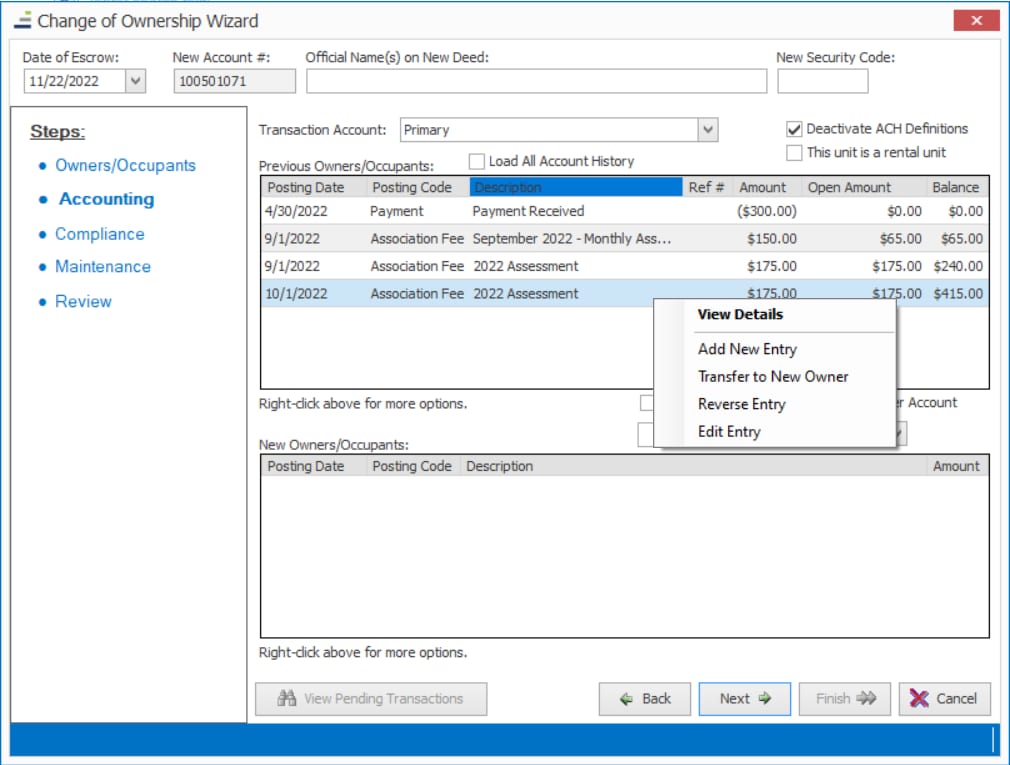
If 'Add New Entry' is selected, the AR Entry Form will appear. You can add as many charges and/or payments needed. New entries can be added to both the Previous Owner and the New Owner areas.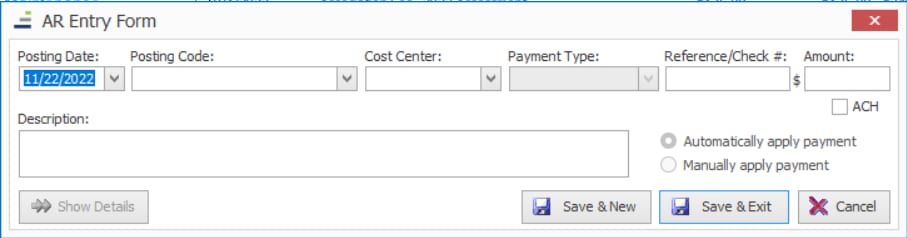
Once 'Transfer to New Owner' is selected a screen will appear to give you the ability to alter the amount or description of what is being moved.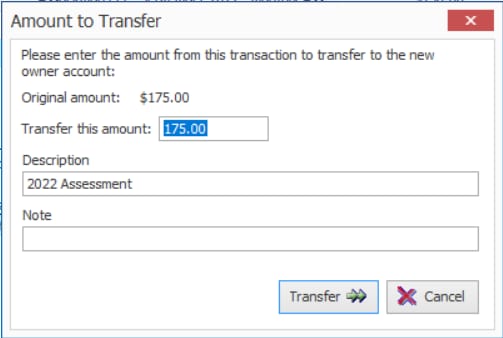
After entering the prompted accounting information and completing the transfer, you will see the transaction listed under the 'New Owners/Occupants' area. 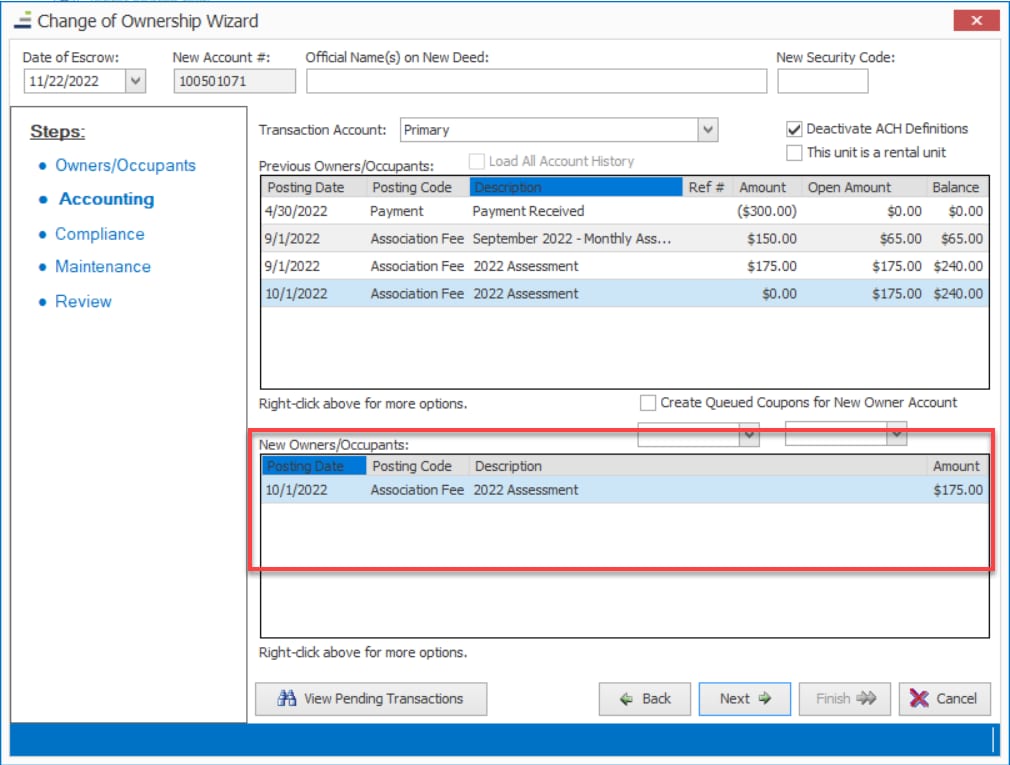
There is also an area where you can queue coupons to send later, regardless of if you are printing in-house or through a 3rd party vendor.
You’ll want to check mark the box for “Create Queued Coupons for New Owner Account”. You can adjust your range of dates for printing in the date boxes.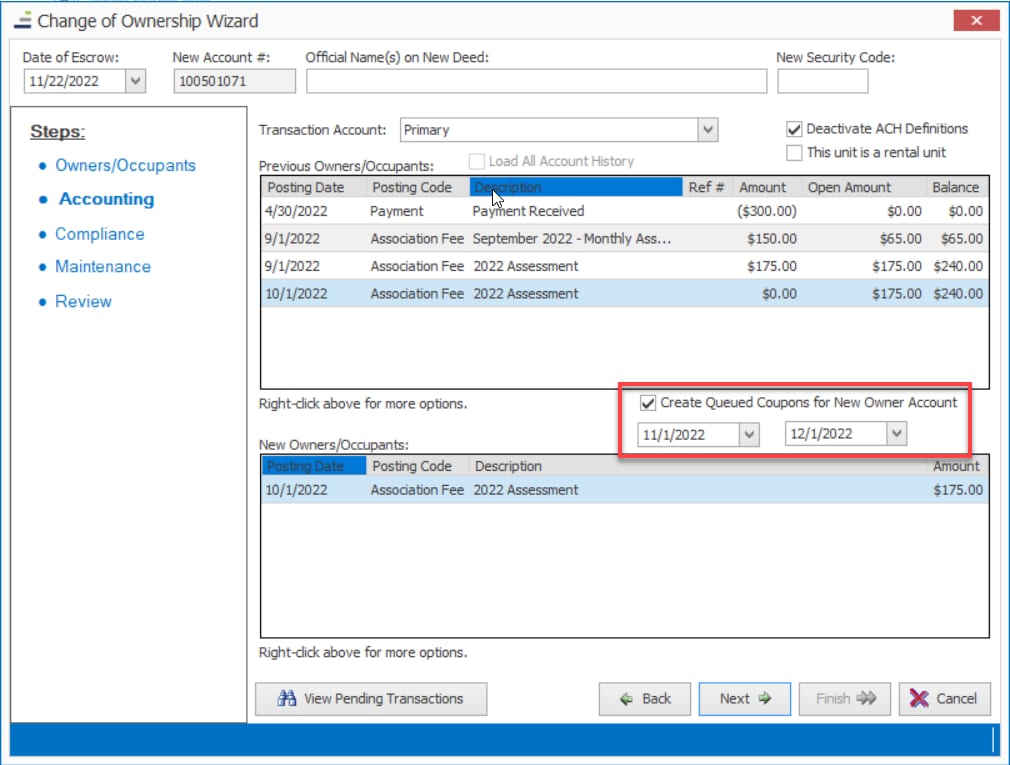
After you click 'Next', you will have the ability to move 'Compliance', and then 'Maintenance'. These sections allow you move any existing Violations or Work Orders from the existing owner to the new owner by clicking the item and dragging it to the New Owners/Occupants box.
In the “Review” section, you will see a detailed summary of all actions that were taken during the process. The change will not be complete until you click the Finish button.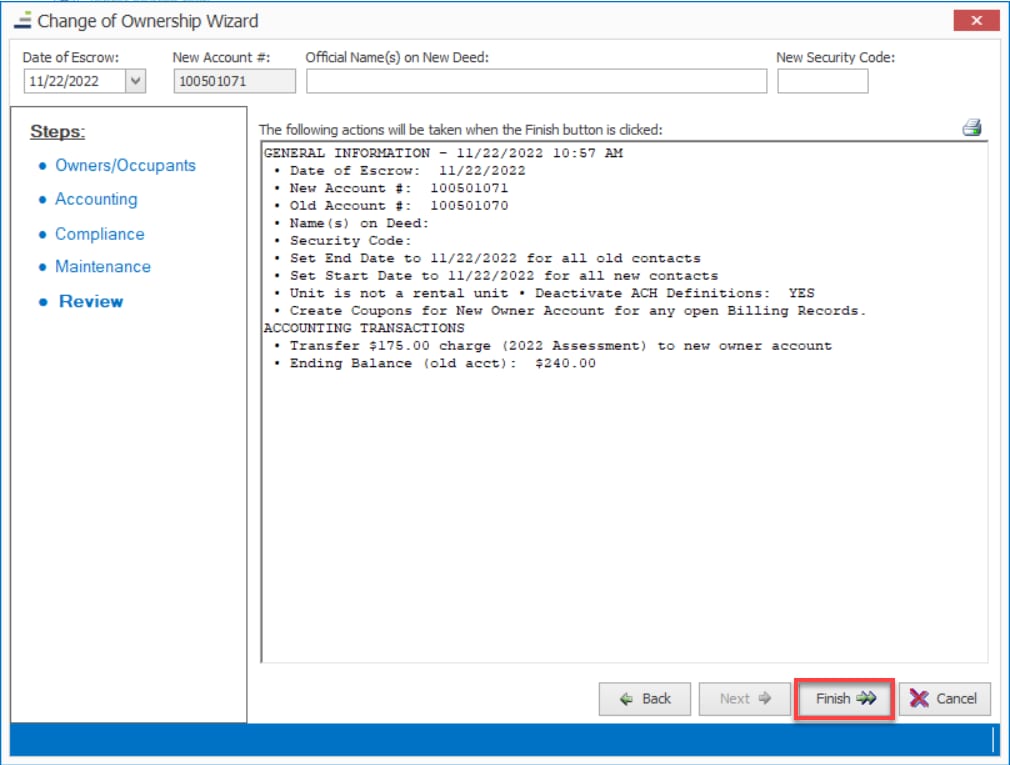
**Note: If you chose to queue any coupons during the process, you can retrieve them by going to Accounting > AR > Coupon Queue. You can then choose to View Pending Queued Coupons for a unit, or by choosing Output Queued Coupons you can then select which method you are using to print your coupons.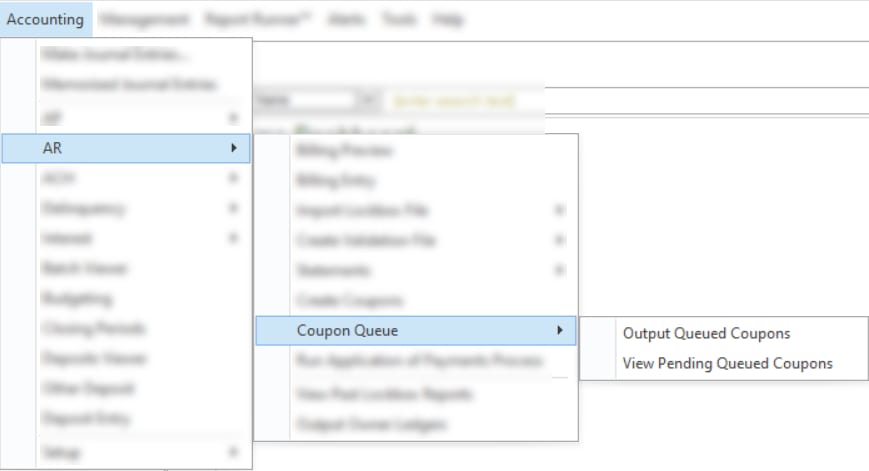
A copy of the Change of Ownership Record will be placed in the Documents for this owner.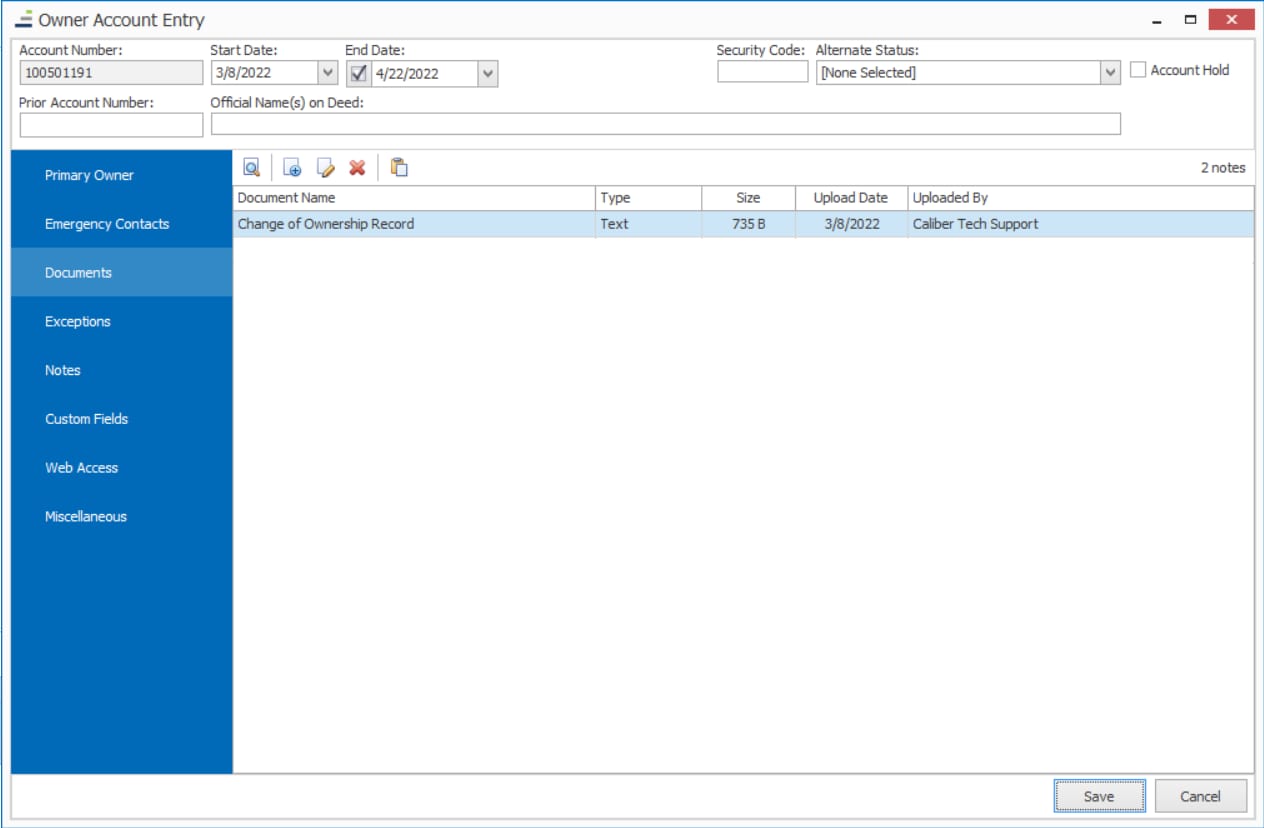
The previous owner’s records are retained within Caliber. You can review the accounting at any time.