
ALLi - Outlook and Email Integration
ALLi - Outlook and Email Integration
ALLi integrates with Outlook to help you review, draft, and send emails without leaving the conversation.
This allows you to stay focused on your work while keeping communication with homeowners, vendors, board members, and internal teams connected to the tasks and workflows you are already managing.
Quick Takeaway: ALLi can retrieve emails, draft messages, and prepare communications using your connected Outlook account. Emails are not sent automatically. ALLi creates a draft for you to review and send.
What ALLi Can Do
Once Outlook is connected, ALLi supports your day-to-day communication workflow.
- Retrieve recent emails
- Open specific email messages
- Summarize conversations or threads
- Draft new emails
- Reply to existing email threads
- Prepare emails to send from your connected account
Important: ALLi does not automatically send emails. Every message is created as a draft for you to review before sending. This is intentional and helps ensure accuracy and trust.
Before You Begin
Outlook integration requires a Microsoft authentication process before ALLi can access your inbox.
- Connect your Outlook account through My User Profile
- Authenticate using your Microsoft 365 or Windows account
- Grant the required permissions during setup
IT Alignment Recommended: Before enabling Outlook integration, confirm with your IT department that connecting your mailbox aligns with your organization’s policies.
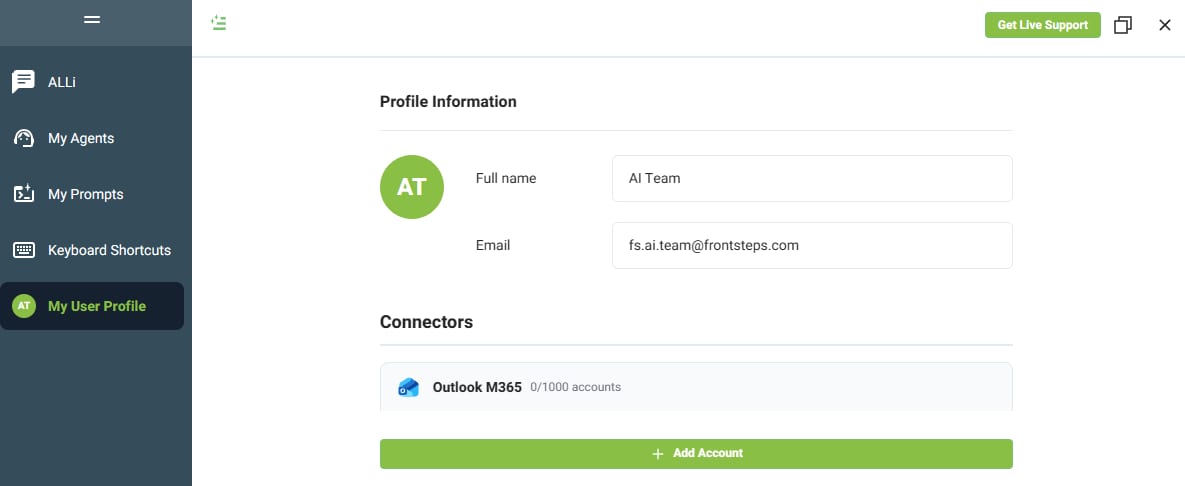
How to Connect Outlook
- Open My User Profile
- Navigate to Connectors
- Outlook M365 (Existing Connector)
- Click Add Account
- Complete Microsoft authentication
Once connected, ALLi can access your inbox and assist with email-related tasks.
This Is Not Automatic
ALLi does not monitor or send emails on its own.
All actions must be initiated by you.
How it works: You ask ALLi to retrieve, draft, or send an email. ALLi prepares the result, and you review it before taking action.
Information Needed to Work with Email
Email Retrieval
- Connected Outlook account
- Sender, subject, or reference
Email Drafting
- Recipient email address
- Subject line
- Message purpose or content
Email Sending
- Recipient
- Subject
- Email body
How ALLi Handles Email Actions
Step 1: Identify connected Outlook account
Step 2: Retrieve or prepare message
Step 3: Display draft or email details
Step 4: You review the content
Step 5: You send the email
Example Instructions
Show my latest emails.
Open the email from the landscaping vendor.
Draft an email to the board about the upcoming meeting.
Send an email to the homeowner confirming their request was received.
Working with Email Attachments
ALLi can identify and help you locate attachments, but it does not pull or display files directly inside the chat window.
What ALLi Can Do
- Identify emails that contain attachments
- List attachment file names and types
- Open the email containing the attachment
- Summarize the email content
- Guide you to access or download the files
What ALLi Cannot Do
- Display full attachment files in chat
- Automatically download attachments
- Store attachments in the conversation
Example:
Subject: Fence Proposal for 456 Pine Drive
Sender: Premier Fence Company
Date: June 10, 2026
Attachments:
Fence_Proposal.pdf
Fence_Design.jpg
You can then open the email to view or download the attachments.
Key Benefits
- Reduces time switching between systems
- Keeps communication tied to your workflow
- Improves response speed and consistency
- Provides structured email support within ALLi
What This Feature Does Not Do
- Does not send emails automatically
- Does not connect without authentication
- Does not bypass IT or security policies
- Does not store or ingest attachments directly
What’s Next
[Insert Link: ALLi - Invoice Approvals and Management]
[Insert Link: ALLi - Workflows in Steps]