
Manager - Creating a Bulletin
We’re updating this article. Some screenshots or names may look older than what you see in the product.
Managers can create bulletins to communicate important and time-sensitive information to residents. The bulletins display on the residents’ home pages.
Note that bulletins are intended to be text-only communications and that Newsletters should be used in order to add images to the body.
Steps
From the Manager Dashboard, select Community Communications, then select Bulletins. The “Bulletins” screen will display, showing previously created bulletins.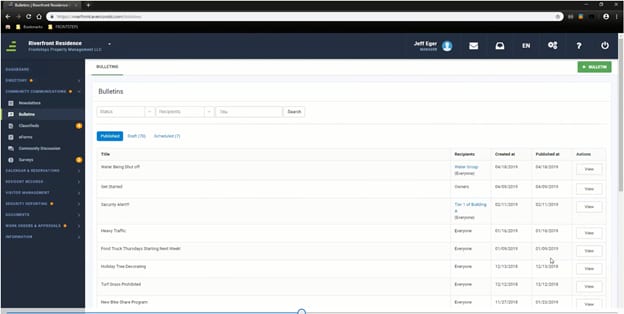
- Select the + Bulletin button. The “New Bulletin” screen will display.
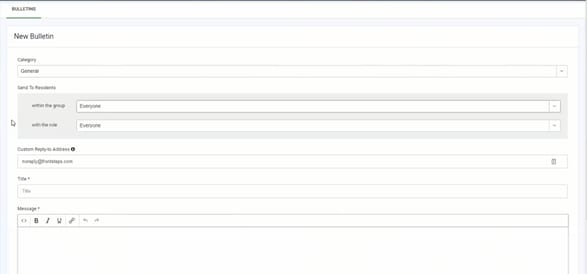
- Select a Category from the drop-down list.
- Determine which group and/or role should receive the Bulletin.
- Add a Reply-To Email address, or leave blank if you do not want to receive replies.
- Add the Title of the Bulletin.
- Add the text of the message to be included in the Bulletin. There are formatting options provided for your text.
- Select the Add Attachments button if you would like to include attachments in your Bulletin. The following file types are accepted: jpg, jpeg, png, bmp, tiff, gif, xls, xlsx, doc, docx, pdf, zip, ppt, pptx, odt, rtf, txt. Please note, the single file size limit is 7mb. Multiple can be uploaded but the total may not exceed 7mb.
Note: Even if larger file(s) upload, upon clicking Create an error message will display and creation will fail - Select if you want to disable comments, and if you want to notify residents through SMS text.
- When you are satisfied with your Bulletin, select the Create Bulletin button .
- Select the option to Publish the Bulletin to your residents.
