Manager - Publishing a Bulletin
We’re updating this article. Some screenshots or names may look older than what you see in the product.
Once a Manager creates a Bulletin, they will then publish it, which sends the Bulletin to community members and posts it on the FRONTSTEPS portal.
When the Bulletin is created, you are redirected to this screen:
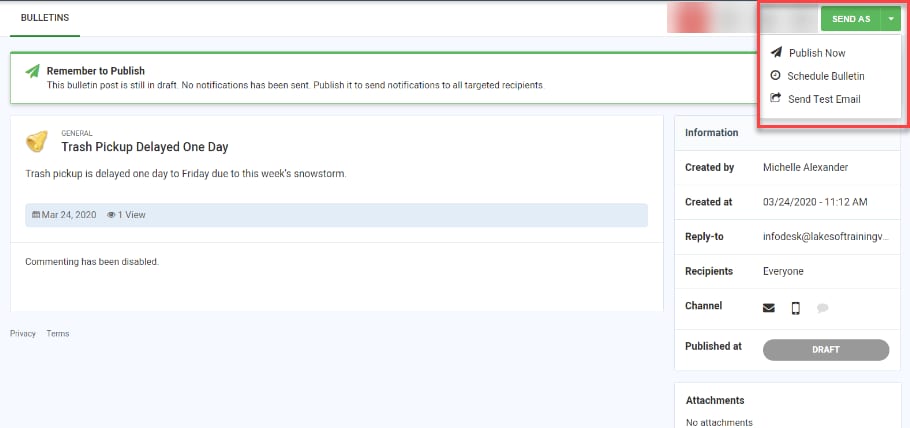
Select a Publishing option from the Send As drop-down list.
a. Publish Now to send the Bulletin to residents through all selected channels.
b. Schedule Bulletin - select a day and time to send the Bulletin.
c. Send Test Email - Send yourself a test email, then publish the bulletin using one of the other options.
If you have already published the Bulletin, you can resend it at any time by selecting the Bulletin and then selecting the Resend option.
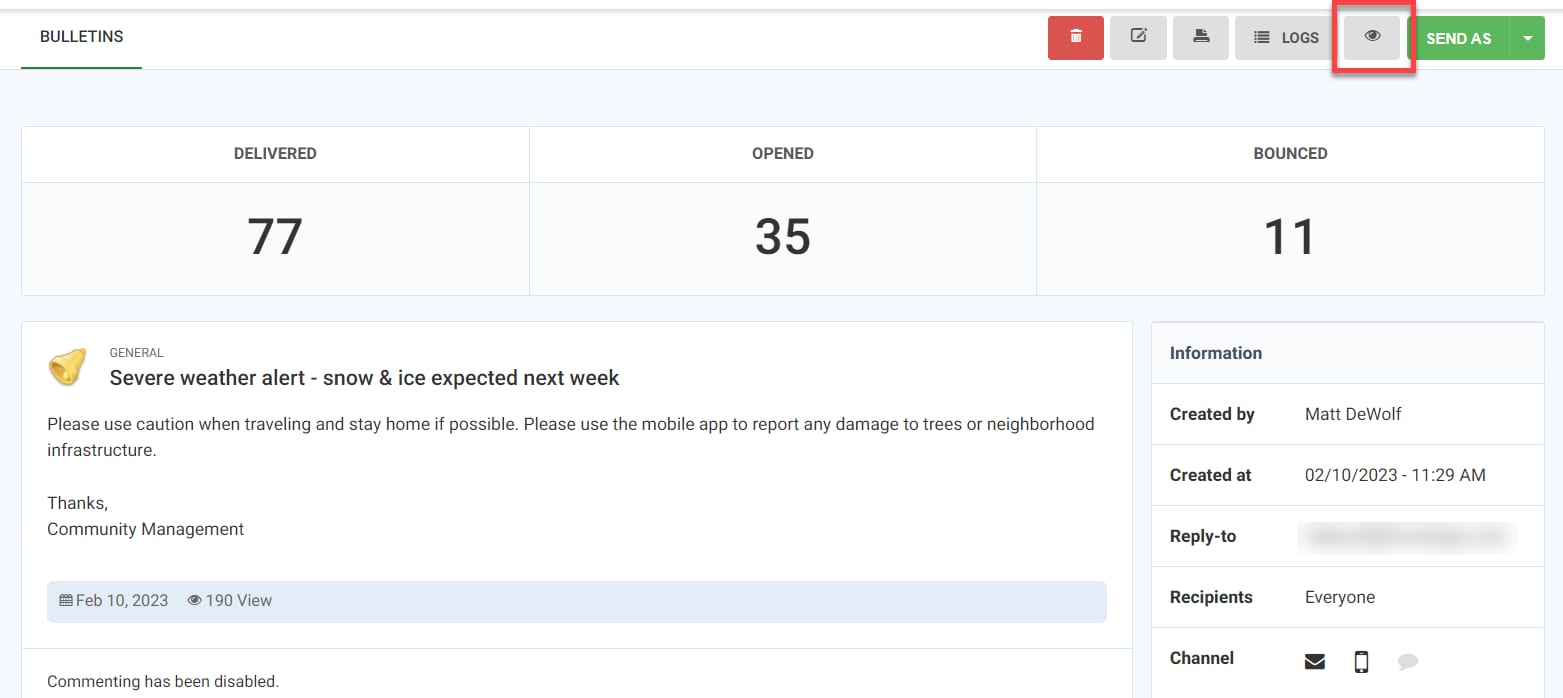
From this window you can also preview the bulletin by clicking the Preview icon.
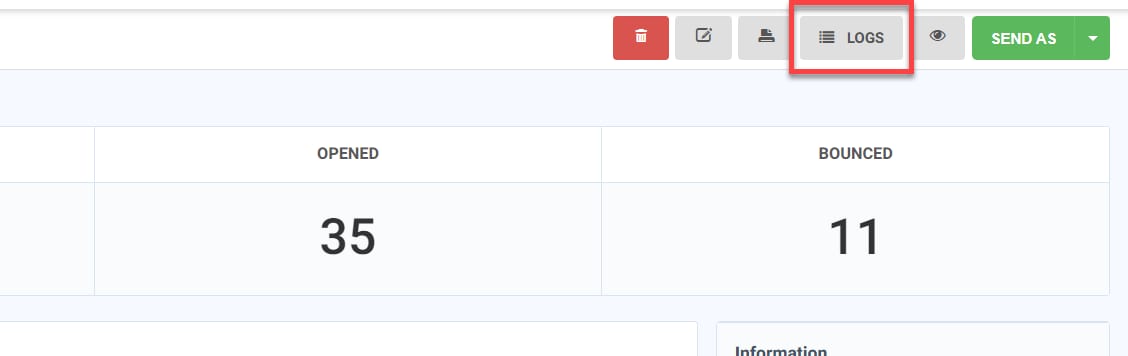
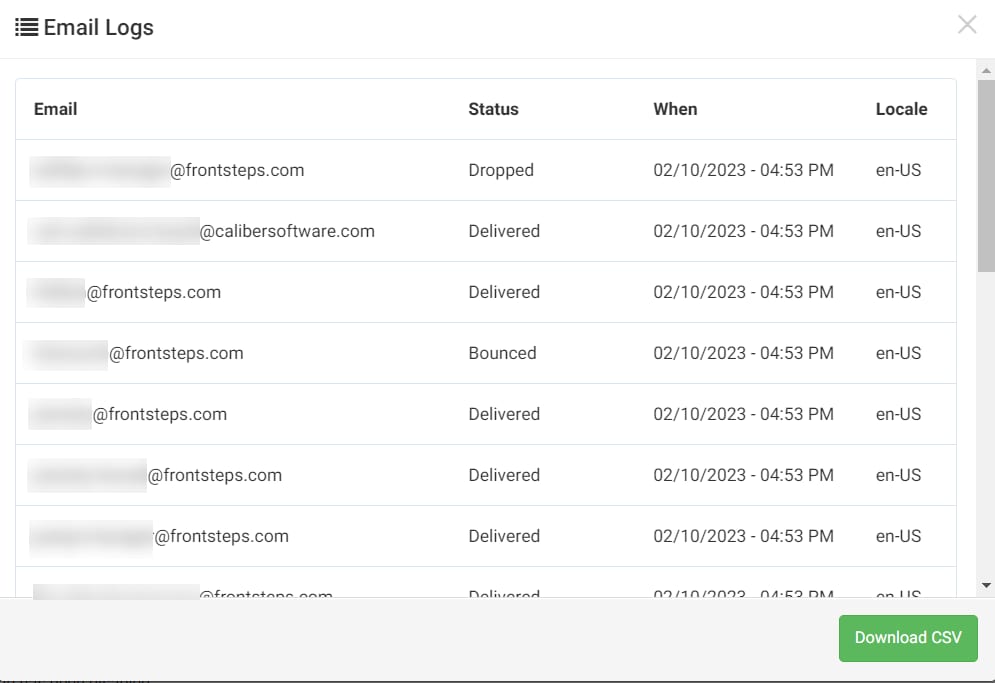
Once the Bulletin has been published, the Logs button will give you access to the status of each email that was sent.
The log will list the recipients email address. the status, time and locale.
There are many statuses you may see regarding the email that was sent. The statuses you may see are:
1. Processed.
2. Dropped
3. Deferred
4. Bounce
5. Delivered
6. Open
7. Click
8. Spam Report
9. Unsubscribe
To learn more about what each status means, view this article.
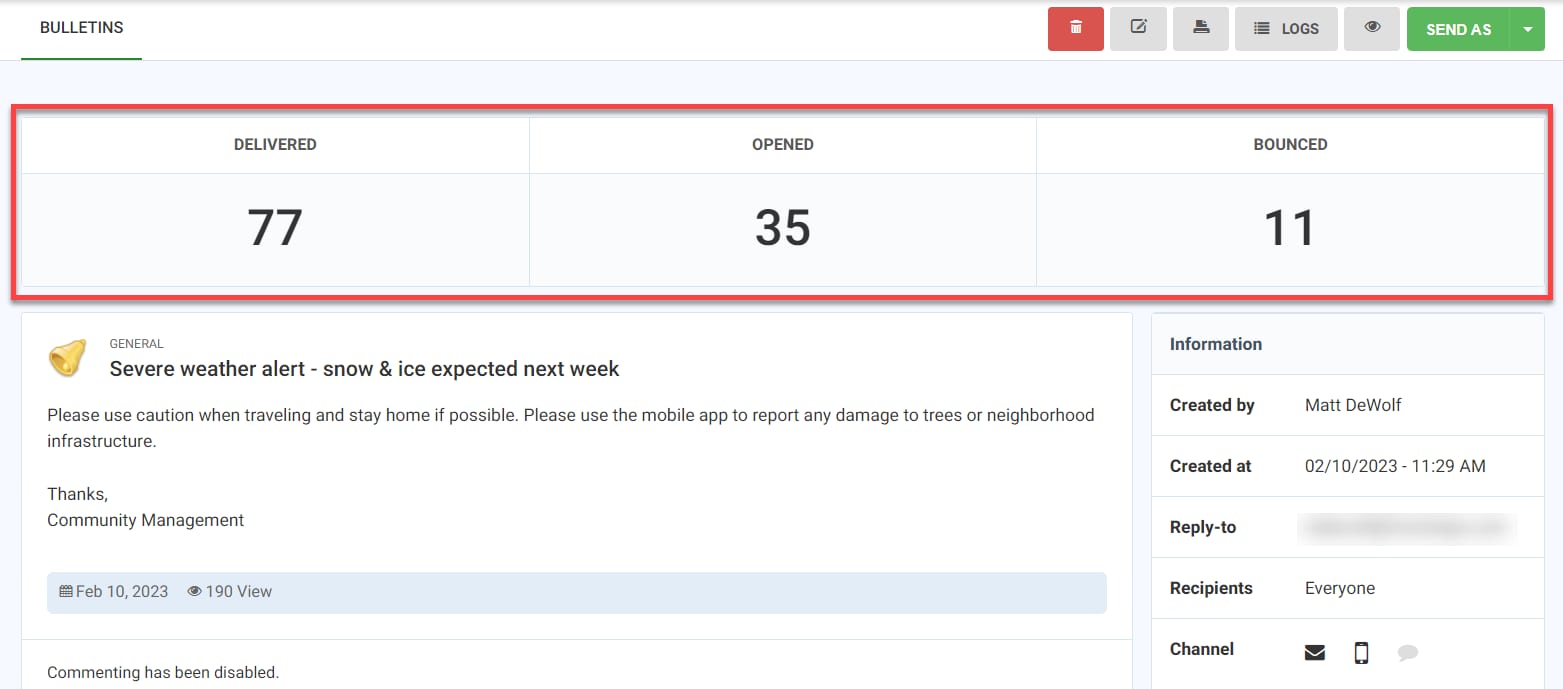
You also get a total count of the 'delivered', 'opened' and 'bounced' status at the top of the bulletin once published.