
Validation Files
We’re updating this article. Some screenshots or names may look older than what you see in the product.
Validation files (‘file’) are reference files sent to a bank so that their Lockbox Department can look-up or validate owner account numbers in Caliber when processing payments. Without a current file, the bank will be unable to process payments that have been received without an account number.
The file may also be used to provide accurate owner balances to the bank if they are accepting on-line payments on behalf of the customer
‘Stop’ or ‘Hold’ files are also generated as part of this process. The Stop file is used to notify the bank of owners who payments are not being accepted from. Depending upon the bank, a separate Stop file may be generated. Other banks combine the Validation and Stop files into a single, combined file. A Stop file can only be generated through the Validation file process – they cannot be generated separately.
This document covers files generated in Caliber that are sent to the bank either through a manual upload or an automated ‘Generate Validation File’ task. Validation files generated by an Advanced Bank Integration task are not discussed here. Those are covered in our bank specific Bank Integration documents.
Setup
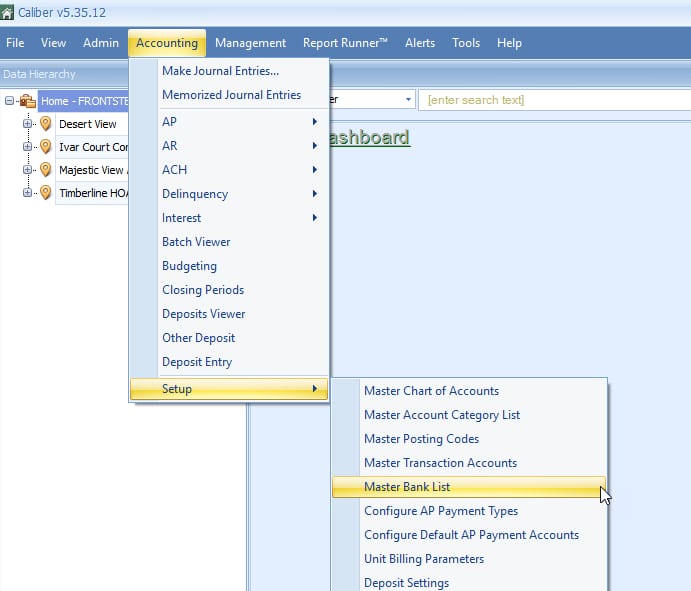
First, the user must go to Accounting > Setup > Master Bank List.
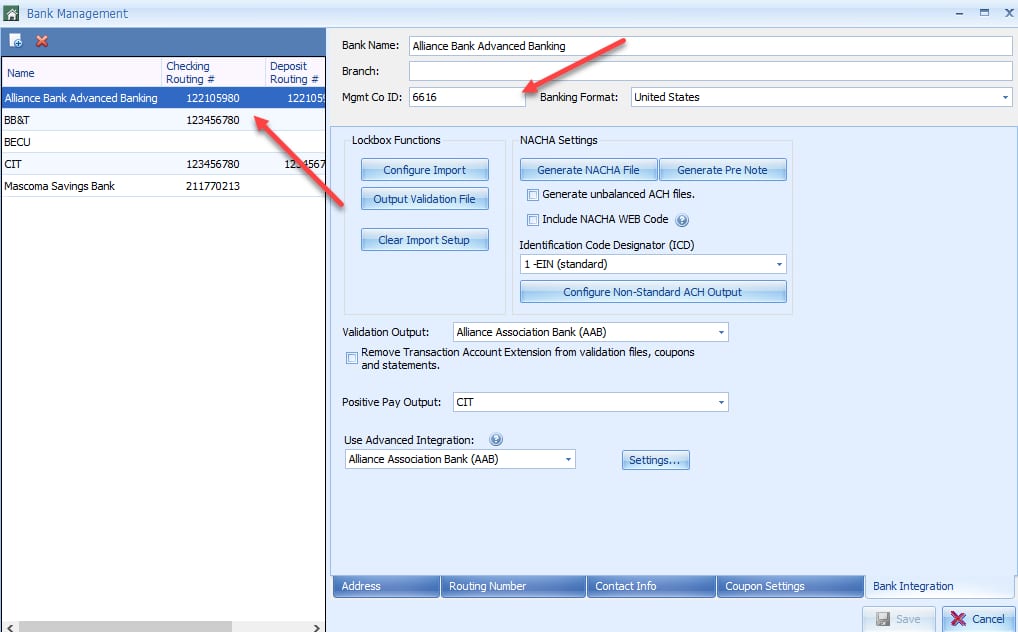
Once there, select the bank from the list. Alliance Bank is used as an example. A bank assigned Management Company ID must be entered in the ‘Mgmt Co ID’ field at the top.
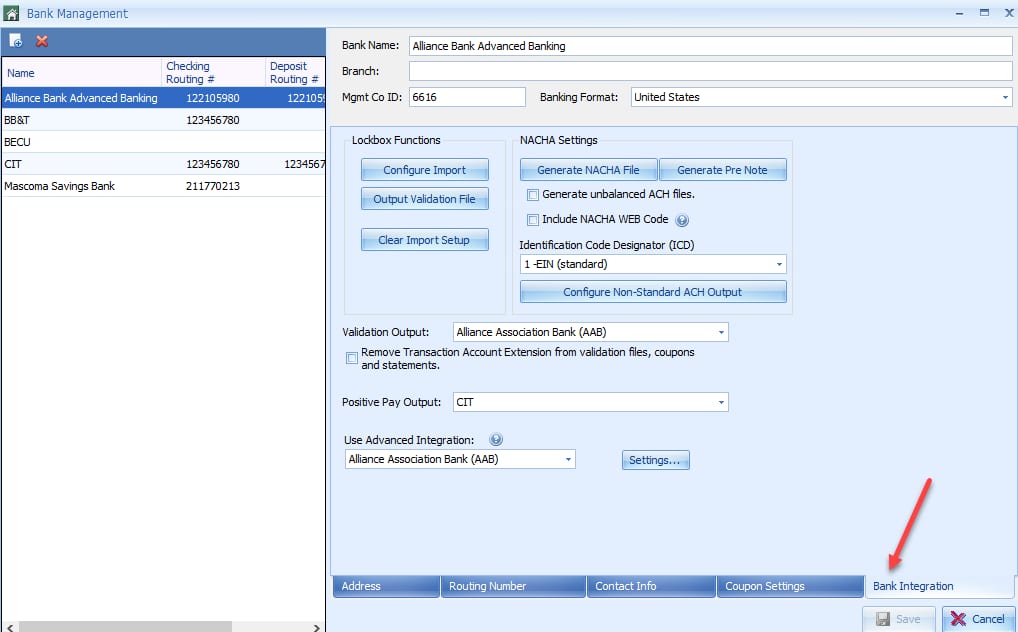
Go to the ‘Bank Integration’ tab.
Go to the ‘Validation Output’ pull-down menu, select the bank the file will be sent to from the list, and click ‘Save.’
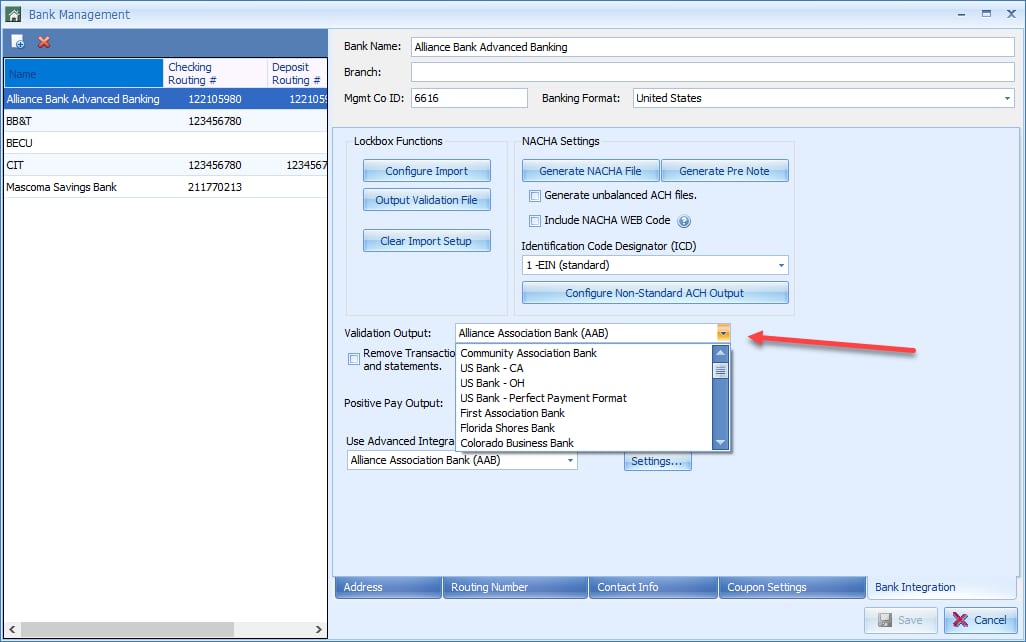
If the bank in question is not listed, select ‘Caliber Default.’
Finally, generate a manual file following the instructions below and send it to the bank for their review. If the bank requires a different file format, contact Caliber Support for assistance. Usually, one of the other formats already available in Caliber will meet the bank’s needs and Support will help determine which one should be used.
Manually Generating a File
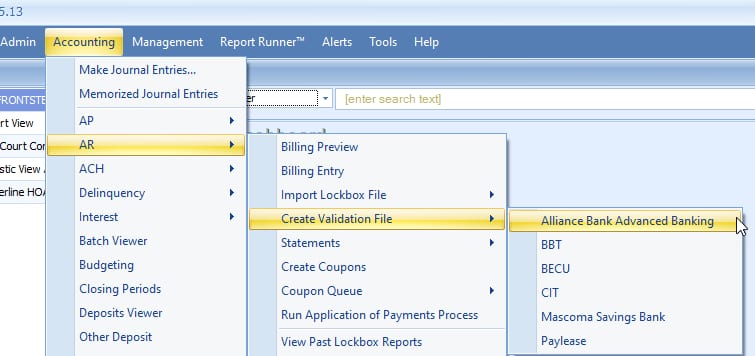
Go to Accounting > AR > Create Validation File, and select the bank that the file will be sent to.
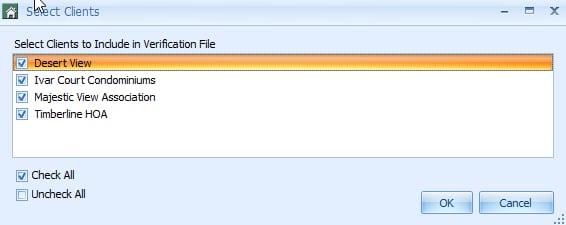
A list of clients will appear. Check and uncheck clients as needed to specify which ones will be included in the file. The default is for all clients to be included. Click ‘OK.’
A list of options for the file will appear. For the ‘Validation Output,’ select the bank that the file will be sent to. Check the options to be used when generating the file (described below) and click ‘Continue.’
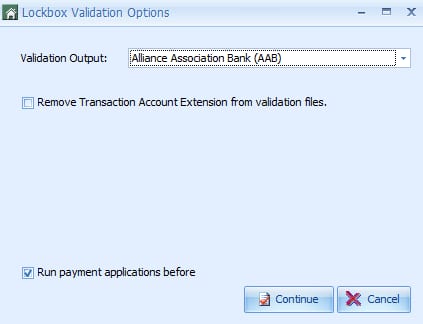
If the bank in question is not listed in the Validation Output, select ‘Caliber Default.’
Should the bank require a different file format, contact Caliber Support for assistance. Usually, one of the other formats already available in Caliber will meet the bank’s needs and Support will help determine which one should be used.
Selecting ‘Remove Transaction Account Extension from validation files’ means that only the 9-digit owner account numbers will be included. If it is not selected, the 10-digit account numbers will be included instead. See our ‘Transaction Accounts’ document for additional information.
‘Run payment applications before’ will cause Caliber to look for unapplied credits on owner accounts and apply them against outstanding charges before generating the file. This provides the most accurate owner balances to the bank. If this is not a concern, the option can be deselected if desired.
There are two additional options that are only available for certain banks.
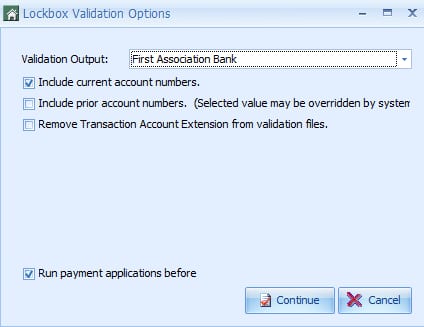
‘Include current account numbers’ means that the current 9 or 10-digit Caliber account numbers will be included, depending upon the other options selected.
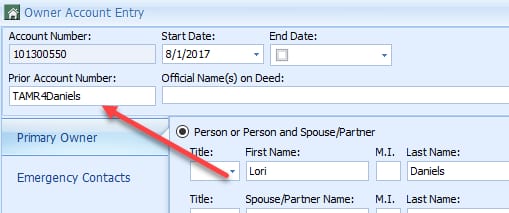
‘Include prior account numbers’ means that whatever was entered into the Prior Account Number field in the Owner Account Entry will be included in the file (see below.) Since some banks only accept a maximum of one or two account number for each owner, Caliber may override this option to meet the bank’s requirements, depending upon the other options selected.
Caliber will now ask where the file is to be saved when it has been generated. After that has been provided, click ‘Save.’
The file will start generating. When it is complete, a notification message will appear.
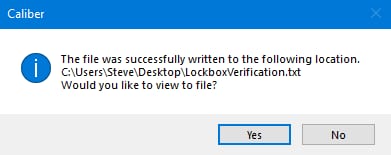
The file can now be submitted to the bank according to their instructions.
If the file was generated for a bank that uses a separate Stop file, a similar message will appear when that file is complete. The Stop file will also be submitted to the bank according to their instructions.
Automated Files
The Validation file process can be automated in Caliber, provided that the bank the file is being sent to is able to accept files through a SFTP (Secure File Transfer Protocol) process. This allows the file to be generated and sent to the bank without requiring any further user input. It also allows the process to run outside of business hours, allowing the user to work in Caliber as normal without being held up while the process is running.
Go to Management > Automated Scheduled Tasks.
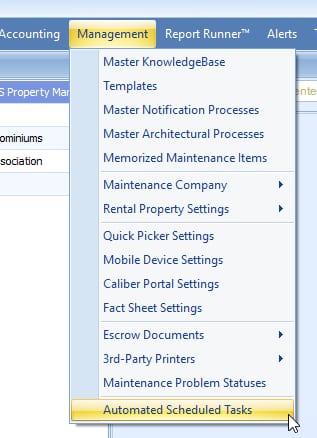
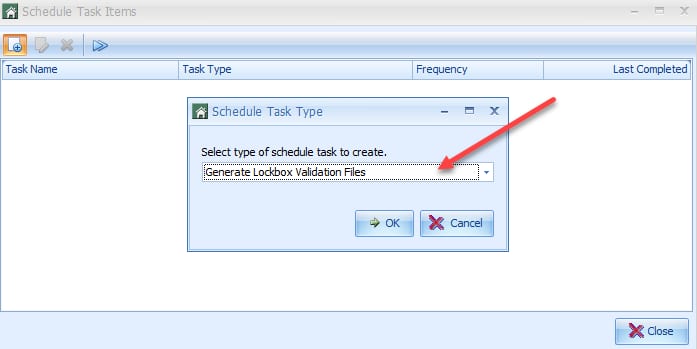
A list of existing Scheduled Tasks (‘task’) will open. Click on the ‘Add New Schedule Item’ icon.
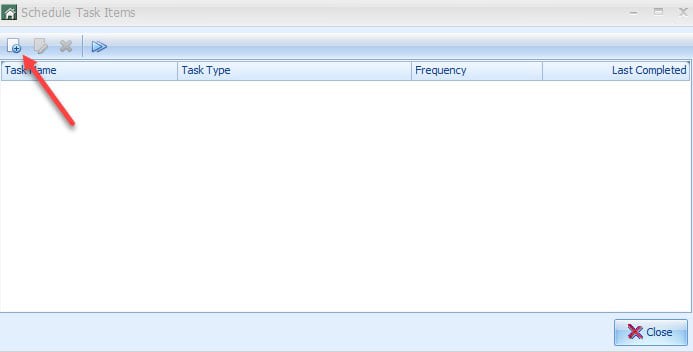
The Schedule Task Type Toolbox will appear. Use the pull-down menu to select ‘Generate Lockbox Validation Files’ and click ‘OK.’
Select the bank that the file is to be sent to, the Validation Output, and the interval. Enter the time of day when the task is to be run, and check ‘Active.’
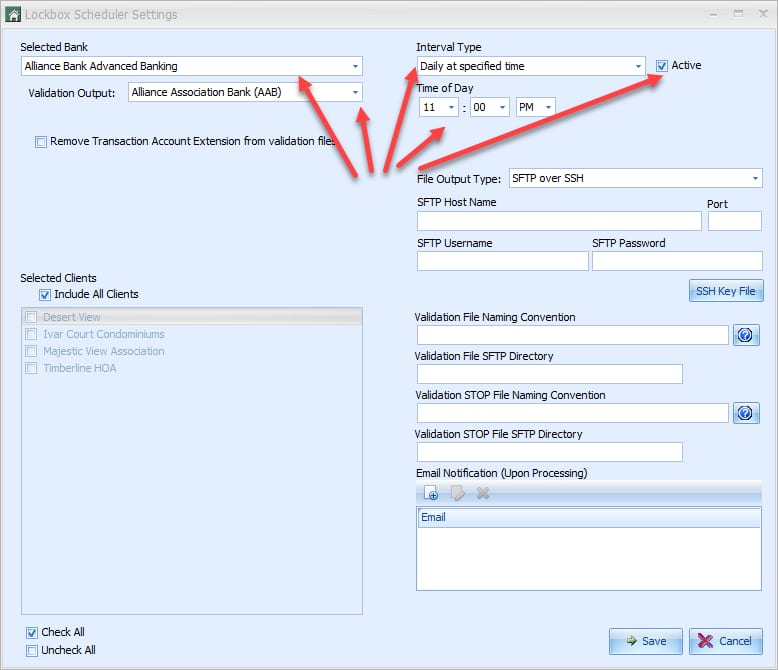
Only those banks that have been added to Master Bank List will be available in the pull-down list.
If the bank in question is not listed in the ‘Validation Output,’ select ‘Caliber Default.’
Should the bank require a different file format, contact Caliber Support for assistance. Usually, one of the other formats already available in Caliber will meet the bank’s needs and Support will help determine which one should be used.
For the ‘Interval Type,’ select ‘Daily at specified time.’
For the ‘Time of Day,’ use a time that is after the workday has ended but is prior to Midnight.
Now, select the options to be used when generating the file.
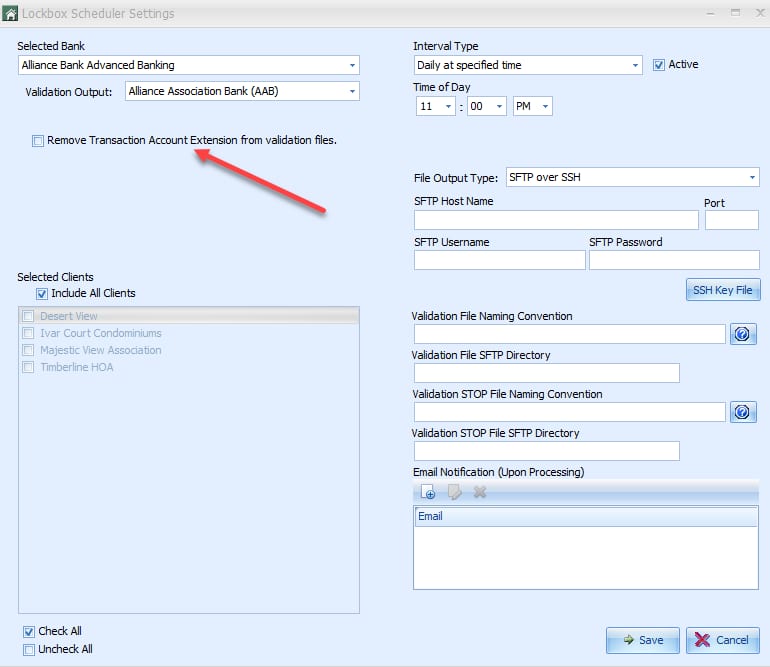
If checked, the ‘Remove Transaction Account Extension from validation files’ option means that only the 9-digit owner account numbers will be included in the file. If it is not checked, the 10-digit account numbers will be included. See our ‘Transaction Accounts’ document for additional information.
There are three additional options that are only available for certain banks.
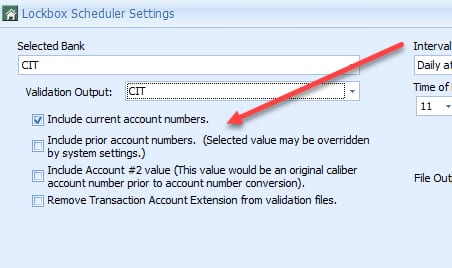
‘Include current account numbers’ means that the current 9 or 10-digit Caliber account numbers will be included, depending upon the other options selected.
‘Include prior account numbers’ means that whatever was entered into the Prior Account Number field in the Owner Account Entry will be included in the file (see below.)
The ‘Include Account #2 value’ option should only be selected if owner account numbers were generated in Caliber, and then for some reason, were regenerated, creating new ones. This is very rare.
Since some banks only accept a maximum of one or two account number for each owner, Caliber may override one or more of these options to meet the bank’s requirements, depending upon the options selected.
The clients to be included in the file are selected next.
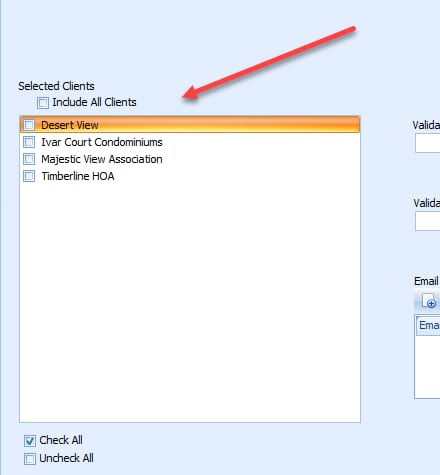
The list of clients displayed will be for all clients. They can be checked individually, or the ‘Include All Clients’ option can be used. The benefit of the Include all Clients is that any new clients added to Caliber in the future will automatically be included in files without any user input.
The remaining fields may vary according to the bank selected. The bank will provide the customer with instructions for completing them.
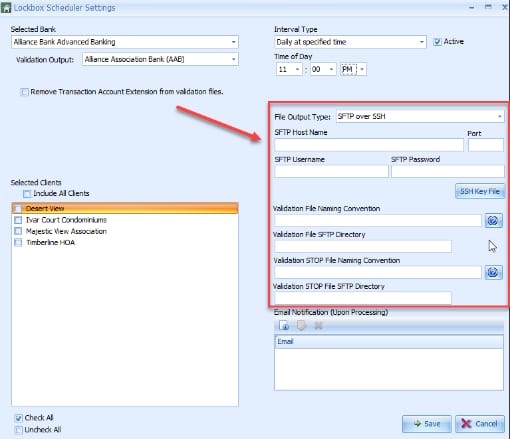
When done, click ‘Save.’
If the task is setup for a bank that uses a separate Stop file, that file will be automatically generated and sent to the bank along with the Validation file.