
Using Voice Broadcasting
We’re updating this article. Some screenshots or names may look older than what you see in the product.
Using Voice Broadcasting
From the Dashboard, select Community Communications > Voice Broadcasting.
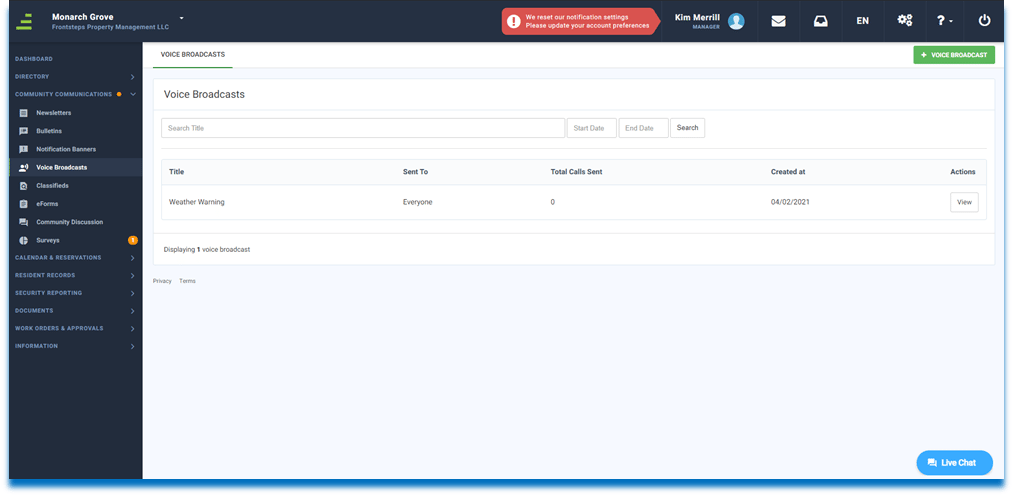
The Voice Broadcasts display here.
To add a new Voice Broadcast:
- Select the +Voice Broadcast button.
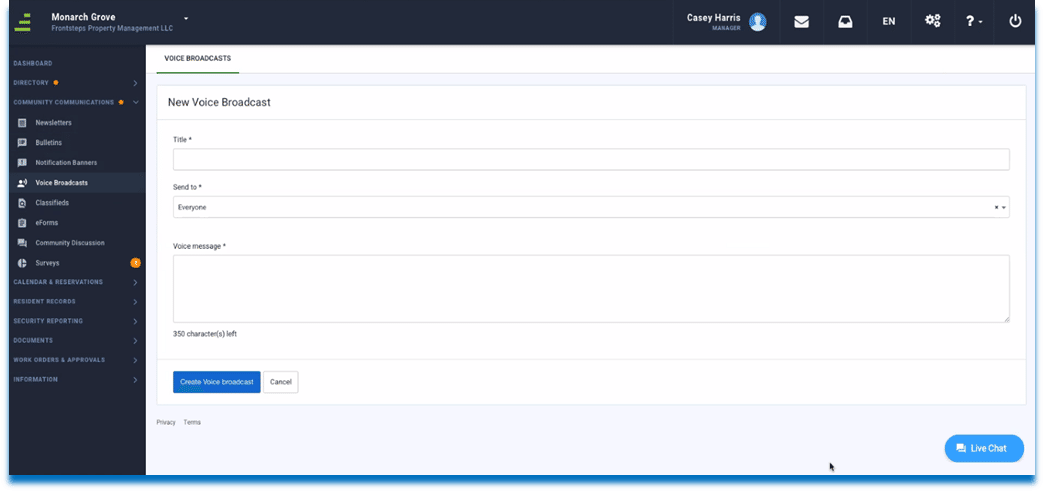
- Enter the Title of the Voice Broadcast.
- From the Sent to dropdown, select to whom (Everyone, Owners Only, or Directors Only) the Vo Broadcast will be sent.
- Enter the Voice Message.
- Select the Create Voice Broadcast button.
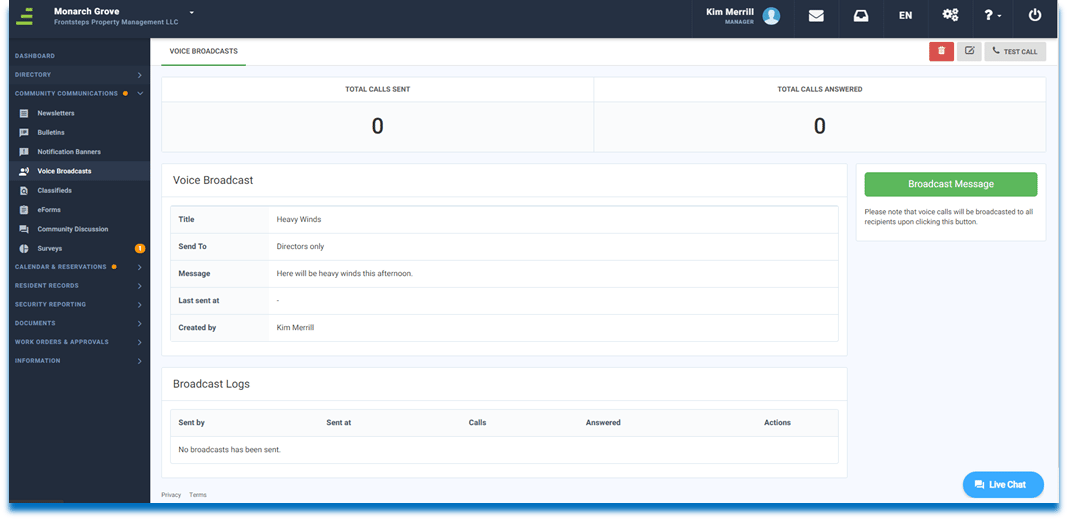
- A Test may be sent using the Test Call button.
- The broadcast may also be Deleted using the Delete icon.
- The broadcast may be modified using the Edit icon.
- Select the Broadcast Message button to send the message.
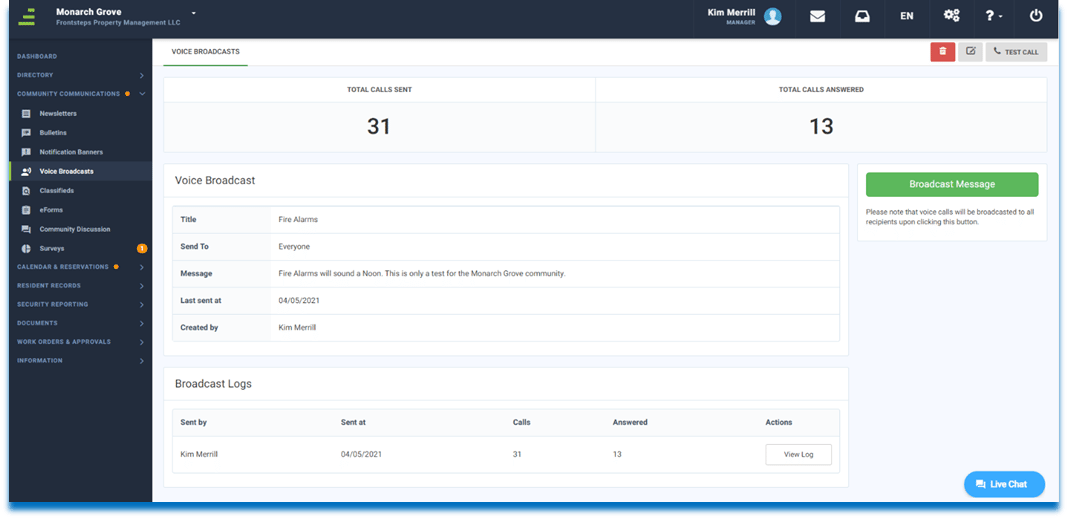
10. Once the message is broadcasted, the Total Calls Sent and the Total Calls Answered display.
11. The Manager can download a log of messages sent, using the View Log button. The log shows the contact name, phone number and if the person has answered or not (Yes or No). The system does not leave voice messages.