
Manager - Uploading a Resource Item to the Resource Center
Depending on your access level, you may be able to add an Item to the Resource Center.
To do so, please reference the instructions below.
- Click on the Publish menu
- Click on Publish Content
- From the drop-down menu select Resource Item
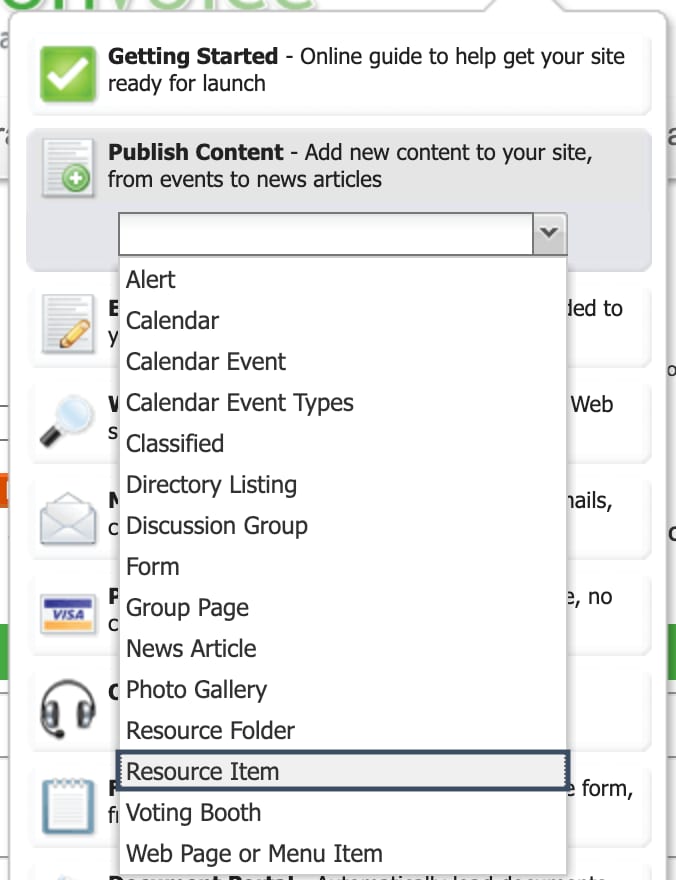
- The Create Resource Item page will then be displayed, refer to the example in the screenshot below.
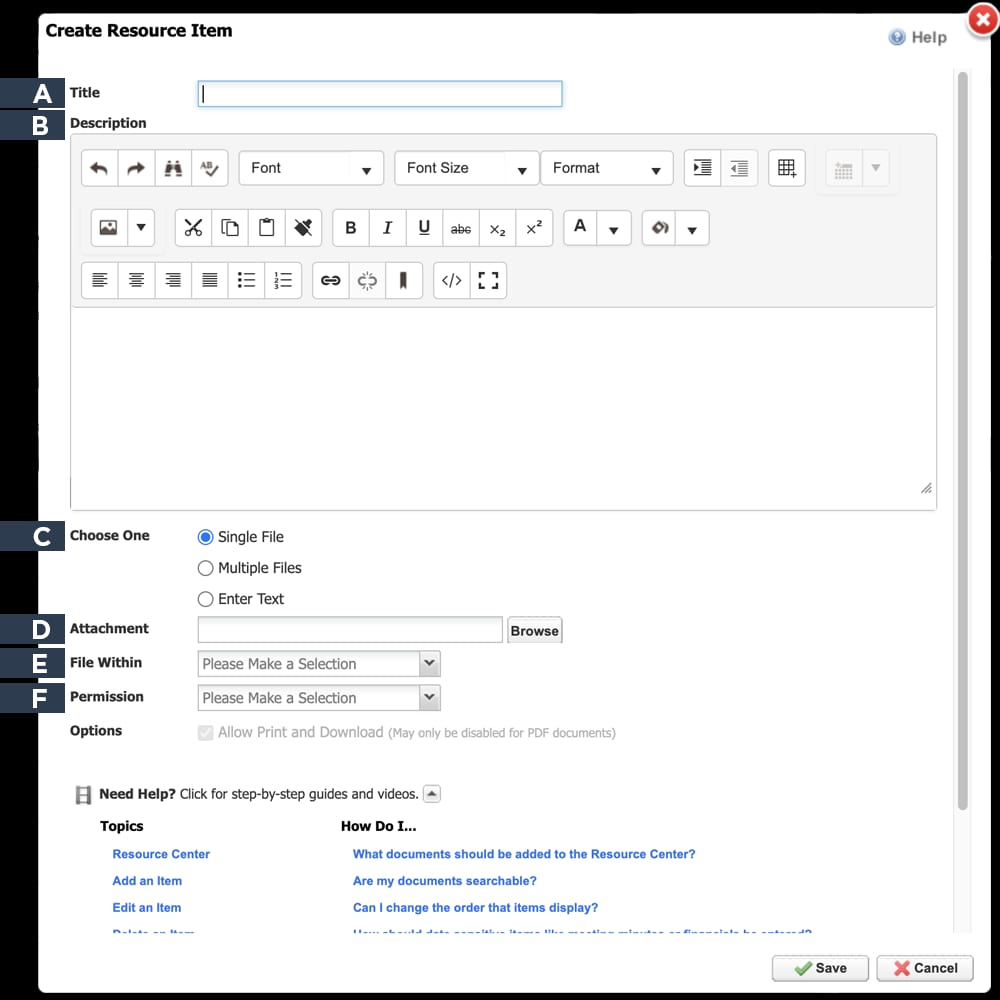
A) Enter the Title for your Resource Item.
B) Enter a Description (if applicable) for the item. Entering a Description is not required, but we recommend adding one so that users can get a quick idea of what contents are included in the item. You may consider adding hyperlinks to your item descriptions so that users can find additional or related information contained elsewhere on the site.
C) You can either attach a file to be uploaded onto the site, or you can enter the text directly into the Text field – specify your choice in the "Choose One" radial buttons. If you plan to attach an existing file, choose Single File.
D) If Single File is chosen, click Browse to locate the file on your computer. Be sure that the file is in a format your audience can view and ensure the title of the file chosen has no special characters in it.
E) Under File Within, choose the folder that you would like the item to be in.
F) Select the desired security level from the Permission field. Permissions are hierarchical, with the highest privilege roles appearing at the bottom of the drop-down menu. For example, Property Owners can see all items that Members/Residents, Vendors, and Guests can see. Property Owners cannot view items that are restricted to Managers and Site Administrators. If you save the item with Property Owner permissions, only users with the Property Owner security level or above will be able to view the item.
When you are finished, click Save. Upon saving, you will see the item you just added. Be sure to review your entry.