Statement and Coupon Setup
We’re updating this article. Some screenshots or names may look older than what you see in the product.
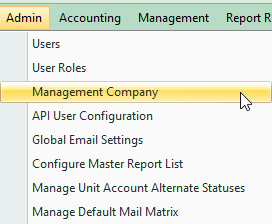
First, the master settings need to be modified. These can be found by going to Admin > Management Company and then selecting the Coupons/Statements tab. Any settings added here will filter down to new clients and additional modifications can be made to those clients, if necessary.
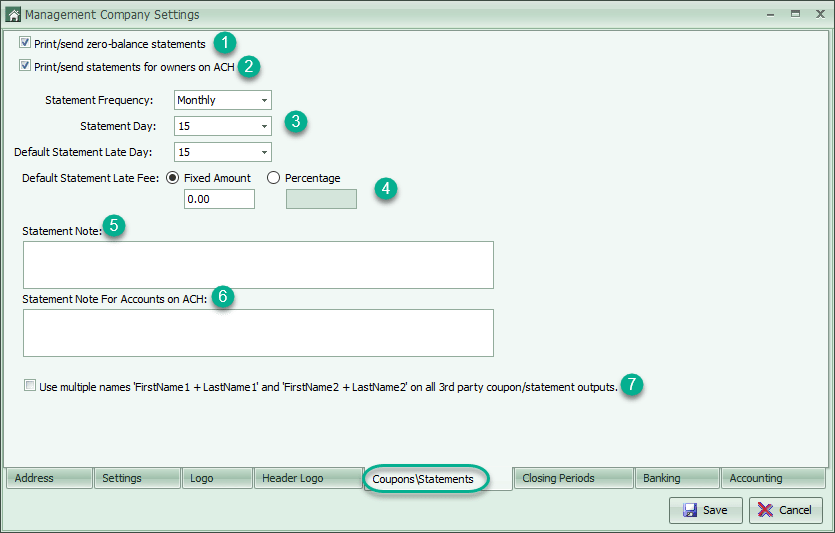
1. Unchecking this box will cause the system to generate statements for owners with no balance on their accounts.
2. Unchecking this box will exclude those owners with current ACH definitions from the statement run.
3. These options show how often statements are run, what day of the month they are typically run on, and the number of days before the balance is considered to be late.
4. Choose the type and amount of the late fee that will show on the statement. This does not actually post any late fees to the owner accounts (see Delinquency documentation for how to post late fees).
5. Adds this text to the bottom of all statements.
6. Adds this text to the bottom of all statements for those owners with current ACH definitions.
7. If using a third party to print statements, this option allows you to change how the names are displayed.
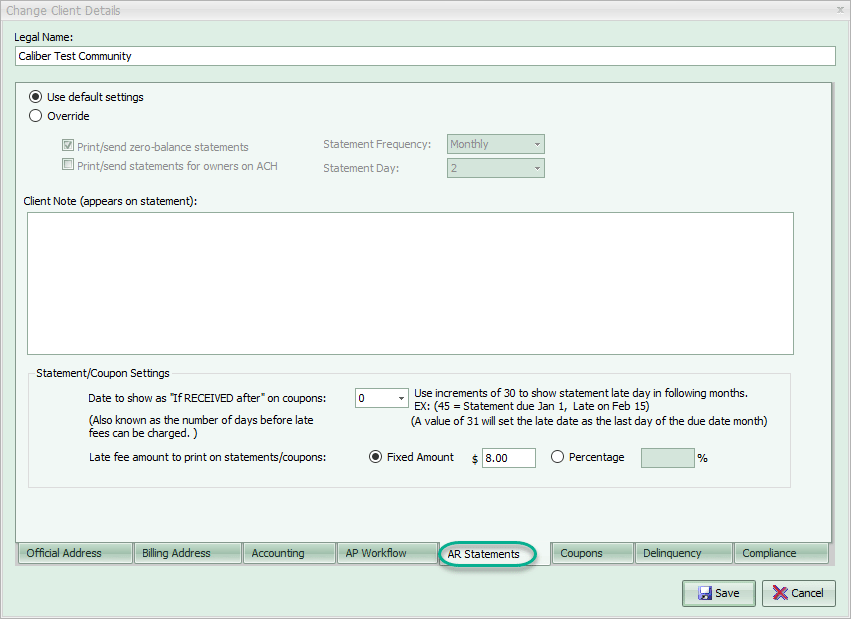
At the client level, adjustments can be made to the statement settings from the Client Info toolbox > Accounting Setup > AR Statements:
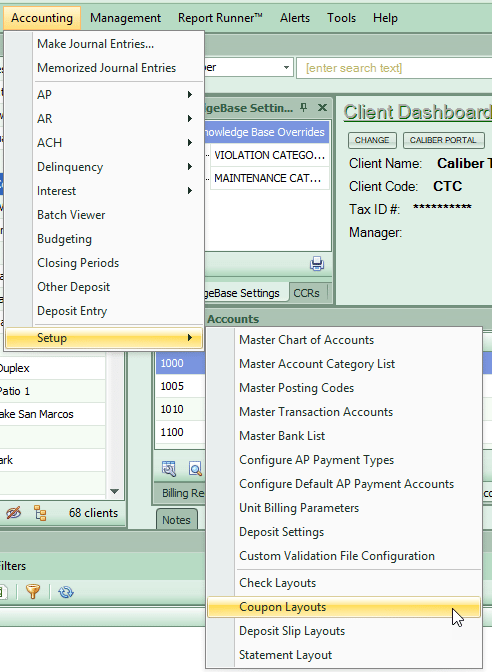
If you are printing statements in-house with a coupon at the bottom you will need to configure and adjust the coupon layout as well:
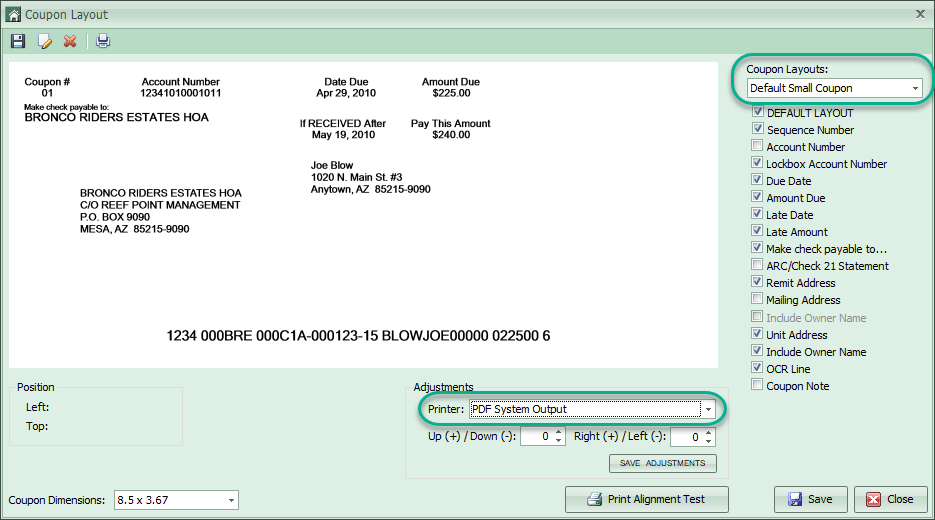
Designate your Coupon Layout (small or large) and set the Printer to PDF System Output. You should not print a test coupon from here. Instead you should print a statement with a coupon to check the alignment; the easiest way to print a test statement with coupon is to go to a homeowner’s account and do a “Preview Statement” from the Transaction Account Details view.
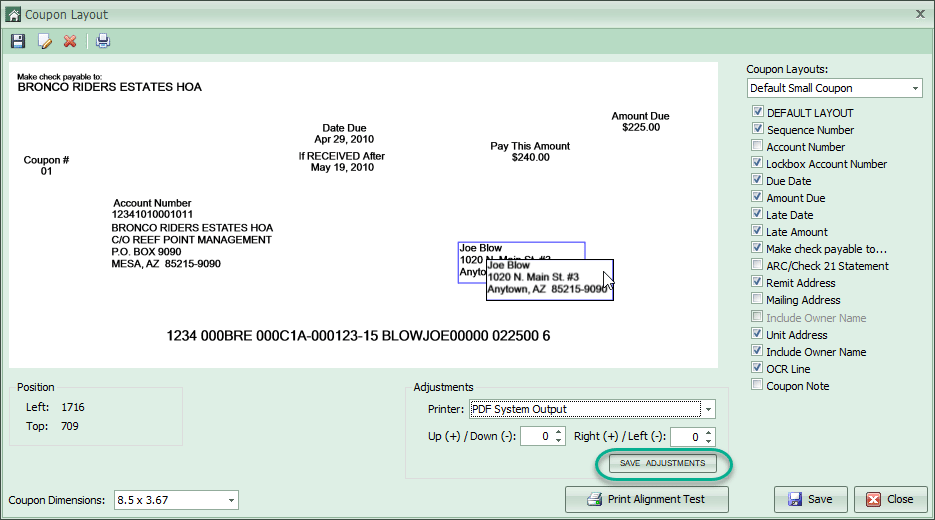
Up/Down/Right/Left adjustments can be made based on the sample statement with coupon. Note that blocks of data can also be moved around the coupon for alignment purposes by clicking and dragging. After adjustments are made press the “SAVE ADJUSTMENTS” button and then Save the coupon layout.
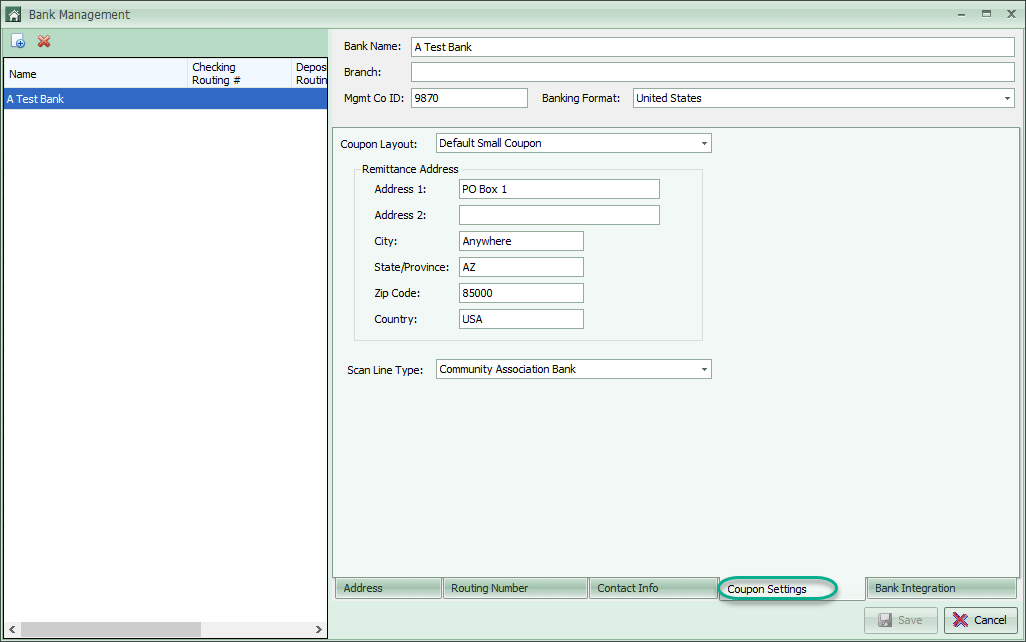
Additional sample statements with coupons may be printed (from a homeowner’s account) and adjustments made accordingly. Always press the “SAVE ADJUSTMENTS” button and Save the coupon layout after adjustments are made.The bank information (Mgmt Co ID, Coupon Layout, Remittance Address, and Scan Line Type) must be set in the Coupon Settings tab under Accounting > Setup > Master Bank List:
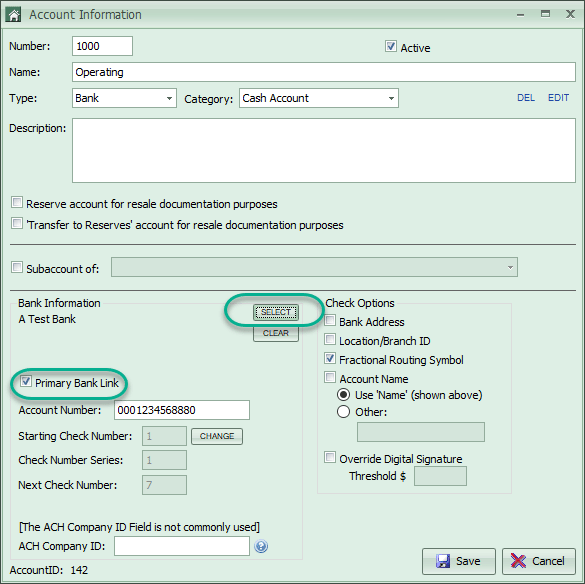
At the client level, the bank is assigned by editing the Operating Account in the Chart of Accounts toolbox (right click > Edit) and selecting a Primary Bank Link:
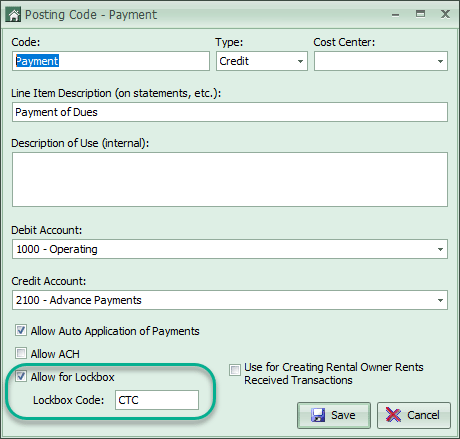
The Payment Posting Code must be checked to Allow for Lockbox with the Lockbox Code:
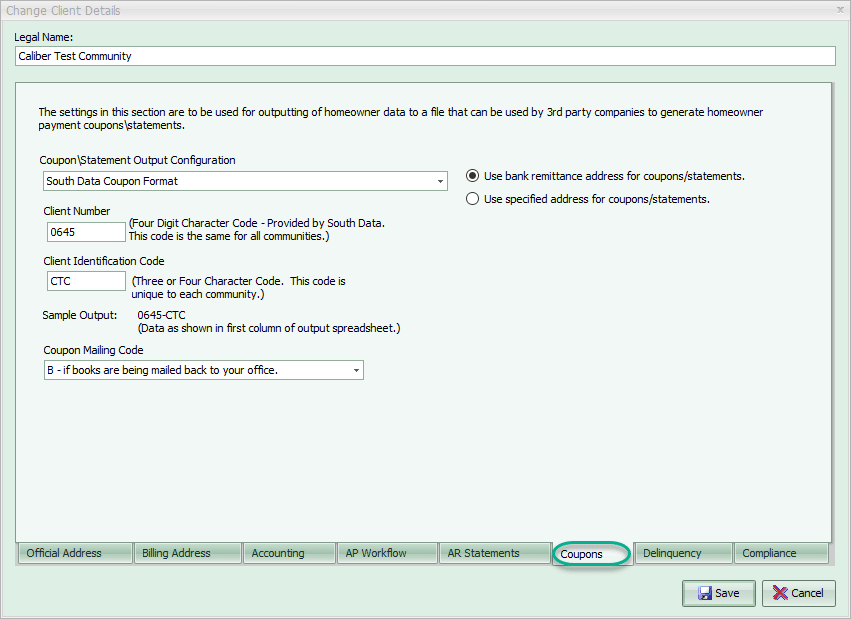
At the client level, Client Info Toolbox > Accounting Setup > Coupons, you should designate how statements or coupons are to be produced. Depending on the Output Configuration you choose, the fields required may change.