
How to Setup a Zebra Printer on Windows 10
We’re updating this article. Some screenshots or names may look older than what you see in the product.
HOW TO SETUP A ZEBRA PRINTER ON WINDOWS 10
The following steps are for Windows 10 PCs. Any setup on Windows 11 PCs need to contact the support team for assistance.
-
Plug the printer into an available USB port on the computer.
-
Open the start menu, and search for the Control Panel.

-
Select Control Panel, then select Devices and Printers.
-
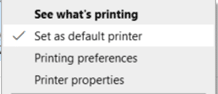
Right-click on the Zebra Printer, then select “Set as default printer”.
-
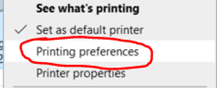
Right-click again, then select “Printing Preferences.”
-
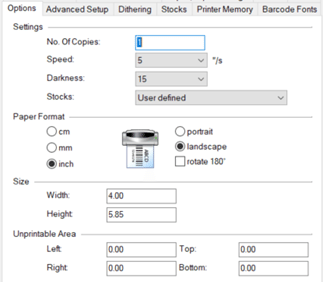
Select the “Options” tab.
-
Under Paper Format, select “inch” and “landscape”.
-
Under Size set the following:
a. Width (inches): 4.00”
b. Height (inches): 5.85”

-
Under Unprintable Area, enter 0.00 into the Left, Right, Top, and Bottom fields.
-
Select “Apply”, then “Ok”.
-
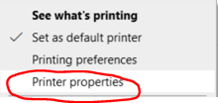
Right-click the GK420t once more, then select “Printer Properties”.
-
Select the “Advanced” tab.
-
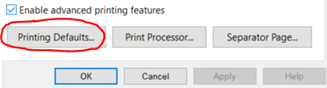
Select “Printer Defaults…” at the bottom of the window.
-
Repeat steps 7-9.
-
Select “Apply”, then “OK”. Close out of the printer properties.
-
Open the Internet Explorer web browser.
-
Select “Tools” (gear icon) in the upper right corner of the browser window. This will open the settings drop-down menu.
-
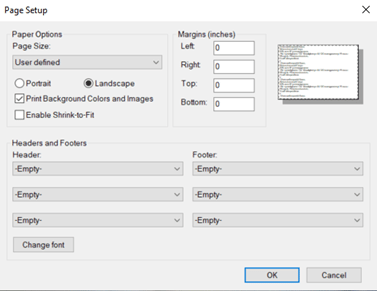
Select “Print”, then “Page setup…”

-
Under Paper Options set the following:
a. Page Size: select “User defined” from the drop-down
b. Select “Landscape”
c. Select “Print Background Colors and Images”
d. Un-check “Enable Shrink-to-Fit” -
To the right, under Margins, set all values to 0(zero).
-
Under Headers and Footers, use the drop-downs to set each value to “-Empty-“.
-
Select “OK” to save these settings.