
Admin/Dealer - Setting Up a Zebra GK420 Printer
We’re updating this article. Some screenshots or names may look older than what you see in the product.
The pass printer most commonly used with dwellingLIVE is the Zebra GK420t. It is recommended that the Zebra GK420t is used with dwellingLIVE, as it is the only printer that will be supported by Frontsteps.
If the computer in use is not a dwellingLIVE App Station, then the printer can be set up by anyone. Otherwise, please contact support for assistance by calling 800-992-4384 (select option 1 for support, then 1 again for Security) or email [email protected].
Steps
1. Plug the printer into an available USB port on the computer.
2. Open the start menu, and search for Control Panel.
3. Select Control Panel, then select Devices and Printers.
4. Right-click on the Zebra GK420t, then select “Set as default printer”.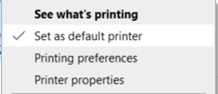
5. Right-click again, then select “Printing Preferences”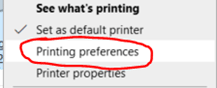
6. Select the “Options” tab.
7. Under Paper Format, select “inch” and “landscape”.
8. Under Size set the following:
· Width: 4.00
· Height: 5.85
9. Under Unprintable Area, enter 0.00 into the Left, Right, Top, and Bottom fields.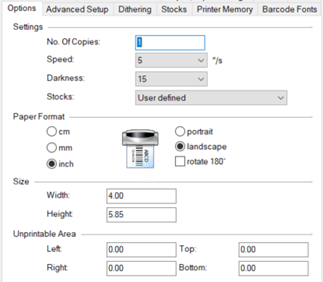
10. Select “Apply”, then “Ok”.
11. Right-click the GK420t once more, then select “Printer Properties”.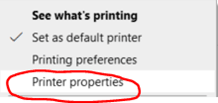
12. Select the “Advanced” tab.
13. Select “Printer Defaults…” at the bottom of the window.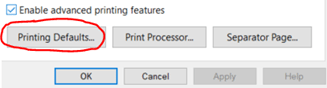
14. Repeat steps 7-9.
15. Select “Apply”, then “OK”. Close out of the printer properties.
16. Open the Internet Explorer web browser.
17. Select “Tools” (gear icon) in the upper right corner of the browser window. This will open the settings drop-down menu.
18. Select “Print”, then “Page setup…”
19. Under Paper Options set the following:
· Page Size: select “User defined” from the drop-down
· Select “Landscape”
· Select “Print Background Colors and Images”
· Un-check “Enable Shrink-to-Fit”
20. To the right, under Margins, set all values to 0(zero).
21. Under Headers and Footers, use the drop-downs to set each value to “-Empty-“.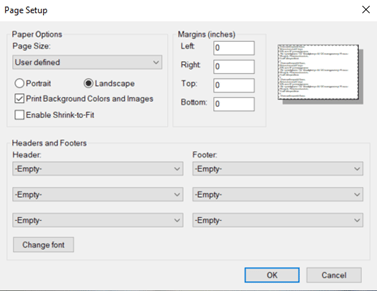
22. Select “OK” to save these settings.