
Resident - Sending Guest ePasses Via Text
We’re updating this article. Some screenshots or names may look older than what you see in the product.
Sending Guest ePasses via Text
From your Guest Management page, select Guest List.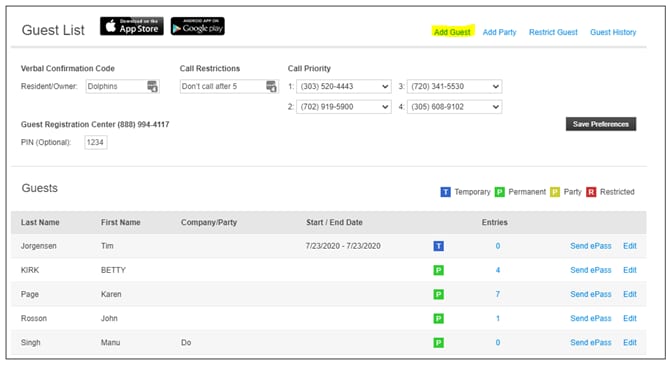
Select Add Guest.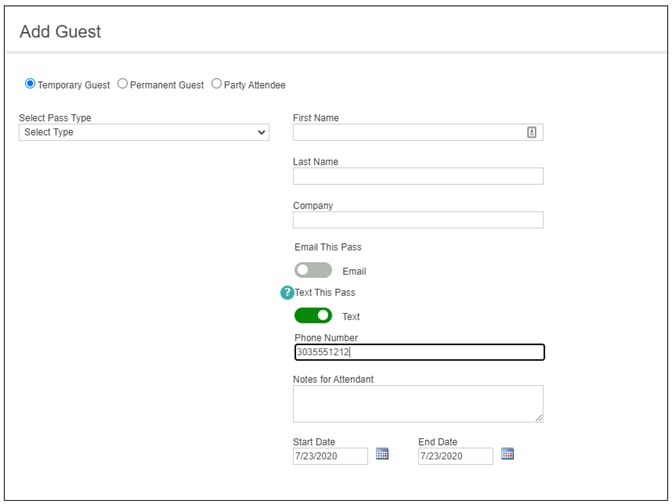
1. Select Pass Type
2. Complete the required Guest information
3. In the Text This Pass section, click or tap the toggle that is located next to the word “Text” to the right. The toggle displays in green.
4. Enter the recipient's mobile telephone information in the Phone Number field.
5. Select Save. 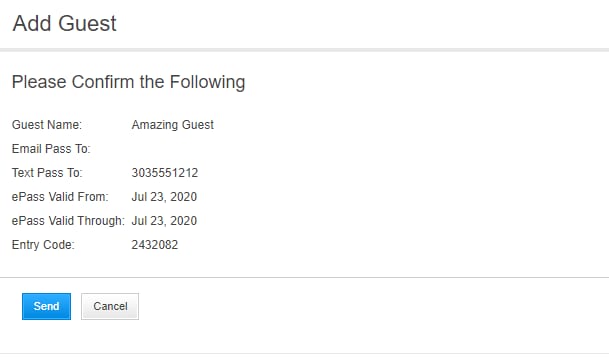
On the resulting Confirmation Page, ensure the details are correct and select Send.