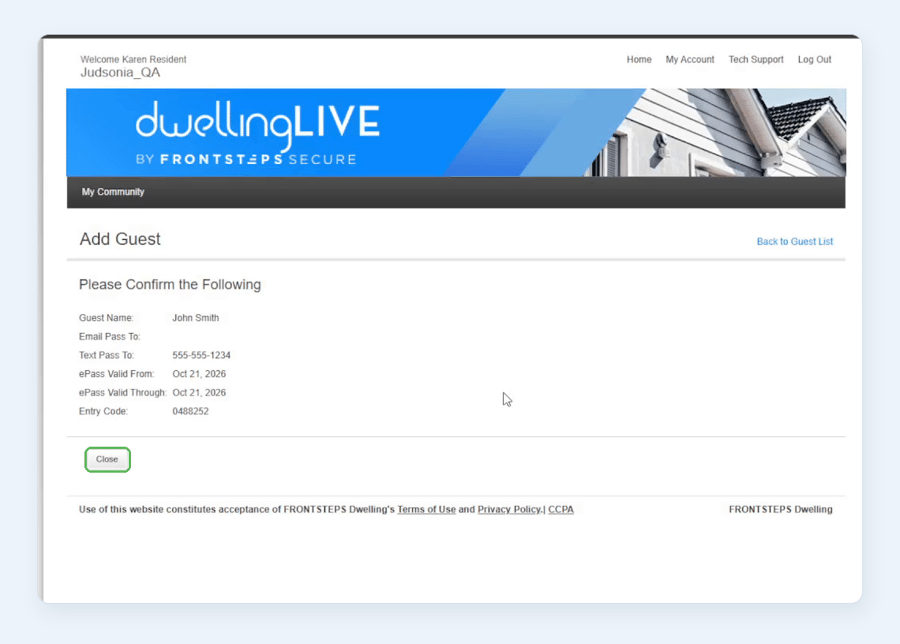
Sending an ePass by Text in dwellingLIVE
Video: Watch sending-an-epass-by-text-in-dwellinglive. It plays for people signed in at FRONTSTEPS.
Sending Guest ePasses via TextIn dwellingLIVE, residents can send guests an ePass in advance by text message.
• Note: the ePass feature must be enabled by a Community Administrator. If it is not enabled, residents cannot send ePasses.
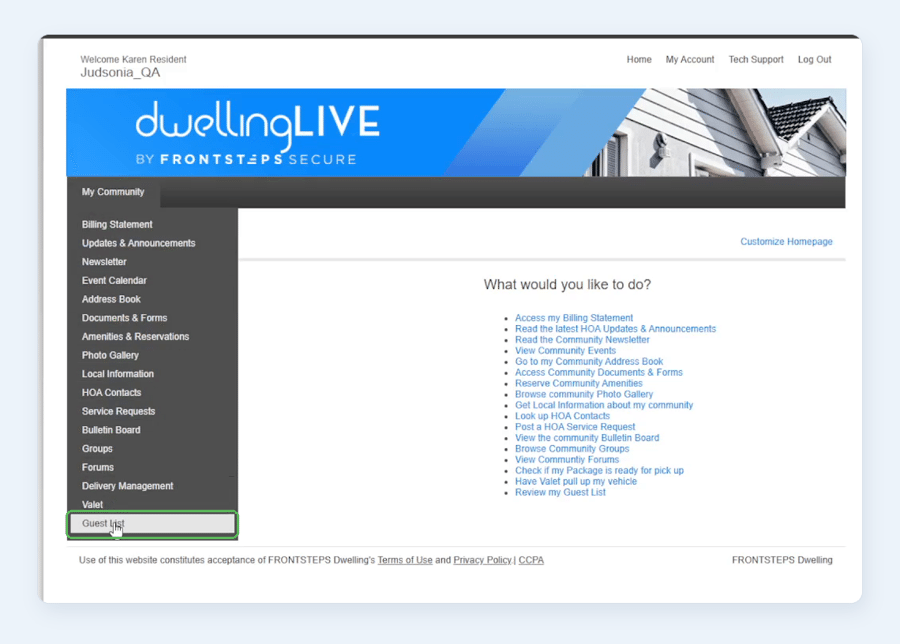
1. From your dwellingLIVE homepage, open the My Community menu and select Guest List.
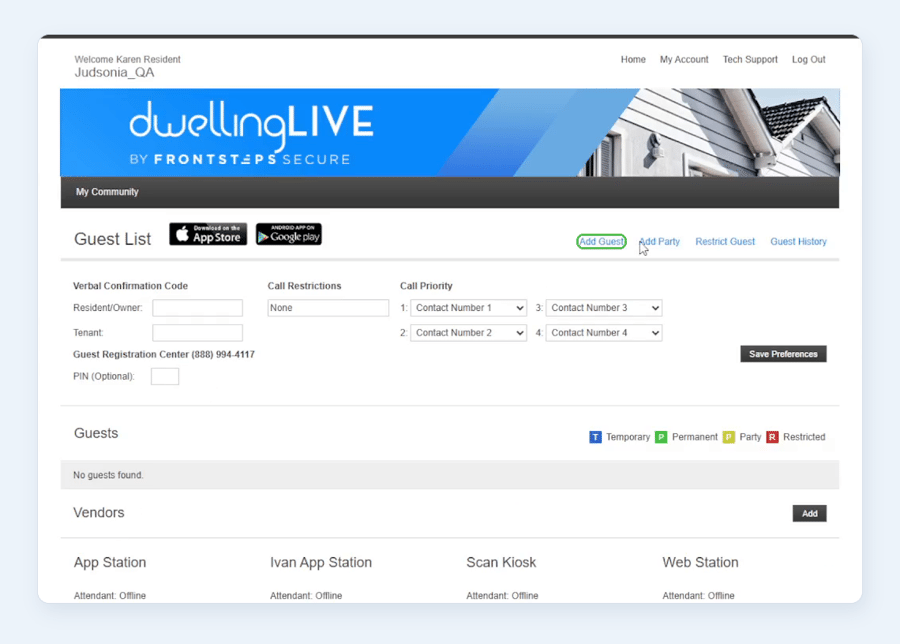
2. Select Add Guest.
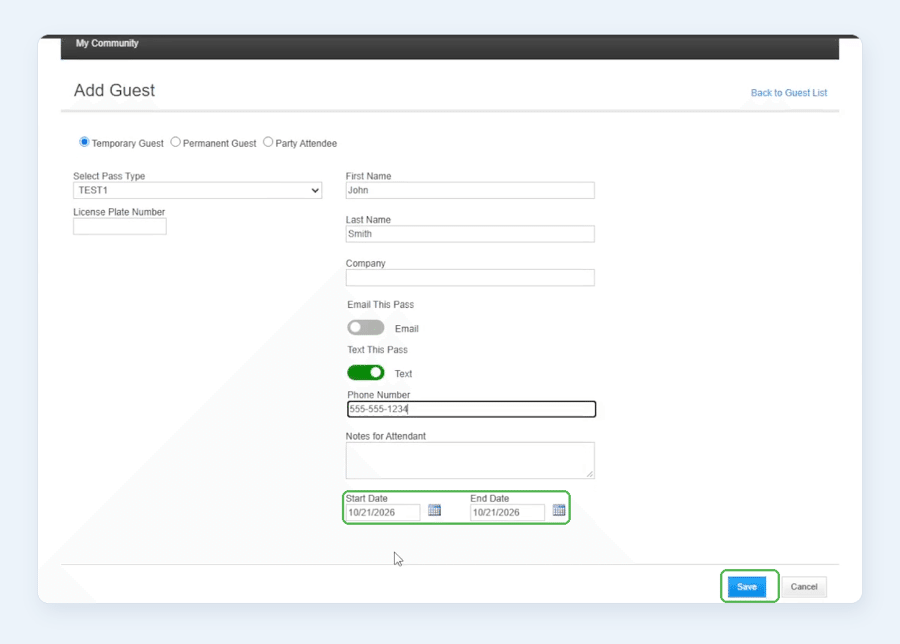
3. Use the radio buttons to select Temporary Guest or Permanent Guest.
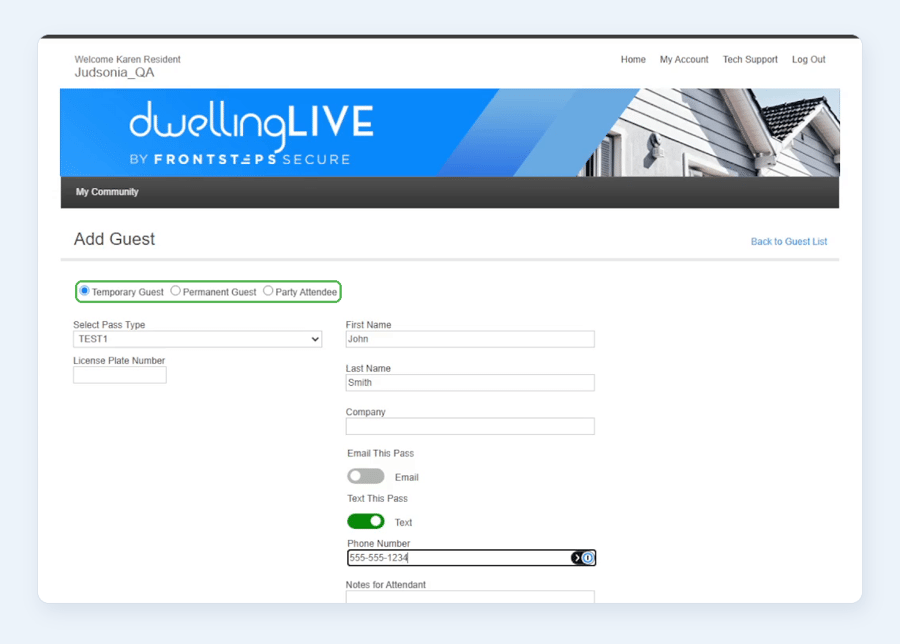
4. Select a pass type from the Select Pass Type drop-down list.
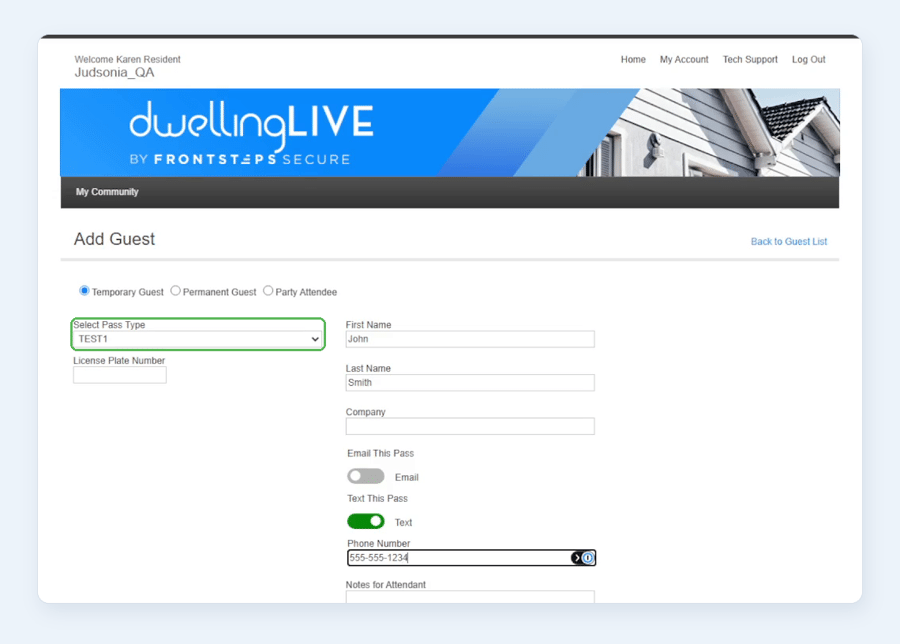
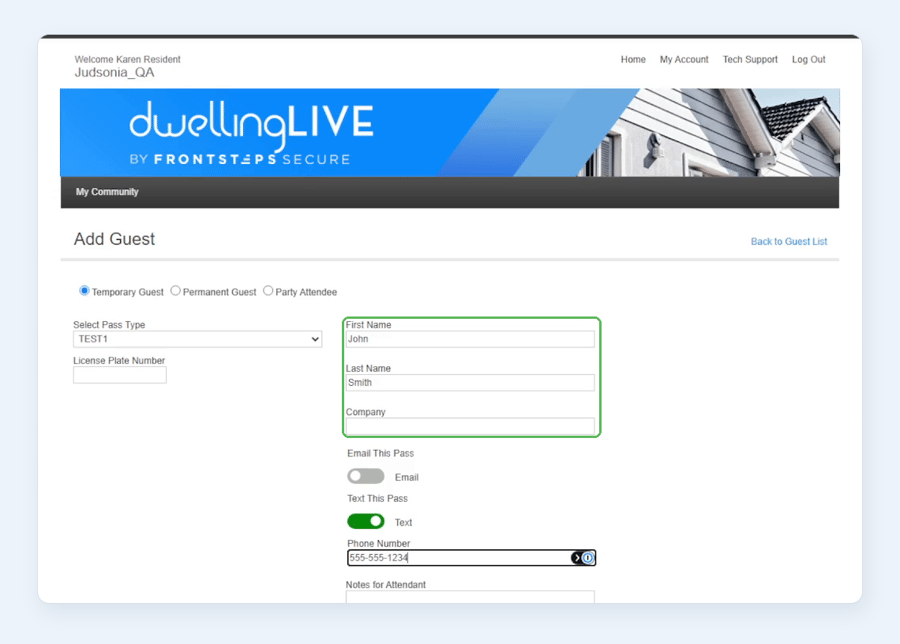
5. Complete the required guest information: First Name, Last Name, and Company (optional unless required by the Community).
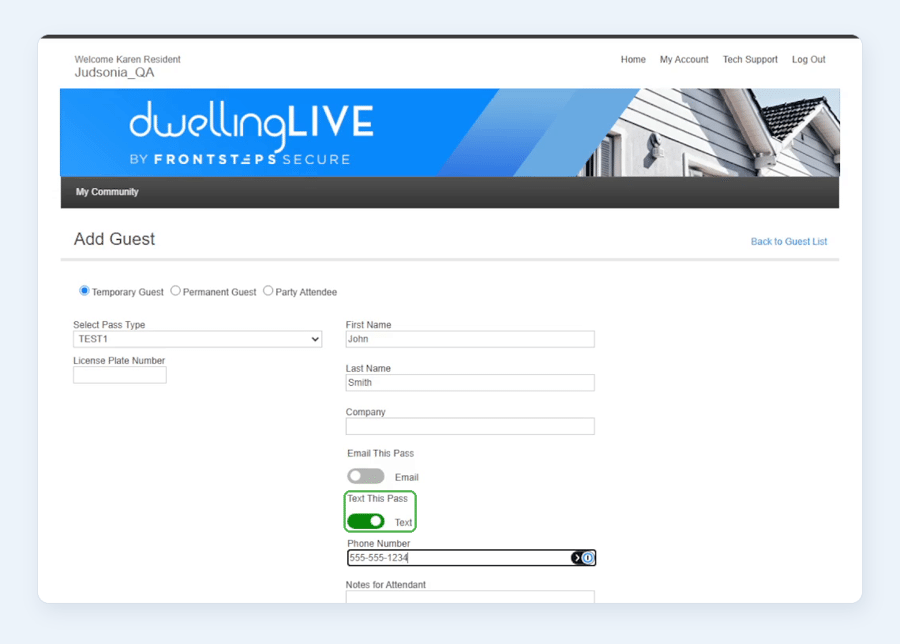
6. In the Text This Pass section, click or tap the toggle next to the word Text. The toggle displays in green.
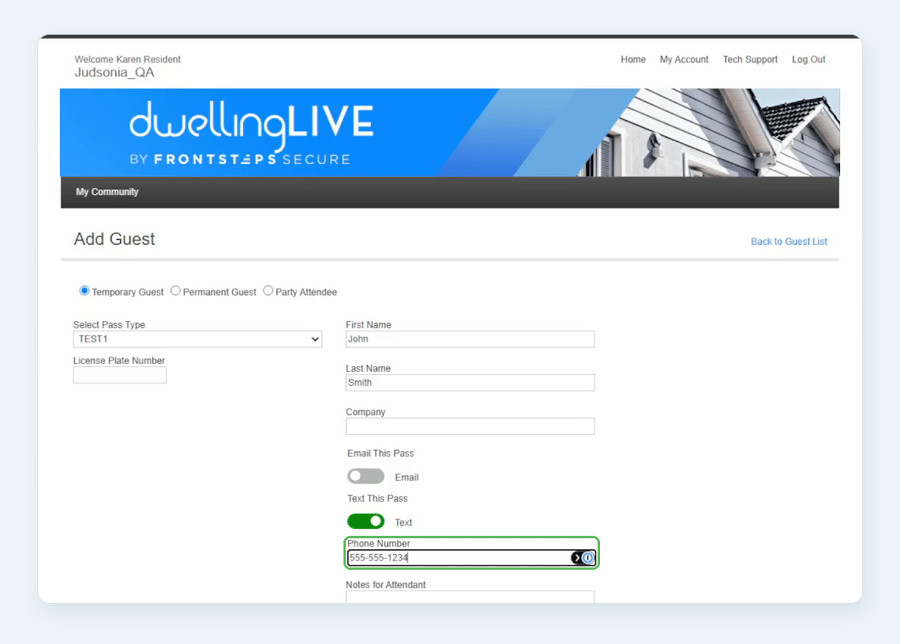
7. Enter the recipient's mobile telephone number in the Phone Number field.
8. Set the Start Date and End Date, then select Save.
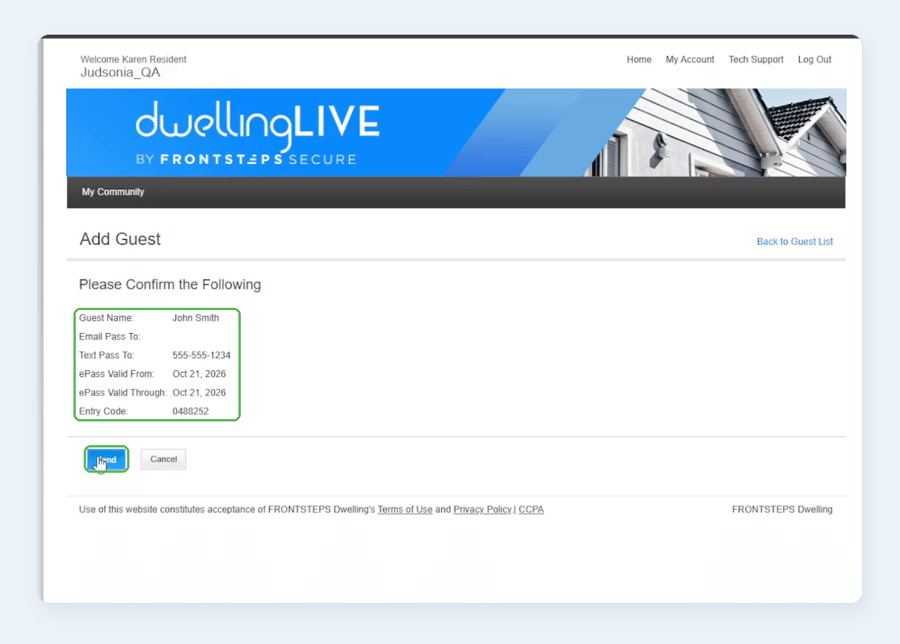
9. On the confirmation page, make sure the details are correct, then select Send.
10. The ePass Sent pop-up window appears to confirm. Select Ok to close it.
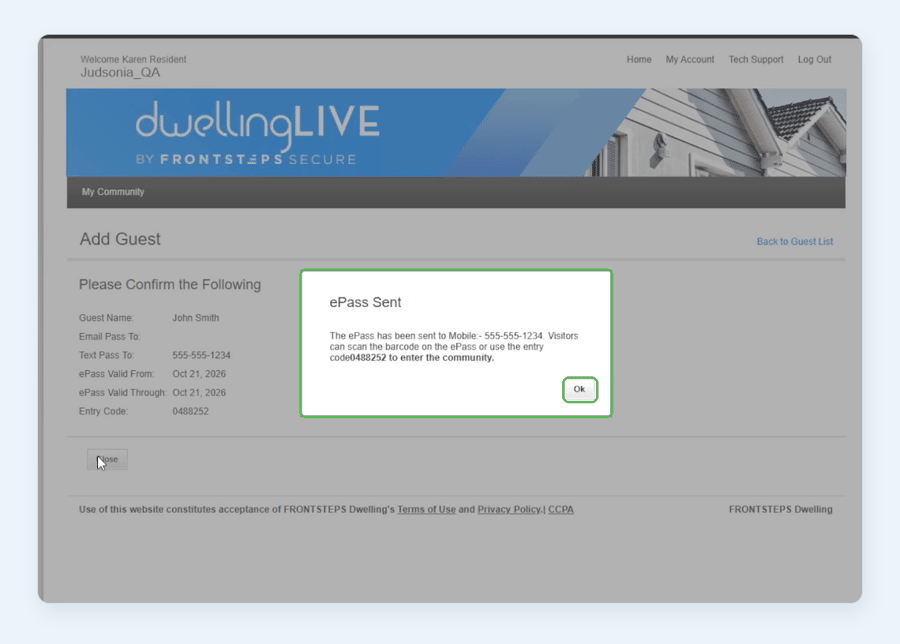
11. Select Close or Back to Guest List to return to the Guest List page.