
Admin/Dealer - Running Reports
We’re updating this article. Some screenshots or names may look older than what you see in the product.
Running Reports:
One of the features that really sets dwellingLIVE apart from our competitors is the extensive reporting available to communities. We always tell people the more you put in, the more you’ll get out and that is evident when running the reports.
-
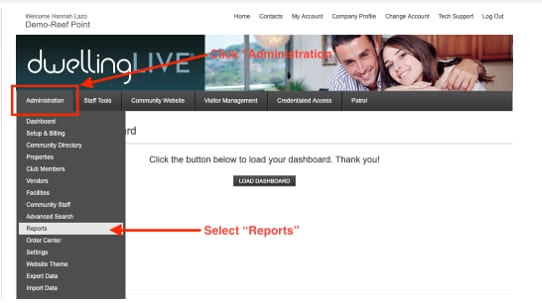
Click “Administration” and select “Reports”
2. Select the type of report you wish to run.
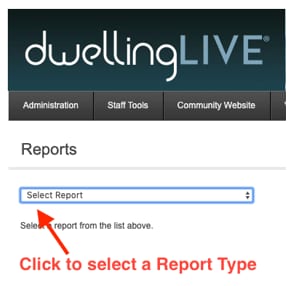
*Note that the maximum duration for each report is 30 days. Sometimes these reports will time out before they can complete, and you have to try again with fewer days or by limiting the other criteria.
Report Descriptions:
It helps to know what data the reports can provide. The best way to get familiar is to try running them, but here is a brief summary of each report.
Community Login Activity: shows the total number of each user type and breaks down the percentage and an actual number of each that have logged in during that time frame. It does not show who specifically.
Dispatch Call Summary: View the record of a dispatched patrol officer and the incident associated.
Incident Summary: Reported incidents in a given timeframe for the whole community or filterable by the property, user or license plate associated.
Property Status: View whether a property is occupied or unoccupied (away start/end/notes)
Resident Page Views: How many times a resident of a property viewed a given page (ie guest list). It gives the number of properties and a percentage in addition to page views.
Access Device Activity: View all access events for a given timeframe. Filterable by device number, property, reader location, and device type.
Access Device Activation Date: See all the access devices activated in a given time frame up to a month at a time. You can see who it is assigned to, the ID number, device type, status, activation date, and expiration date.
Access Device Summary: Find out how many active devices are in circulation in the community by the user type (resident, member, staff) by number and percentage of all devices.
Access Devices Not Assigned to Vehicles: View active devices that are assigned to a property or active but unassigned to a property. All devices shown here have not been associated with a specific vehicle.
Attendant Activity: View each “gate attendant” user and how many guests they added and denied, as well as the number of passes issued with a License Plate number and the total number of passes issues. It can be filtered by visitor station location, attendant name, date and time.
Guests Added: View all guests (name, type of pass, start/end date, # of entries) added by all user types within a given time frame. Results are filterable by the associated property and gate attendant who issued the pass. Checkboxes to enable guest added that were marked as “denied” upon entry, ones where no pass was issued or was previously deleted.
Guests Added Summary: View the number of guests added by residents/tenants or staff to a given property or facility. It does not show specific guest details.
Guest Entries: View the details of each guest entry in a given timeframe (name, associated property, gate attendant name, location of entry, date/time, pass type, a method like scanned or printed, license plate number, notes, driver’s license info/image). Results are filterable by all of the aforementioned categories except notes.
LPR Activity: View the vehicle plates captured by the LPR system including the date and time, plate number, and gate/lane. It is filterable by the gate and searchable by license plate number.
LPR Timed Activity: An exception report that allows you to view the number of times a single license plate passed between two selected entries/exits within a given timeframe. LPR services must be installed at each entry and exit to provide this reporting.
Party Lists: View all the parties scheduled during a given time frame including start and end date, associated property, party name, number of guests on the list, as well as passes issued. Filterable by property.
Passes Printed Summary: View all the pass types in the community, the number printed of each, and the optional fees charged per pass during a given timeframe.
Pass Type by Home: View all the passes issued in a given timeframe sorted by the resident associated.
Telephone Entry System Activity: View the guest activity recorded on the telephone entry systems including passes scanned, phone calls made to residents, relays triggered and entry codes entered. Filterable by property and by entry point.