
Resident - View Unit Work Order, Common Area Work Orders and Violation Details for Caliber Accounting Integration System
Updated: 10/29/2025
Background
The following features have been enhanced for Residents in communities using the Caliber Accounting Integration System (AIS) through FRONTSTEPS:
View Work Orders
The My Work Orders screen allows Residents to view the details of work orders they have submitted and monitor the status of maintenance requests tied to their Unit or Address.
Common Area Work Orders
The Common Area Work Orders screen provides visibility into all community-level work orders submitted for shared/common spaces. Residents can view request details, photos, locations, and status updates from the Community Manager.
View Violation Details
The Violation Details page allows Residents to review information about their violations, including notices sent, related photos, required actions, CCR references, and cure periods.
All work order and violation details are entered by the Community Manager in the Caliber AIS system and then displayed within the FRONTSTEPS portal for Resident access.
How To: View Work Order Details
From the FRONTSTEPS Resident Dashboard, select My Reservations and Requests, then select My Work Orders.
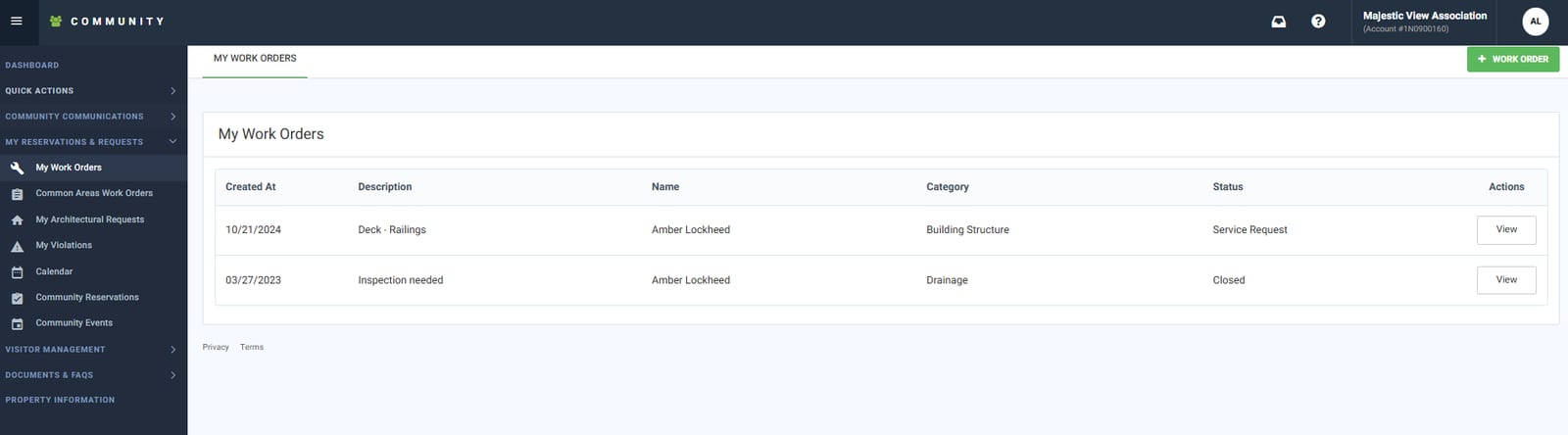
On the My Work Orders screen, you can view a Work Order by selecting the View option located on the right side of the page under Actions.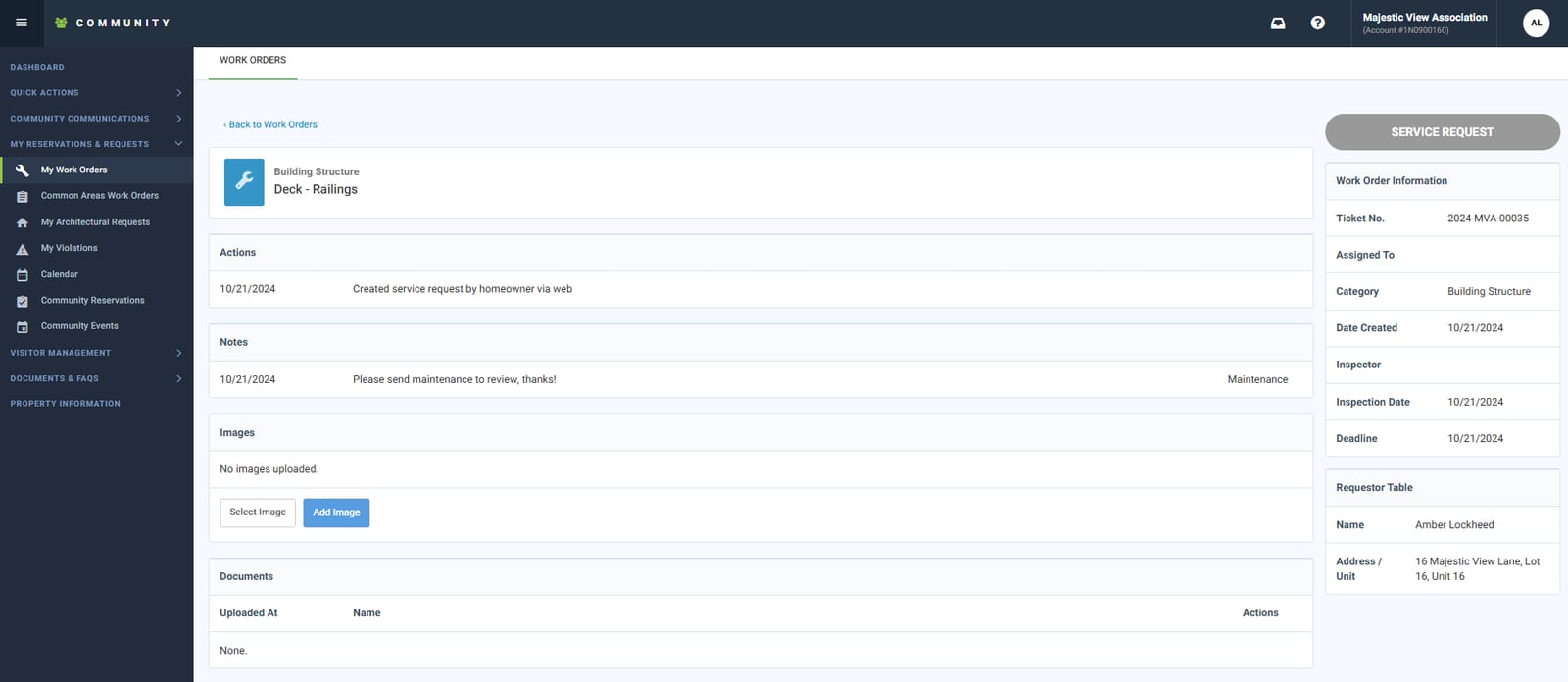
When reviewing Work Orders, the center section of the page displays all activity related to the requests, including actions taken, notes and updates from the community manager, as well as any attached documents or images. On the right-hand side, you'll find a detailed menu with additional information, such as the Inspection Date and the Projected Deadline for resolving the issue.
How To: View Common Area Work Orders Details
From the FRONTSTEPS Resident Dashboard, select My Reservations and Requests, then select Common Area Work Orders.
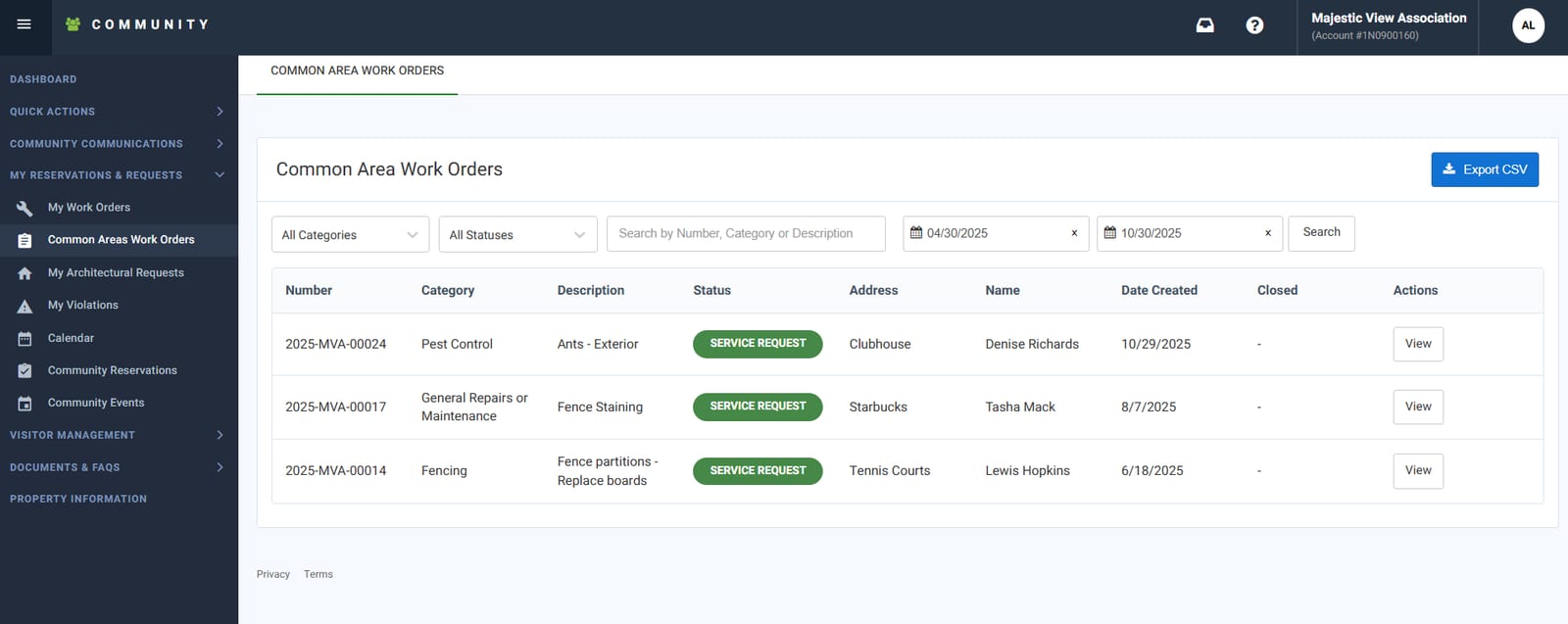
On the Common Area Work Orders screen, you can view a Work Order by selecting the View option located on the right side of the page under Actions.
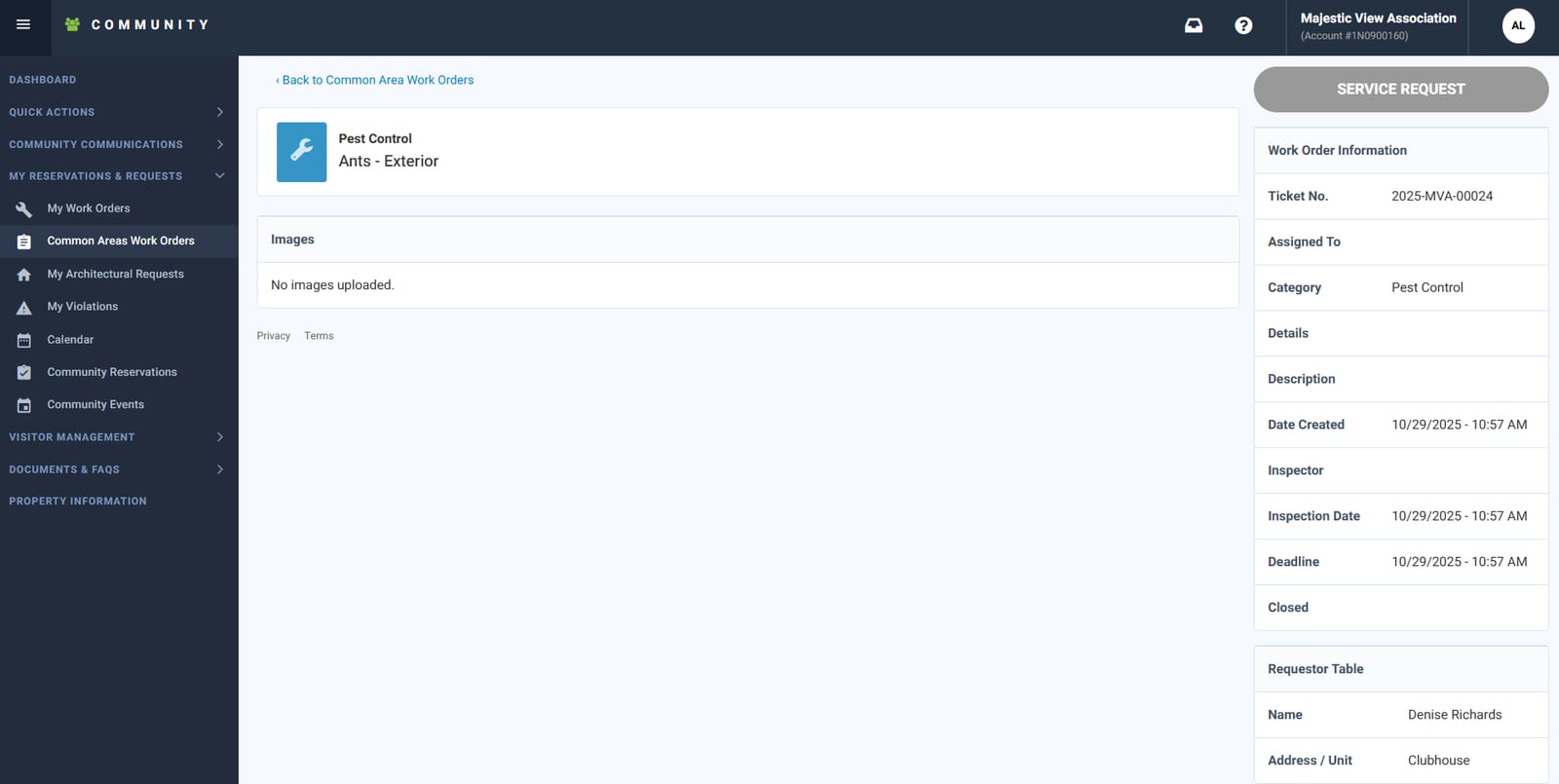
When reviewing Common Area Work Orders, the center section of the page displays all activity related to the requests, including images and the reported issue submitted by a Resident or the community manager. On the right-hand side, you'll find a detailed menu with additional information, such as the Inspection Date and the Projected Deadline for resolving the issue.
How To: View Violation Details
From the FRONTSTEPS Resident Dashboard, select My Reservations and Requests, then choose My Violations. If you own or are registered to more than one property, use the dropdown menu on the page to switch between addresses.
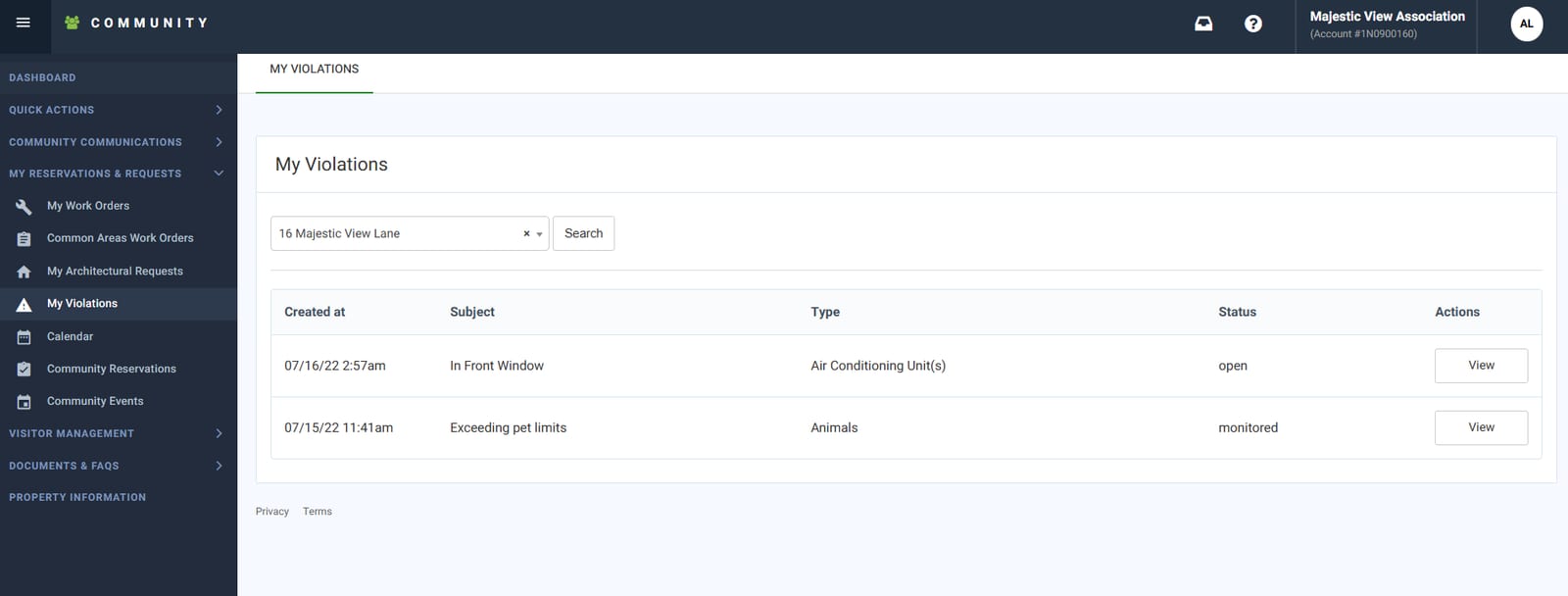
On the My Violations Page, you can view a Violation by selecting the View option located on the right side of the page under Actions.
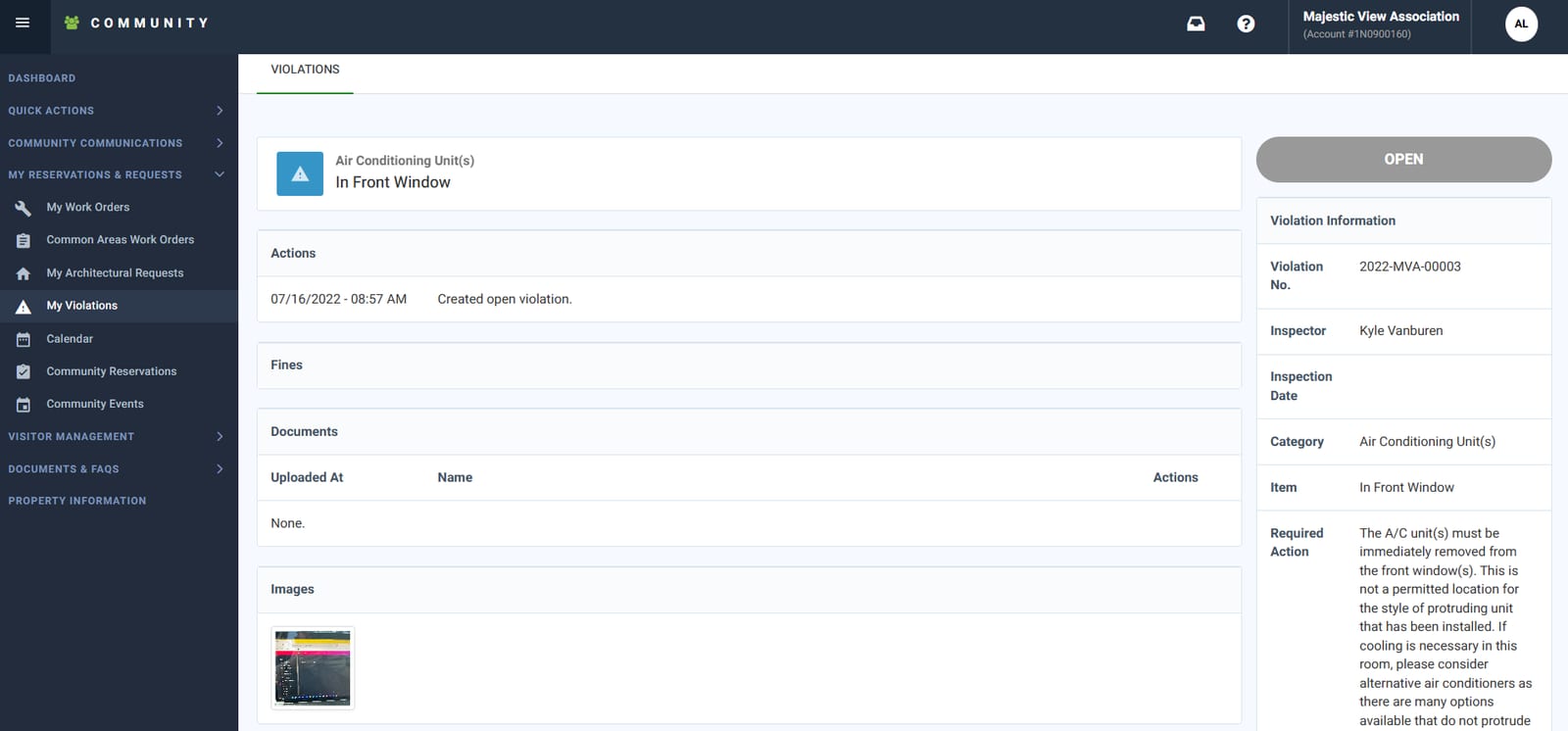
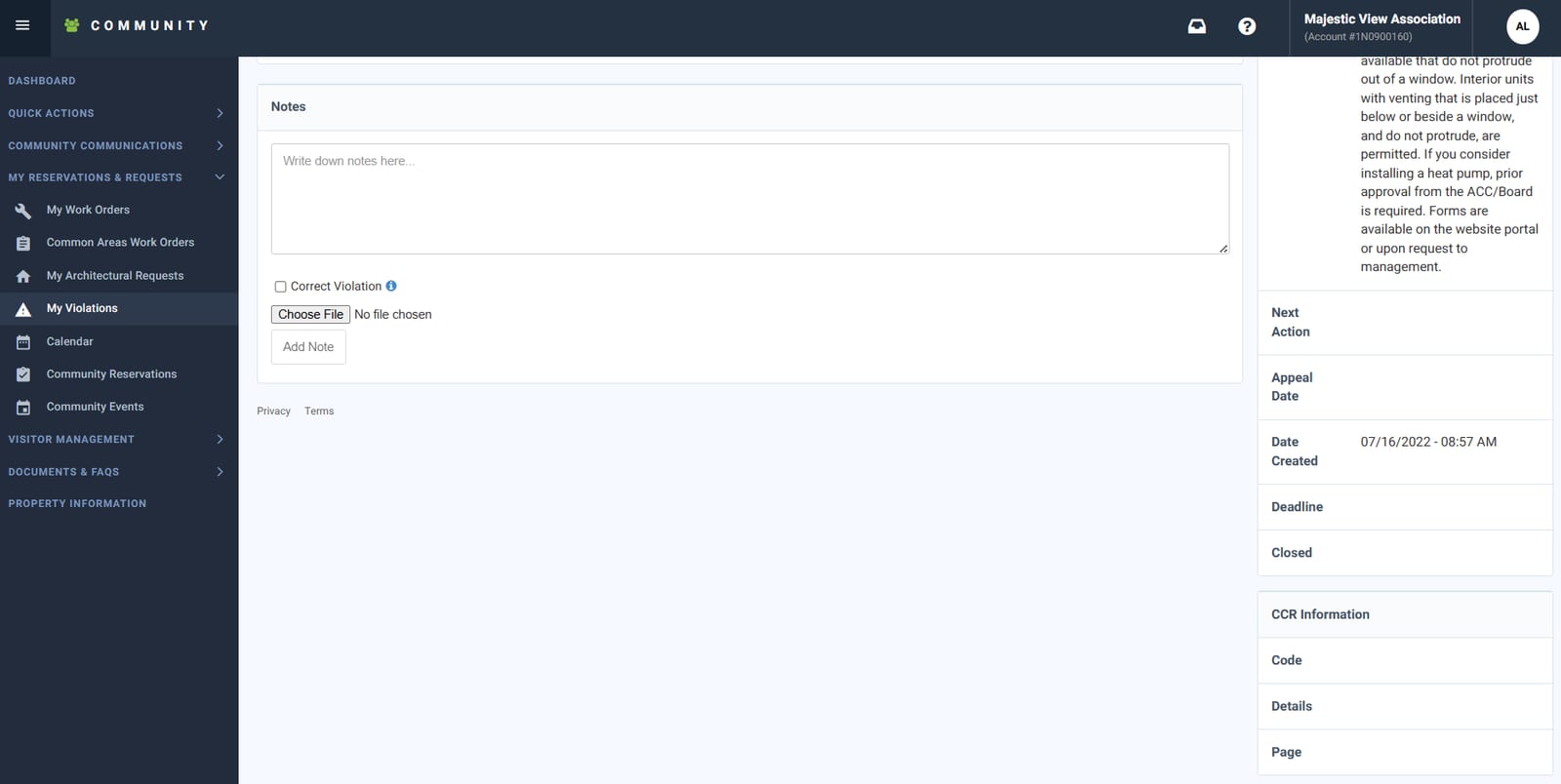
The Violation Details page provides important information about your violation. In the center section, you’ll see actions that have been taken, such as letters sent and any applicable fines. You can also use the Notes section to communicate and provide updates directly to the Community Manager. On the right side of the page, you will find key details including the required corrective action, CCR references, and the date the violation was issued.