
Resident - Submitting a Work Order Request
We’re updating this article. Some screenshots or names may look older than what you see in the product.
Note: This article describes the Work Order request process for communities that use the FRONTSTEPS Work Order application, instead of processing work orders through an accounting integration provider.
From the Resident Dashboard, the Resident selects Quick Actions>Submit Work Orders.
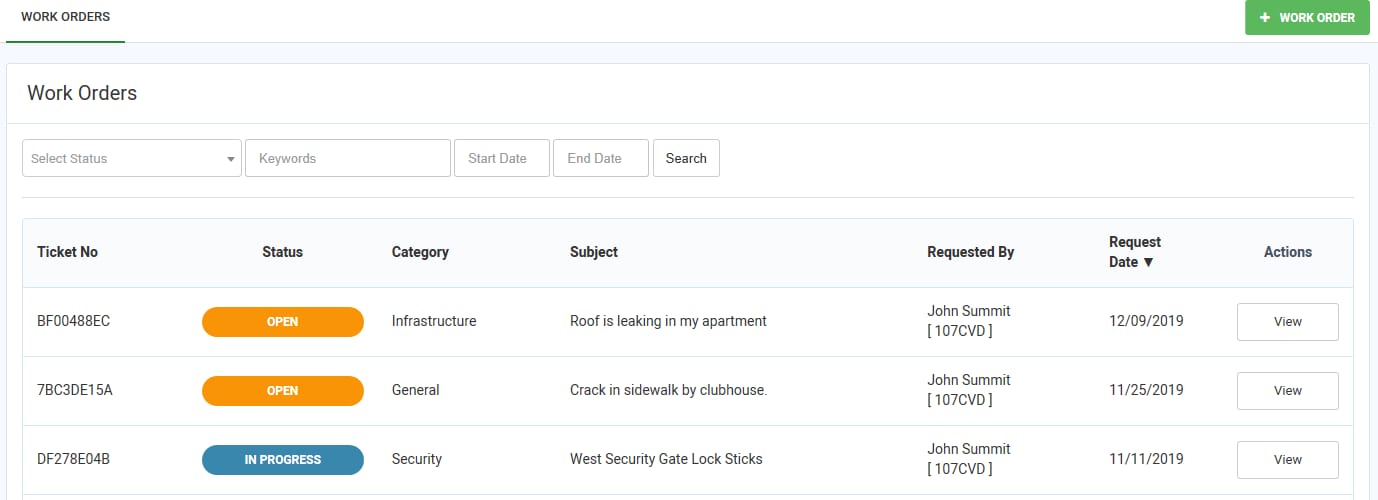 The Work Orders summary screen lists all work orders submitted by the Resident, and their current statuses.
To add a Work Order request, the Resident selects + Work Order.
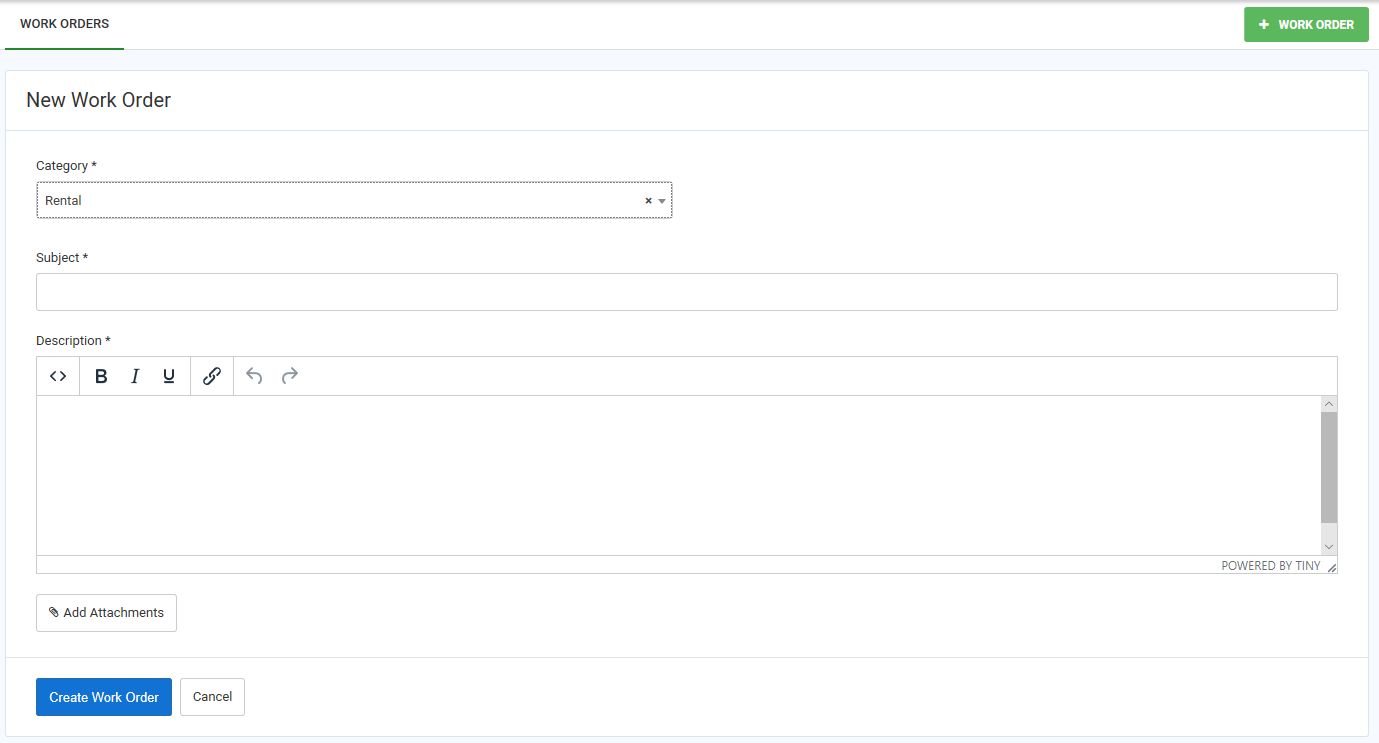 On the New Work Order screen, the Resident selects the Work Order category (categories are determined by each community Manager), and completes the detail information. The Resident can add an attachment such as a photo of an item require repair.
The Resident selects Create Work Order. The request is then submitted to the Manager. As the Work Order is addressed by the Manager, its status is updated on the Resident's portal.
To View a Video of this submission process, click here.
From the Resident Dashboard, the Resident selects Quick Actions>Submit Work Orders.
The Work Orders summary screen lists all work orders submitted by the Resident, and their current statuses.To add a Work Order request, the Resident selects + Work Order.
On the New Work Order screen, the Resident selects the Work Order category (categories are determined by each community Manager), and completes the detail information. The Resident can add an attachment such as a photo of an item require repair.The Resident selects Create Work Order. The request is then submitted to the Manager. As the Work Order is addressed by the Manager, its status is updated on the Resident's portal.
To View a Video of this submission process, click here.