Resident - Creating and Commenting on The Community Discussion Board
Community Discussions Overview
The FRONTSTEPS Community Discussion feature allows residents and managers to communicate and engage with one another in an open, forum-style environment — similar to a group chat.
Residents can post new discussions, share ideas, and comment on existing topics, fostering community connection and transparency.
If the feature is enabled, all users, except Concierge users will have access to Community Discussions.
Note: Manager approval is not required for residents to post discussions; however, Community Managers can remove discussions from the portal at any time if necessary.
Accessing and Using Community Discussions
-
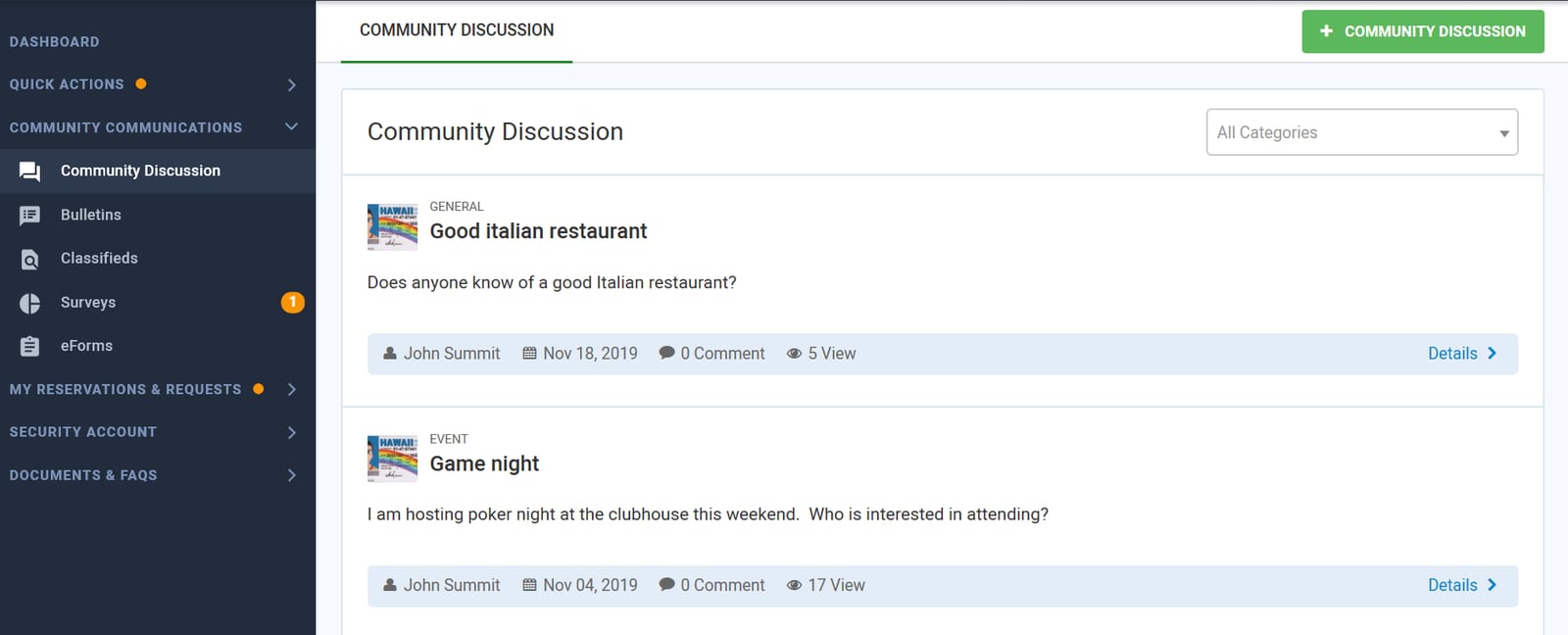
From the Resident Portal, select Community Communications from the left-hand navigation menu.
-
Choose Community Discussion to view all active discussions in your community.
Commenting on an Existing Discussion
-
Browse the list of discussions available on the page.
-
To comment, select the Details > option on the right side of the desired discussion.
-
Enter your comment and submit it to join the conversation.
Creating a New Discussion
-
From the Community Discussion page, select + Community Discussion.
-
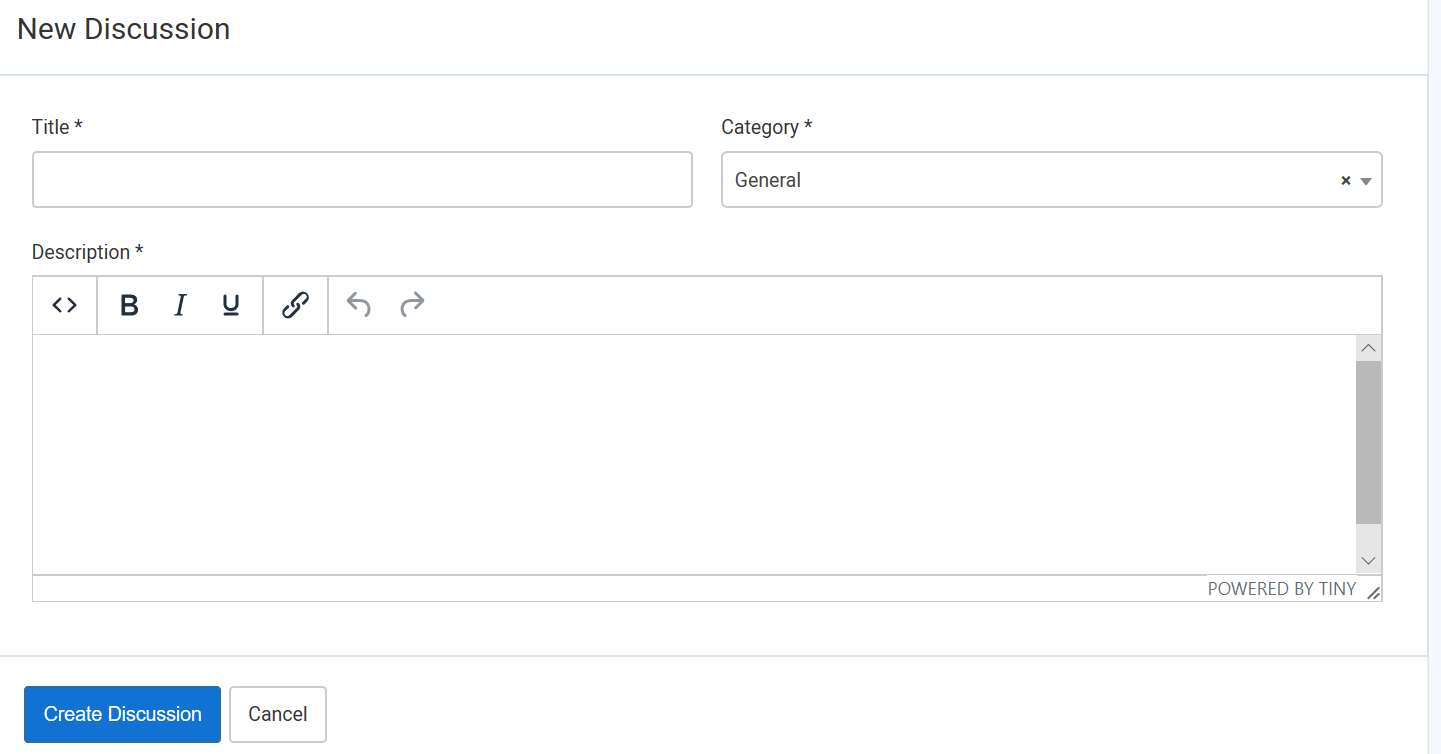
On the New Discussion screen:
-
Enter a Title for your post.
-
Add your Discussion details or message in the body field.
-
-
When finished, click Create Discussion.
Once submitted, the new discussion is automatically posted to all Resident Portals for community members to view and comment on.