
Resident - Mobile App: View Classified Ads and Edit Notification Email Address and Mobile Phone
We’re updating this article. Some screenshots or names may look older than what you see in the product.
Two features have been added to the FRONTSTEPS Resident Mobile App:
- The ability to view Classified Ads that have been posted through the portal
- The ability to change the Notification Email address and Mobile Phone number directly from the Mobile App
View Resident Mobile App Classified Ads
With the addition of this feature to the FRONTSTEPS Mobile App, Residents are now able to view Classified ads that have been posted through the FRONTSTEPS portal.Important Note – Classified ads are currently view-only on the Mobile App. The ability to post a Classified ad from the Mobile App is scheduled for an upcoming release.
From the FRONTSTEPS Mobile App menu, select Community & Communications, then select Classifieds.
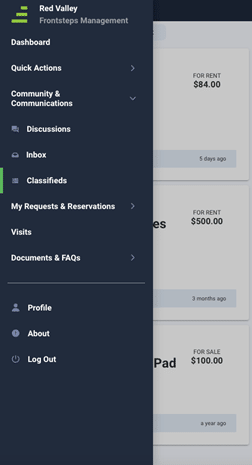
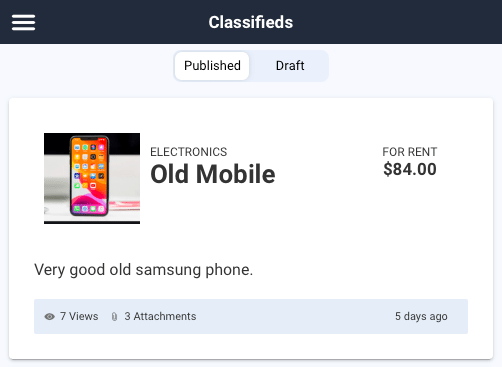
Review the Classified Ads listed on the Classifieds page.
To view the detail for a Classified Ad, select the Ad.
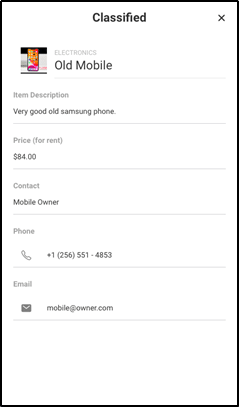
- Review the Item Description and Price, as well as Contact name, Phone and Email.
- To phone the Classified Ad contact, select the Phone number. A window will pop up from which you can directly dial the Contact using the Mobile App.
- To email the Classified Ad contact, select the Email address. A window will pop up from which you can directly email the Contact using the Mobile App.
Edit Notification Email Address and Mobile Phone Number
Previously, the Notification Email and Mobile Phone Number fields were view only on the Mobile App. This meant that Residents were required to use the FRONTSTEPS portal to update their contact information. To make life easier for Residents, we're adding the ability to make changes to their contact information while on-the-go!From the FRONTSTEPS Mobile App menu, select Profile.
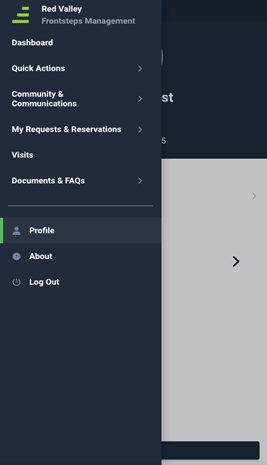
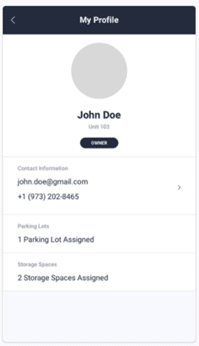
From My Profile, select Contact Information.
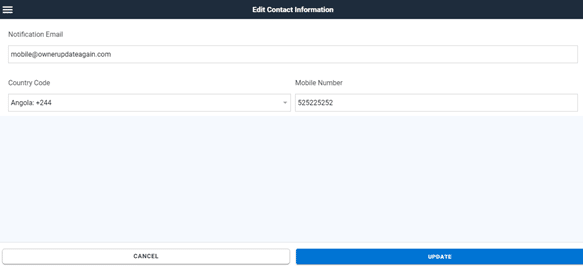
On the Edit Contact Information screen, make changes to the Notification Email address and/or the Mobile Phone Number, and select UPDATE.
Note: Once you've updated your Notification Email address, an email is sent to that email address. You must then confirm the email change in order to complete the change You will see a message inside the Mobile App that your email change is pending until the new email address has been confirmed. This is the same process as changing your notification email from the FRONTSTEPS portal.