
Resident - Mobile App Accounting Integration System (AIS) Work Order Submittals
We’re updating this article. Some screenshots or names may look older than what you see in the product.
Based on customer feedback, FRONTSTEPS has redesigned the Accounting Integration System (AIS) Work Order process. Previously, Residents were only able to view existing Work Orders that were processed through the Accounting Integration provider. The Community Manager had to enter the Work Order in the accounting system for it to show up in FRONTSTEPS.
Residents will now be able to submit a Work Order from the FRONTSTEPS Community Resident Mobile App, and it will update the third-party accounting provider without Community Manager intervention.
Creating a Work Order
Note: These steps are based on creating a Work Order using the Caliber AIS. Steps using the Jenark or TOPS AIS may vary slightly.
From the Resident Mobile App Dashboard, select My Requests and Reservations.
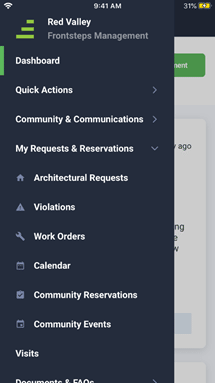
Select Work Orders.
The Work Orders screen appears displaying Work Orders previously submitted by the Resident.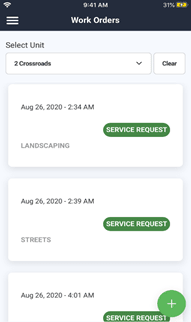
Residents will now be able to submit a Work Order from the FRONTSTEPS Community Resident Mobile App, and it will update the third-party accounting provider without Community Manager intervention.
Creating a Work Order
Note: These steps are based on creating a Work Order using the Caliber AIS. Steps using the Jenark or TOPS AIS may vary slightly.
From the Resident Mobile App Dashboard, select My Requests and Reservations.
Select Work Orders.
The Work Orders screen appears displaying Work Orders previously submitted by the Resident.
- To view Work Orders for each unit, select the unit from the Select Unit drop-down list.
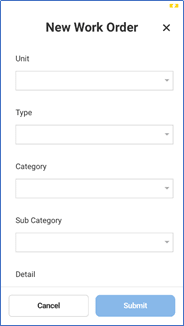
- To add a new Work Order, select the + option from the Work Orders screen.
- The New Work Order screen appears.
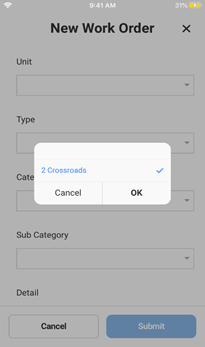
- Select the Unit for which the Work Order is being created.
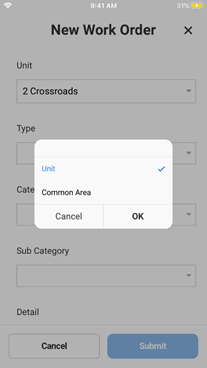
- Select the Type of Work Order (Unit or Common Area) from the list.
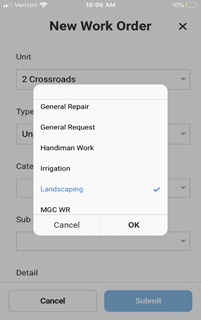
- Select the Category of Work Order from the list, such as “Landscaping”. Work Order categories are defined by the AIS provider.
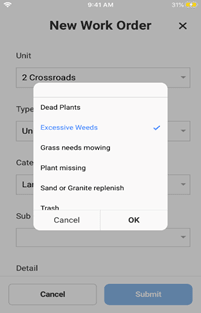
- Select the Item from the list that is populated depending on the Work Order Category, such as “Excessive Weeds”. Work Order items are also defined by the AIS provider.
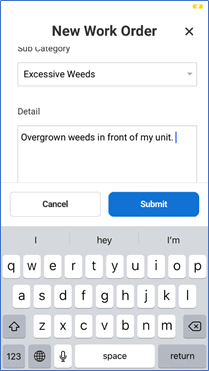
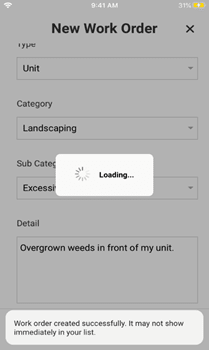
- Type details for the Work Order in the Detail box.
- Select the Submit button. A pop-up message will appear indicating that the Work Order has been submitted. The Resident is then redirected back to the Work Orders screen.
- After a few minutes the Work Order will appear in the Resident’s list of submitted Work Orders on the Work Orders screen. From that screen the Resident will see updates to the status of the Work Order as it moves through the process.