
Resident-Merge Accounts
We’re updating this article. Some screenshots or names may look older than what you see in the product.
Residents can now merge two or more user accounts into a single user account. This allows residents to use a single set of login credentials (email and password) to access all units within one community.
Notes
- The feature is available to all users as follows:
- Residents
Features
This enhancement provides the following features:- One User Account Remains – After the merge, only one user account remains. All other (merged) accounts are removed. All units will be linked to one user account.
- Two different ways to link accounts:
If you own multiple units, you will receive multiple invitation letters to sign up with FRONTSTEPS Community. First, you will create your initial account. Then, register your additional accounts using the same email and password.
To Create the Initial Account
1. Create an account, use the instructions and links in the invitation letters.
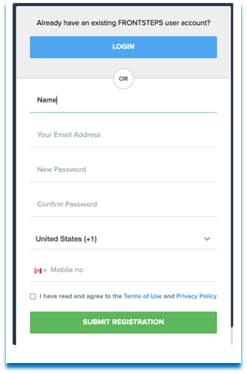
For the Additional Accounts that You Wish to Merge with the Original
1. Follow the link on the Invitation Letter.
2. Type the link into your browser.
4. Enter the Email address and Password you used to register for the initial account.
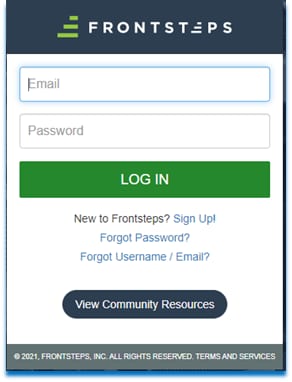
6. After successfully logging in, the second account is merged with the initial account.
7. You will have access to both units from a single account.
9. If you prefer to create individual user accounts for each unit, simply register with a unique email address and password.
How Residents Can Merge Accounts via the Dashboard
Accounts may be merged via the Dashboard, as well.
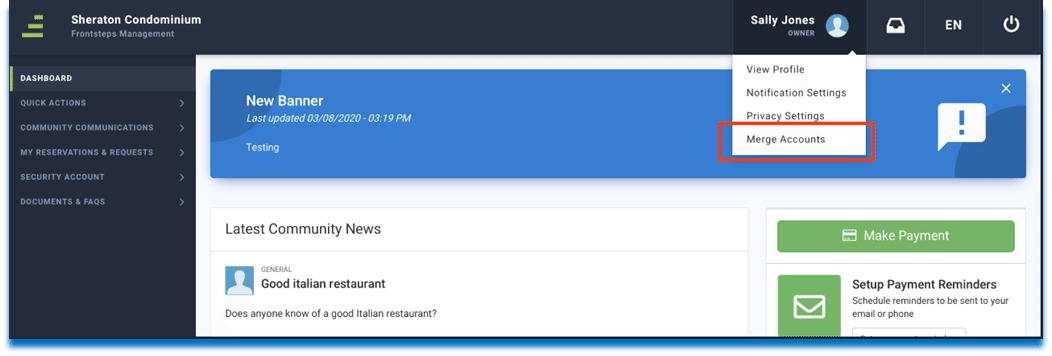
1. From the Dashboard, hover over your User Profile>select Merge Accounts from the dropdown.
2. Enter the email address of the account you're trying to merge with and click the Submit Merge Request button.
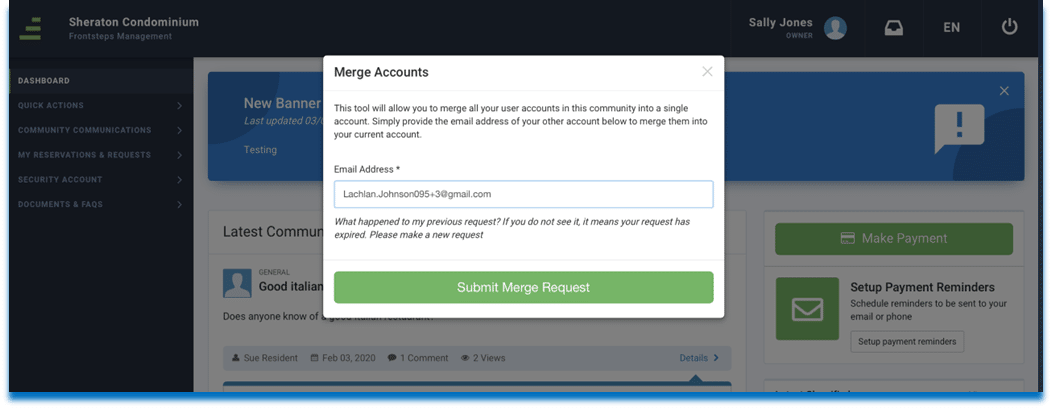
3. Check your email address (the one you just entered in the box) for an email containing a 6-digit verification code.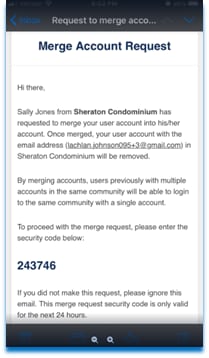
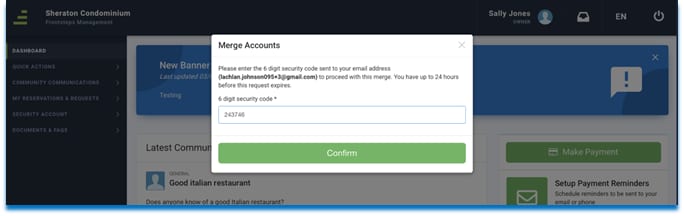
4. Return to FRONTSTEPS Community and enter the verification code. Click Confirm.
5. View the successful merge confirmation!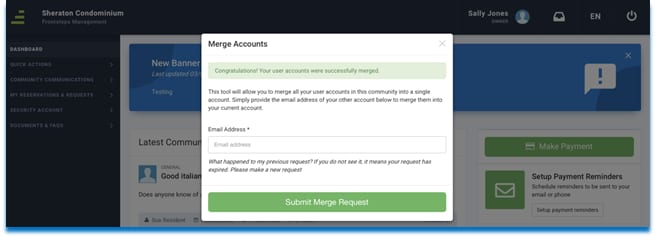
Here you may enter another email address to merge another account or close this confirmation window.
For Customers with FRONTSTEPS Caliber
-
If the Owner owns two (or more) units within the same community:
-
If the same email address is used for both accounts the accounts will automatically** merge in FSC, allowing the Owner one set of credentials to access both their Units.
-
**Email addresses must exist in FRONTSTEPS Caliber before the FRONTSTEPS Community move in process takes place in order for the merge to occur Automatically.
-
-
The merge will NOT Automatically happen if:
-
If Unit A has email A and Unit B has email B, two accounts are generated in FRONTSTEPS.
-
Residents will have the option to merge accounts on their own via the Dashboard.
-
-
If Unit A has Email A, and Unit B does not have an email and the move in takes place, 2 accounts will be generated in FRONTSTEPS Community.
-
Updating Unit B to contain email A within FRONTSTEPS Caliber, will not sync to FRONTSTEPS Community. Residents will need to use the Dashboard to complete the merge process.
-
-
-
If there are multiple primary email addresses entered in FRONTSTEPS Caliber for a single person, FRONTSTEPS Community only takes the 1st (Top of the list)
-
If the Owner owns units in separate communities:
-
The owner must register for each community using the same email address and password. This will give them the ability to switch communities within the FRONTSTEPS Community Portal.
-