
Resident - Login Password Reset
We’re updating this article. Some screenshots or names may look older than what you see in the product.
To reset your FRONTSTEPS login password:
1. Navigate to your Community's website, and select the Login option. You are taken to the Login screen.
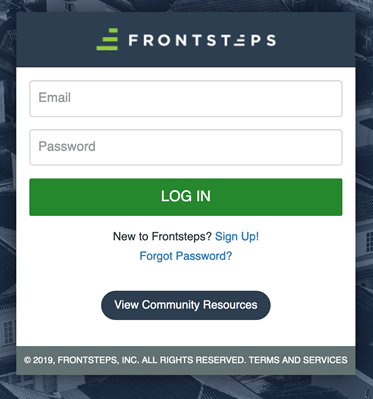
2. From the Login screen, select Forgot Password?
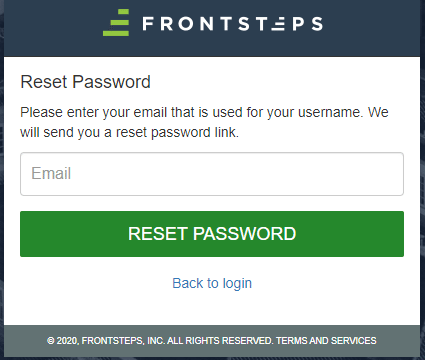
3. Enter your LOGIN email in the Email field.
Note: If you use a different email for receiving notifications through your Community portal, do not use that email address. Use the email address with which you log into the portal.
4. Select Reset Password.
5. You will receive an email requesting that you verify the password change.
Note: It may take a few minutes to receive the verification email. Do not re-submit the password reset request as it will invalidate the original request.
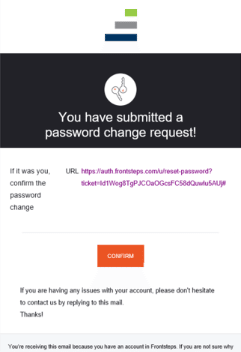
6. Select the CONFIRM option to confirm your password reset request. You will be taken to the Change Your Password screen.
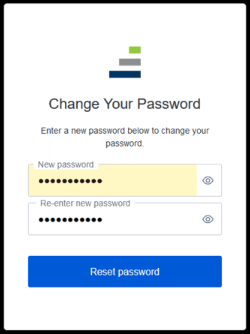
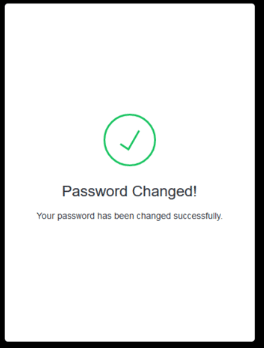
7. Enter your new password, then re-enter the new password, and select Reset Password. A screen will pop up confirming your password has been successfully reset.
1. Navigate to your Community's website, and select the Login option. You are taken to the Login screen.
2. From the Login screen, select Forgot Password?
3. Enter your LOGIN email in the Email field.
Note: If you use a different email for receiving notifications through your Community portal, do not use that email address. Use the email address with which you log into the portal.
4. Select Reset Password.
5. You will receive an email requesting that you verify the password change.
Note: It may take a few minutes to receive the verification email. Do not re-submit the password reset request as it will invalidate the original request.
6. Select the CONFIRM option to confirm your password reset request. You will be taken to the Change Your Password screen.
7. Enter your new password, then re-enter the new password, and select Reset Password. A screen will pop up confirming your password has been successfully reset.