
Resident-FRONTSTEPS Mobile App Visitor Management-Settings
We’re updating this article. Some screenshots or names may look older than what you see in the product.
Notes
- The feature is available to all users as follows:
- Residents with the Mobile App
- Availability - This enhancement will be activated and available to all customers who purchase the Visitor Management Product integration.
Features
Homeowners can manage the following settings from their mobile device.
- User Profile
- User Details
- Call Priority
- Guest Management Settings
- Notification Settings
- Property Settings
- TES Settings
User Profile and Details
- Select the Profile icon.
Note: The Edit Photo and Reset Password features are currently not available in FSC.
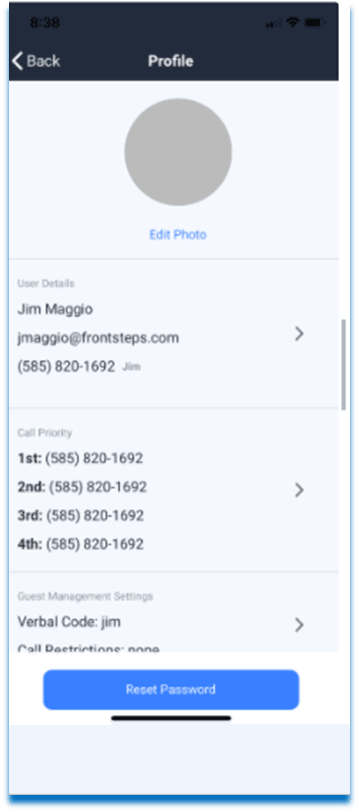
- Select the carrot > in the User Details box to manage User Details.
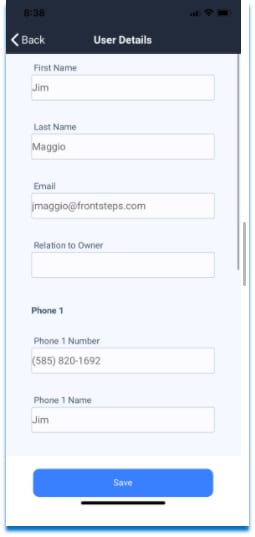
3. Here the homeowner can modify their name, email address, relationship to owner and phone numbers. Once the User Details are added or modified, select Save.
Call Priority
The homeowner prioritizes phone numbers to contact when visitors arrive in the community. Phone numbers stored on the homeowner’s user profile populate in the dropdown menus.
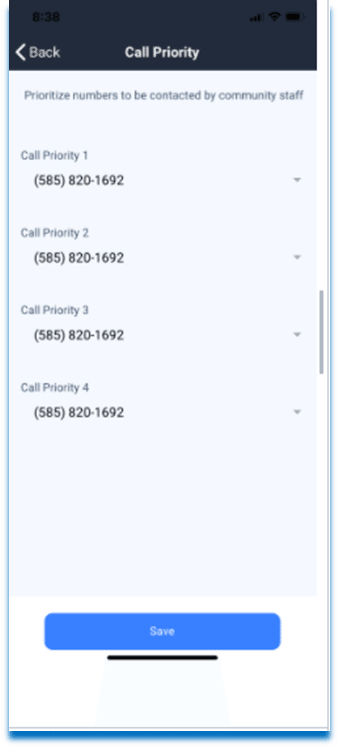
To Set Call Priority:
Call Priority
The homeowner prioritizes phone numbers to contact when visitors arrive in the community. Phone numbers stored on the homeowner’s user profile populate in the dropdown menus.
To Set Call Priority:
- Select the Profile icon.
- Select Call Priority.
- Select phone numbers from the drop down menu in order of call priority.
- Select Save.
Guest Management Settings
The homeowner can set and edit a verbal confirmation code. The homeowner can also manage Call Restrictions from here. The Call Restrictions field is a free text field that the homeowner can write instructions, such as, “Please do not call after 9pm, or Use Call Priority 2 on Tuesdays.”
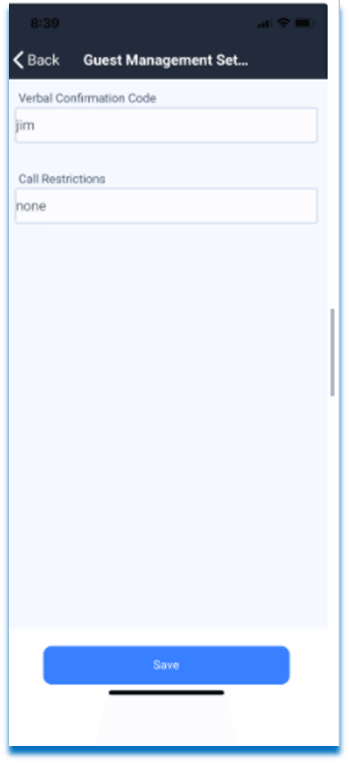
To Set Guest Management Settings:
- Select the Profile icon.
- Select Guest Management Settings.
- Enter the Verbal Confirmation Code.
- Enter any Call Restrictions.
- Select Save.
Notification Settings
From their mobile devices, the homeowner can manage how they wish to be notified when a Guest is registered or enters the community. The text message phone number is set up on the dwellingLIVE web. The provider’s name (AT&T, in this example) is listed, so text messages may be sent to the homeowner from the provider’s server in the form of a text message. Any number listed here must accept text messaging.
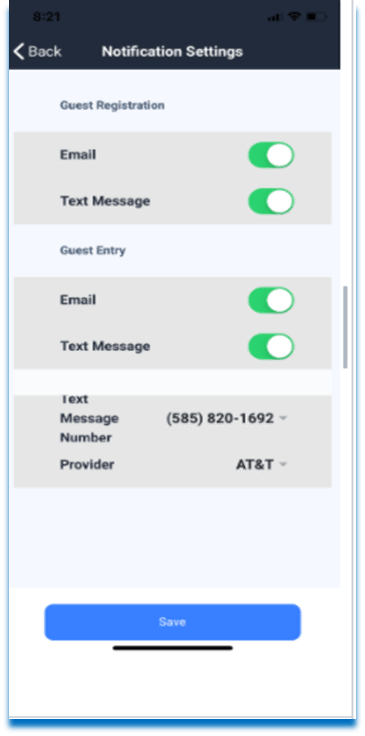
- Select the Profile icon.
- Select Notification Settings.
- The homeowner toggles to their notification preference (Email or Text Message.)
- Then selects Save.
Property Status
The homeowner can set the status of the property as either Occupied or not. A green indicator will display when Occupied is chosen.
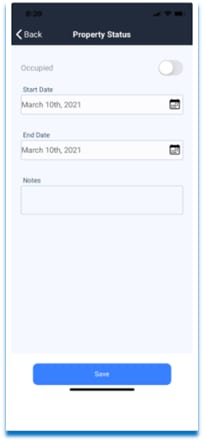
To Set a Property as Unoccupied:
- Select the Profile icon.
- Select Property Status.
- Toggle to indicate unoccupied.
- Select the dates the property will be unoccupied.
- Enter any necessary notes.
- Select Save.
- The Property Status and Notes field will reset the away dates occur.
Telephone Entry System (TES) Settings
The Telephone Entry System allows for Guests to call the homeowner. The homeowner can then allow entry.
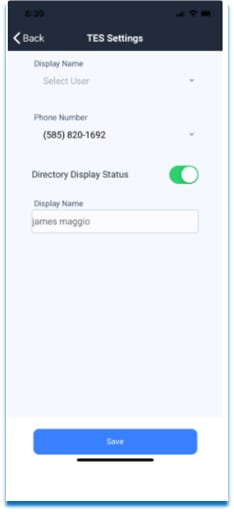
- Select the Profile icon.
- Select TES Settings.
- Select the Display Name from dropdown.
- Select the Phone Number from the dropdown.
- Toggle to Display information on the Directory or not.
- Select Save.