
Resident-FRONTSTEPS Mobile App Visitor Management-Parties
We’re updating this article. Some screenshots or names may look older than what you see in the product.
Notes
- The feature is available to all users as follows:
- Residents with the Mobile App
- Availability - This enhancement will be activated and available to all customers who purchase the Visitor Management Product integration.
Features
- Create a Party
- Create a Party from an Existing Party
- Edit a Party
- Delete a Party
The Home Page
The Home page lists the homeowner’s properties, as well as Profile data and the ability to log out.
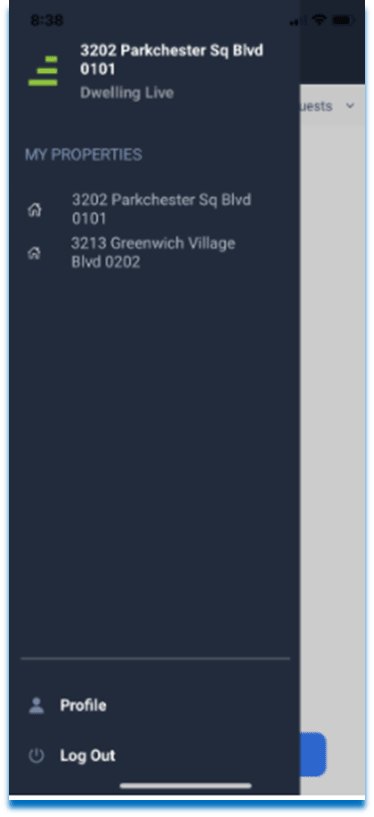
Select the Property from the My Properties menu option.
The Home page lists the homeowner’s properties, as well as Profile data and the ability to log out.
Select the Property from the My Properties menu option.
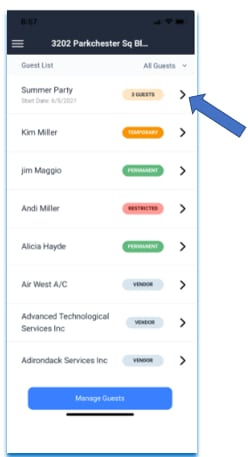
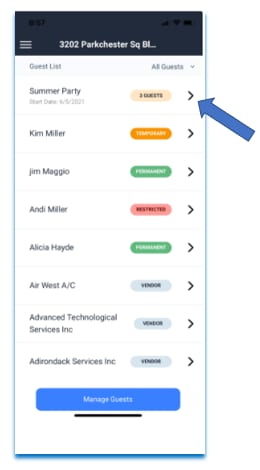
The Guest List displays Permanent, Temporary and Restricted Guests, as well as Parties and Assigned Vendors, just like on the FSC web portal. From here the carrot > provides homeowners the options to edit or delete Guests and Parties. The carrot > option next to Vendors provides the homeowner the ability to add or remove Vendors from their list.
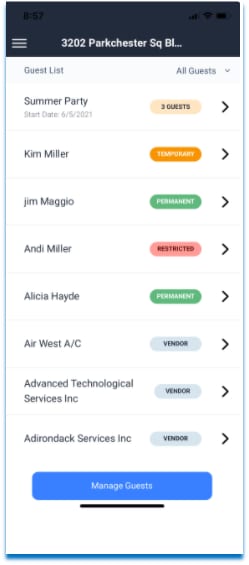
Parties
The homeowner can Add, Edit or Delete Parties from their mobile device.
To Create a New Party: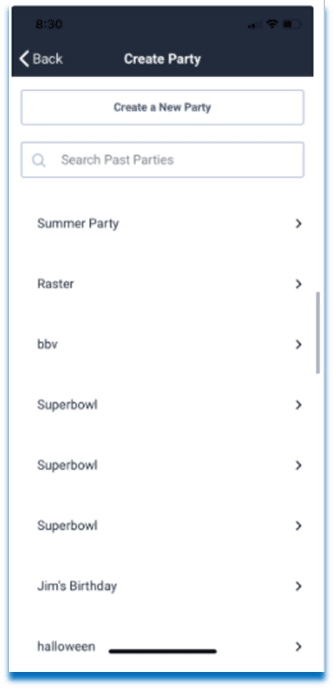
Parties
The homeowner can Add, Edit or Delete Parties from their mobile device.
To Create a New Party:
- From the Manage Guests button, select Create a Party.
- You can create a new party or create a party from an existing party.
- To create a new party, select Create a New Party.
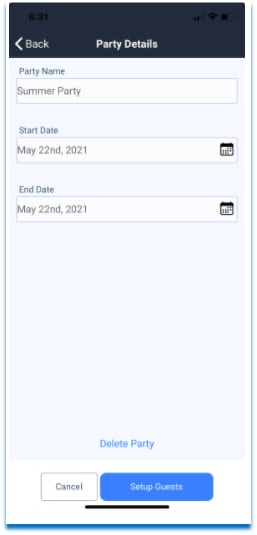
- Enter the Party Name.
- Enter the Start and End Date.
- Select Setup Guests.
When Select Setup Guests is selected, this screen displays:
Homeowners may change the name of the Party, Party dates or Guest List.
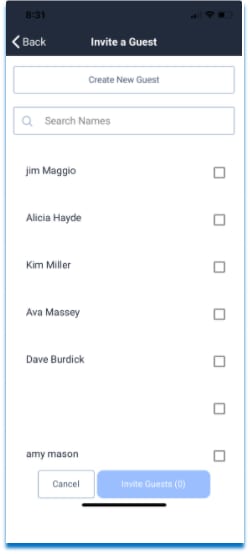
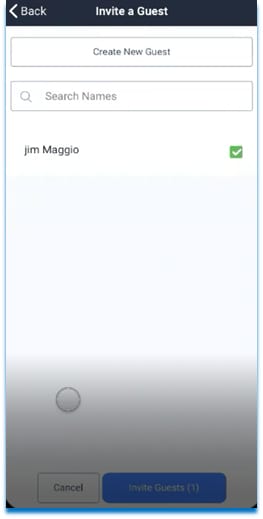
- Check the names of Guests to be invited to this Party.
- Select Invite Guests.
- The Guest’s name will now display for the Guard at the entry gate. Note: There is no option to receive an ePass from here.
To Create a Party from an Existing Party:
This option is utilized when the homeowner perhaps has the same party every year. For instance, a Summer Party where most of the same Guests attend each time.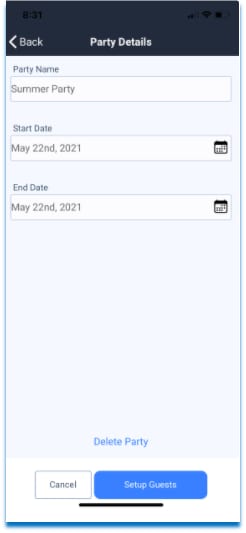
Edit PartyThis option is utilized when the homeowner perhaps has the same party every year. For instance, a Summer Party where most of the same Guests attend each time.
- From the Manage Guests button, select Create a Party.
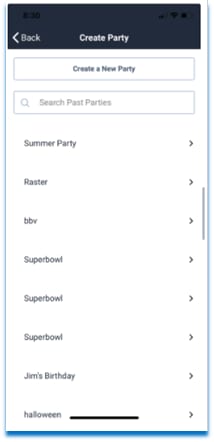
- Search the Past Party in the Search field.
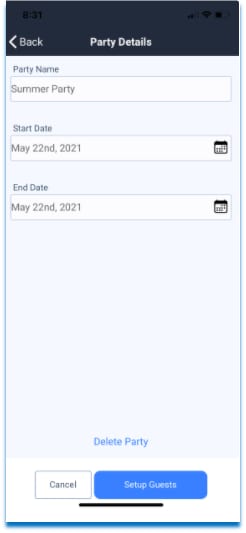
- Enter the Party Name in the Party Details screen.
- Enter the new Start and End Dates for the Party.
- Select Setup Guests.
- Guests from the Past Party will display.
- Check off the names of Guests you wish to invite to the new Party.
- Select the Invite Guests button.
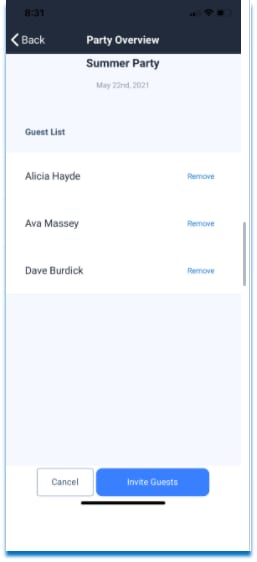
Homeowners may change the name of the Party, Party dates or Guest List.
- Select the Party from the Guest List.
- Select the carrot >.
- Select the Edit option.
- Guests may be removed from the Guest List, using the Remove button.
Delete Party
Homeowners may delete a Party from their mobile device.
Homeowners may delete a Party from their mobile device.
- Select the Party from the Guest List.
- Select the carrot >.
- Select the Delete option.
- Select Delete Party.