Resident-FRONTSTEPS Mobile App Visitor Management-Manage Guests
We’re updating this article. Some screenshots or names may look older than what you see in the product.
Notes
- The feature is available to all users as follows:
- Residents with the Mobile App
- Availability - This enhancement will be activated and available to all customers who purchase the Visitor Management Product integration
Features
Homeowners may manage Guests in the following ways:
- Invite Guests
- Create a new Guest
- Re-invite a Past Guest
- Delete a Guest
The Home page lists the homeowner’s properties, as well as Profile data and the ability to log out.
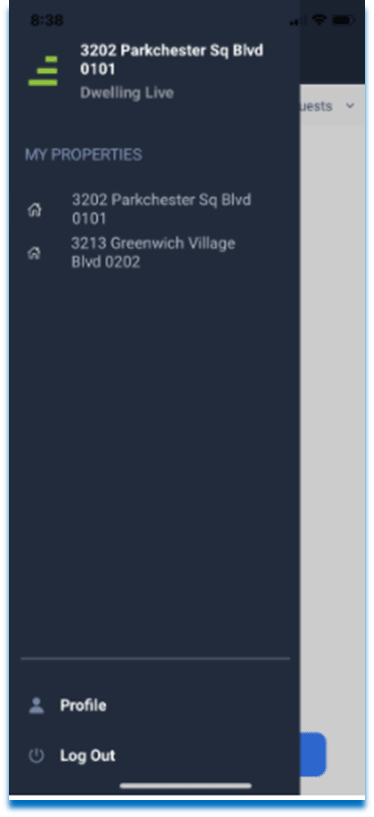
- Select the Property from the My Properties menu option.
The Guest List displays Permanent, Temporary and Restricted Guests, as well as Parties and Assigned Vendors, just like on the FSC web portal. From here the carrot > provides homeowners the options to edit or delete Guests and Parties. The carrot > option next to Vendors provides the homeowner the ability to add or remove Vendors from their list.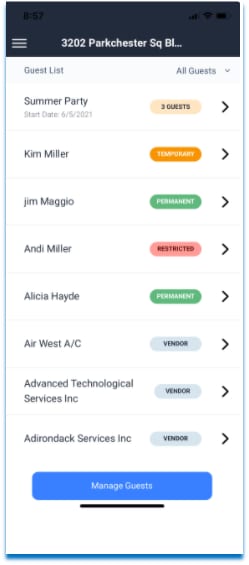
To Invite a Guest:
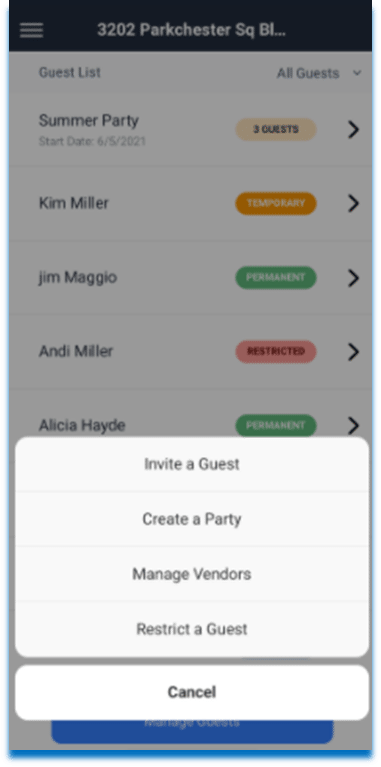
The homeowner can create a new Guest or invite existing guests. The homeowner can conveniently add Guest from the contact list on their phone.
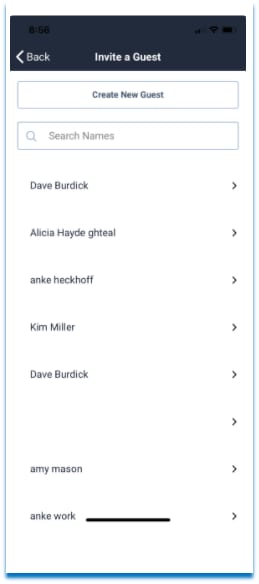
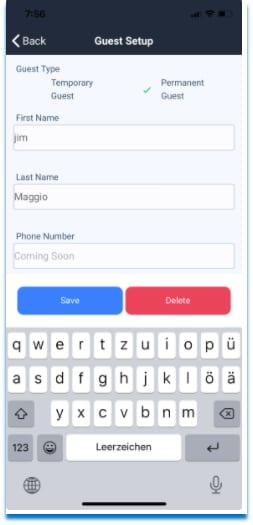
2. Note: The carrot > next to the Guest’s name provides option to edit the Guest. The type of Guest, phone number, and pass type may be edited here. The settings that are set in the Admin side of dwellingLIVE may limit the ability to add or edit a Guest from here.
To Create a New Guest to Invite:
- Select the Create New Guest button.
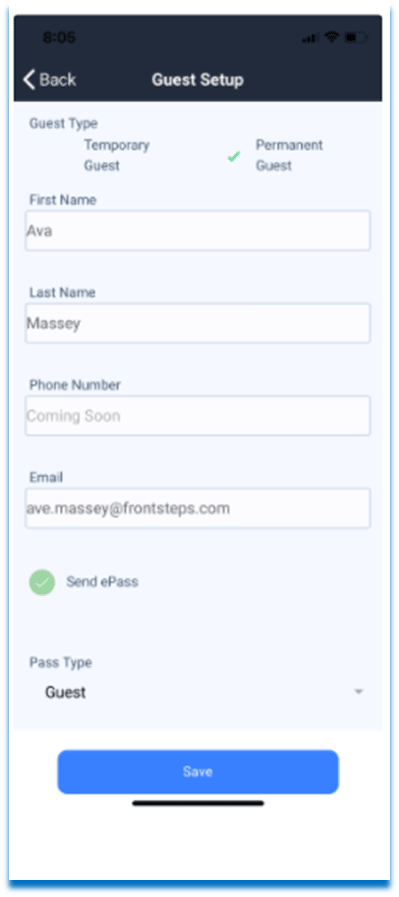
- Check Temporary or Permanent Guest.
- Enter the First and Last Name.
- Enter the Phone Number (phone number is for future SMS functionality).
- Enter the Guest’s email address.
- If you wish to send an ePass, check Send ePass. The ePass will be sent to the
Guest via email. - Select the Pass Type (customizable to meet the community needs and set up in dwellingLIVE Admin).
- Select Save.
- To edit Guest information, use this same screen to make modifications and then select Save
- Search on the Guest Name from the past 30 days.
- Select the Guest Name (which populates from the homeowner’s mobile app).
- Select Invite.
- In the Guest Setup window, the system will auto-populate the guest type and pass type, name, email address for both Permanent and Temporary guests.
- Select Start and End Dates.
- Add any Attendant Notes, if applicable.
- Check the Send ePass to guest box, if sending and ePass.
- Select Continue.
- Select the Guest from the Guest List page.
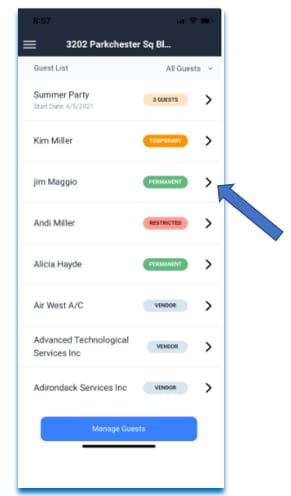
- Choose the carrot> next to the Guest’s name.
- Select the Delete option.
- On the next window, Select the Delete button.