
Resident-FRONTSTEPS Community- Visitor Management-Settings
We’re updating this article. Some screenshots or names may look older than what you see in the product.
Notes
- The feature is available to all users as follows:
- Residents
- Availability - This enhancement will be activated and available to all customers who purchase the Visitor Management Product integration.
Features
This enhancement provides the following features:
- Set Call Priority
- Create Verbal Codes
- Set Notification Preferences
- Set Phone Numbers for a Telephone Entry System
- Set the Property as Occupied or Unoccupied.
Settings
All Setting data pulls directly from FRONTSTEPS Dwelling. Homeowners may modify, as needed. Settings apply to the selected unit.
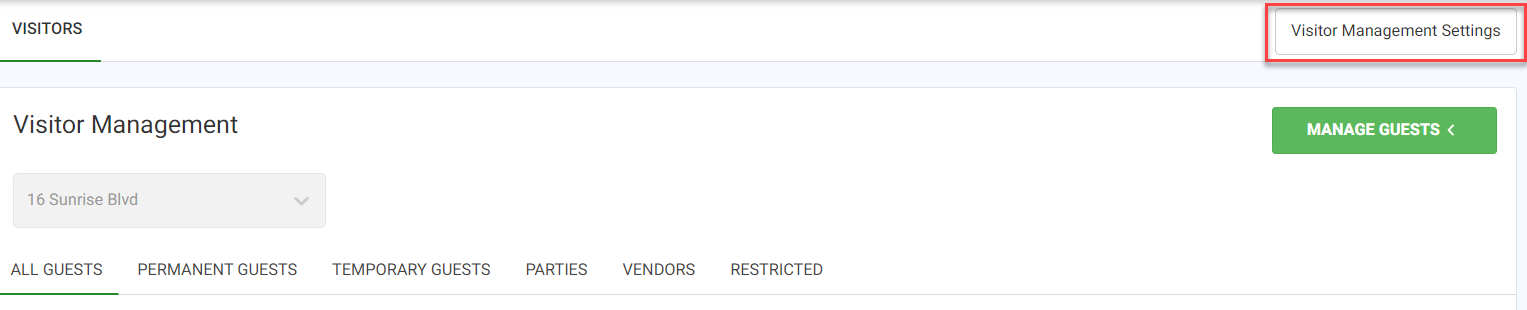
To access Settings, select Visitor Management Settings.
Call Priority
Call Priority allows the homeowner to set the order (of phone numbers) by which they would like to be contacted by the Guard when Guests and Vendors arrive. The options for setting call priority are linked to the phone numbers for any person in the household. The numbers available to select will only be the phone numbers listed in Account Basics.
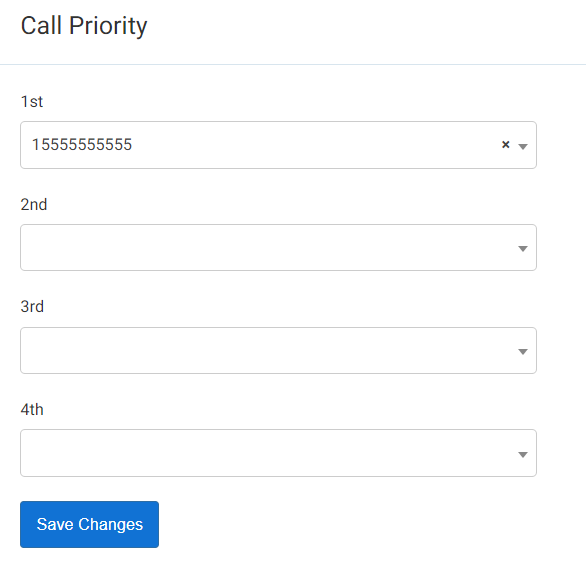
To Set Call Priority:
- Select Visitor Management Settings.
- Scroll to the Call Priority area.
- Select phone numbers from the drop down menu in order of call priority.
Note: Users cannot add phone numbers in this area. Phone numbers that have been added to their account basics will be visible in the drop down. - Select Save.
Guest Management Settings
Guest Management Settings include the Verbal (security) Code for the homeowner. The Call Restrictions field is a free text field the homeowner can use to communicate with the Guard. For instance, they may say, “Please do not call after 9pm, or use Call Priority #2 on Tuesdays.”
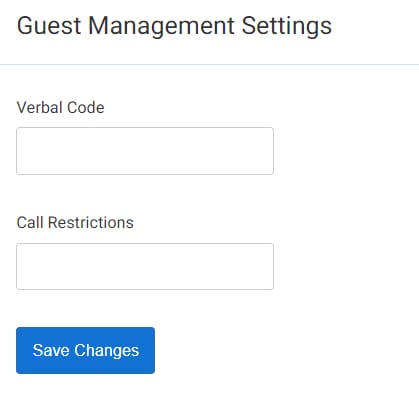
To Set Guest Management Settings:
- Select Visitor Management Settings.
- Scroll to the Guest Management area.
- Enter the Verbal Code.
- Enter any Call Restriction instructions.
- Select Save Changes.
Notification Settings
The Notifications Settings allow the homeowner to decide how they prefer to be informed when a when a Guest enters the community (Email or Mail).
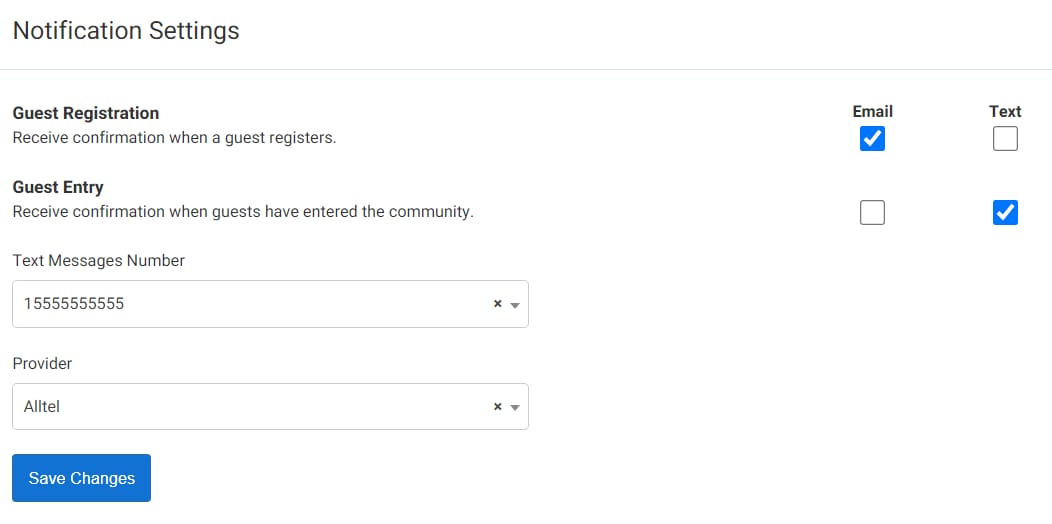
To Set Notification Settings:
- Select Visitor Management Settings.
- The homeowner checks their notification preference (Email and/or Text Message).
- Then selects Save Changes.
Telephone Entry System Settings
The Telephone Entry System allows for Guests to call the homeowner. The homeowner can then allow entry.
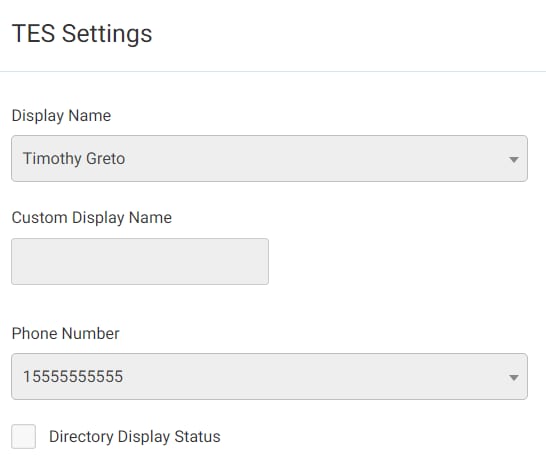
To Set TES Settings:
- Select the Visitor Management Settings.
- Scroll to TES Settings.
- Select the Display Name from dropdown.
- Select the Phone Number from the dropdown.
- Check to Display information on the Directory or not.
- Select Save Changes.
Property Settings
Allows the homeowner to set the property as Occupied or not. Unoccupied dates are set by selecting the Start and End Dates.
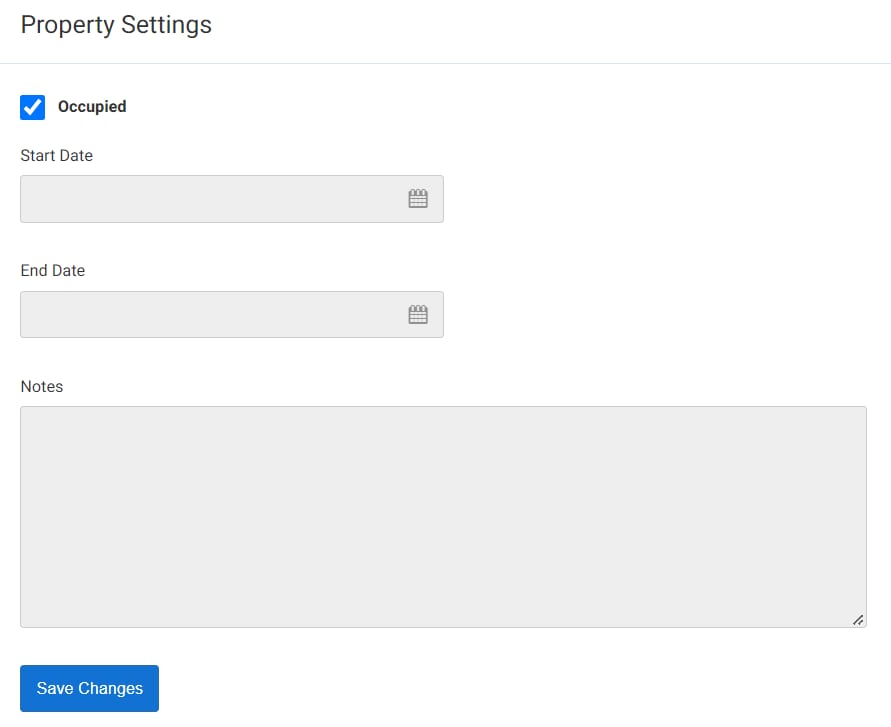
To Set a Property as Unoccupied:
- Select the Visitor Management Settings.
- Scroll to Property Settings.
- Uncheck to indicate the property is Unoccupied.
- Select the dates the property will be unoccupied.
- Enter any necessary notes, as needed.
- Select Save Changes.
- The Property Status and Notes field will reset to Occupied after the end date passes.