
Resident-FRONTSTEPS Community- Visitor Management-Manage Restricted Guests
We’re updating this article. Some screenshots or names may look older than what you see in the product.
Notes
- The feature is available to all users as follows:
- Residents
- Availability - This enhancement will be activated and available to all customers who purchase the Visitor Management Product integration.
Features
- This enhancement provides the following features:
- The homeowner to view, edit, remove, and add Restricted Guests.
Restricted Guests are Guests or Vendors the homeowner wishes to restrict community access to for that homeowner. Restricted Guests can be added, removed, or edited.
To View Restricted Guests:
- Navigate to the Visitor Management menu option>select the Restricted tab.
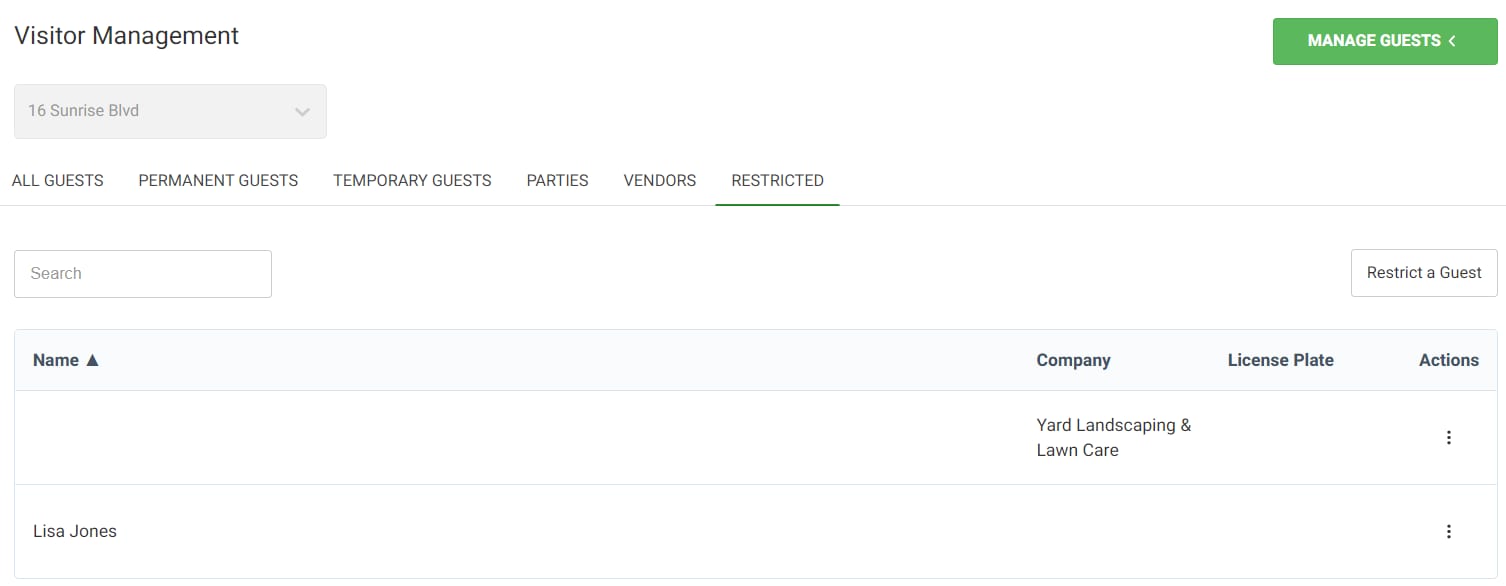
- From there, the Name, Company Name (if applicable-for Vendors) and License Plate number of the Restricted Guest can be viewed.
- The Actions drop down allows for Restricted Guest to be removed or edited.
To Add a Restricted Guest:
- Navigate to the Visitor Management menu option>select the Restricted tab.
- From there, the Name and License Plate number of the Restricted Guest can be viewed.
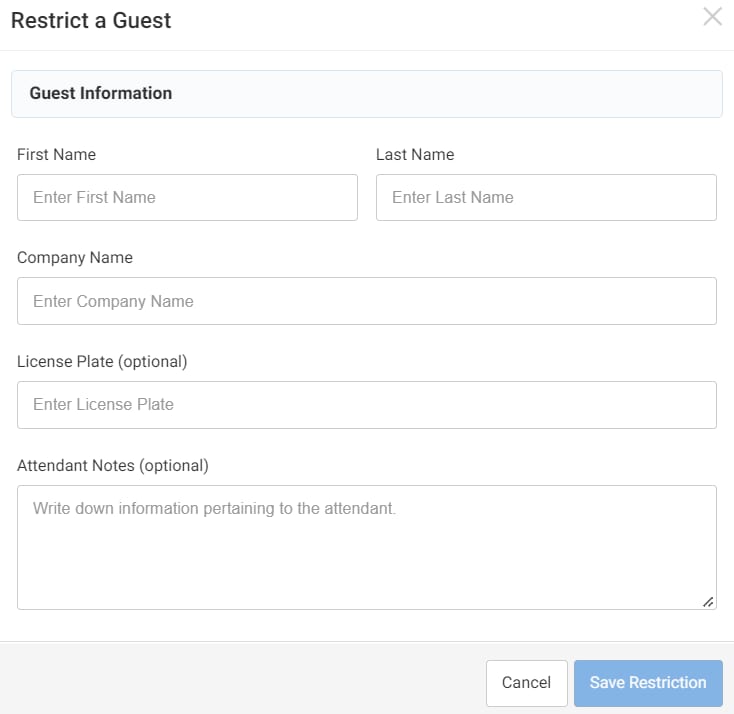
- Select the Restrict a Guest button or the Manage Guests drop down > Restrict a Guest.
- Enter the First Name and Last Name.
- A Vendor, or other company name, can be entered in the Company Name field.
- Enter the License Plate number (required), so Guards do not allow the vehicle to enter.
- Optional Attendant Notes may be added for the Guard.
- Select Save Restriction.